Parts
Parts need the Pro plan. On any other plan the tab opens an upgrade dialog instead.
A part is something the configured product is made of - an anchor, an owner's manual, a mounting kit, a length of chain. The Parts tab of the GUI section is where you list them, and where you say when each one is included. Price it lists the boat's.
This is the difference between parts and priced options. An option is a question you ask the shopper, and it charges when they choose it. A part is a fact about the product, and it appears whenever its condition holds, whether or not the shopper knows it exists.
Charged, or only recorded
Every part is one of two things, and the difference is simply whether money is involved. The tab says which beside its name: charged or recorded.
Charged. You link it to a real product in your store, let the shopper's choices pick one of your variants, or type a price on it. A linked part ships as its own line on the order and decrements your stock. It is charged at that product's price: with Product lines charging, the price Shopify has for it now; with Bundled parts charging, the price it had when you last published. A part with a typed price but no product is charged too, but nothing ships for it - use it for a cost that is real but has no item behind it.
Recorded. No link and no price. It never costs anything and it never reaches the cart. It exists so that Order review, the parts list and the export say what the thing is made of, which is how you get a works order that a person can build from. Owner's manual and Anchor, 40 kg are recorded parts.
Adding a part
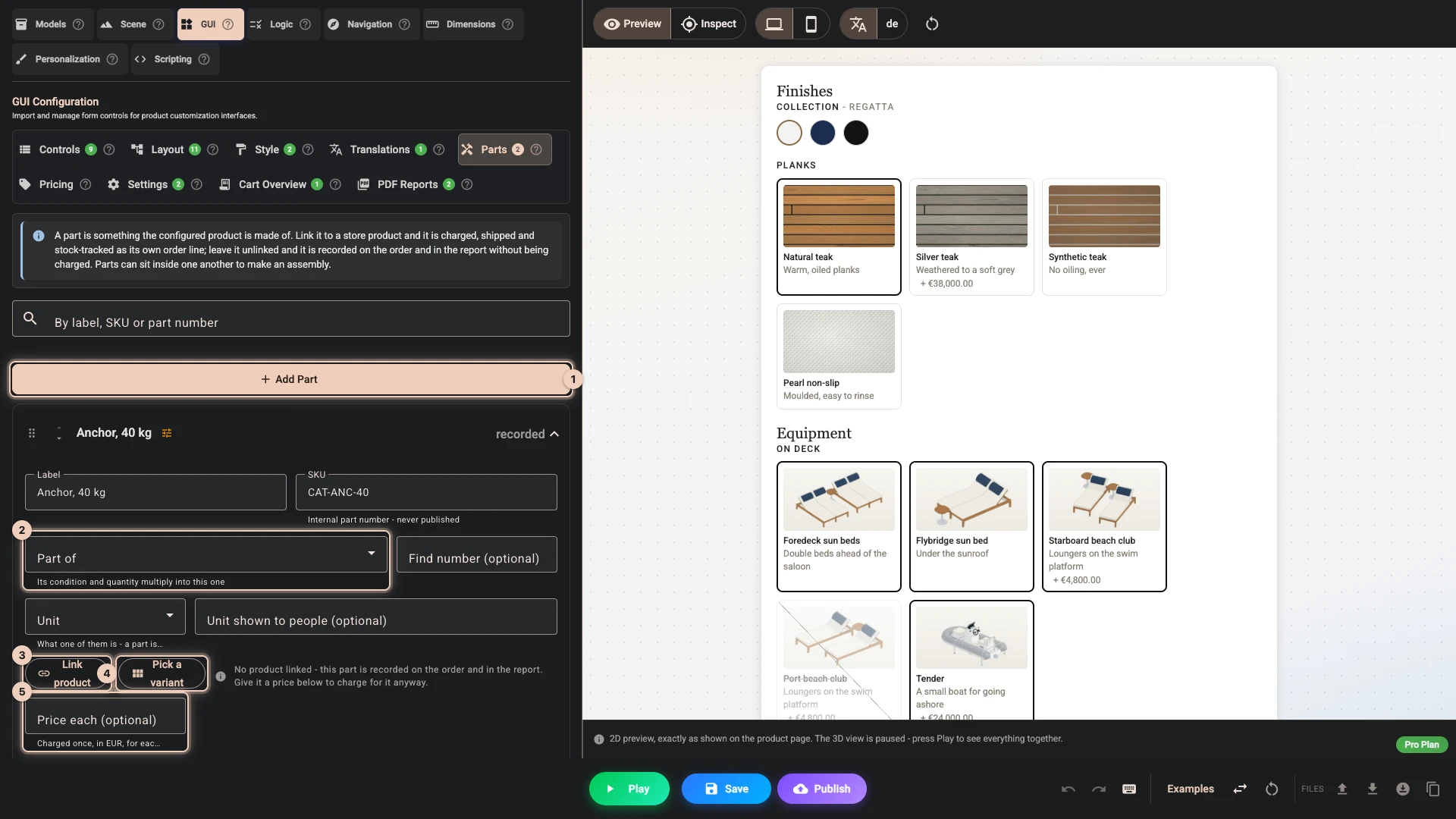
Add part 1, then fill in what you know. Only the label really matters to begin with.
| Field | What it is for |
|---|---|
| Label | What the part is called. This is what the shopper sees in a parts list and on the PDF. |
| SKU | Your internal part number. See What is published below. |
| Part of 2 | Puts this part inside another one, making an assembly. |
| Find number (optional) | A stable number for drawings and works orders. It is yours to set, and deleting a part never renumbers the others. |
| Unit | What one of them is - a piece, a kit, an hour. |
| Unit shown to people (optional) | Your own wording for that unit, if the standard one is not how you say it. |
| Price each (optional) 5 | A price when there is no product to link. Offered only while the part is unlinked. |
| Quantity and Quantity expression (optional) | How many, fixed or worked out from what the shopper chose. |
| Already part of the base price | The part adds nothing on top. Bundled parts charging only, for a linked part. |
| Included when | The condition that decides whether the part is in this configuration at all. |
| When it runs out and Only while | Which shopper choices give way while this part cannot be sold. |
Linking a product
Link product 3 points the part at something real in your catalogue. It is then charged at that product's price, as above, and it ships. Pick a variant, not just the product: publishing refuses a part linked to a product alone. Composer asks first if you have typed a price, which is removed: a part may not have two prices.
Creating a product from a part
If a part turns out to be something you actually sell, Create product adds it to your store and links it in one step, taking any price you typed with it. The product is yours: it is created Active and on your Online Store, so it shows in your storefront like any other product, and it is editable, sellable on its own, and reusable in other configurators. Its stock is left untracked so this configurator is never blocked by inventory you did not mean to manage - turn tracking on in Shopify when you are ready.
A part that picks one of your variants
A part can be one of the variants of a product you sell, chosen by the configuration. Say the boat's fenders come in sizes and colours, and you already sell each combination as a variant of one product. Point the part at that product, tell 3D Bits which of your controls picks each of its options, and the configurator puts the matching variant in the cart.
The variant is charged at the price Shopify sets for it, and it reaches the order as your own product, so your stock counts stay right. It needs Product lines charging - see Charging methods.
Setting one up
- On a part, choose Pick a variant 4. On a part with a price typed on it, Composer asks first: the typed price is removed and the variant is charged at its own price.
- Pick the product. 3D Bits reads its options and variants.
- For each of the product's options, choose what picks it: one of your dropdowns or radios, or an Always value.
- Match each choice of that control to one of the option's values. Names that already match are filled in for you. Set a choice you do not sell to Not sold.
The part keeps everything else a part has: its condition, its quantity or quantity expression, and its place in an assembly. Several parts can pick from the same product - a port and a starboard fender, say.
Beside the product's name:
- Open in Shopify opens the product in your Shopify admin, in a new tab.
- Refresh from Shopify reads the product's variants again and keeps your matches. It follows an option or a value you renamed in Shopify, and tells you what changed: variants added or removed, names changed, options Shopify added or no longer has, a value the part always picked that Shopify no longer has, a match it moved to another value, and any match it could not keep. A choice whose match could not be kept is Not sold until you match it again. What needs a look stays above the part's matches until you choose Done.
- Pick another product replaces the product. The choices keep their matches wherever the new product has values of the same names, so use it for a product you deleted and made again, or a configurator moved from another store. When a refresh finds the product gone, the part says so and offers Pick the replacement.
- Unlink product stops the part picking from that product, and asks first.
Refresh variants from Shopify, above the list of parts, reads every product your parts pick from again in one go.
Reading the summary under the part
Under the part's name are when its variants were last read from Shopify and how many there are. A line under the matches counts the combinations your choices can reach that have a variant, the ones that have none - shoppers see those crossed out - and any variant of the product no choice reaches. Below it, the combinations not sold, the variants without a SKU and the variants no choice reaches are named. View the variants lists every variant with the choices that pick it, its SKU, its price and whether it sells, grouped by the product's first option. Search it by any words of a variant, a SKU or a choice, or narrow it with Show. SKUs and prices come from Shopify: change them there, then refresh the part.
The line also names what publishing waits on:
- An option nothing picks: each of the product's options needs a control or an Always value.
- A choice its control no longer offers: the match stays in the list as a row such as Midnight - no longer offered by the control, with a remove button that asks first. Publishing waits until you remove it.
- An optional control: a radio a shopper may leave empty is named too. It does not stop publishing, but leaving it empty picks no variant, so the shopper cannot add the configuration to the cart until they choose.
A choice set to Not sold never stops publishing.
What shoppers see
- The part is priced at the variant's price in Shopify, in the shopper's currency.
- A choice that would reach a combination you do not sell is shown faded, with a hint naming what picking it changes, such as "Not sold with your current choices - picking it changes Collection to Regatta". Picking it makes that change, so the shopper lands on a combination you sell. This works whether or not live catalog is on.
- With Disable options that cannot currently be sold (live catalog) on in the Pricing tab, a variant that sells out is treated the same way: see When it runs out.
- A shopper who still reaches a combination you do not sell is told at Add to cart: "This combination of options is not sold - please choose different options and add it to your cart again."
- When your parts can pick more than 500 variants between them, the configurator checks stock only for the variants the shopper's choices pick, so a sold-out variant shows once the shopper's choices reach it.
When you change the product in Shopify
| Change | What happens |
|---|---|
| A variant's price | Followed at once: the configurator shows it and checkout charges it |
| A new variant | Not sold until you refresh the part and publish. Publishing warns about it |
| A variant deleted | That choice is treated as not sold. Publishing warns, and a refresh clears it |
| An option or a value renamed | Followed: publishing uses the new name, says so, and shoppers see it. Refresh the part to see it in Composer too. If publishing stops on it instead, refresh the part once, match the value again and publish - from then on renames are followed |
| Two values swapped names, or a new value given a renamed one's old name | When a choice picks one of them, publishing stops, since the part cannot tell which value the choice means. Refresh the part and check its matches. Values no choice picks are followed |
| An option value removed | That choice no longer matches - publishing stops and names it. Refresh the part, match it again and publish |
| An option added or removed | Publishing stops and names it. Refresh the part, then match its options again |
| The product set to draft or archived, or taken off the Online Store | Publishing stops and names it. Make it Active or Unlisted and sold on the Online Store, or remove the part |
| The product deleted | Publishing stops. Refresh the part and Pick the replacement, or choose Pick another product at once. Either way the matches carry over where the values have the same names |
Limits
- Each such part takes a little more room in the cart than other lines, so many of them lower how many configured items one cart can hold - see How many configured items fit in one cart. Publishing tells you the number, and refuses a configuration that could not fit even once.
- Very many choices matched to variants, beside many products the configurator charges, can take more room than checkout reads for one product. Publishing stops and says so: match fewer choices, or charge fewer products.
- A configuration with such a part checks out only as one combined line, and Shopify combines a line of at most 2,000 units. Publishing stops when one line of the group could carry more, and names the configuration.
- Any number of configurators can pick the same variant.
What publishing refuses has the rest, and Pricing troubleshooting lists what each publish message about these parts means.
Assemblies
Part of nests one part inside another, which is how you describe a real build. Three things follow:
- Conditions add up. A child is included only when its own condition holds and every condition above it does. A chain inside an assembly that only appears on the 25 m boat is itself only on the 25 m boat.
- Quantities multiply. Two anchor sets, each with four shackles, is eight shackles.
- A condition follows the answer, not the question. If a part is included when Planks is Silver teak, and Planks itself is only shown on the 25 m boat, the part is still included while Planks is hidden, because Silver teak is still the stored answer, kept in case the shopper switches back. A priced option on a hidden control is not charged, so the two behave differently on purpose. If a part should only be included while its control is on screen, add that control's condition to the part as well.
A parent does not have to be a real product. Leave it unlinked and it is a grouping: it ships nothing itself, while the parts inside it ship and are charged normally. That is the right shape for "Ground tackle" as a heading over the pieces that actually go in the box.
If you link a product to an assembly and to the parts inside it, all of them are charged and all of them ship. That is correct when the pieces go in the box loose, and wrong when the assembly product already contains them.
Only you know which. Publishing raises an advisory naming both, and clearing the link on the assembly keeps its grouping and its condition while stopping it charging twice.
How many
Quantity is a plain number for the parts that never change. Quantity expression (optional) is for the ones that do, written over your control keys the same way a pricing formula is - width / 300, say, for the number of brackets a run needs.
When you write an expression, a Round selector appears, because the answer will rarely be whole. New parts round up.
| Round | Use it for |
|---|---|
| Up - the covering quantity | Almost always. Three and a bit brackets means you need four. |
| To the nearest | When over and under are equally acceptable. |
| Down | When a partial one is simply not fitted. |
| Not rounded | Only for a recorded part, where the fraction is the answer. |
Where several parts need the same expression, write it the same way on each of them. Checkout works out each distinct expression once and reuses the answer, which can be the difference between a project that publishes and one that is refused - see Managing complexity.
Anything you charge for ships as a whole number of things. Type a fractional quantity on a charged part and publishing refuses it outright. Leave a quantity expression unrounded and publishing warns instead, because it cannot know what the expression will work out to. At checkout the result is rounded to the nearest whole number, so 2.35 is charged as 2 and 2.6 as 3, and a result below 0.5 leaves the part out of the cart. Either round it, or take the price and the product link off and record the measurement instead: 2.35 metres of chain is the honest figure for a cutting list, as long as nobody is charged for 2.35 of something.
Units
A unit says what one of them is: Piece (H87), Each (EA), Kit (KT), Hour (HUR).
Units never touch the price. The price comes from the linked product or from what you typed, and both are prices for one of the thing. This is why there are no metres, kilograms or square metres in the list: offering "per kilogram" beside a price invites a reading that nothing here performs.
If you want a measurement in front of people, put it in Unit shown to people (optional). It is your own wording and it is only ever displayed.
Already part of the base price
Tick this when the base price you typed already covers the part.
With Bundled parts charging, the part still ships as its own order line and still decrements stock. It simply adds nothing on top. Use it when your base price is the price of the whole default configuration rather than of a bare product.
With Product lines charging, publishing refuses it on a part that links a product or picks one of your variants. There the base price is your product's own price in Shopify, and a linked part reaches the cart at its own price, so it cannot also be inside the base price. Untick it and lower the base price by what the part costs, so shoppers pay the same as before.
When it runs out
Tell the configurator which shopper choices this part depends on, for when your catalogue says it is sold out. There are two ways to write it, and they behave differently.
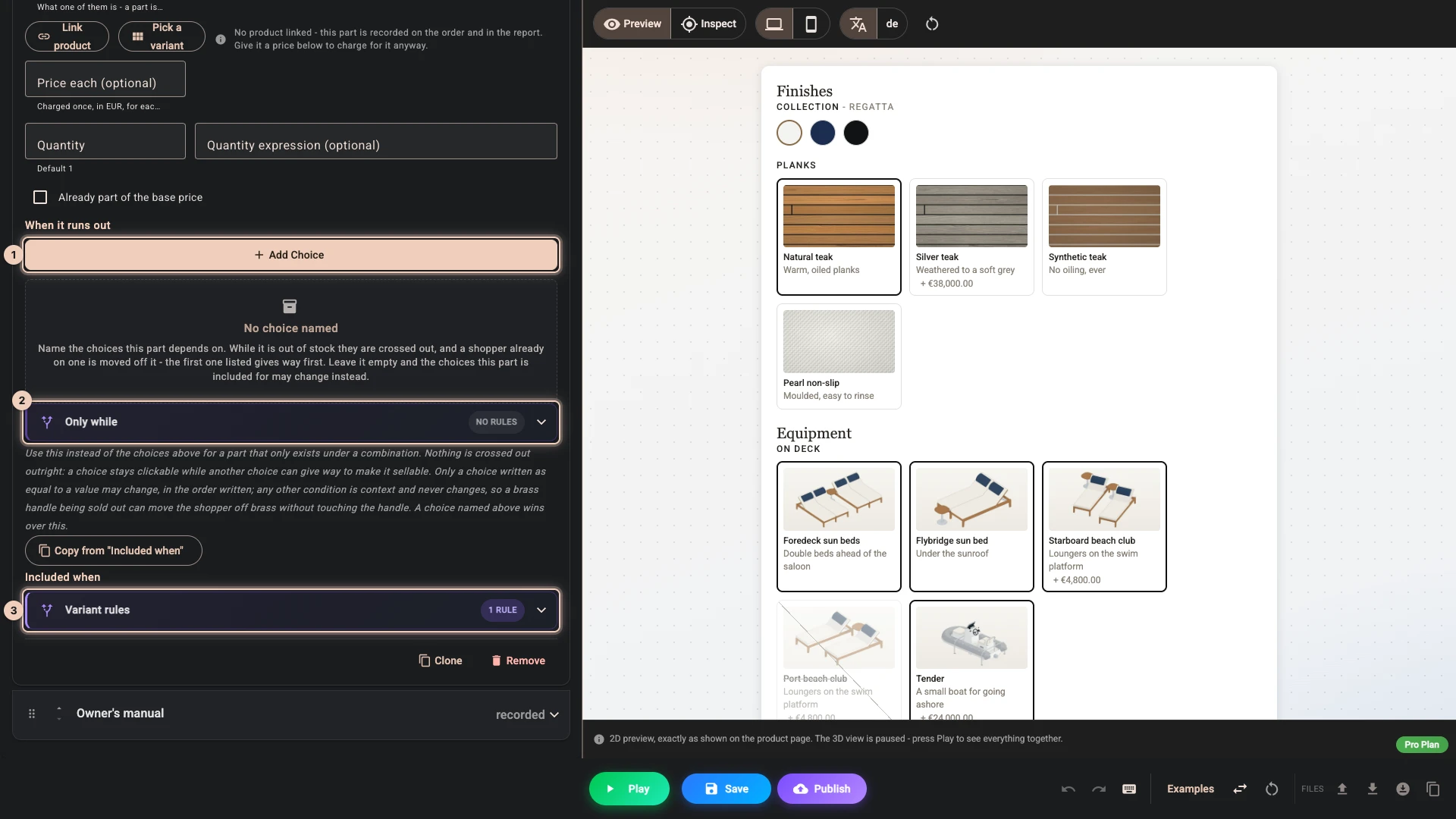
A list of choices, added with Add choice 1, suits a part that one choice decides. While the part is sold out, every choice in the list is crossed out, and a shopper who is already on one is moved off it - the choices are tried in the order you listed them - with a short note saying what changed.
Only while 2 suits a part that a combination decides, and is described below. Nothing is crossed out outright: the configurator keeps what the shopper just picked, changes as few of the named choices as it can to reach a configuration you can sell, and tells the shopper what changed.
With Only while, or with nothing named at all, shoppers see three kinds of choice:
- Available - picking it changes nothing else.
- Marked - it is out of stock with their current choices, but picking it still works: the configurator changes another choice to make it sellable. The choice is dimmed and its tooltip says what picking it changes, for example Out of stock with your current choices - picking it changes Collection to Midnight. After the click, a note beside Add to cart says what changed, and the choice that changed is briefly highlighted.
- Crossed out - nothing can make it sellable, so it cannot be picked.
A tick box add-on never changes the main choices: if its kit is sold out for the current size, the add-on is crossed out rather than switching the size.
The part has to link a store product - a part with a typed price has no stock to run out of - and the project has to have Disable options that cannot currently be sold (live catalog) switched on in the Pricing tab. With either of those missing, filling this in is harmless but nothing is ever crossed out.
Naming nothing is safe too: the choices the part is included for may change instead, just as with Only while, and a configuration that still needs a part you cannot sell is refused at Add to cart. When nothing may change, the shopper keeps what they picked and Add to cart tells them what is out of stock. A choice that needs an answer is never left empty to get around stock; an optional one may be cleared, and an add-on switched off.
A part that exists only under a combination
Take a black sport wheel, fitted only when Helm is Sport and Collection is Noir. If it is sold out, a list naming Sport would cross Sport out, and that is too much: the Sport helm is in stock for the other two collections.
Only while is that case. Give it the same condition you would write in Included when 3 - Helm equals Sport and Collection equals Noir - and the choices it names are the ones that may change, in the order written. A shopper on Noir who picks Sport keeps Sport and is moved to another collection, with a short notice saying so; Sport is only crossed out when no collection can make it sellable.
Only a choice written as equal to a value may change. Write it with any other test and it becomes context: it still decides when the part is needed, but the configurator never changes it. Use that to protect a choice you never want moved.
Copy from "Included when" fills it in from the condition the part already carries, which is usually exactly what you want.
Two things to know. A choice named in the list wins, so use one or the other on a given part. And a condition written as a typed expression rather than with the condition builder names no choice that may change - there is no single choice to read out of an expression.
Where your parts appear
- The option panel, if you add a Parts list element in the Layout tab, or a Price element that draws its breakdown as parts. Neither ever shows SKUs.
- The PDF documents, if you add a Parts table section. See PDF reports. It shows labels, quantities and units, never SKUs.
- Order review in the 3D Bits app, against the version the order was actually sold under.
- A parts export, downloadable from Order review as a spreadsheet, shaped for a cutting list.
What is published, and what is not
When you publish, your configuration is uploaded to a public address that every product page downloads. The SKU is removed from that copy and is the only field that is.
Everything else on a part is published: its label, its price, its quantity and expression, its unit, its position in the assembly, and the product it links to. Anyone who views your product page source can read them.
Two things follow. Do not put cost codes or supplier names in a part's label - it is shown to shoppers and it is public either way. And do not carry the "SKUs are stripped" conclusion across to the manufacturer code field on an option, which is published in full.
The SKU still reaches you, in the parts export on the order page. Publishing keeps it out of the configuration shoppers download, and no order property or PDF carries it. One exception: if you let publishing create products for your parts, each new product takes the part's SKU as its own Shopify SKU, and from then on it is as public as any SKU in your store.
Downloading or copying is a different path
"Removed on publish" means removed by publishing. Download scene config (.json) and Copy scene config to clipboard give you the configuration as it stands, SKUs included, because the documented uses for those files - a backup, moving a project to another store, sending it to support - all want them.
If any part has a SKU, Composer asks before it hands you the file, and you choose. Keep them for a backup. Remove them if you are going to paste the file into a product metafield by hand through the older metafields workflow, since anything pasted onto a product is downloaded by every visitor to that page.
Download project file never asks and never strips: it exists to restore your work exactly, and a backup missing your part numbers is not a backup.
What publishing refuses
Checkout works out every part and every condition on it for each configured item, and that work is budgeted. Publishing measures it and refuses a project that would not finish, naming what is costing the most. Managing complexity gives the limits.
Publishing also stops rather than going live with parts that could not be charged correctly. It refuses:
- a part carrying both a typed price and a linked product;
- a part linked to a product without one of its variants;
- a part whose linked variant was deleted, or whose product is a draft, archived or not on the Online Store;
- a fractional quantity on a part you charge for;
- a negative price;
- a priced, unlinked part marked as already part of the base price, since that would quietly discard the price;
- with Product lines charging, a part that links a product or picks one of your variants and is marked already part of the base price;
- a part that is inside itself, directly or through a chain;
- a part that picks one of your variants with Bundled parts charging, or from a product that is itself configured, or from this configurator's own product;
- a part that picks one of your variants while one of the product's options has no control and no Always value, or while it matches a choice its control no longer offers;
- a part that picks a variant this configurator also charges through an option or another part.
Single line charging moves a project with such a part to Product lines rather than refusing it.
Where to go next
- Pricing - the base price, formulas and the rest of the tab next door.
- Setting up pricing - the walkthrough, from nothing to a live price.
- Linked products - charging through products you already sell.
- Managing complexity - how many parts and options a project can carry, and which choices are expensive.
Verified against the product in November 2026