Screenshot
The Screenshot element in the Layout tab gives shoppers a button that saves a picture of the product they configured, to keep, compare or send to someone. It needs the Standard or Pro plan, and publishing is refused without one.
The picture is drawn in the shopper's browser and saved to their device. Nothing is uploaded or attached to the order; for a picture on the order, use the order snapshot in Settings.
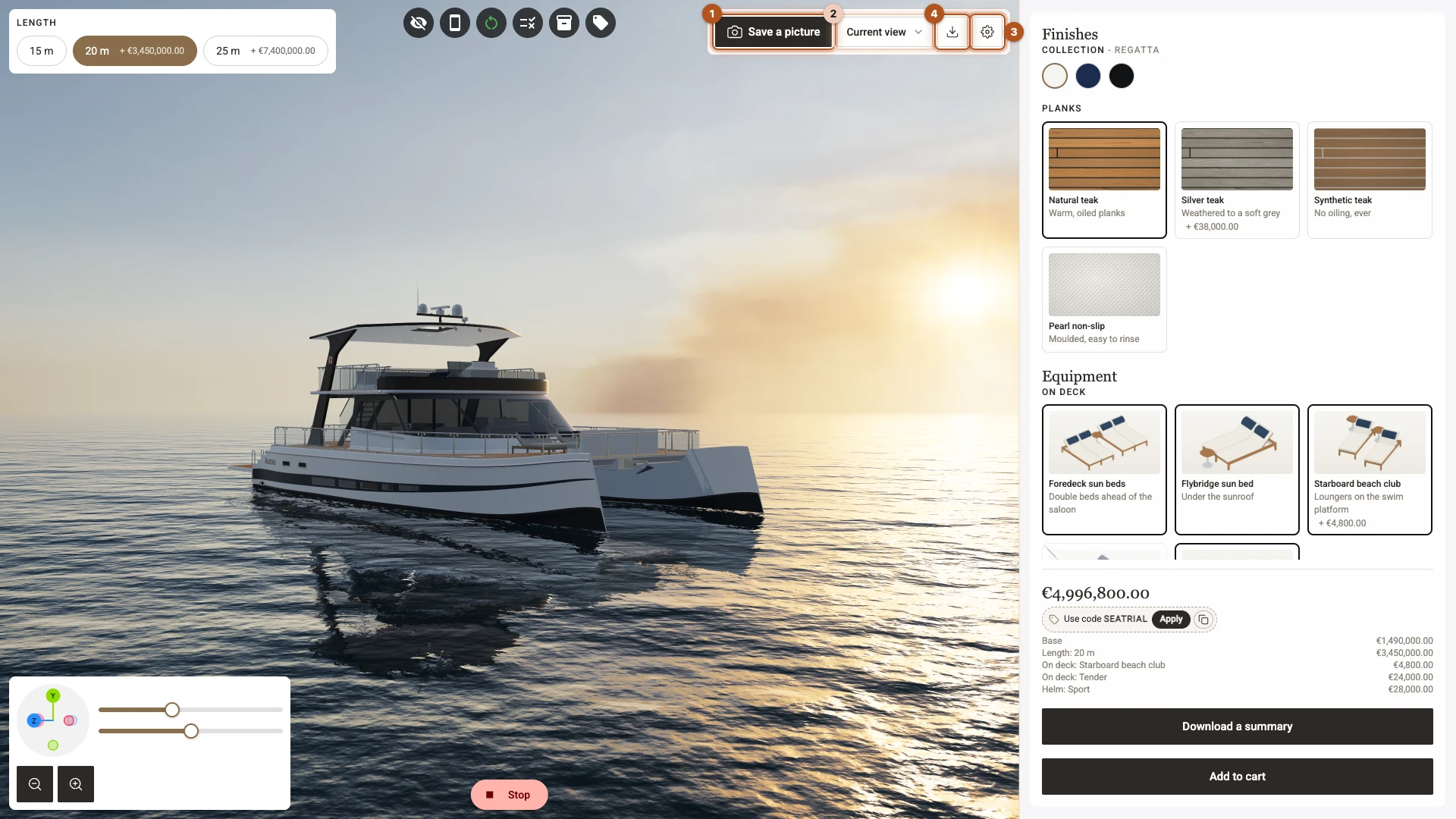
In Play the element is a button 1, the list of views 2, the gear for the size and shape 3 and the button that saves every view 4.
What the shopper can capture
- The current view - the 3D view exactly as the shopper sees it at that moment. It is on by default; untick Offer the current view to offer only named views.
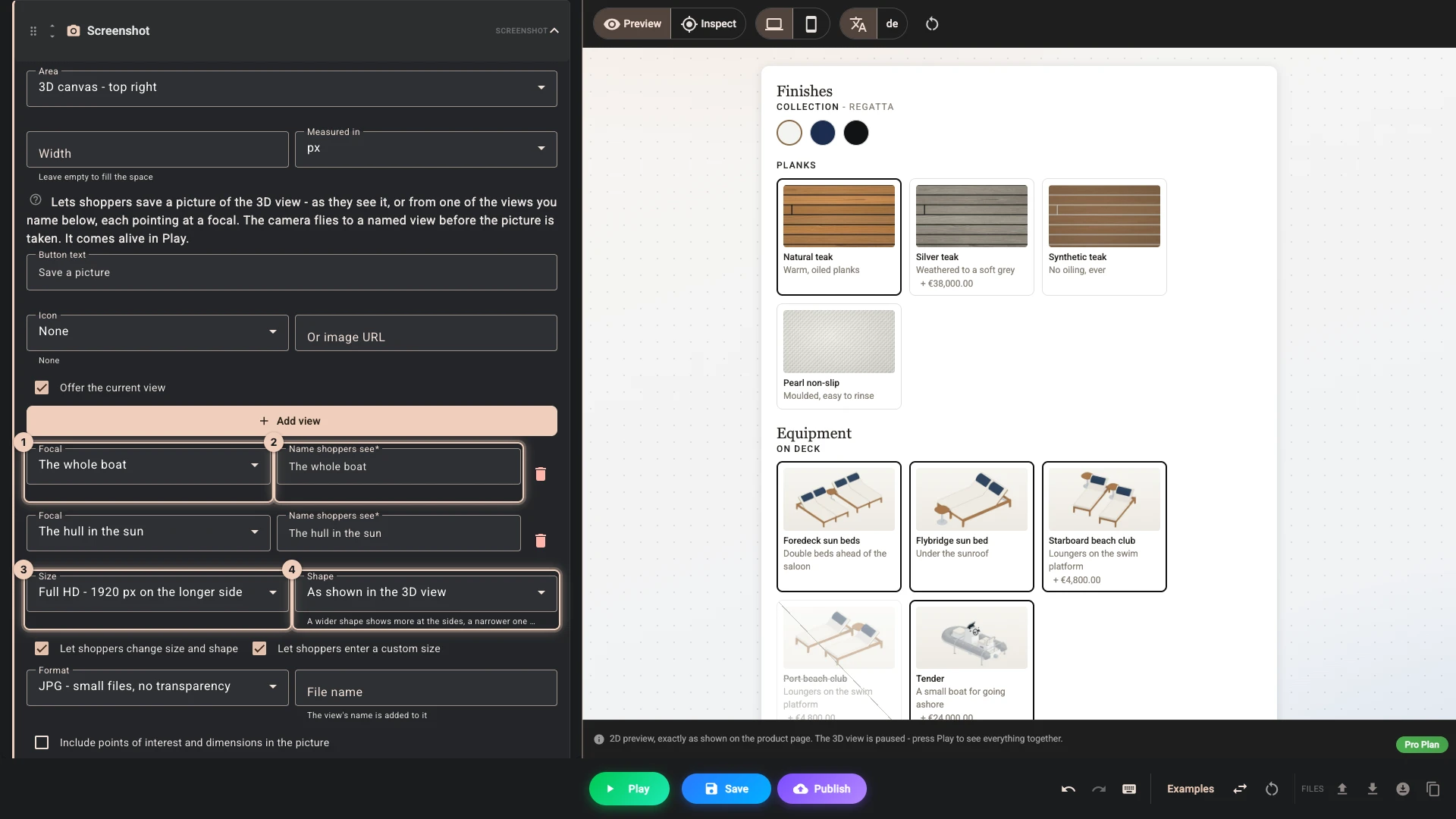
- Named views - up to twelve views you add with Add view, each pointing at a focal 1 for its camera and carrying the Name shoppers see 2, such as "The whole boat" or "The hull in the sun". When the shopper picks one, the camera flies there with an animation, a short flash marks the moment the picture is taken, and the file downloads. A focal that fits to models is refitted for the picture's shape, so the product stays framed even in a square picture.
With more than one choice, a dropdown beside the button lists them and shows the one selected; the button then takes that view. With a single choice the dropdown is left out and the button takes the picture at once. Shoppers who ask their device for reduced motion get a jump instead of the flight and no flash.
The names you give the views, the button text and the file name are translatable like every other text in the panel, under Translations.
Size and shape
- Size 3 is measured along the longer side, Full HD by default: HD is 1280 pixels, Full HD 1920 and 4K 3840. Custom width and height takes an exact width and height instead, each between 64 and 4096 pixels.
- Shape 4 is As shown in the 3D view by default, which matches the view exactly. The others - Wide 16:9, Classic 4:3 and Square 1:1 - show more at the sides when wider than the view and less when narrower.
Every size is limited to what the shopper's device can render, at most 4096 pixels a side, and is scaled down whole so the shape never changes.
With Let shoppers change size and shape ticked, a gear beside the button opens a dialog over the middle of the 3D view where shoppers pick the size and shape themselves, including a custom width and height unless you untick Let shoppers enter a custom size. It shows the pixel size the choice will produce, and the choice is remembered on their device for the next picture and the next visit. The dialog takes the theme's colours, fonts, borders and option buttons, so it matches the rest of the panel.
The file
Pick the Format the picture downloads in:
- JPG keeps files small, but cannot be transparent.
- PNG is lossless, but can run to tens of megabytes at 4K.
- WebP is about the size of a JPG and can be transparent. Browsers that cannot write WebP, such as Safari, save a PNG instead, so the shopper still gets the picture.
With PNG or WebP, Transparent background leaves the background color, image or gradient, the skybox and its ground projection out of the picture, so the product can be placed on any page or slide. The shadows the product casts on a shadow-catching ground stay.
The file is named after File name (screenshot by default) with a named view's name added, for example screenshot-the-whole-boat.jpg; the current view on its own saves as screenshot.jpg.
Leaving things out of the picture
Points of interest and dimensions are left out of the picture, so it shows only the product and its background. Tick Include points of interest and dimensions in the picture to keep them.
Models left out of the picture and Parts left out of the picture leave out whatever else should not be in it, such as a scale figure or a backdrop - a whole model, or a single part of one. Picking a part needs the model's glTF structure, parsed in the Models section. They stay in the 3D view: the picture is drawn separately, so the shopper never sees anything vanish, and their shadows are left out with them.
Saving every view at once
Tick Offer a button that saves every view at once, and a download button appears beside the screenshot button. It saves the current view and each named view in one ZIP file named after File name, for example screenshot.zip holding screenshot-current-view.jpg, screenshot-the-whole-boat.jpg and screenshot-the-hull-in-the-sun.jpg, at the size, shape and format the shopper would get one at a time.
The pictures are taken in the background: the camera does not fly through the views and the 3D view does not change while they are taken. The button appears only when the element offers at least two views.
The flight
Each named view flies with its focal's own transition, or the camera motion set under Navigation. Custom flight to the named views on the element sets its own duration and easing for the screenshot instead. After the picture the camera stays at that view, so the shopper sees what they saved.
While the picture is taken the panel and the 3D view take no input, so a drag or another choice cannot pull the camera away mid-flight.
Where it lives
The element is a compact row - the button, the views dropdown and the gear - and takes the theme's button and input styling. It is at most 40 pixels tall, or your theme's button height when that is lower, unless you set a button height under the element's Custom styling. It is at home in a canvas corner as an icon-only button, which is Icon only in the same style dialog. In the Layout tab preview the button is there to see but takes no picture - clicking it tells you to press Play - because the picture is taken from the live 3D view; it comes alive in Play, and on your product page.
If you delete a focal that a named view points at, the bottom bar's Setup problems and the publish step both warn you, and shoppers who pick that view get an error instead of a picture until you pick its focal again.
Verified against the product in November 2026