How 3D Bits Works
You do not need to read this page to use 3D Bits. It is here for when you want to understand what is actually happening on your product page, either because you are choosing between two ways of setting things up or because something is not behaving as you expect.
The pieces
There are three places where your configurator lives.
The app, inside your Shopify admin, is where you manage projects, upload assets, link products, publish, and review configured orders.
Composer is the editor you open from the app. Everything about a configurator is designed here: the 3D scene, the panel of options your shopper uses, the rules between those options, and the prices.
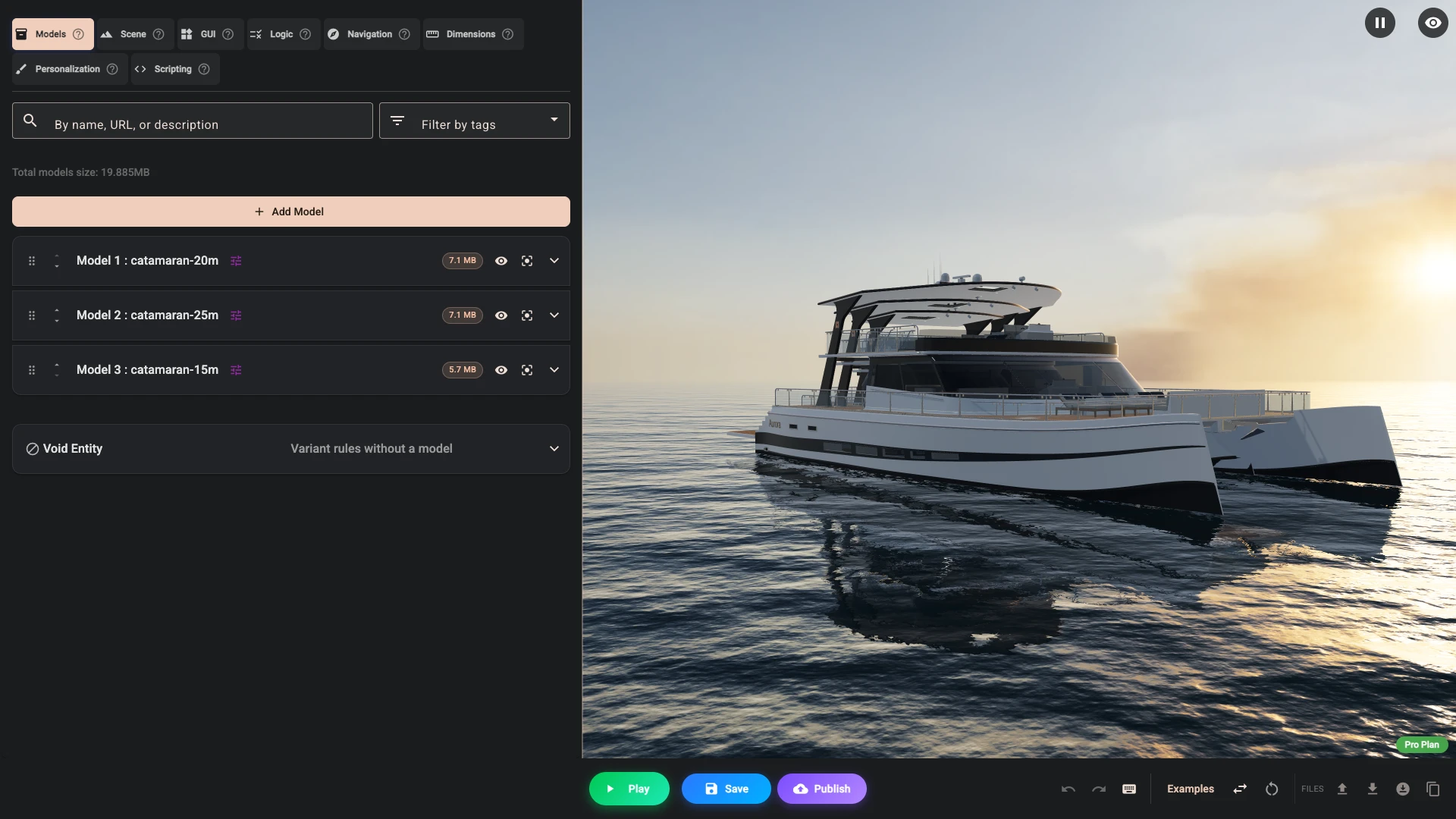
Your product page is where it all ends up. When you publish a project, the configuration travels to the products you linked it to, and the app embed puts the configurator on the page.
Checkout stays entirely with Shopify. When configurator pricing is on for a product, the cart is held to the price of what you published, and a cart that does not cover it is refused rather than sold. Shopify collects the money. We never process or hold payments.
Order review then shows you, order by order, what was configured and whether it paid the right amount.
Two ways to drive a configurator
This is the choice that matters most, and it decides how much the rest of this page applies to you.
Your own option panel, built in Composer
You build the controls in Composer, and 3D Bits renders them on the product page. The dropdowns, sliders and swatches are ours, so we know exactly what the shopper picked and there is nothing to interpret.
This is the recommended route and the one we would suggest for almost every new configurator. Your options are not limited by what Shopify variants can express, pricing formulas and personalisation work, and your panel does not depend on your theme's field names. The catamaran's panel is built this way, and The panel designs it.
Your theme's own variant pickers
Alternatively, you let Shopify variants drive the model. The shopper uses your theme's own colour and size selectors, and 3D Bits watches those selectors and updates the 3D scene to match.
This is a good fit when your product is already well described by variants and you simply want a 3D view that keeps up. It is also how you would run 3D Bits alongside a product options app you already use.
The rest of this page is about this second route, because reading someone else's form is where the practical considerations live.
How reading the page works
3D Bits watches the form fields on your product page. When a value changes, it takes the field's name and its new value and passes them to your configuration, which decides what to show.
Say your theme renders a length picker like this:
<fieldset>
  <legend>Length</legend>
  <label>
    <input type="radio" name="length" value="15_m" />
    15 metres
  </label>
  <label>
    <input type="radio" name="length" value="20_m" checked />
    20 metres
  </label>
</fieldset>
In Composer you would say that one boat shows when length is 15_m, and another when length is 20_m. Click the option, the scene swaps.
Two details trip people up. The first is that we use the name and value attributes, not the words the shopper reads. In the example above the label says "15 metres" but the value is 15_m, and 15_m is what you configure against. This is deliberate. Technical values survive being translated into another language and being reworded for a campaign, whereas the visible label does not. It is the default. Unticking Receive input names as variants on the project's page makes 3D Bits take the field's name from the text of a <legend> inside the field's parent element where there is one, and otherwise keep the name; the value still comes from the value attribute.
The second is that some themes add a changing number to the field name, so options[Color] becomes options[Color]-8329 and the number differs on every page load. Composer handles this with the {{id}} placeholder, so you configure options[Color]-{{id}} and it matches whatever the number happens to be. This is covered in Dynamic IDs in Input Names. If you are driving the scene from a script instead, the full field name including the number is passed to your script and you handle it yourself.
Publishing refuses a {{id}} placeholder in any condition that decides a price. Use the control's stable key there instead. Conditions that decide money lists each case and its message.
What your theme needs to provide
This approach works with any product form built from ordinary HTML form fields, which is nearly all of them. Shopify's own variant selectors qualify, as do the great majority of themes and options apps.
What does not work is an interface built only from styled div elements with JavaScript behind them and no real form fields underneath. There is nothing for us to read there. If you are considering an options app and this route matters to you, ask the developer whether their options are real form inputs, or install it on a test product and check.
Debug mode shows you which field names and values 3D Bits can see on a page. It is the first thing to turn on when something is not updating.
Keeping it working
If you build your option panel in Composer, you can skip this section. Your controls are ours and they do not change underneath you.
If you drive the scene from your theme's variants or from another app, then your configuration depends on field names that belong to someone else. Those names are usually stable, but a theme update, a theme switch, or an options app changing its markup can rename them, and your configurator would then stop responding.
This is worth ten minutes of care rather than worry. Before you update an options app or switch themes, try it on a draft product or in Shopify's theme preview first, and check the configurator still responds. Theme and App Updates walks through this. If a name has changed, Edit variants over Composer's 3D view renames it across your configuration in one place rather than you rebuilding anything.
It is also worth checking your live configurators from time to time, the same way you would check that your checkout still works. If you run a larger store, automated browser tests against a few key product pages will catch this sort of thing before a shopper does.
What stays with Shopify
Taxes, shipping rates, discount codes, payments, fraud checks and refunds are Shopify's. Your existing variants keep working for everything you do not configure, and configured orders arrive in Shopify with the shopper's choices on them.
3D Bits decides what a configured product costs, and that price is confirmed at checkout as described above. Everything else about selling stays where it already is. Pricing has the one exception, a market that includes tax based on the shopper's country.
Where to go next
Quick Start gets your first configurator live, and Build the Catamaran Configurator builds a complete one. Composer covers each part in detail. If you are wiring 3D Bits to a form your own team built, Custom Forms has the specifics.
Verified against the product in November 2026