Linking Your Own Products
Instead of typing an amount for an option, you can point it at real products in your catalogue. Tick Tender in the configurator and your actual product Tender, 4 m is what gets charged and what appears on the order.
This is worth doing when the option is a thing you genuinely stock and want to see on the picking list. Price it links the boat's paid extras.
Linking options to your own products needs the Pro plan.
How to link
- In Composer, open GUI, then Controls, and find the option you want to price.
- Press the link button on that option 1 and pick the product in Shopify's picker, or drill into a specific variant.
- Set Quantity 2 if one selection should charge several of them: a pair of loungers.
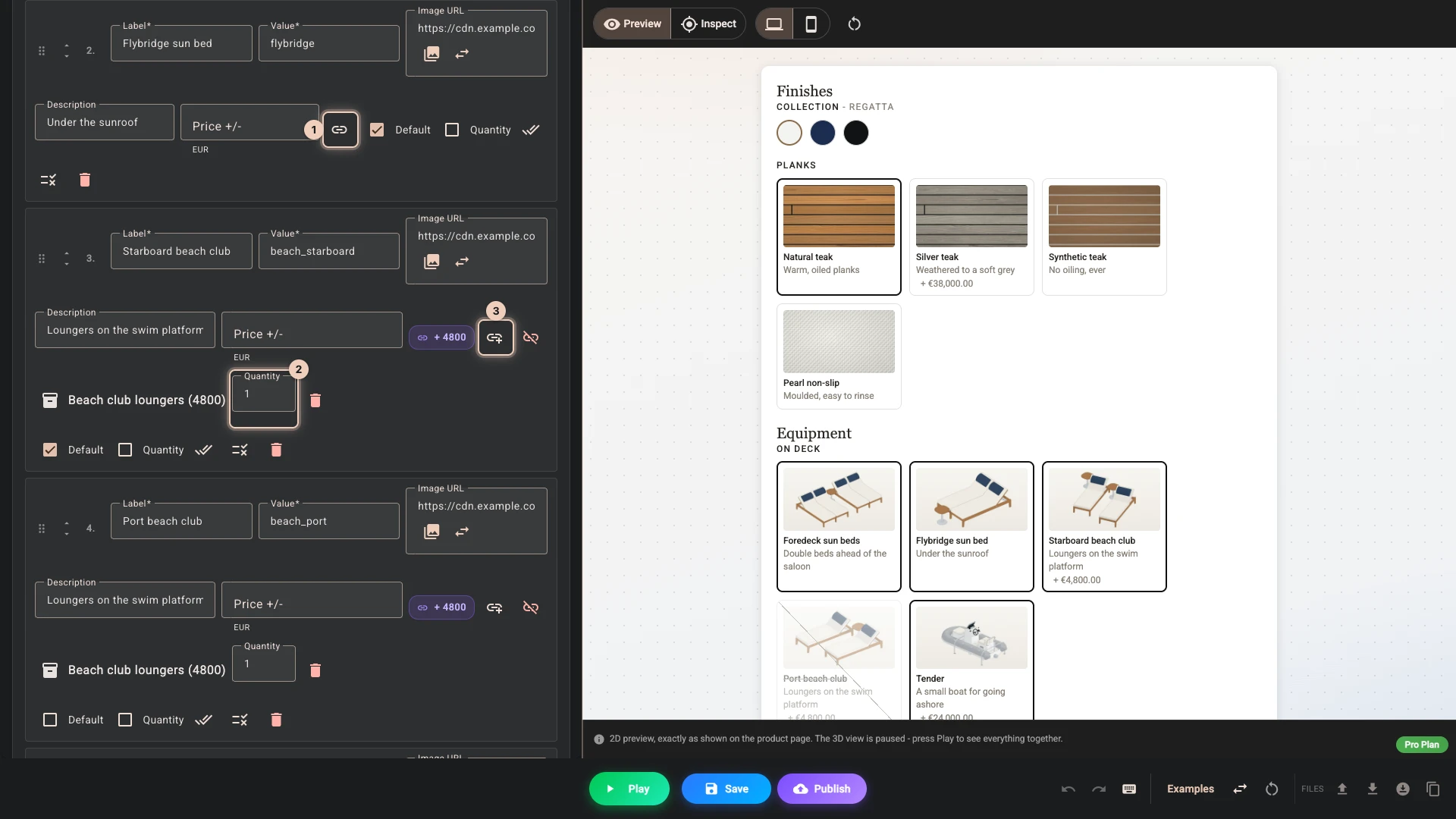
The option now charges that product's price, and the product appears on the order. Leave Price +/- empty.
Picking a variant is optional for a priced option. If you link a product without choosing one, 3D Bits charges that product's default (first) variant, and resolves it again on every publish, so if you later reorder the product's variants, the link follows. Drill into a variant when the product has several and you mean a particular one.
One option, several products
An option is not limited to one product. Press Link another product 3 and a single choice can carry up to ten, each with its own Quantity.
This is how you sell a set. An option called Beach club pack could link two Beach club loungers and one Tender, 4 m: choosing it charges 33600 and puts all three on the order at the right counts.
The option charges the total of the products you linked to it. Each one ships as its own line, so your stock and your picking list stay correct for every piece.
Linked goods have to reach the order as their own lines, so a configuration with a linked option cannot use Variant matrix or Single line: publishing moves either one to Product lines and says so. A configurator still on the older Bundled parts method carries them too, at the prices you published. See Charging methods.
A typed amount still wins. If you put a figure in Price +/- as well, that figure is what the option charges at the prices you published. It may not be less than the products you linked come to, and publishing refuses it until you raise it or unlink the products. With Product lines charging, the linked product itself is still charged at Shopify's price, so when that price moves, the option's charge moves by the same amount until you save the new price with Update prices and publish.
What a price snapshot is
When you link, 3D Bits records the product's price at that moment, its snapshot, so the Composer can show prices while you build.
With Product lines charging, shoppers pay Shopify's current price, in your currency and in every other currency you sell in, and the configurator shows it to them. Change a price in Shopify and the configurator and checkout follow it without a publish; publishing again only brings the snapshot up to date. The exception is a project marked Republish needed, published before 3D Bits worked this way: it follows only after one more publish, and until then checkout refuses carts with the moved product at its new price - see Charging methods.
With Bundled parts charging, every part is charged at the price you published. The snapshot does not follow the product afterwards, so until you publish again you are selling at the old price.
When a linked product changes
Open the project and look at the Pricing catalog card. Every link shows its state:
| State | Meaning | What to do |
|---|---|---|
| Up to date | The link matches your catalogue | Nothing |
| Not checked | Shopify could not be reached just now, or did not give the variants a part picks from | Nothing is known to be wrong: reload the page |
| Variants changed | A part picks variants from this product, and since the part last read it Shopify deleted, added, renamed or changed some of them | Shoppers can still buy the configurator. Refresh the part in the Composer and publish |
| Price changed | The product now costs something different | In Product lines, shoppers already pay the new price, and Update prices and publish saves it in the configurator. In Bundled parts, publish to stop selling at the old price |
| Out of stock | The product is out of stock and set to stop selling when out of stock | Restock it, let that variant continue selling when out of stock, or unlink the option. Until then publishing is refused, unless the live catalogue check below can cross out the choices that need it |
| Not purchasable | The product is a draft, archived, or not in the Online Store channel. For a part that picks one of your variants: the variants changed so that its choices may pick the wrong variant, or none it sells | Product status: fix it in Shopify admin, no republish needed. A part's variants: refresh the part in the Composer, check its matches and publish |
| Link broken | The variant no longer exists | Re-link the option in Composer, then publish |
They are listed in order of severity. The project list and your home dashboard warn about the ones that need you: a broken, unpurchasable or sold-out link, changed variants, and a price change that needs a publish.
If a linked variant has been deleted, no configuration that needs it can be added to a cart. On a part that every configuration carries, that means the whole product. Treat Link broken as urgent.
Which changes need a publish
- A linked product's price changed - with Bundled parts only; with Product lines shoppers already pay the new price
- A linked variant was deleted - re-link, then publish. If an option is linked to a whole product and that product is deleted, publishing goes through with a warning: the option is still charged its saved price, through a helper product, and nothing ships for it until you re-link it
- The variants a part picks from changed - refresh the part in the Composer, then publish
- Your own product's price changed - with Product lines checkout follows it at once, but publishing stops until the base price matches; see below
These do not need one:
- Renaming the product, or changing its image
- Making it Active again after it was archived - fix it in Shopify admin and the configurator carries on
With Product lines charging, the configurator's base price is the price of the product it sits on, and checkout follows that price at once. If you change it in Shopify, change the base price in the Composer to match before you next publish - publishing stops while no variant of the product costs the base price, and the project page can set the product's price for you. See Setting up pricing.
Publishing checks every linked product's price:
- Product lines: publishing goes through, tells you which prices moved, and offers Sync prices and publish to save what your catalogue says.
- Bundled parts: publishing stops until the prices are synced, and the same button does it in one click.
Stock level changes do not need a publish, but they are not nothing either: a linked product that has run out, and is set to stop selling when out of stock, stops the choices that need it from being bought. While one is sold out like this, publishing - Update prices and publish included - is refused, unless the live catalogue check below is on and can cross out the choices that need it. Switching that check on is how you make a sold-out product visible rather than surprising.
Showing what cannot be bought right now
In Pricing there is a checkbox called Disable options that cannot currently be sold (live catalog).
With it on, the configurator checks the real products behind your priced options and parts when the page loads, again while the shopper configures, and right before Add to cart. When something the shopper's configuration needs is out of stock, it keeps the choice they just clicked and changes as few other choices as it can to reach one you can sell, telling the shopper what changed - the choices each part may change are set under When it runs out. A choice nothing can make sellable - or, where checkout still charges the price you published, one whose price no longer matches it - is crossed out with a short message instead of the shopper discovering the problem at checkout. When nothing may change, the shopper keeps their configuration and Add to cart tells them what is out of stock.
Three things worth knowing:
- It never changes what anyone is charged. It can take a choice away or move the shopper to another choice they could have picked themselves, never add a paid extra or alter a price. To change the prices you set in the Composer you still publish.
- If the check cannot run, it takes nothing new away. A slow or failed lookup crosses nothing new out and changes no price. What an earlier lookup crossed out stays crossed out until a lookup succeeds.
- You can write the message. It defaults to "Out of stock", or "Temporarily unavailable" when it is the price that has moved.
Changing prices safely
If you are repricing several linked products at once, or the work will take a while, pause the configurator. As soon as a linked product has moved, the health banner on the project page offers Pause this configurator: shoppers see a short notice that the product is being updated instead of the configurator, and the product page shows no buy buttons while you work. The product itself stays active in Shopify.
A safe sequence for a bigger repricing job:
- Change the first product's price in Shopify.
- Open the project page and press Pause this configurator.
- Change the rest of your prices in Shopify.
- Come back: the Pricing catalog card now shows both figures for each link.
- Press Update prices and publish. Like any publish, it makes your current draft live.
- Press Resume selling.
Pausing takes effect immediately and does not require a publish, so you can do it even while a link is broken.
Pausing hides the configurator and the buy buttons. A shopper who already has the product in their cart can still check out.
If you would rather not pause, or want the product off sale altogether, set the Shopify product to Draft while you work, but that removes the product page entirely, including for anyone arriving from an ad or a search result.
Refreshing every link at once
Refresh linked products, in the project page's action menu, re-reads every product this configurator links, options and parts alike, and saves anything that has moved: the price, the product's name and its picture. It backs the project up first, then publishes. Like any publish, that makes your current draft live, including any other changes in it, so the configurator carries what your catalogue says and, with Bundled parts charging, so shoppers are charged it.
It is the same action the health banner offers as Update prices and publish. The difference is that the banner appears only once a price has already drifted, while this one is always there - so you can re-pull after a sale ends without waiting to be told, and on a configurator built product by product it is the fastest way to fill in every picture at once.
A product's picture is recorded when you pick it, so a link made before pictures were shown in the parts list has none, and a configuration imported as JSON may have none at all. One refresh fills them in for every link in the project.
Parts are linked the same way
The things a configured product is made of are linked from their own tab, not from an option. A part can link a product exactly as an option does, and the same health states apply to it. With Product lines charging, a part can also pick one of a product's variants from the shopper's choices - see A part that picks one of your variants.
A part has to be linked to a specific variant, not just to a product. A product on its own has no variant to put on the order, so nobody could add it to their cart. Publishing refuses it and names the part. Open it and pick a variant, or clear the link and give the part its own price instead.
See Parts.
Verified against the product in November 2026