Saving and Publishing
Composer can put your work in three different places, and they are not interchangeable. Knowing which is which prevents the two most common confusions: work that seems lost, and changes that unexpectedly went live. Publish it walks the boat through all of it.

Save
Save 1 stores your work in the project, in the app. Nothing reaches your storefront.
Composer also saves on its own. About a second and a half after you stop changing something, it sends the current state to the project quietly, without a message and without you pressing anything. It is the one thing Composer does without announcing it, precisely because you did not ask for it. When a form problem stops it, a sync icon with an exclamation mark appears next to Save, and hovering it says why, usually "Not autosaved - 2 form problems." That icon covers form problems only. An autosave that does not arrive, because the connection dropped or the project has grown too large to save, fails without a sign, and typing in the JSON view does not start one.
So press Save yourself before you close Composer or walk away. Unlike the background save, it tells you outright if it cannot record your changes.
Save as often as you like. This is the equivalent of saving a document.
Publish
Publish 2 sends the configurator to the products the project is linked to. This is the moment your changes become visible to shoppers.
It is a separate button from Save on purpose. You can spend a week reworking a configurator, saving throughout, while the version your shoppers see stays exactly as it was. Nothing goes live until a publish runs.
Composer's Publish sends what is in the editor. Every publish started on the project's page - its Publish and Republish buttons, Update prices and publish, Sync prices and publish, or Turn off and go live on the test-mode banner - sends the saved draft instead, including any unfinished work that Save or the autosave stored. Finish the rework, or restore a backup, before you press one of them.
Pressing Publish does three things in order. It checks the form and the schema first, and if either finds a problem the request never leaves Composer. Then it asks you to confirm, naming what is about to happen: "Publish to your linked products? This updates what shoppers see on the storefront." Then it saves the project and sends the same configuration to the app, which runs its own checks (Publish blockers) before anything reaches your products. When the save and the publish both succeed, your saved work and your live work are the same configuration.
Once it has published, a View on storefront button appears beside Publish (Preview when the product is not on your online store yet). It opens the product page in a new tab, and it stays there until your next publish. A publish that reached no product, because you closed the product picker, shows Copy URL there instead. It copies the configuration's URL for a BITBYBIT VIEWER block's Scene JSON Configuration, which places the configurator on any page. Paste it once: the block keeps showing your latest publish.
Before publishing, press Play and go through the configuration as a shopper would. It takes a minute and catches almost everything.
Files
Files 3 is a label in front of four buttons on the bottom bar, not a menu. They are for moving a configuration out of the app or into it.
Download scene config (.json) gives you the configuration alone, which is the part that describes your product.
Download project file (scene + editor state) gives you that plus your editor state, meaning your camera position, what you had hidden while working, and similar. This is the one to use for a backup or for handing work to a colleague, since it restores the editor exactly as you left it.
Copy scene config to clipboard is the same configuration as text, and Import a scene config or project file (.json) loads either kind back in.
If a part carries a SKU, the scene config download and copy ask whether to keep it. Publishing leaves SKUs out of the published configuration, but a copy keeps them unless you choose Remove them. The project file always keeps them.
Use these for backups outside the app, for moving a configuration between stores, or for sending us something when you need help. They have nothing to do with publishing.
The GLTF export options dialog
If any of your models has a parsed glTF structure with variants attached to it, downloading or copying the configuration first asks how much of that structure to include.
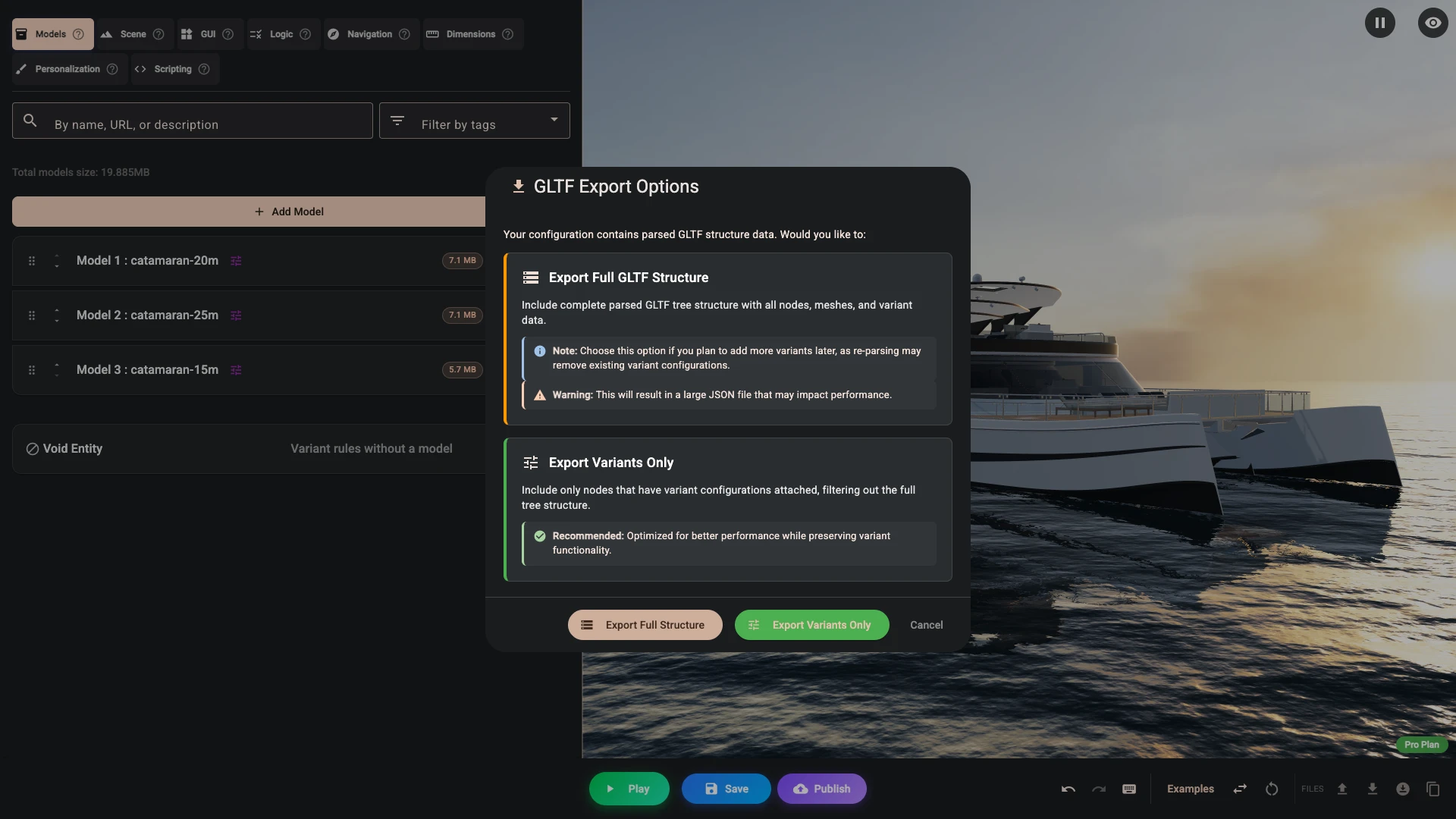
Export variants only is the recommended answer. It keeps the nodes that actually carry a variant configuration and drops the rest of the tree, which is usually most of the file.
Export full structure keeps the whole parsed tree. Choose it if you are going to add more variants to this copy later, since re-parsing a model can remove variant configurations you have already set up. The resulting file is much larger.
Cancel abandons the download rather than giving you a trimmed file by default.
"Variants" here means a node's show-and-hide condition. A node whose only configuration is a position, rotation or scale - a base transform, or transform variants, with no condition of its own - is not treated as a variant node and is dropped along with the rest of the tree.
If your models are configured that way, take Download project file (scene + editor state) for your backup, or choose Export full structure.
Configuration size
This dialog appears on download and copy only. Publishing sends the whole configuration, including the entire parsed glTF structure, whether or not the nodes in it are used by anything. Parsing a model is not a one-off editor convenience: the structure is stored in the configuration and it ships.
That matters for two reasons. It is what your shoppers download on the product page, and it is the thing that makes a project too large to keep: past roughly 12 MB the project can no longer be saved, and publishing is refused.
If a project is heading that way, press Clear structure on the models that use no variants.
Which do I want?
Working on it, want to come back later: Save.
Happy with it, want shoppers to see it: Publish.
Want a copy outside the app, or to send it to someone: Files.
Publishing to more than one product
A project can be linked to several products, and publishing updates all of them at once. That is how one configurator serves a whole range that shares a design.
You link products on the project's page in the app rather than in Composer. If you publish from Composer with nothing linked yet, Shopify's product picker opens so you can choose there and then.
Versions, and getting an earlier one back
Every publish that changes something records a version on the project's page in the app, and you can take one yourself at any time with Create backup. History keeps the newest 20 published versions and 20 backups; older entries drop off as new ones are created, and the page tells you when either list is full.
Any version can be downloaded, which is what you want for your records or for sending to support.
Restore is offered on backups, and it is the reason to take one before a risky change.
Restore writes the backup into the project's draft, replacing what Save and the autosave last stored. Your storefront carries on showing the version you last published until you publish again.
Close Composer on this project first, in every tab. A Composer left open still holds the old configuration, and its next save writes it back over the restored draft. The same goes for two tabs or two people editing one project: there is one draft, and the last save wins.
Rolling back is therefore two steps, not one: restore the backup, open it in Composer and check it in Play, then press Publish. If you need the configurator off the product page immediately while you sort it out, use Unpublish on the project's page instead, which stops linked products showing it at once.
If publishing is refused
Publishing can be blocked, and this is deliberate. Shipping a configurator that undercharges you, or that a shopper cannot add to the cart, is worse than an error message. The message says what to fix, and shoppers keep seeing the version you last published. One message is the exception: "Published, but some products could not be updated." means some linked products already show the new version and others do not, so publish again until it reports success. Publish blockers lists every refusal with its fix.
If nothing appears to happen
If Save or Publish seems to do nothing, look for a form error in the editor. Troubleshooting goes through it.
Verified against the product in November 2026