Pricing in the Panel
Pricing is a tab inside the GUI section, because a price is built from the same choices the panel collects. Price it gives the catamaran its price from nothing.
The price is worked out like this:
base price, plus the amounts on the options chosen, plus any formulas, plus any parts the configuration includes, multiplied by a set multiplier if you have one.
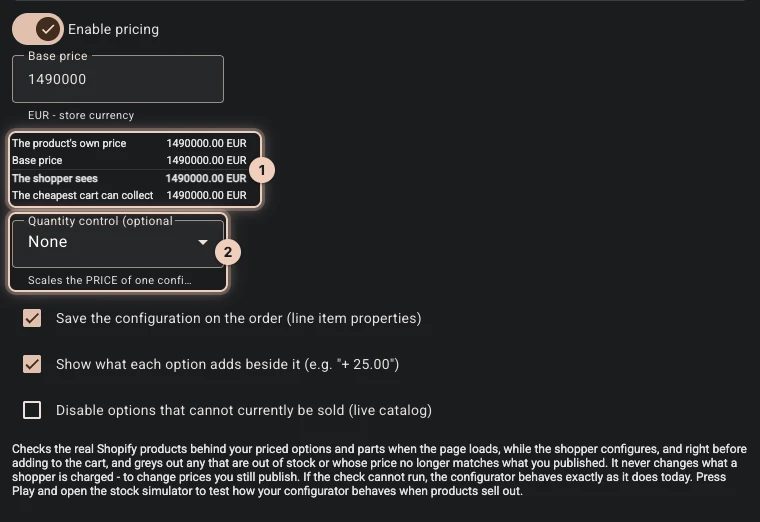
You turn it on with Enable pricing and set the Base price there: 1490000 buys the 15 m boat. The amounts attached to individual options are set on the options themselves, back in the Controls tab, since that is where those options live: Midnight adds 65000 there.
To show the total to your shopper, add a Price element in the Layout tab. It can show an itemised breakdown, which is worth doing.
Read this properly before you sell
Pricing is the part of 3D Bits where a mistake costs real money, and it has its own section covering how to set it up, how a configured price becomes a real Shopify charge, and what to check before going live.
Pricing is the place to go, and Setting up pricing is the walkthrough.
Your product's own price, and the base price
While pricing is on and the project sits on a product, the tab draws a short table 1 under the base price. It is the most useful thing on the page, and it is worth learning to read:
| Row | What it means |
|---|---|
| The product's own price | What the product the configurator sits on costs in Shopify. If its variants, or the products the project sits on, have different prices, this is the dearest of them. |
| Base price | What you typed above. |
| Products already in the base price | Any linked parts you marked as already covered by the base price - Bundled parts charging only, since Product lines refuses them. |
| The shopper sees | The base price: what a configuration costs before any priced choice, formula or part. |
| The cheapest cart can collect | The product's own price plus the products already in the base price. |
With Product lines charging, Shopify charges your product at its own price, and that price stands for the base price, so the first two rows should be the same. When the base price is below the last row, the tab says so in red. The table does not flag a base price above the product's price, but publishing does.
With Product lines, publishing refuses while no variant of the product costs exactly the base price, and names the product. The project page can set the product's price in Shopify to the base price for you, after you confirm, or you can change the base price here to the product's price. Variants at other prices still publish, with a warning: a shopper who picks one of them sees and pays that variant's price in place of the base price.
What sits in this tab
Add formula, under Formulas, prices continuous choices, such as a slider, using an expression over the shopper's values. This is what makes anything sold by size, length or area chargeable. Each formula carries its own Applies when condition, so it applies only when it should.
Quantity control (optional) 2 nominates one of your controls as a multiplier for the whole configured price - the way you price by area or by running metre.
A quantity control multiplies the price of one configured set by its value, and the parts on the Parts tab that are products ship that many sets, rounded to a whole number and at least one. Products linked to options ship their own units. It does not change how many configured items the shopper buys. If you want a shopper to buy six of what they configured, add a Quantity element in the Layout tab instead.
Disable options that cannot currently be sold (live catalog) checks the real products behind your priced options and parts when the page loads and while the shopper configures. When something is out of stock it moves the shopper to the nearest configuration you can sell and says what changed, and it greys out any choice nothing can make sellable - or, where checkout still charges the price you published, whose price no longer matches it. It never changes what anyone is charged. Message on a disabled option (optional) writes what a shopper sees. See Linked products.
Save the configuration on the order (line item properties) writes the shopper's choices onto the order as line item properties, so your team can read what to make.
Show what each option adds beside it (e.g. "+ 25.00") puts each priced option's amount beside it in the panel. It changes what shoppers see and nothing else, and a control's own Option prices can overrule it.
How this will charge lists where each part of the price comes from - the base price, linked options, priced options, formulas and each part - and warns about a typed price below a linked product's price and about amounts that could take a total below the base price. It describes Product lines charging; the method itself is set on the project page, under Pricing and charging in Storefront settings.
The neighbouring tabs
Parts is where the things the product is made of live - the pieces you ship and charge for, and the ones you only need on the works order.
Settings holds two things about how a configuration is remembered: the Order snapshot, an image of the configured scene attached to the order, and the shareable link, which keeps the shopper's selections in the page URL so a link restores them.
PDF reports turns a configuration into a document, for the shopper or for the yard.
Verified against the product in November 2026