Edit Mode and Play
Composer has two modes and they deliberately show you different things.
Edit mode is a workshop. Its job is to let you reach everything, including the parts a shopper would never see at the same time. Play is your shopper's view: conditions apply, the option panel behaves as it will on the product page, prices update and the camera does what you told it to.
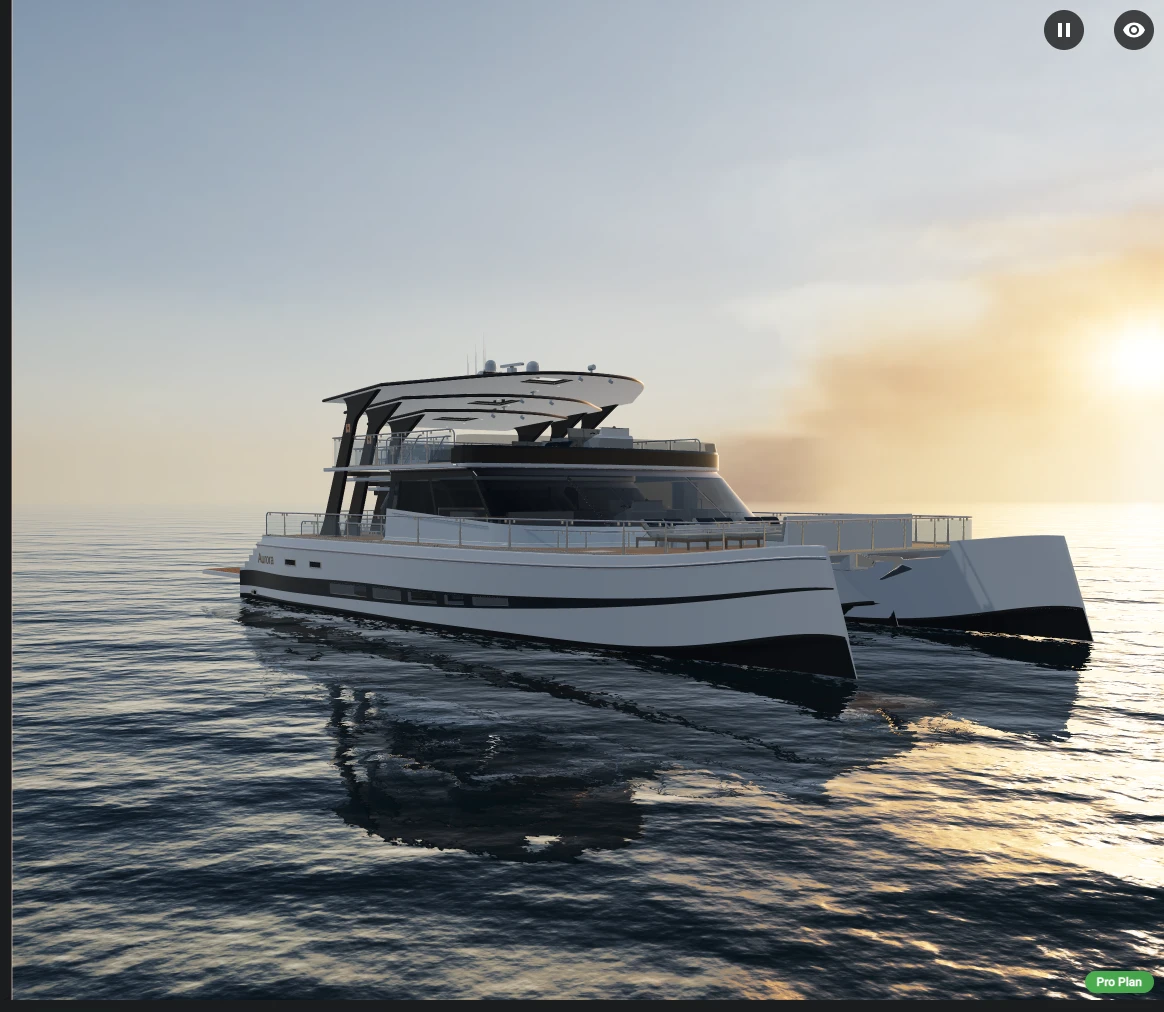
Here the catamaran's three boats stand inside each other, with every helm and sun bed on deck, because the editor shows them all. In Play there is one boat, with the helm and the beds the shopper picked.
Almost every "my variant does not work" question turns out to be a mode question. This page is the table that answers it.
Edit mode holds no selection
This one fact explains most of the table below. In edit mode the option panel is not running, so nothing is selected - there is no Silver teak, no 25 m. Every condition you have written is therefore being asked about values that are not there, and the honest answer is no.
The editor then makes one deliberate exception, and it is a big one: models, the parts inside them, markers and decals are shown anyway, because you cannot position something you cannot see. Everything else takes the answer at face value.
If your project predates the option panel and still drives the scene from bare variant names, the editor fills in each option's first value instead of leaving them empty, and Play shows a row of buttons for each variant. Everything else on this page is the same.
What applies where
| Behaviour | In edit mode | In Play | How to check it while authoring |
|---|---|---|---|
| Showing and hiding models and parts | Everything is shown, conditions set aside | Conditions decide what is on screen | Press Play. To get something out of your way in the meantime, use the eye button in the Models list or in the parsed structure - that hide is an editor convenience and is never published |
| Moving, rotating and scaling | Nothing matches, so every element sits at its base position | The first matching variant wins | Click into a transform variant's position, rotation, scaling or direction fields and the element jumps to that variant's pose; move away and it returns |
| Material variants from the file | Not applied | Applied | The play button beside each entry in Material variants puts that material on the model in the editor |
| Colours and textures set in Composer | Not applied | Applied | Press Play |
| Animations | Not applied | Applied | The play button beside each clip in Animations previews it in the editor |
| Lights switching on and off | Every light stays on, whatever condition it carries, so you can see what you are doing | Conditions decide | Press Play |
| Scene variants | The base scene | The first variant whose condition matches | Preview on a scene variant shows it in the editor |
| Points of interest | Every marker is drawn, conditions ignored | Conditions decide which markers exist | Press Play. Focus point of interest camera flies the editor camera to a marker's saved view |
| Focals | Never fire | Fire the moment their condition becomes true | Preview focal flies the editor camera to that focal's view |
| Dimensions | Conditions are honoured, so a dimension that has one is hidden. Dimensions with no condition are drawn | Conditions decide | Press Play. A dimension missing from the editor is usually a working condition, not a broken dimension |
| Decals - image and text | Every decal is projected, conditions ignored | Conditions decide which decals exist | Press Play |
| The option panel - controls, layout, style, translations | Not drawn over the 3D view | Drawn exactly as on the product page | The live preview in the GUI section, which renders the panel on its own while the 3D view stays paused |
| Logic rules | Do not reach the 3D scene | Applied to the panel and to the scene | The GUI section's preview runs the rules against the panel; Play runs them against the 3D scene as well |
| Prices | Not drawn over the 3D view | Shown as on the product page, except that amounts are written in your browser's usual style for the currency rather than your store's currency formatting | The GUI section's preview |
| Discounts under the total, and the promo code chip | The chip is drawn in the GUI section's preview, without Apply; no discount rows | Only what the discount simulator makes up - Composer has no store cart to ask | The discount simulator in Play |
| Sold-out products | Nothing is crossed out | Only what the stock simulator makes up | The stock simulator in Play |
| Elements only for visitors from a link | Always shown in the GUI section's preview | Only what the page address simulator asks for | The page address simulator in Play |
| Scripts | Only when you press Run on that script | Follow the triggers you gave them, and run when a logic rule starts them, once the scene has loaded | Run, in the Scripting section |
| The opening camera view | The editor camera is yours to move and stays where you left it | The camera starts from the view you set | Focus run camera flies the editor camera to the opening view |
| Shopper pointer input | The editor camera stays free | Applied, so a gesture you switched off does nothing | Press Play |
| Loading models when they are shown | Every model loads, so you can work on all of them | Follows Load models and each model's When to load | Press Play |
| Scene rotation animation | The editor keeps the scene still while you work | Spins | Press Play |
| Skybox, background, lights, shadows | Applied | Applied | Nothing special needed |
| PDF documents | Not produced on their own | Produced when asked for | Preview PDF, in the PDF reports section |
Play shows what your plan includes
Play draws what your plan puts on the product page, no more. A scene on Base shows no points of interest, focals, dimensions or decals in Play, the same as the product page, and on Standard no decals. So does the rest of what a plan leaves out: gradient and image backgrounds, scripts, and the Custom HTML, Camera controls and Screenshot elements.
The editor does not hide them. A marker, a dimension or a decal that came from a higher plan or an imported file is still drawn while you edit, so it can look finished and be gone in Play. Subscription plans lists what each plan holds.
The Play toolbar
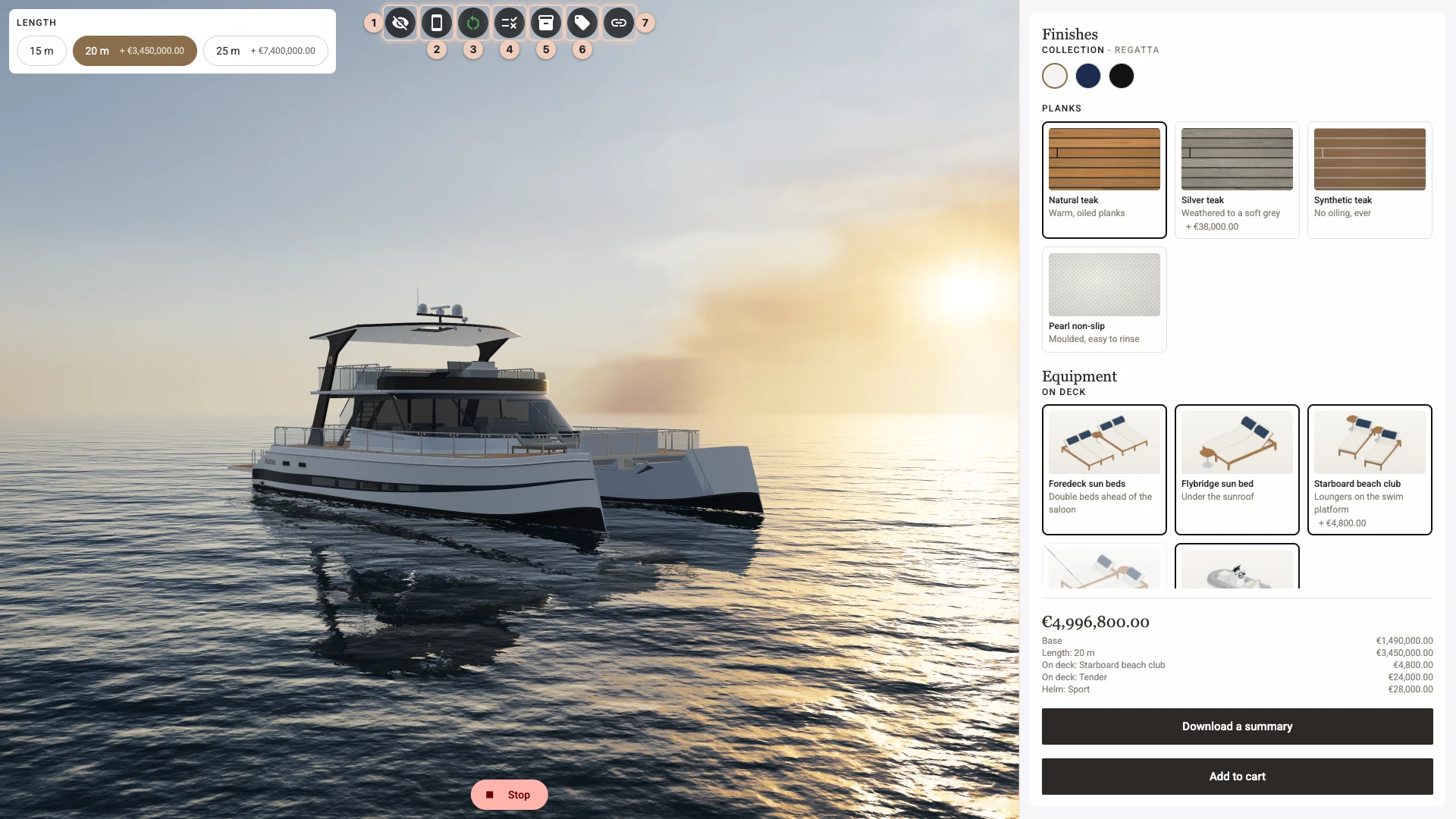
The toolbar over the view changes Play, never the configuration:
- Hide GUI 1 takes the options panel away and gives the whole window to the 3D view. Show GUI brings it back.
- The phone button 2 stacks the view and the panel at 390 px, the way a phone shows them.
- Reset all options to their default values 3 takes you back to a first-time visitor. Play otherwise carries on from your last choices.
- Active logic 4 lists the rules firing now.
- The three simulators below 5 6 7 make up what Composer cannot ask your store. Each shows only when the scene has something for it to do, and is outlined while it is making something up. Nothing in them reaches your store, and their settings last through Stop and Play until you reset them or close the project.
The stock simulator
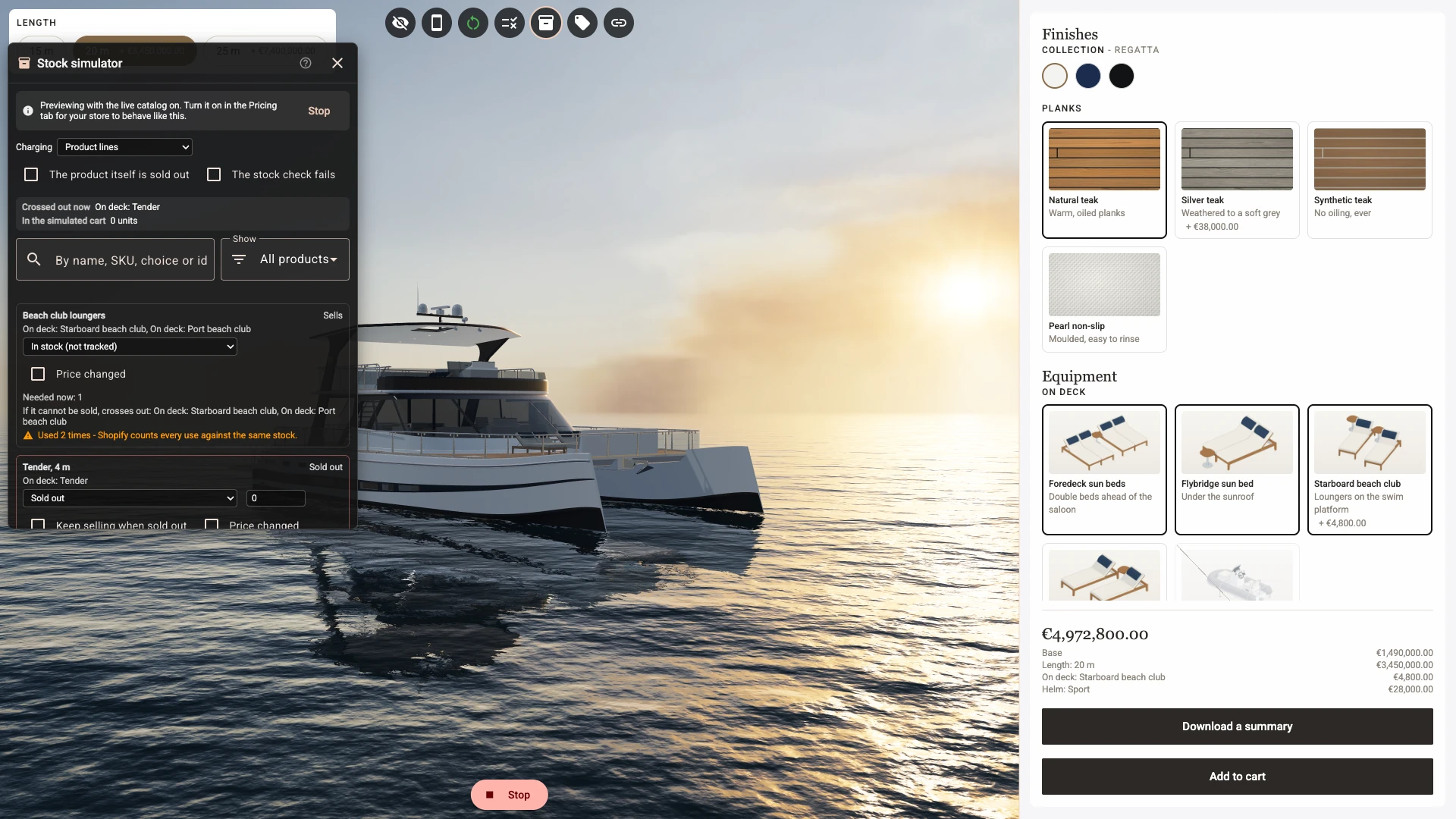
The Stock simulator shows once an option or a part is linked to one of your products, and tries out what happens when those products run out. Each linked product has a row, with the choices and parts that use it, and you set how it stands: In stock (not tracked), Tracked - units left, Sold out or Not for sale (unpublished or not in this market). A tracked product takes a number of units and Keep selling when sold out, and any of them can be marked Price changed.
The options panel answers at once: choices cross out, and a pick that no longer fits changes the way it would on the product page. Here the tender has sold out, so it is crossed out and has left the boat and the total. Above the rows, Crossed out now lists what is crossed out, In the simulated cart counts what an Add to cart element has put in so far, and Last Add to cart says what happened and why. Each row says what it would cross out if it could not be sold, and warns about a part that names no choice to give way.
Three settings stand for your store as a whole:
- Charging previews the charging method: Product lines, Bundled parts or Single line or variant matrix. It decides what the store checks and when.
- The product itself is sold out stands for the product the configurator sits on.
- The stock check fails shows the page when the store's check cannot be answered: nothing is crossed out, and Shopify's own refusal at Add to cart is all the shopper gets.
Choices only cross out with pricing on and Disable options that cannot currently be sold (live catalog) ticked. While that is off the simulator says so, and Preview as if it were on shows what you would get if you switched it on, as this picture does. How your store checks stock at the foot of the panel lists the rules, and When it runs out explains them. Reset simulated stock clears it all.
The discount simulator
On the storefront, the rows under the total come from Shopify - there is no store cart behind Composer to ask. The simulator stands in for it so you can see the layout. It shows once a Price element shows discounts or carries a promo code, and starts with nothing switched on, so Play shows no discount until you ask for one: switch on a store discount, name it, make it a percentage or an amount off, and say whether your promo code gives a saving and whether the shopper has applied each code. Pressing Apply on a chip in Play marks that code applied in the simulator, and unticking it offers the code again. The discount rows carry a "Simulated" note; the chip does not, so a Price element with its discount rows switched off shows a simulated saving on the chip alone.
The page address simulator
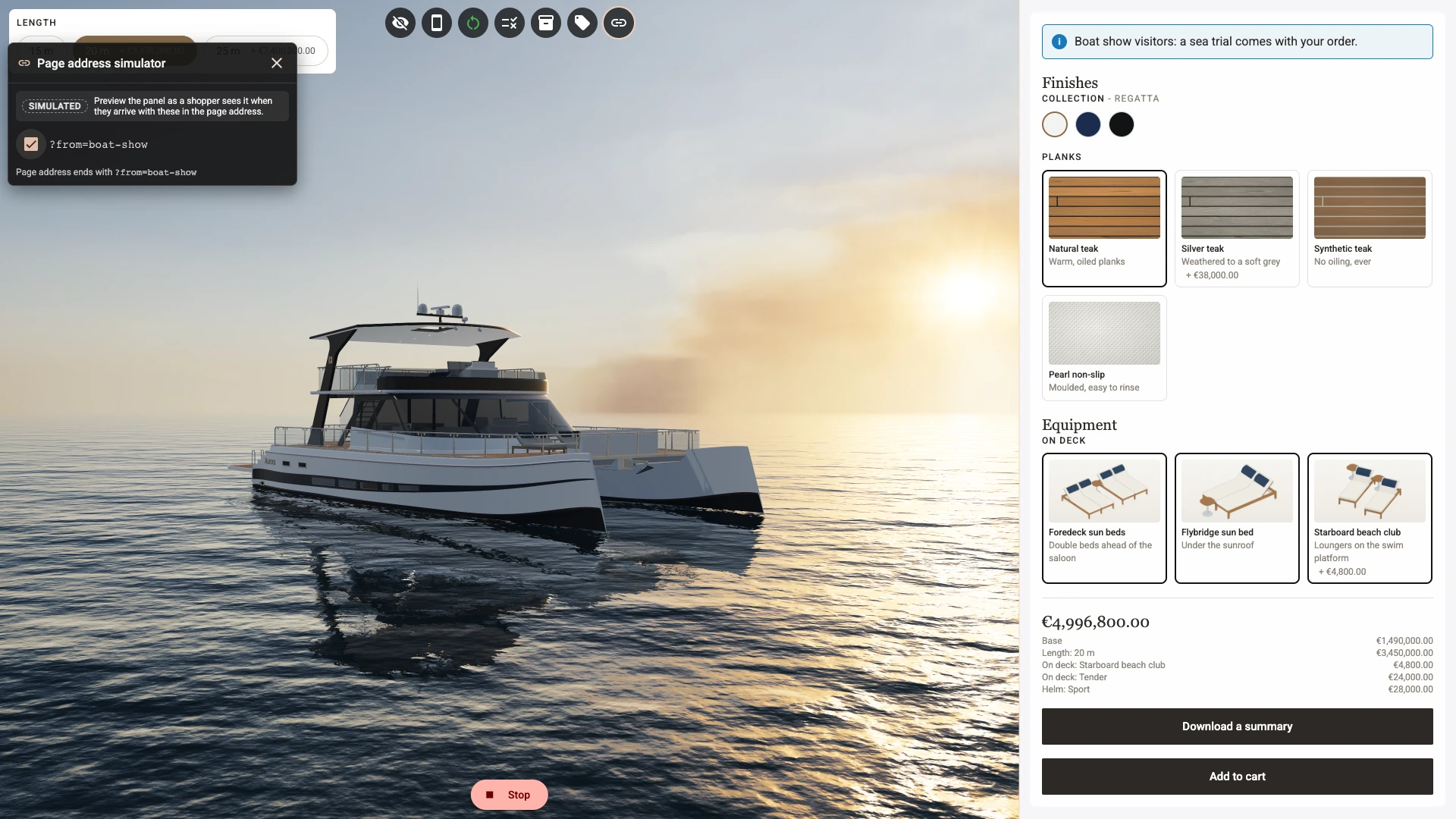
An element can show only for visitors from a link, such as one that carries ?from=boat-show. Play has no address of its own, so the Page address simulator, which shows once an element asks for one, lists every parameter your panel uses, each with a tick box. Tick one to see the panel as those visitors do, and the line under the boxes spells out the address it stands for.
The three that catch everyone
Models and parts are all visible in edit mode. This is on purpose. It also means edit mode can never tell you whether a visibility condition is right. A part that is visible in the editor and correctly hidden in Play is working exactly as intended - that is not a bug report.
Markers and decals are drawn regardless of their conditions. Same reason: you need to see a marker to place it and a decal to size it. So a marker showing in the editor proves nothing about its condition, and a decal in the editor does not mean the shopper will get one.
A dimension or a transform variant that "does nothing" in the editor is usually fine. These two do take their conditions seriously, and with no selection to match against, a conditional dimension stays hidden and an element stays at its base position. Press Play, or click into the variant's fields to see its pose without leaving edit mode.
The option panel, the logic rules and the price you see in Play are produced by the same code the storefront runs, and it draws what your plan puts there. That is why Play is a real rehearsal rather than an approximation, and why "it works in the editor" is not evidence of anything.
Where to go next
- Variants - what each kind of variant does and where it is set up.
- Composer Interface - the rest of what the two modes change.
- Troubleshooting - when it is wrong in Play too.
Verified against the product in November 2026