When Something Is Not Working
Most problems in Composer are one of a small number of things. Work down this page before assuming something is broken.
An edit seems to do nothing
This is almost always a form error somewhere else in the editor.
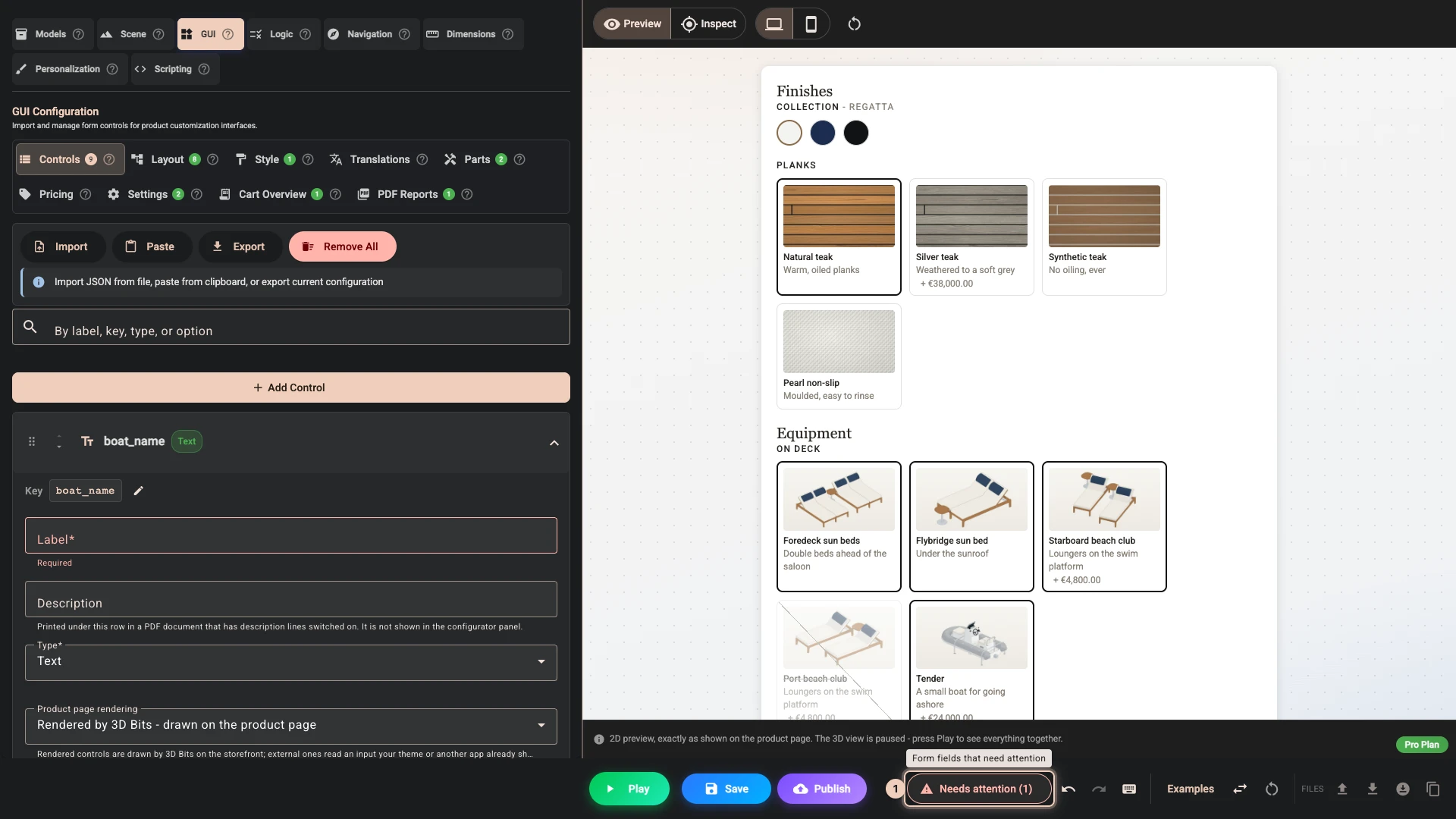
Composer will not assemble a configuration while any field is invalid. When that happens the live preview stops updating, the automatic background save stops, and Save, Publish, Play, Download and Copy all stop working.
None of that is silent. Every action you press yourself says why it could not run: "Cannot save - the configuration has 3 problems. Fix them and try again." is the shape of the message. Alongside that, Composer lists the problems behind buttons you can open and click through, and each one takes you straight to the field.
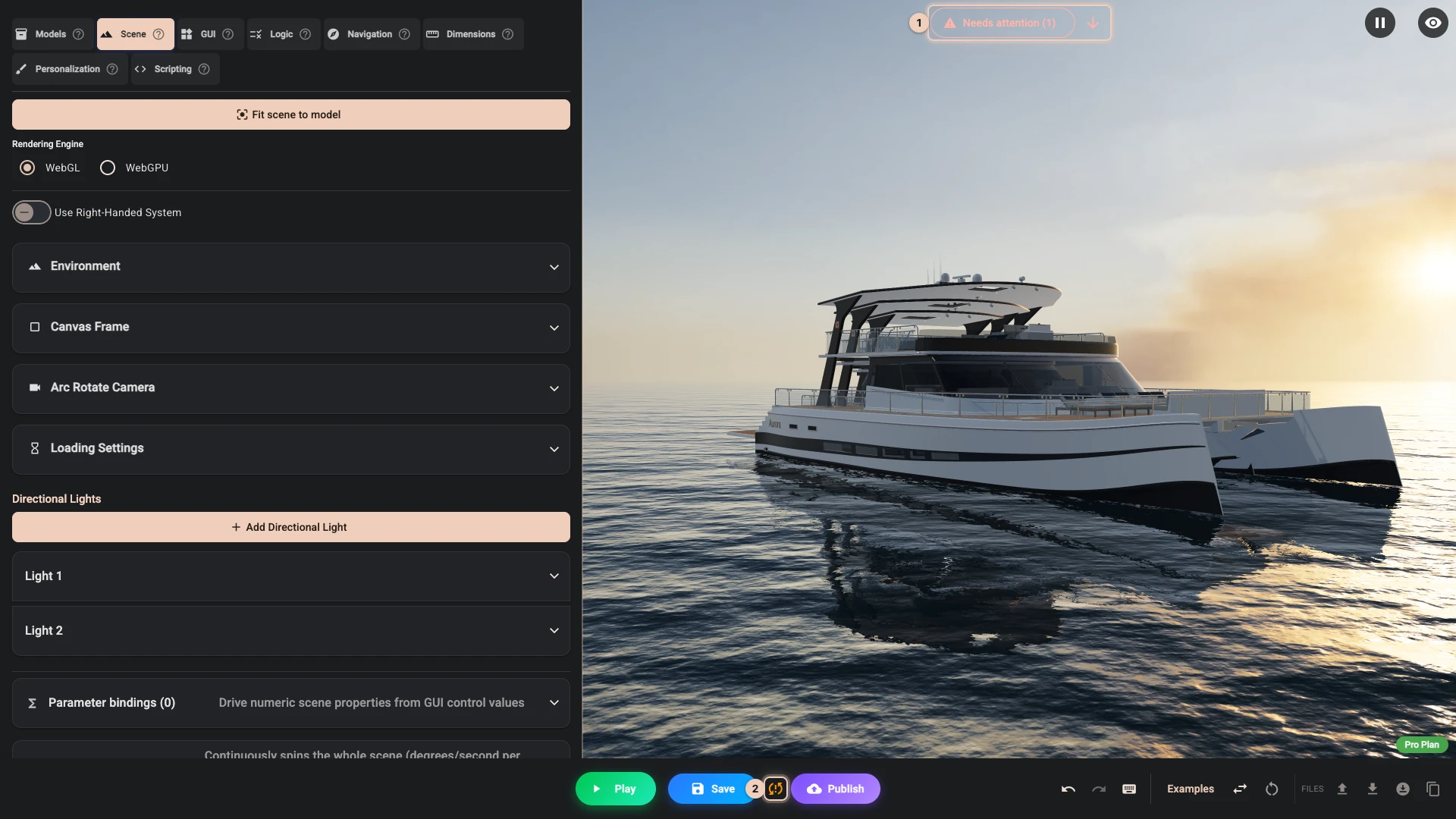
Needs attention 1 sits over the 3D view while you are editing. It counts the invalid form fields, and the arrow beside it walks you through them one at a time. This is the one you will see most.
While a GUI, cart or PDF preview stands where the 3D view was, the same Needs attention button sits on the bottom bar.
Setup problems sits on the bottom bar. These are the problems the form itself cannot see: a condition pointing at a control that no longer exists, an effect on the wrong kind of rule, two controls sharing a key, a control placed twice in the layout. Composer runs many of the publish rules here so you meet them while you are still working, rather than at the moment you press Publish. See Publish blockers for what each one means.
Blocking publish appears when you press Publish and the configuration was rejected before the request left Composer. It behaves the same way: open it and click a row to land on the field.
Fix in UI exists only in the JSON view. In the default form view you will never see it.
If the preview pane has been replaced by Preview paused while the configuration cannot be built., that pane carries its own list under Fix these to resume the preview.
The offending field is often in a section you are not currently looking at, which is why the cause is rarely where the symptom is.
Downloading or copying a configuration while a form is invalid does not quietly give you an older version. It is refused, with a message naming the number of problems. The same is true of Save, Publish and Play.
The automatic background save is the one thing that does not raise a message of its own. A broken-sync icon 2 appears next to Save, and hovering it tells you why: "Not autosaved - 2 form problems."
A part will not hide or show
First, check in Play rather than in edit mode. Edit mode deliberately shows models and objects regardless of their conditions, so you can work on something that would normally be hidden: an object visible in the editor but correctly hidden in Play is working properly. To get something out of your way while authoring, use the eye buttons in the Models list and in the parsed structure; those hides are an editor convenience and are never published. Edit Mode and Play is the full table of what applies where.
If it is wrong in Play too, the usual causes are these.
The objects are not separate in the 3D file. Open Nodes in the Models section and look at what is actually there. If the thing you want to hide is not listed as its own item, the model needs re-exporting.
The condition points at a name nothing answers to. This is the most common cause by a distance, and deleting a control is how you get there. Wherever a condition names a control, 3D Bits looks for that exact key first, then for a key that contains what you typed. With one such key, the condition quietly reads that control, which may not be the one you meant; with two or more it reads nothing and is false. Setup problems lists every condition that names a control that no longer exists. Open the condition and pick the control from the list rather than typing the name.
The value is not the value. Match on the option's value, not the label you show the shopper, and watch for a stray space at either end.
A common piece of advice says a rule matching Sport will not match an option whose value is sport. That is not how it works. Equals (==), Not equals (!=), Includes and Not includes all compare without regard to case, so Sport and sport are the same value.
There is one exception. In Logical expression, == compares exactly, so helm_style == "Sport" is not the same test as helm_style == "sport". The contains() helper there ignores case; includes() does not.
Two rules both match, so one object appears on top of another. The Overview in the Logic section shows every condition in one place, which makes overlaps visible.
The model does not appear at all
Check the file loaded without an error in the Models section, and check its size. Very large files take a while and can fail on slower connections.
If it loaded but you cannot see it, it may be far outside the camera's view or extremely small or large relative to the scene. Press Fit scene to model in the Scene section, which reframes everything around what is actually loaded. It replaces your camera and directional lights, and sometimes your skybox and background, so if any of those is configured it asks you first and says what will go. If you accept and regret it, Ctrl+Z undoes it like any other edit.
The model looks wrong
Wrong orientation, lying on its side or upside down, usually comes from how it was exported. You can correct it with rotation on the model, and it is better to fix it in the software that made it.
Materials looking flat or grey generally means lighting rather than materials. Check your skybox first, since reflective surfaces get most of their character from it, and check that you have a light with reasonable intensity. Fit scene to model rebuilds the camera and lights for you, at the cost of discarding what is there now.
Everything is slow
Look at the file size first. This is the cause the overwhelming majority of the time, and What to Expect covers what a reasonable size is.
If you are using scripts, check how often they run. A script recalculating on every keystroke will feel sluggish. Untick Run on every input change and name the controls under Run when these controls change, or raise Input debounce (ms) so rapid changes make one run. A new script starts with Run on every input change ticked, and while it is ticked, naming controls changes nothing.
The Models section shows a total size for everything loaded, and warns you once that total passes 40 MB.
The 3D view gets stuck
Reset scene (clean refresh) rebuilds the preview from scratch. If the view has got into a strange state after a lot of editing, this clears it without losing your work.
Switching the rendering engine between WebGL and WebGPU also rebuilds the view. That is expected rather than a fault.
An option is missing on the storefront but fine in Composer
Check that you published rather than only saved, since those are different actions. Saving never reaches your storefront.
If you published, check the app embed is switched on and saved in your live theme, and that the product is linked to the project.
If a marker, a focal, a dimension, a decal or a script is missing in Play as well, your plan leaves it out: the product page draws what your plan includes, and so does Play. The editor still shows it, and publishing does not refuse it. Edit Mode and Play has the list.
If publishing was refused rather than completed, the message says why. Publish blockers lists every refusal and its fix.
If a feature works in Composer but not on the storefront right after a plan upgrade, your storefront may not have been told about the new plan yet. There is a Sync storefront blocks button on the Subscription page for exactly this.
What a shopper can be told
A shopper who cannot buy sees a message on the product page, or at checkout. Most of them are in Pricing troubleshooting, and these are the rest.
| The shopper sees | What it means | What to do |
|---|---|---|
| "Some configured extras are in your cart without their product - please remove them and configure the product again." | At checkout. The cart holds lines that belong to a configured product, without the product. The app embed tidies these away, so it usually means the shopper emptied the cart some other way. | Ask them to do what it says. If it recurs, check the app embed is on. |
| "This order has too many customized products to verify at checkout - please check out with up to N customized items at a time." | At checkout. The same limit as "Your cart already has N customized products", met by a cart that did not come through the product page. | Ask them to check out with that many and place a second order for the rest. Managing complexity explains the number. |
| "There is not enough stock for this configuration - please lower the quantity or choose different options" | At Add to cart. Shopify would not add that many of something the configuration needs. | Nothing, if the stock is right. |
| "Part of your selection just went out of stock, so we updated it - please check your choices and add to cart again" | At Add to cart, with Disable options that cannot currently be sold (live catalog) on. Stock ran out while the page was open, and the panel moved to what can still be sold. | Nothing. The shopper checks the new choice and adds it again. |
| "... is out of stock - please change your selection", "... is not sold with these choices - please change your selection" | Under Add to cart, with the same setting on, when no other choice can stand in. | Restock it, or add the variant in Shopify. |
| "This order needs more of one part than a single cart line can carry - please lower the quantity and add it again." | At Add to cart, on a configuration with a part picked from your variants. | Lower the quantity the panel allows, or sell the part in packs. See Parts picked from your variants. |
| "Could not add to cart - please try again" | At Add to cart, when no other message fits, such as a dropped connection. Your own Error message on the element shows in its place. | Try it yourself. If it repeats, send us what you did. |
Still stuck
Send us the project file, which you get from Download project file (scene + editor state) under Files on the bottom bar. It contains everything we need to see what you are seeing, including your editor state. It holds your whole configuration, part SKUs and script code included, so email it rather than posting it in the open. If a form problem stops the download, send us the project's name and what Needs attention lists instead.
info@bitbybit.dev, or our Discord if you would rather ask in the open, without the file.
Verified against the product in November 2026