Logic
Real products have dependencies. The tender and the port loungers stand on the same part of the deck. The 15 m boat has no room for the tender or the foredeck sun beds. A choice of one thing takes another off the table.
Logic is where you write those down, so your shopper cannot build something you would have to refuse. Options and rules builds the first rule step by step.
Rules
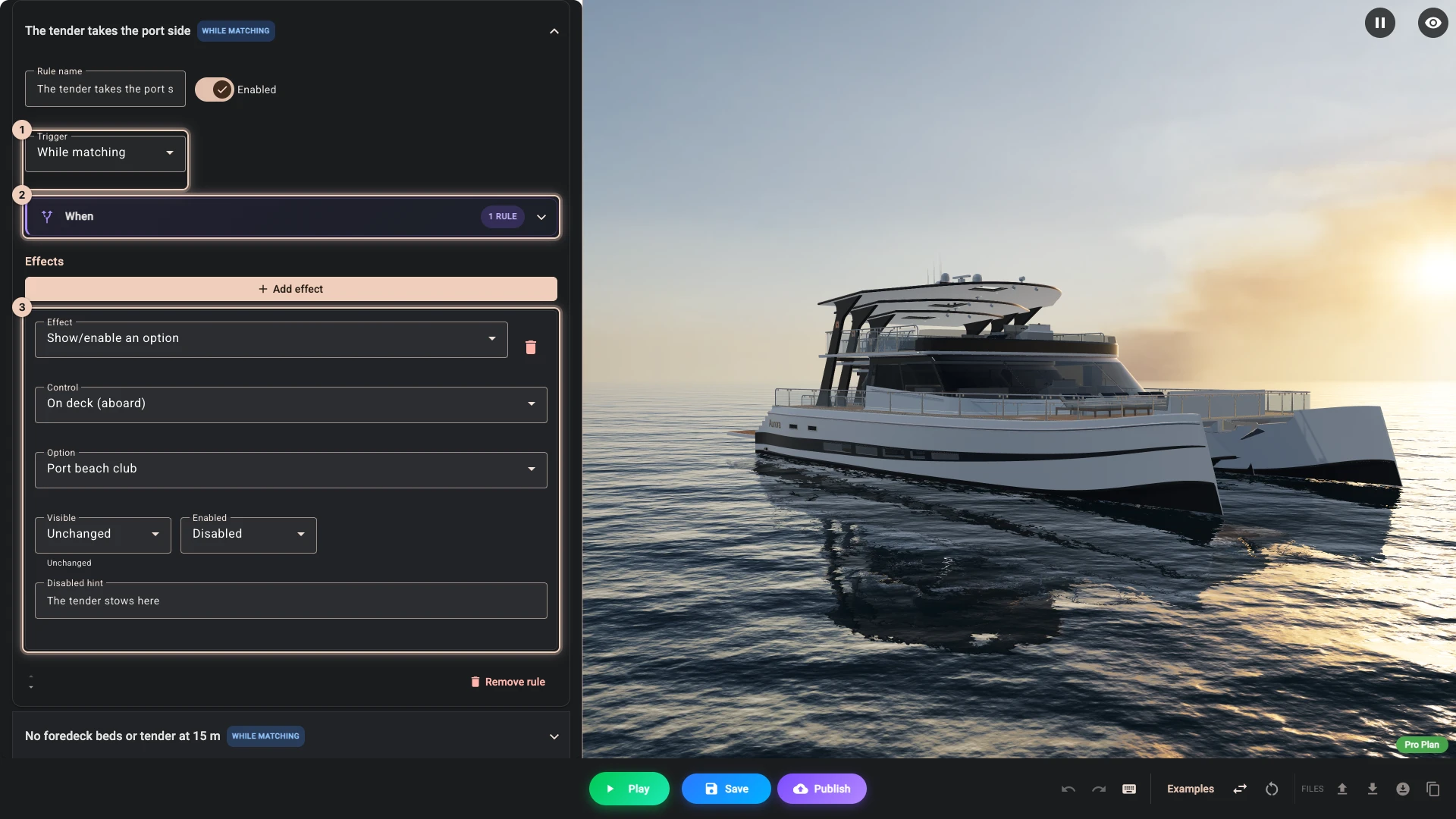
A rule has a Trigger 1, a condition under When 2 and one or more effects 3. When the condition is true, the effects apply.
Conditions use the same editor as everything else in Composer, so you already know it from variants: a simple pairing for one thing, or nested groups when several conditions combine.
Rules run from top to bottom, so where two rules set the same thing, the lower one wins. A new rule goes at the end, and the arrows on each rule move it. Turn Enabled off to take a rule out without deleting it.
When a rule fires
Three choices, and picking the right one matters.
While matching keeps the effect applied for as long as the condition is true, and undoes it when it stops being true. This is what you want for showing, hiding and restricting things. The tender's rule works this way: while Tender is ticked, Port beach club is greyed out, and it comes back when the tender goes. With no condition, the effect always applies.
On change fires once, at the moment something changes. Use it for actions that should happen and then be left alone, such as putting Planks back to its default when the shopper picks another Length. Name the controls under Fire when these controls change and the rule fires each time one of them changes, as long as its condition holds. Leave that list empty and it fires at the moment its condition goes from false to true. With neither a list nor a condition, it never fires.
On load fires when the configurator opens, and again when the shopper presses a button set to Reset all options to defaults, for setting up a starting state. With no condition, it always fires.
What a rule can do
The trigger decides which effects a rule can have, and Effect offers only those.
| Trigger | Effects |
|---|---|
| While matching | Show/enable a control, Show/enable an option, Override min/max/step, Show a message, Show/hide a 3D element, Force a material variant, Force a color/texture variant |
| On change, On load | Set a control's value, Reset a control to its default, Show a message, Run a script |
Change the trigger of a rule that already has effects, and the ones it can no longer run say so on the spot. With pricing on, such a rule is refused at publish until you fix it.
Set a control's value and Reset a control to its default keep the configuration coherent when a choice invalidates another.
Show/enable a control and Show/enable an option are the most common effects: hiding what does not apply and greying out what cannot be chosen. Disabling is often kinder than hiding, because the shopper can see the option exists, and Disabled hint says why it is unavailable when they point at it. If the option taken away was the one selected, the control falls back to its default, or to the first choice still open, and a ticked box is unticked. A greyed-out choice is cleared instead when the control has When the selected option becomes disabled set to Clear the selection and Allow deselecting - clicking the selected option again clears the choice ticked. These two work on controls 3D Bits draws: the rule warns you on a control your theme draws, which still takes values and pricing but cannot be greyed out.
Enabled when on a section or tab does the same for a whole group: greying one out greys out everything inside it, however deeply nested. A choice the shopper cannot reach is never charged for.
Show a message tells the shopper why. A rule that silently removes a choice is confusing, while one that says "the tender stows on the port side" is helpful. On a rule that fires once, the message appears in the panel for five seconds, at whichever Level you pick; Show next to control (optional) does not move it. On a While matching rule, only Error (blocks add-to-cart while matching) reaches the shopper. While the rule holds, the panel's Add to cart is greyed out, and your message shows in a Validation summary element and beside the control you name under Show next to control (optional), once the shopper has used that control. With Global message area and no Validation summary, the shopper sees only the button's hint, "Complete the required fields to continue", so name a control or add a summary. The message and the greyed-out button are the panel's own, so give the panel an Add to cart element when a rule can block the sale.
Override min/max/step narrows the range of a number or slider to what you can actually make in the chosen material. Each limit takes a number or an expression, and a value already outside the new range moves to its edge.
Show/hide a 3D element reaches a model, a model node, a point of interest, a dimension, a decal or a directional light. While the rule matches it wins over the element's own conditions, and it lets go when the rule stops matching.
Force a material variant and Force a color/texture variant let one choice drive an appearance change somewhere else, in the same way.
Run a script starts a script on the plans that include scripting, in Play and on the product page. A script whose Enabled is off does not run, and Composer and publishing both warn about a rule that starts one, or one the project no longer has.
With no option panel on the product page, some of this has nothing to appear on. Logic without a panel says what still works.
Looking back with prev, changed and initial
A rule that fires once can ask what came before. Three functions do it, written in Logical expression in the rule's When:
| You write | It gives |
|---|---|
prev("boat_length") | The value before this change. |
changed("boat_length") | Whether this change moved the value. |
initial("boat_length") | The value the control started with on this page. |
So a rule can say something when a shopper steps down from the largest boat. Set Trigger to On change and Fire when these controls change to Length, write prev("boat_length") == "25_m", and add Show a message.
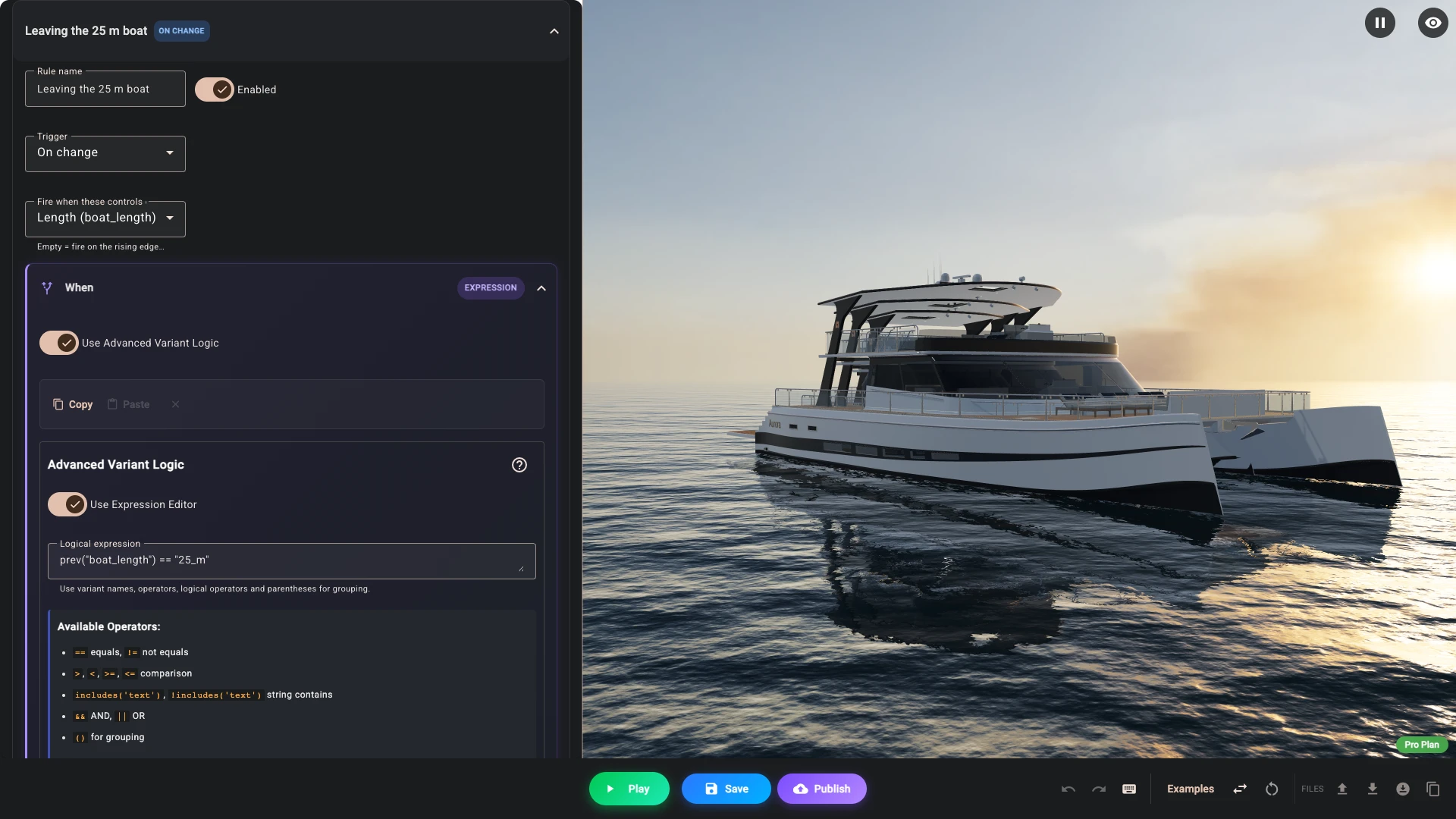
They read history in the condition of an On change rule. On load accepts them too, but nothing has happened yet: changed gives false, and the other two give the value the control holds. The same goes anywhere else you write them.
A While matching rule is worked out afresh on every change, so it cannot ask what came before. Composer counts such a rule under Needs attention, and Save, Play and Publish wait until you fix it. A condition that decides a price cannot use them either.
One step back works on every control that holds one value, with nothing to set up. To reach further, prev("boat_length", 3) needs History depth of at least 2 on that control. Default history depth, under the list of rules, sets it for every control without one of its own. Expressions has the detail.
The Overview
Beside Rules there is an Overview, which shows every condition in the whole configuration in one place. Not just rules, but the conditions on variants, on options, on markers, on everything.
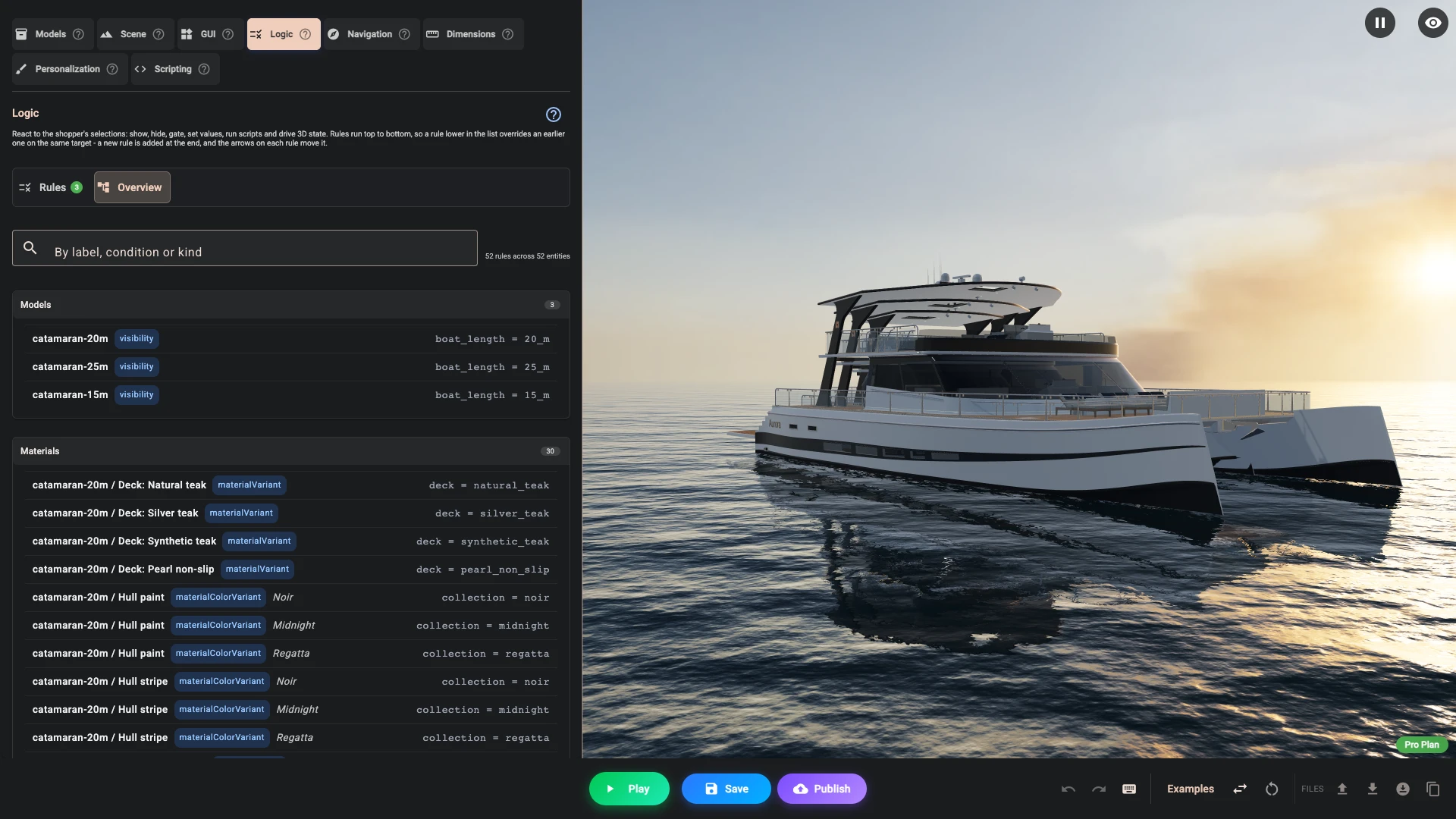
The rows are clickable. Clicking a rule takes you to that rule in the Rules list. Clicking any other row whose condition can be edited from here opens it in a small condition editor, so you can correct it without first working out which panel it lives in. The rows that cannot be edited in place say so instead, naming the section that owns them.
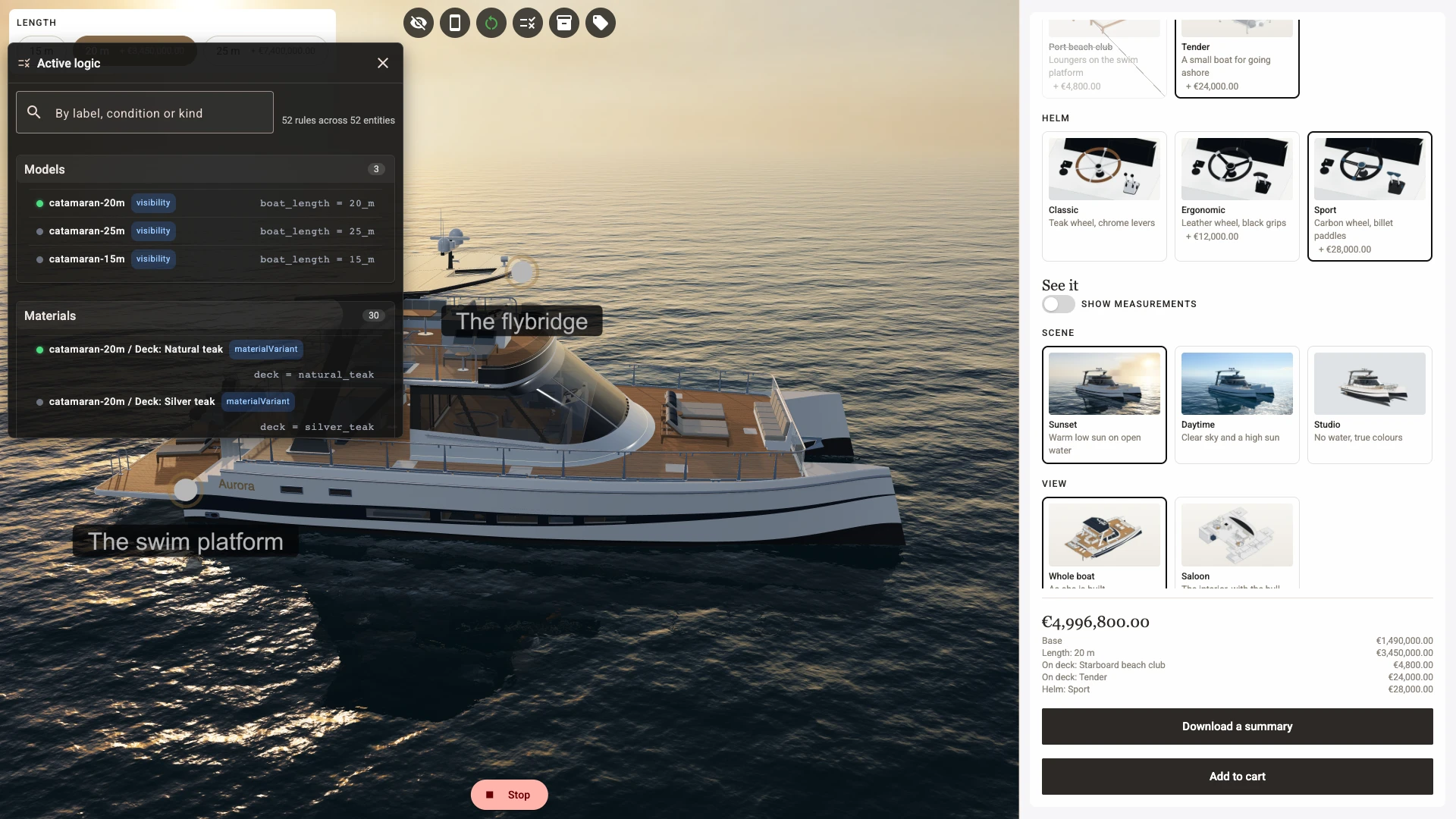
This is the page to open when a configurator misbehaves and you cannot see why. To see which conditions hold as you click, press Play, then Show active logic: the same map opens over the view, with a dot on each row and a list of what just changed.
Rules and option conditions together
You can put a condition directly on a control or an option, and you can write a rule that affects the same thing. Both are valid, and they serve different purposes.
Use a direct condition when the dependency is simple and belongs to that one option. Use a rule when the same condition drives several effects, or when the logic is complex enough that you want it written down in one readable place rather than scattered across twenty options.
When both apply to the same thing, the rule is the stronger statement, with one exception, which is worth stating precisely.
For anything that carries money, a rule can take an option away but it can never grant one that the option's own condition denies. An option carries money when it has a price of its own or links a product in your catalogue, and a control counts as carrying money when any of its options do. Hiding and greying out always work. Force-showing or force-enabling one of these is ignored, and the option's own condition decides. Publishing does not let the contradiction ship either: a rule that does this to a priced option or control with a condition of its own is refused at publish.
For an option with no price and no linked product, a rule does override the option's own condition. Nothing is charged either way, so a rule that shows a free option shows it. Do not rely on a rule as a restriction on something free: if a free choice must never be reachable, put the condition on the option itself.
Keep it as simple as the product allows
Logic is the part of a configurator that grows without anyone deciding it should. Every rule interacts with every other rule, and a configurator with forty of them is genuinely hard to reason about.
Before adding a rule, check whether a condition directly on the option would do. Give rules names that say what they are for. And use the Overview periodically to see what you have accumulated.
Verified against the product in November 2026