Scripting
On Base this section stays closed, and neither the product page nor Play runs the scripts a project holds.
Almost every configurator works by swapping between objects you prepared. When a shopper can type any width between 40 and 300 centimetres, there is nothing to swap between, and the shape has to be calculated instead.
The Scripting section is where a project connects to a program that does that calculation.
A script is JavaScript that runs in your shopper's browser, as part of your product page, with the same access to the page as your theme's own code. Nothing sandboxes it. Besides building geometry, it can change the shopper's choices, show, hide and limit controls, and change anything else on the page. A choice a script sets is priced like one the shopper made, so a script can change the price. Its code is public, since every product page downloads it, so keep keys, passwords and anything private out of it and its comments. Run only code you or your developer wrote, or code you have read and trust.
Do you actually need this?
Often not, and it is worth checking before you commit.
If the shopper picks from a set of sizes, prepare those sizes as separate objects and use variants, as the catamaran does with its three boats. If the product simply stretches, a parameter binding in the Scene section can drive scale from a slider with no code at all.
Scripting is for when the geometry genuinely changes rather than merely stretching. A deck that gains a plank every 12 cm. A rail whose stanchions stay evenly spaced as it grows. A part cut from a profile the shopper uploads.
Where the script comes from
Up to four options in the Source setting.
Linked script project is the normal route. You build the script in the app's Scripts section, publish it, and link it here. It stays maintained in one place and can be shared between projects. This option only appears when Composer is open inside the app: the standalone editor has no project library to link to, so it offers the other three.
TypeScript (edit here) opens a code editor inside Composer, for a short piece of logic that belongs to this project alone. What runs on the storefront is the compiled output, and your TypeScript source is published with it, comments included, inside the configuration every product page downloads. Compilation happens when you press Save or Run in that editor. Close it any other way and your edits are dropped. A new script has source but nothing compiled, so Composer warns you on it, and it will not run until you have saved it once.
Pasted export (Rete / Blockly / TypeScript) takes a script exported from the Rete, Blockly or TypeScript editors and drops it in directly. Either the generated code or the exported file's contents is accepted.
Public URL loads a script hosted elsewhere. It must be served over https, and the host has to allow cross-origin reads from your storefront. An http or malformed address is refused at runtime, and Composer flags it before you get that far. The shopper's browser fetches the script from that address on every page view, so whoever controls the address controls what runs on your product page, and a change there reaches your shoppers without a republish. Point it only at a host you or your developer control.
Passing the shopper's choices in
In a TypeScript script, the scaffold's first line, const inputs = bitbybitComposerInputs(Bit.getBitbybitRunnerInputs());, gives you an inputs object keyed by each control's label, camel-cased. A control labelled "Deck width" is inputs.deckWidth; "Stanchion count" is inputs.stanchionCount. Keep that line, so the code reads like the panel it came from. A script without it, such as a Rete or Blockly export, reads Bit.getBitbybitRunnerInputs(), which is keyed by the control's key.
Through that line, values arrive already typed, so you do not have to convert them. Number and Range controls come through as numbers, Switch controls and plain checkboxes as booleans, and everything else as a string. A multi-select checkbox contributes one boolean per option rather than a single value, named after the control and the option together. If two controls share a label, the second gets a number appended so nothing is silently overwritten.
Two names are reserved: inputs.scriptId and inputs.scriptContextKey. The second is how a script keeps a handle on what it made last time: bitbybitScriptContext(inputs.scriptContextKey) returns a persistent object you can store a dispose callback on, and calling it at the start of the next run is how you clear the previous geometry. Nothing is cleaned up for you; the scene keeps whatever a run created. The scaffold Composer gives you on a new TypeScript script already has this shape.
In the TypeScript editor, typing inputs. lists every available control with its type, so you do not have to guess how a label was camel-cased.
When it runs
Each script has an Enabled toggle, on by default. Switch it off and it no longer runs in Play or on the product page, neither from its own triggers nor from a logic rule's Run a script. Run still runs it, so you can test it. Once you publish it again, a configurator whose scripts are all switched off counts as one without scripts, so it can load the lighter 3D runtime.
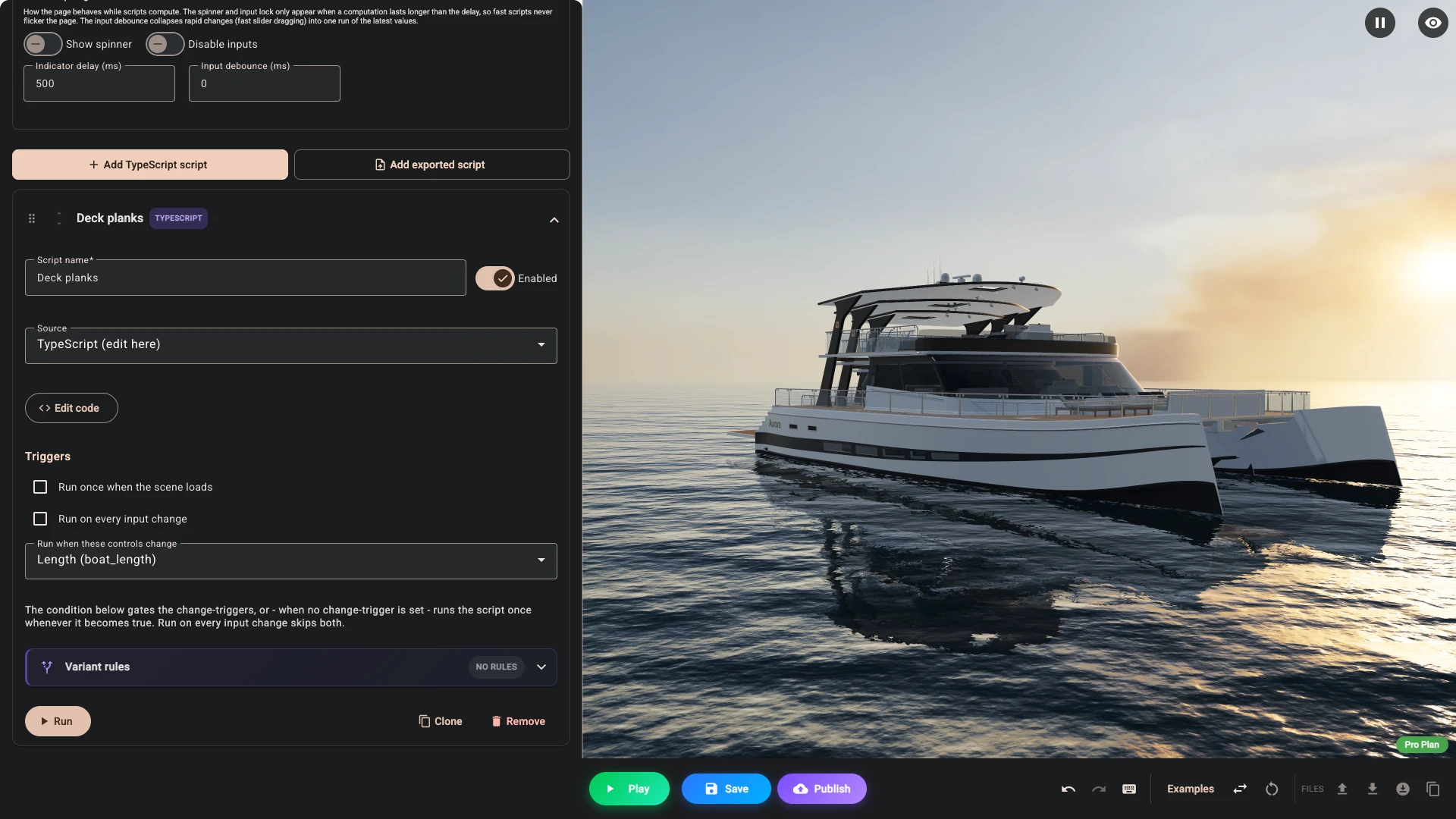
You then choose the Triggers: Run once when the scene loads, Run on every input change, Run when these controls change, or more than one. A new script starts with the first unticked, so it draws nothing when the page opens until you tick it.
A script also carries a condition under Variant rules, written in the same editor as everything else in Composer. It gates only Run when these controls change: a named control has to change and the condition has to hold. Run on every input change ignores both the condition and the named controls, and new scripts start with it ticked, so untick it when you name controls or add a condition. Run once when the scene loads ignores the condition too.
With neither change trigger set, the condition becomes the trigger: the script runs each time the condition goes from false to true. A condition that already holds when the scene loads does not run it, so tick Run once when the scene loads for that.
Be deliberate here, because calculation costs time on your shopper's device. A script that rebuilds a complicated assembly every time a value changes feels sluggish. Naming the controls that should trigger it, with Run on every input change unticked, keeps it responsive.
The While computing settings decide what the shopper sees meanwhile, and they apply to every script in the project. Show spinner and Disable inputs are both off to begin with, and neither appears until a calculation has run longer than Indicator delay (ms), which starts at 500, so a fast script never flickers the page while a slow one still gets a visible indication that something is happening. Input debounce (ms) starts at 0. Raise it and rapid changes collapse into one run of the latest values. A slider reports only on release unless its Emit mode is On change, so this matters most for those.
In the editor these triggers do not fire. A script runs when you press Run on it, or when you are in Play mode. On the product page it follows the triggers you set. A script error on the product page goes to the browser's console, so the shopper sees nothing: try every path in Play first.
Geometry engines
In Composer this section is labelled CAD kernels. Scripts that do solid modelling need one, and you switch on the ones your script uses.
OCCT is the full CAD kernel, for precise solids, filleting and accurate boolean operations. JSCAD and Manifold are lighter alternatives suited to simpler solid combination, with Manifold being a good choice for anything destined to be 3D printed.
Turn on only what you use. Each engine is a substantial WebAssembly download for your shopper before your product appears, and changing the selection reloads the preview because the kernels are booted once for the whole scene.
OCCT additionally has an OCCT architecture choice. 32-bit (default) is the right answer for almost everything. 64-bit handles larger models at the cost of a bigger download. 64-bit multi-threaded can be faster again, but it requires the page to be cross-origin isolated, which is a property of the headers your storefront is served with rather than something the app controls. There is no fallback to 32-bit: if this kernel cannot start, the product does not open, so test it on your own theme before relying on it.
Keeping a linked script current
Publishing a script does not change projects already using it. Those keep running the version that was current when the project was last published, which is deliberate, since a change to shared geometry should not silently alter live products.
Publishing the project is the moment the link is resolved, and it always takes the script's latest published version. So the sequence is: publish the script, then republish the project.
When a linked script has moved on since your last publish, the project page raises a Linked scripts were updated banner naming the scripts and offering to republish. Composer keeps the version you linked, so to test the new one, press Change on the script and pick it again. Then republish.
A linked script with no published version blocks publishing, with a message naming it. Open it under Scripts and publish it from its editor before trying again.
Which behaviour a script runs with
Scripts made today follow the scene: a file they export matches what the shopper sees, and a shape that names a hand, such as a right-hand thread, shows that hand. Scripts made earlier keep running exactly as they did. Each script carries which of the two it was made for, and the product page runs it the way the editor showed it. Coordinate systems and script behaviour explains what differs.
How a script carries it depends on where it comes from:
- A linked script project is published with its behaviour. A script you published earlier moves by itself when you open it in its editor and it uses nothing that differs, so publishing it again carries the new behaviour. When it does use something that differs, it keeps the earlier behaviour however often you publish it, until you press Update script behaviour in its editor and publish it after that. A project picks either up when you republish it, as with any other change to a linked script.
- A new script under TypeScript (edit here) follows the scene. An older one is moved by itself the next time you save it, when what it held used nothing that differs. When it did, the editor leaves it as it is and shows Update script behaviour, which lists what will change before you agree, then runs the script so you can look the result over.
- A pasted export keeps its behaviour when you paste the export itself: the contents of the exported file, or what Copy in the runner export gives. Code taken with Copy code says nothing about how it was made, so it runs the earlier way, and Composer tells you when that matters for the code you pasted.
- A Public URL works like a pasted export: an exported file served from that address keeps its behaviour, and bare code runs the earlier way.
Most scripts build, cut and draw, and for those the two behaviours give the same result.
One thing to check on the product page: a configurator that loads an older runner runs every script the earlier way, whatever the script says. A theme keeps the Runner CDN Link it saved when the block was added, and even the default link names one fixed release, so the runner does not move on by itself. Look at the runner version the configurator's project page reports, and update it from that page or in the theme, as Runner versions explains.
Learning to write them
The editors and the geometry library are shared with the wider bitbybit.dev platform, which has far more documentation on them than would fit here, including the full catalogue of operations.
Verified against the product in November 2026