Projects
A project is one configurator. It holds a 3D scene, the panel of options your shoppers use, the logic between those options, and the prices. You design it in Composer, and everything else happens here: creating it, linking it to products, publishing it and reading what the app says about it.
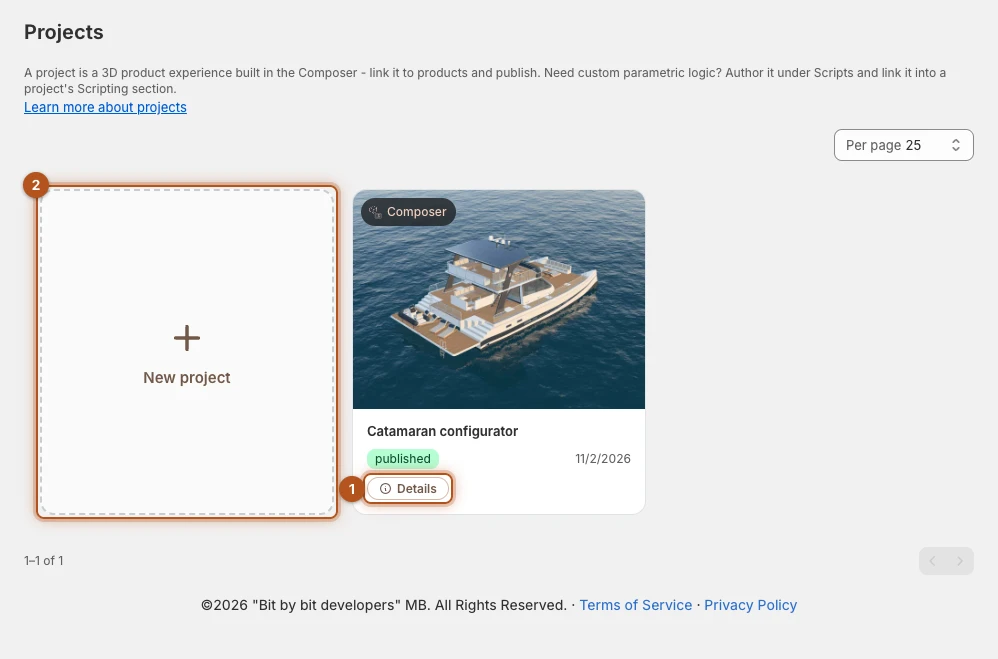
Most stores end up with one project per product family. The catamaran, with its three lengths, three collections and four decks, is one project and not a hundred.
Creating one
New project 2 asks for a title and then opens Composer.
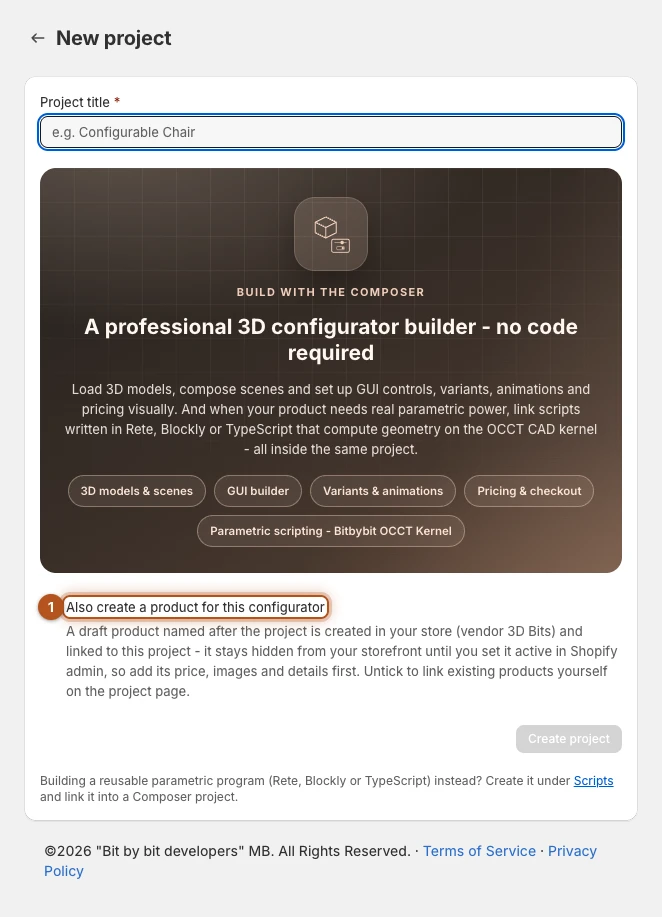
Below the title there is a checkbox, Also create a product for this configurator 1, and it is ticked by default. It makes a draft product named after the project, with the vendor 3D Bits, and links it. Handy when you are trying things out and do not want to touch your real catalogue yet. If you already have the product, untick it and link that product on the project page instead.
The product it creates is a draft priced at zero, so it is hidden from your storefront until you set it active in Shopify admin. Give it a price before you set it active, then images and details like any other product, and read Setting up pricing before you decide what that price should be, because with Product lines charging it is not a free choice.
The list
Pressing a card opens that project in Composer. Details 1 on the card opens its page in the app. The bin icon on a card deletes the project, as Delete on its page does: see Deleting a project.
Beside the status a card can carry a badge:
| Badge | What it means |
|---|---|
| Script updated | A script the project links to has been republished since the project was. |
| Linked product changed | A product it charges through changed in Shopify, and checkout may be affected. |
| Linked price moved | A linked product costs something else now. |
| Variants changed | The variants a part picks from changed in Shopify. |
| Republish needed | Its pricing has to be published again. Open it, check it and publish. |
| Pricing test mode | Pricing test mode is on: the configurator shows its prices, and the buy buttons are hidden. |
| "Older runner" with a version | Your theme loads an older 3D runner for this configurator than the latest release. Nothing is broken. Runner versions says how to test the newer one and move to it. |
The product badges come from a check of your 40 most recently edited published configurators. With more than that it says only those were checked. When Shopify answers slowly it may not reach every product a part picks from, and then it says Not every product your parts pick from was checked: reload the page a moment later to check the rest. Opening a project always checks its own products.
The project page
The project's page gives you everything about it apart from the design itself, which is in Composer. It is organised into a few cards, with any warnings stacked above them: those are explained in What the banners on this page mean.
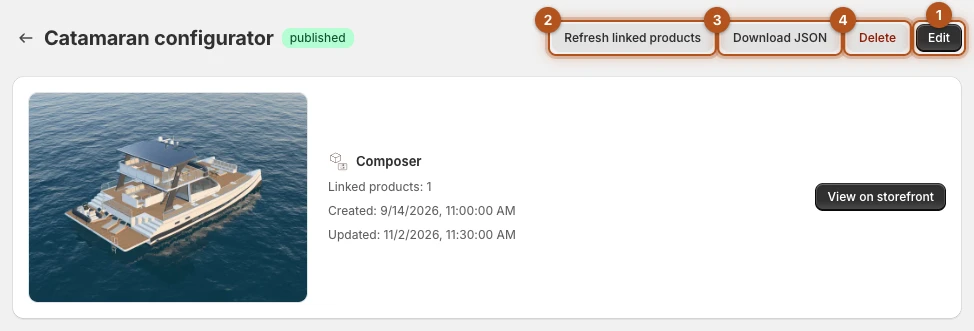
The title carries the project's status, and beside it Edit 1 opens Composer and Download JSON 3 saves the project to a file. Delete 4 is covered below. Refresh linked products 2 rereads every product the configurator links, saves any price, name or picture that moved, and publishes: it takes a backup first, and like any publish it makes your current draft live.
Publishing
Where you link products and publish.
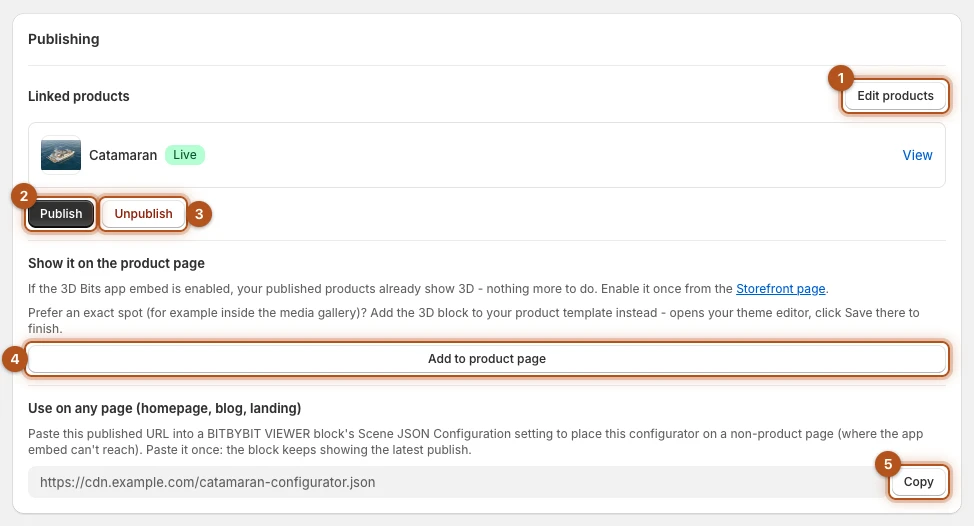
Edit products 1 opens Shopify's product picker. It reads Select products while nothing is linked. Taking a product out of the selection takes the configurator off that product straight away, without a publish. A product you add shows nothing until you press Publish.
Publish 2 takes the current state of the project and sends it to every linked product. Until you do, changes you save in Composer stay private to you. With no product linked the button reads Publish (URL only), which gives you the address described below and nothing else.
A project can be linked to more than one product, up to 100, which is how you reuse one configurator across a range that shares a design. A product carries one published project at a time, so link each product to one project only, whether that project is published or still a draft. Publishing is refused while another published project is on one of the linked products, and the message names that project. Choosing more than 100 is refused with "Too many products are selected - link at most 100 products to one project.", and the products already linked stay as they were. Each linked product is listed with a badge saying whether it is Live, a Draft or Not on storefront, and an Out of stock badge if it cannot currently be bought.
Unpublish 3 takes the configurator off its products and archives the helper products it created. Your own products stay as they are, with one exception: a product on the Variant matrix method loses its generated variants and returns to a single variant at its lowest price, unless variants of your own are mixed in with them.
Add to product page 4 is for placing the 3D view yourself: it opens your theme editor with the block on the template your linked products use. With the app embed on, you do not need it.
To place the configurator on a page that is not a product page, press Copy 5 under Use on any page (homepage, blog, landing) and paste the URL into a BITBYBIT VIEWER block's Scene JSON Configuration. Paste it once: the block keeps showing the latest publish. Unpublishing leaves the block showing the last publish, and deleting the project takes it away.
While the project is being published, from its page or from the Composer, its page says so and its actions wait until the publish finishes. An action that still reaches the app, from another tab or the projects list for instance, is refused with A publish is still running for this project. Its other actions come back when it finishes, within a few minutes. If Shopify does not confirm that the pricing rules came off every product, the project is left as it is and the message asks you to try again in a moment.
Storefront settings
How this configurator presents itself and behaves on the storefront. The card is five sections, each closed to a single line that sums up its current settings. Open the one you want to change and it closes the others.
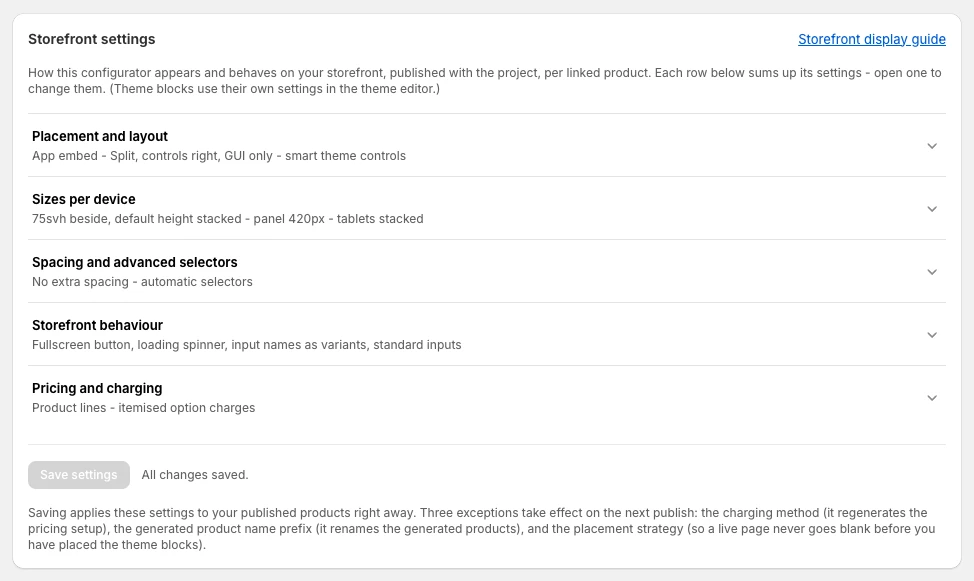
- Placement and layout - Placement on the product page: App embed, which places everything for you, or theme template blocks, which hands placement to you (this is the setting that decides whether the two sections after it apply at all). Then Storefront layout, Inline or Split, with Controls side, Controls panel content and Theme product controls, which decides how much of your theme's own product block the configurator replaces.
- Sizes per device - a drawing of the product page for desktop, laptop, tablet and phone screens, each with the settings that apply to it beside it: the side-by-side and stacked heights, the panel width per kind of screen, whether tablets stack or sit side by side, the max width, side offset and side margin.
- Spacing and advanced selectors - the top and bottom margins, for every screen, and the CSS selectors the Split layout falls back to when a theme's structure is not detected.
- Storefront behaviour - Show fullscreen button and Show loading spinner, then Receive input names as variants and Input collection mode, which only matter when the configurator reads your theme's own inputs rather than drawing its own panel, and Debug mode, which prints on the product page every input 3D Bits is reading.
- Pricing and charging - the charging method, explained in Charging methods; How option charges reach the order, explained in Charging methods; the Generated product name prefix that brands the products the app generates; and Pricing test mode.
Save settings puts them onto your published products immediately. Four of them wait for your next publish instead: the charging method, How option charges reach the order, the generated product name prefix and the placement. Pricing test mode is not part of Save settings: it is saved as soon as you tick it, after a confirmation on a published project.
Canvas sizing has its own page, since it is the setting people most often want to adjust.
Putting a configurator in front of your shoppers or taking it away is not a Storefront setting. Pause this configurator appears as a button on the banner when a linked product has a problem, and Resume selling on the banner that then joins it. Both take effect immediately, without a publish.
Used by Composer projects
This card is on a script's page, not a configurator's, and Scripts covers it. A Composer project sees the same relationship from the other side, as a Linked scripts were updated banner.
Pricing catalog
Everything that carries this configurator's prices, in two labelled groups. The tender and the loungers are the catamaran's own products, and its option charges are generated.
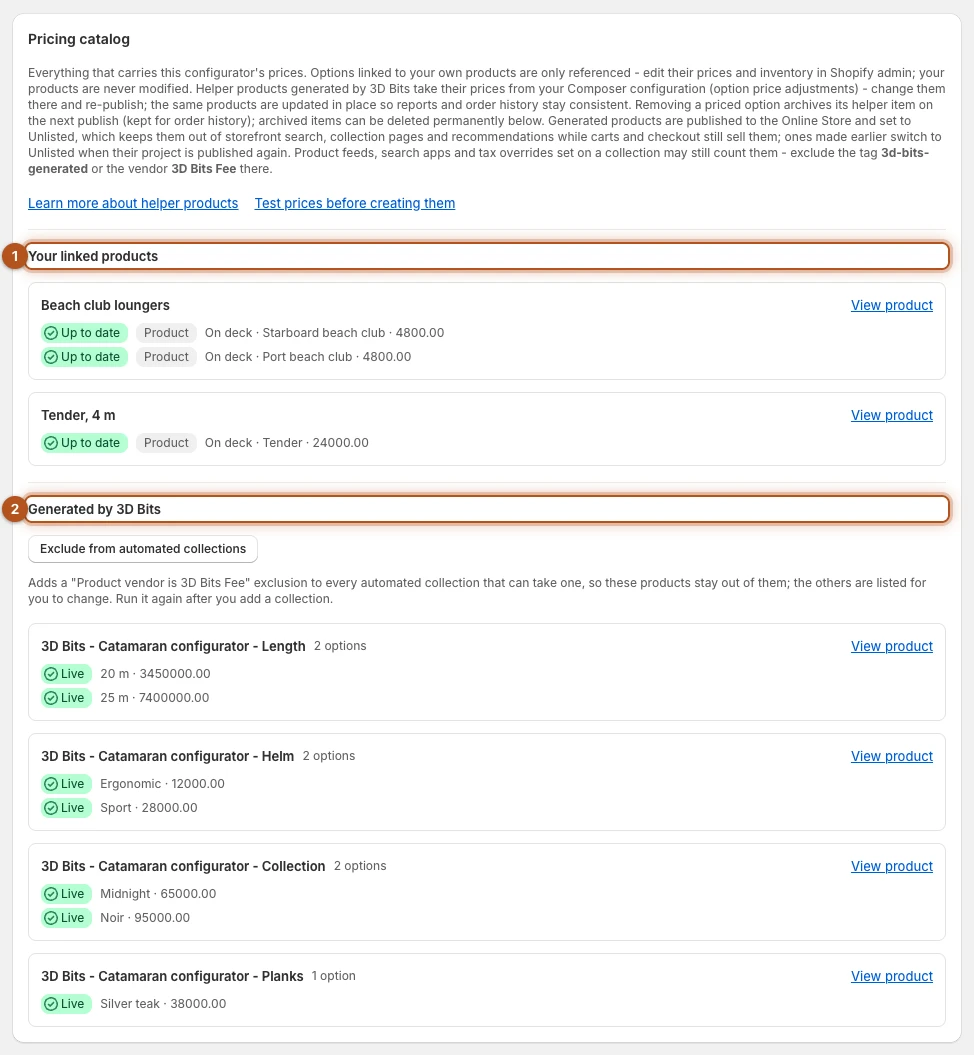
Your linked products 1 are items from your own catalogue that options point at. The app only references them, it never edits your products, and each entry carries a badge saying whether the link is healthy. There are seven states:
| Badge | What it means |
|---|---|
| Up to date | Nothing to do. |
| Price changed | The product costs something different from what the configurator was published with. With Product lines charging, shoppers already pay the new price, and republishing only brings the configurator's saved copy up to date. With Bundled parts charging, you are selling at the old price until you republish. A Product lines project marked Republish needed refuses carts with the product at its new price until you republish. |
| Variants changed | A part picks variants from this product, and since the part last read it Shopify deleted, added, renamed or changed some of them. Shoppers can still buy the configurator. Refresh the part in Composer and publish again so it sells what your catalogue has now. The project list shows the same badge, and the home page warns about it. |
| Out of stock | Inventory has run out and the product is set to stop selling when out of stock. |
| Not purchasable | The product is neither Active nor Unlisted, or not published to the Online Store. |
| Link broken | The product no longer exists, or the app can no longer see it. |
| Not checked | Shopify did not answer when the page loaded, or did not give the variants a part picks from. Nothing is known to be wrong: reload to check again. |
A part that picks one of your variants also says what its product holds, such as 254 variants - 3 without a SKU - 1 combination not sold - 12 no choice reaches. It is marked Not purchasable when its variants changed in Shopify so that a choice could pick the wrong variant, or when none of its choices picks a variant that still sells.
Generated by 3D Bits 2 lists what the app created to carry the prices your own products do not: the hidden helper products for priced options, the shared price item, and the generated variants if you are using the variant matrix method. Each is Live or Archived. Removing a priced option archives its item on the next publish, because past orders refer to it. An archived item then offers Delete permanently, which is genuinely permanent: past orders keep their own copies, but reports referencing it will no longer resolve.
Exclude from automated collections keeps those products out of your automated collections, and it is worth running again after you add a collection.
Helper products explains what those are and why they exist, and Linked products covers keeping the links healthy.
Versions
Every publish keeps a snapshot, and you can take a manual backup at any time with Create backup 1. The list shows your current draft, the live version, your backups, and older published versions behind a toggle. History keeps the newest 20 published versions and 20 backups, and older entries drop off as new ones are created.
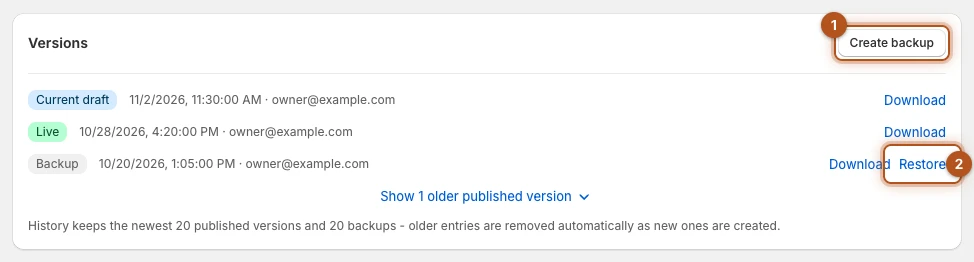
Every entry can be downloaded. Restore 2 appears on backups only: published versions are there to download and inspect, not to roll back to directly.
Restore writes that backup into your current draft, replacing whatever is in it. Your storefront carries on showing the published version until you publish again. So a rollback is two steps: restore, check it in Composer's Play, then publish.
What the banners on this page mean
Warnings stack above the cards. These are the ones you will meet.

Your Shopify Markets setup changed since you published. Since your last publish a market was added or removed in Shopify, or its catalog or percentage adjustment changed, and the banner lists each change. Where an adjustment moved, shoppers paying in that currency see the old amount and cannot complete their purchase until you publish again. Check the project and press Republish. Other currencies lists the changes that need it.
Linked scripts were updated. A script this project links to has been republished since this project was. Republish when you have checked the experience still behaves.
This configurator is paused. Shoppers see a notice instead of the configurator, and the product page shows no buy buttons. The product stays active in Shopify: to stop selling it altogether, set it to Draft in Shopify admin. Resume selling puts the configurator back.
Pricing test mode is on - this configurator is not selling. Pricing test mode covers it. Turn off and go live republishes straight away.
Helper products were edited in Shopify, or Helper products are not on the Online Store. The app owns these products and your Composer prices are the source of truth, so there is nothing to choose here, only to restore. Edit prices in Composer, not in Shopify, and press Republish to restore.
Checkout only accepts this product as part of a customized product. A product in your store carries the tag 3d-bits-generated, which marks the helper products 3D Bits creates, but 3D Bits did not create it. If it is your own product, remove the tag in Shopify admin.
A linked product is not available, A linked product is out of stock, A linked product's price changed. One of your own products, linked to an option, has moved underneath the published configurator. The banner says what changed. Pause this configurator 2 replaces the configurator with a notice and hides the buy buttons while you sort it out; to stop selling the product altogether, set it to Draft in Shopify admin. For a price change the banner says what the change does and can offer Update prices and publish 1 to save the new prices and publish in one go.
The variants a part picks from changed in Shopify, A part can no longer pick the right variant - this configurator needs a refresh. Open Composer, refresh the part from Shopify, check its matches and publish.
A warning about your product's own price. This one sits inside the Publishing card, next to your linked products, and it only appears when the project charges through Product lines. With that method the configurator's base price is the product's price in Shopify, and a shopper who picks a variant pays that variant's price as the base. The banner appears when a linked product has no variant priced at the base price, and says publishing is refused until they match. Its button, Set the product price to the base price, writes that price onto the product for you, with a confirmation first, because anything else selling that product at its own price is affected too. When the product's variants have several prices, only the cheapest ones get the base price, and the others keep theirs. Or set the base price to the product's price in Composer instead.
Setting up pricing is the full explanation, and it is worth reading before your first publish rather than after it.
Older guidance said to zero the product's price to keep it out of the way. Do not. With Product lines charging the product's price is the base price, so publishing refuses a product priced at zero while the configurator's base price is not.
Saving and publishing are different
Worth repeating because it catches people out. Save keeps your work in the project. Publish puts it on your storefront. You can save as often as you like without any of it reaching a shopper.
Publishing from this page asks you to confirm when it would add helper products your store does not have yet, usually the first time and when a newly priced option needs one. Pricing test mode suppresses the question, since it creates nothing. The same dialog offers to add an exclusion rule to your automated collections for those products, and that offer is ticked by default. It adds the rule wherever a collection can take one and lists the collections you need to change yourself.
On the Pro plan the dialog also opens when parts carry a price but no product, and offers to create or link products for them. That is off by default and it cannot be undone from the app, so read what it says first.
Deleting a project
Deleting cannot be undone: the project goes with its draft, every published version and every backup, so use Download JSON first if you may want it back. It removes the configurator from its products, clears their 3D Bits metafields and cleans up the files it published. A product another published project is live on keeps that project's configurator. A product on the Variant matrix method returns to a single variant, as it does on Unpublish. Helper products it created are archived rather than deleted, because past orders refer to them and those orders must keep making sense.
What stays on your variants
When a part picks one of your variants, publishing writes a small note on each variant it can pick, which checkout reads to recognise the variant. One note serves every configurator that picks the variant. Unpublishing or deleting a project takes the note off a variant no other published project picks. If Shopify does not answer at that moment, the note can stay, and it does nothing while no configurator picks that variant. You cannot edit these notes in the Shopify admin.
If you uninstall the app, the notes stay on your variants, like the app's other data on your products, and do nothing once the app is gone. Unpublishing the projects that use such parts before you uninstall takes them off: see Your data and uninstalling.
Verified against the product in November 2026