Helpers
A few tools that do not belong anywhere else. You will use the first two occasionally, and the third twice: once if you inherited an old setup, and once on the way out.
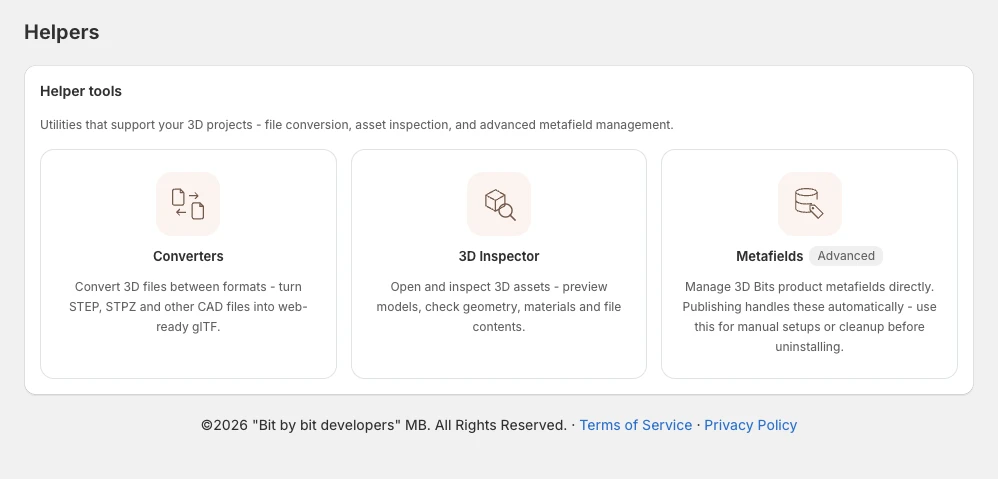
Converters
Turns a CAD file into a format the web can display.
If your product exists as a STEP file, which is what most CAD packages export for sharing, this converts it to glTF. That is the format 3D Bits and every web 3D viewer works with. Compressed STEP files carrying the .stpz extension are handled too. STEP to glTF Converter covers its options.
Conversion is a starting point rather than a finished asset. CAD models carry far more detail than a web page needs, so the result usually wants a pass to reduce its size and to check the parts are grouped the way your options need. Preparing 3D Assets covers that.
3D Inspector
Opens a 3D file and shows you what is inside it.
This is the tool for answering "why is my model not working". It shows the parts and how they are named and nested, the materials and the textures, and the triangle and vertex counts that decide how heavy the model is, with warnings when any of those is too high for a web page. When a configurator will not switch between parts the way you expected, the reason is almost always visible here, and it is usually that parts you thought were separate are not. 3D inspector goes through it.
It does not list animations. For those, open the model in Composer and use Parse structure in the Models section, which lists the animation clips a glTF file carries alongside its nodes, materials and variants. See Model Properties.
Useful before you build anything, to check a model is fit for the job.
Metafields
The original way to put 3D on a product, from before projects existed. You created metafield definitions here, then pasted a model link or a scene configuration onto each product by hand.
It still works, and stores set up this way keep running. It carries an Advanced badge because there is no reason to start here now. Projects do the same job without hand-editing anything per product, and give you the options panel, pricing and version history as well. Publishing a project creates whatever definitions it needs by itself, so you never have to visit this page for a project you built in the app.
If you have products set up the old way, Metafields documents the workflow. Moving one over means rebuilding it as a project and publishing, and the app leaves your existing setup alone until you do.
The one modern reason to open this page
Cleanup before uninstalling. The 3D Bits product metafields belong to your store rather than to us, so they survive an uninstall and we cannot remove them afterwards. If you want them gone, use Delete on the metafields page with Delete definitions AND saved values while the app is still installed. Unpublishing a project clears the values on its products as it goes, but not the definitions. Publishing also creates 3D Bits pricing definitions that the metafields page does not list: if you want those gone too, remove them in Shopify admin's settings, among your product metafield definitions. Storefront Display covers the rest of the uninstall tidy-up.
The Delete button removes every 3D Bits metafield definition on the page, including the ones your published projects run on, and first asks whether to take the saved values with them. Delete metafield definitions only leaves the values on your products, so configurators keep working. Delete definitions AND saved values unpublishes every project first, so every configurator disappears from its product page at once and each project has to be published again. That is exactly what you want on the way out, and never what you want otherwise.
Verified against the product in November 2026