Storefront Display
This page answers one question: is 3D currently switched on for your store, and if not, how do you switch it on.
It is reached from Storefront in the app's navigation. The page itself is titled Storefront display.
Before anything else, two possible alarms
The page opens with a banner when something is stopping 3D from appearing, and there are two of them.
Your plan is not switched through to your theme yet is the serious one. Your storefront has not been told which plan you are on, so the theme editor will not offer the 3D Bits app embed or any 3D Bits block, and 3D cannot appear on your products no matter what you have published. There is one remedy, and the banner links to it 1: open the Subscription page and press Sync storefront blocks.

The 3D Bits app embed is not switched on in your live theme is the ordinary one, and the button on this page fixes it.
Show 3D on your products
Enable 3D on your store 1 turns on the app embed, which is the switch that lets 3D Bits appear on your storefront. A dialog says what comes next, and Open theme editor opens your theme editor with 3D Bits already enabled, where you press Save.
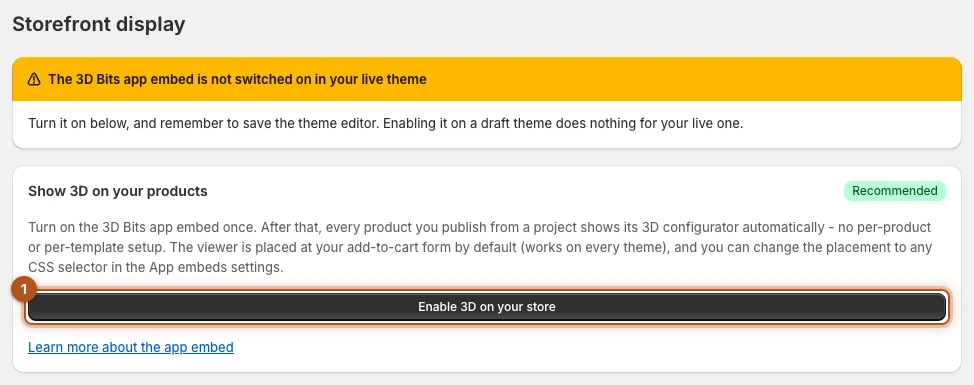
You do this once. From then on, every project you publish appears on its product page by itself, and products without a published project are untouched.
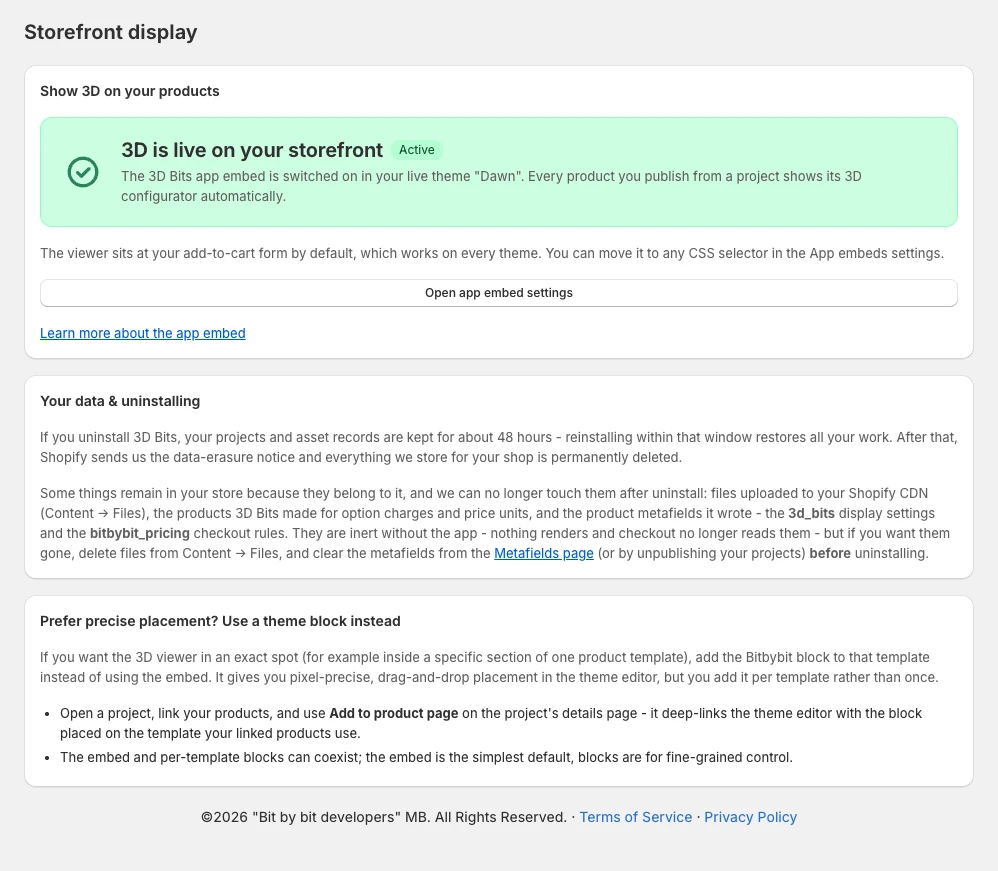
Once it is on, this card turns into a status panel: a green 3D is live on your storefront with an Active badge, naming the theme it checked, as in the picture at the top of this page. That is the readout to trust, not what you remember doing in the theme editor. If the card shows neither the green panel nor a banner, the app could not read your live theme this time: reload the page, or check App embeds in the theme editor yourself.
The check looks at your live theme, and so does your storefront. Enabling the app embed on a draft theme does nothing for the theme your shoppers see. If you are working on a copy, remember to enable it again after you publish that theme.
By default the viewer sits at your add-to-cart form, which works on every theme. You can move it to any CSS selector from the app embed's settings in the theme editor, and Open app embed settings takes you there.
Enable the app embed has the detail, including what to do if the automatic switch does not work on your theme.
Runner versions
Once the app has read your live theme, the page shows a Runner versions card. It lists every place your live theme loads the 3D runner, the app embed and each placed block, with the version saved there, the latest version, and a badge from green to red for how far behind each one is.
The app never changes that version for you. Runner versions explains why, and how to test a newer one and move to it - in the theme, or for one configurator from its project page.
Orders abroad
A store sees an Orders abroad card once it has a published configurator that charges through Product lines or Bundled parts and adds lines of 3D Bits' own to the order, such as option charges. It says where your store's address is, and which of the countries your markets sell to receive your orders as imports into the EU or the UK. For a store that sells into neither from outside, the card says so and recommends nothing.
It matters because of how Shopify treats such an import. On some of them Shopify collects no VAT - EU orders over 150 EUR and UK orders over 135 GBP - and it takes the VAT out of the order's prices only when every taxed line in the order is shipped. 3D Bits' own lines - option charges, the configured price and the line for an uploaded file - are set up as items that need no shipping, so an order that holds one of them keeps its prices with VAT.
Price lines ship as goods changes that. Those lines become products Shopify ships, weighing nothing, with SKUs starting 3DBITS-, and your orders abroad are taxed like your other products. The app asks you to confirm before it turns the setting on. Before you rely on it:
- From the next order those lines show on packing slips and in fulfilment, and shipping rates based on the order's price count them.
- Check that your shipping profiles cover them. New products join the General profile.
- Tell any fulfilment app or warehouse to skip SKUs starting
3DBITS-. - Place a test order to a country that receives it as an import.
- If you also sell in other currencies, publish your configurators again and place a test order in one of those markets too.
While the setting is off and some of your orders arrive in the EU or the UK as imports, Home shows the notice Configured orders abroad keep their VAT, and publishing a configurator that adds price lines lists the same under things to review.
If you would rather place things yourself
The page also points you at theme blocks, which are for when you want the 3D view or parts of the options panel in specific places in your product template rather than in the default spot.
That is a real need for some stores and unnecessary for most. Note that you add a block per template, where the embed is switched on once for the whole store. The two can coexist in one store, on different products: a block takes over from the embed only on products whose project is set to Theme template blocks. Add to product page, on a project's own page, opens the theme editor with the block already placed on the template your linked products use.
Theme Blocks explains the trade-off and covers each block.
Your data and uninstalling
The page carries a short note about what happens if you remove the app, and it is worth reading before you act rather than after.
Uninstalling starts a grace period of about 48 hours. Reinstall within that window and all your projects and asset records come back. After it, Shopify sends us the data-erasure notice and everything we hold for your shop is permanently deleted.
Three things stay in your store, because they belong to it. The files you uploaded to your Shopify CDN, which you will find under Content, then Files; the products 3D Bits made to carry option charges and prices; and the 3D Bits metafields on the products you published to. Nothing renders from the files or the metafields once the app is gone. The products 3D Bits made stay live in your store until you archive them, and we can no longer touch any of this after uninstall.
If you want those gone, do it while the app is still installed. Unpublish your projects first: that clears their metafields, archives the helper products each project made for its option charges, and returns a product on the Variant matrix method to a single variant. The shared Configured price and Uploaded file helper products stay, so archive those yourself in Shopify admin. Then delete the files from Content, then Files, and clear any metafields left over from the Metafields page. Once the app is uninstalled, that tidying is a manual job in Shopify admin.
The notes on your variants stay too. When a part picks one of your variants, publishing leaves a small note on each variant it can pick. The notes stay after an uninstall and do nothing once the app is gone, but you cannot edit or remove them in the Shopify admin. To take them off, unpublish the projects that use such parts before you uninstall: see What stays on your variants.
If you are about to uninstall and want to keep your configurations, download them from each project first. Download JSON on the project page saves a project to a file that can be loaded back later.
Per-project settings are elsewhere
How tall the canvas is, how wide the options panel is, which side it sits on and so forth are set per project, on the project's own page under Storefront settings. They live there rather than here because they usually differ between products.
See Canvas Sizing.
Verified against the product in November 2026