Scripts
Scripts need the Standard or Pro plan. Everything else about building configurators works on Base. On Base the Scripts item does not appear in the app's navigation, and a project's scripts neither run in Play nor on the product page.
This section of the app holds the programs that calculate geometry, and this page says when you want one and how it reaches a shopper.
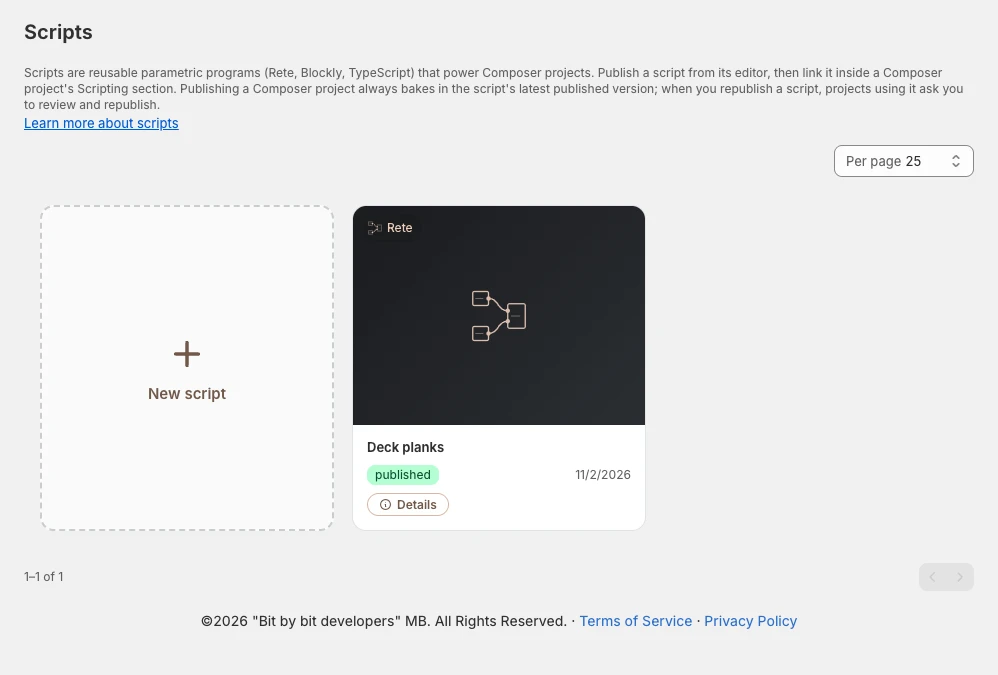
Most configurators work by swapping between parts you prepared in advance. That is fast, reliable, and enough for the majority of products. The catamaran needs no script at all: its three lengths are three prepared boats.
A script is for when that is not enough. Give a shopper a length to type, with a deck that gains a plank every 12 cm, and no set of prepared models can cover every possibility, so the geometry has to be calculated instead. That is what scripts do.
Three ways to write one
New script asks for a title and an editor, and you pick per script. All three produce the same thing.
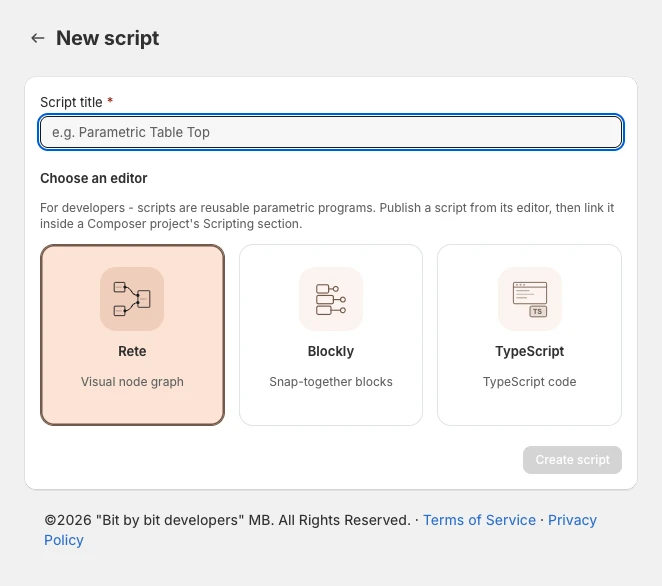
Rete is a visual node editor. You drag nodes onto a canvas and wire them together, and each node does one thing such as making a box, cutting one shape out of another, or reading a value the shopper entered. It suits people who think visually and do not want to write code.
Blockly snaps blocks together like puzzle pieces. It is the gentlest introduction and good for straightforward calculations.
TypeScript is a code editor with full autocomplete over our geometry library. It is the most direct route if you or your developer already write code.
How a script reaches a shopper
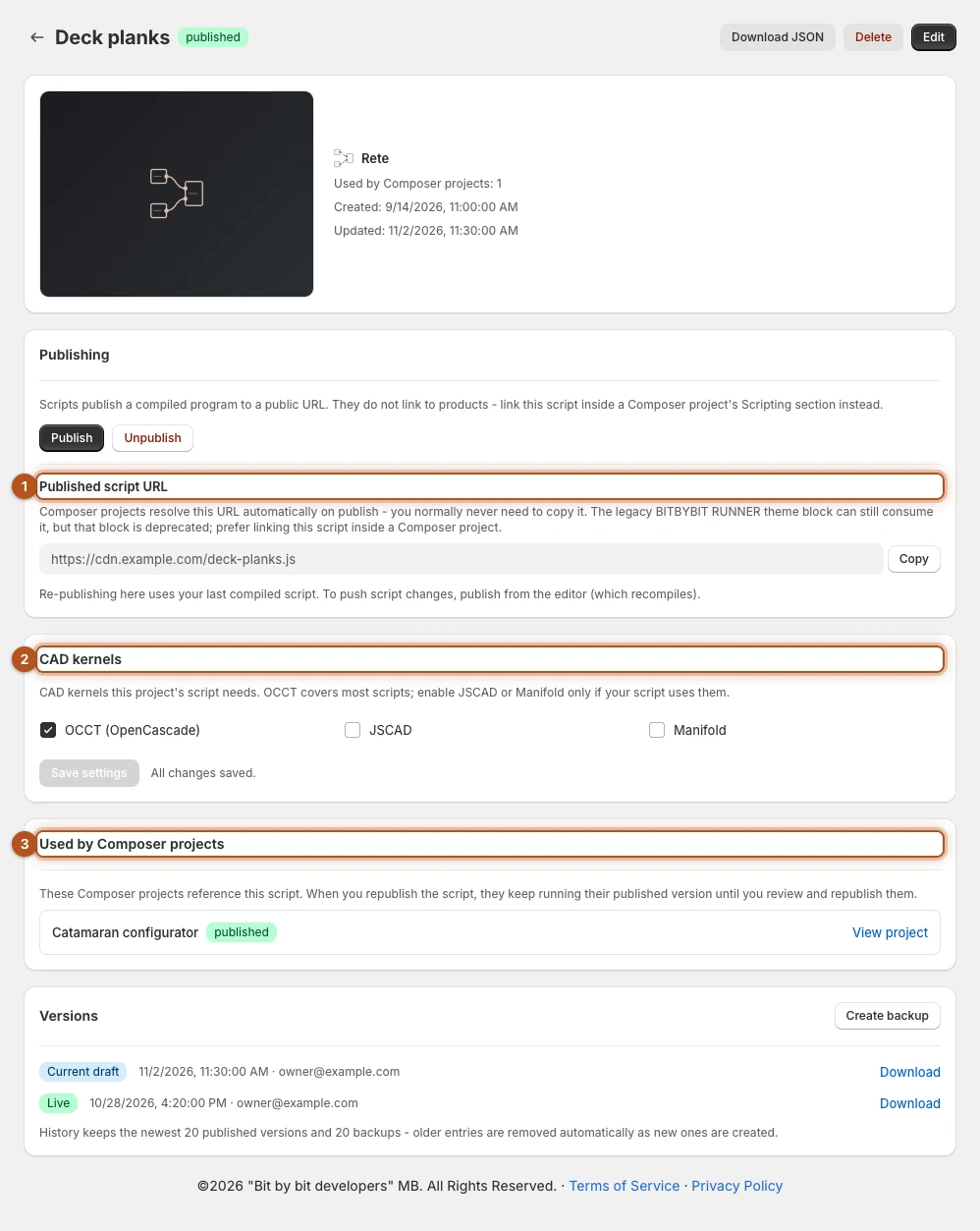
A script is not published to a product. It has no options panel and no prices, so on its own there would be nothing for a shopper to interact with. Publishing a script from its editor puts the compiled program on a public URL 1 and stops there. That file is public: every shopper's browser downloads and runs it, and anyone can read it. Never put anything into a script that you would not publish, such as API keys, passwords or cost prices.
So you publish the script, then open a project and link the script in Composer's Scripting section. The project supplies the panel your shopper uses, the pricing, and the connection to your products, and passes their choices into the script. The script returns geometry, and the project displays it.
That means the answer to "should I build a project or a script" is usually both. The project is the product. The script is the part of it that does the maths.
Publish on the script's own page republishes the last compiled program. To push a change to the script, publish from its editor, which compiles it again.
Keeping the two in step
Publishing a script does not update the projects using it. They keep running the version they were published with, which is deliberate, because a change to a script should not silently alter a live product. A project picks up the newest published version of the script the next time it is published.
Each side of that relationship tells you about the other. A script's page has a Used by Composer projects card 3 listing every project that links to it, so you can see who depends on it before you change anything, and publishing the script tells you again how many published projects now need a look. From the other direction, a project whose script has moved on carries a Script updated badge in the list and shows a Linked scripts were updated banner with a Republish button on it.
If any Composer project still links to a script, deleting or unpublishing it is refused, and the message names the projects that are holding it. Unlink it in each of those projects and save. A published project keeps holding the script until you publish it again without the script, or unpublish it. This is deliberate: taking a script out from under a published configurator would leave a product page with nothing to draw.
Geometry engines
Scripts can use CAD kernels for precise solid modelling and boolean operations, and each one you switch on adds to what your shopper's browser downloads, so turn on only what a script uses.
What your shopper's browser loads is set in the project, in Composer's Scripting section, under CAD kernels. That is the setting that counts.
A script's own page has a CAD kernels card 2 with OCCT (OpenCascade), JSCAD and Manifold checkboxes too. They save with the script and do not reach a product page, so set the kernels in the project even when the script's card already has them ticked.
Learning to build them
The editors are the same ones used across the bitbybit.dev platform, and the wider platform documentation covers them in far more depth than would fit here, including the full library of geometry operations.
Verified against the product in November 2026