Finding Your Way Around
3D Bits lives inside your Shopify admin, under Apps. Everything you manage about your configurators is here, and Composer opens from it. This page says what each section is for, why the app may stop at its terms, and what the warnings on its home page ask of you.
The sections
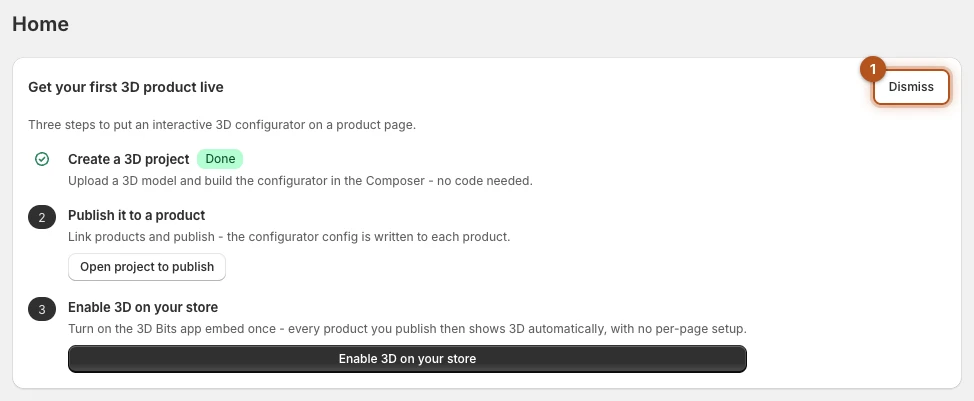
Home is where you land. Until your first product is live it shows a checklist of three steps that takes you from nothing to a live product, which Dismiss 1 hides in the browser you press it in. After that, Home is where warnings surface.
Projects holds your configurators. A project is one 3D scene with its options, its logic and its prices, and it is what you publish to your products. This is where you spend most of your time.
Scripts holds parametric programs, built in a visual editor or written in TypeScript, that calculate geometry rather than swapping between prepared models. You link a script into a project rather than publishing it to a product. This item appears on the Standard and Pro plans only.
Storefront is where you switch 3D on for your store, and where the app tells you whether it is currently on. The page itself is titled Storefront display.
Order review shows what each shopper configured and confirms the price adds up. It appears once the app has permission to read your orders.
Assets is your library of uploaded files: 3D models, images and other files. They live on Shopify's own file storage, not ours.
Composer opens the editor without a project attached. Useful for trying something out or opening a configuration file you have been sent, but it has no Save or Publish. For real work, open Composer from a project.
Helpers collects the occasional tools: a converter for CAD files, an inspector for looking inside a 3D model, and the older metafields workflow.
Subscription shows your plan, what it includes, and what your storefront has been told about it.
Learn opens this documentation inside the app.
Before the first page
The app opens only with an active plan. Without one it sends you to Shopify's plan page, and Subscription covers what happens from there.
Then come the terms. Until your store has accepted the current 3D Bits - Terms of Service, every page of the app leads here. Tick I have read and agree to the 3D Bits Terms of Service and press Accept and Continue.
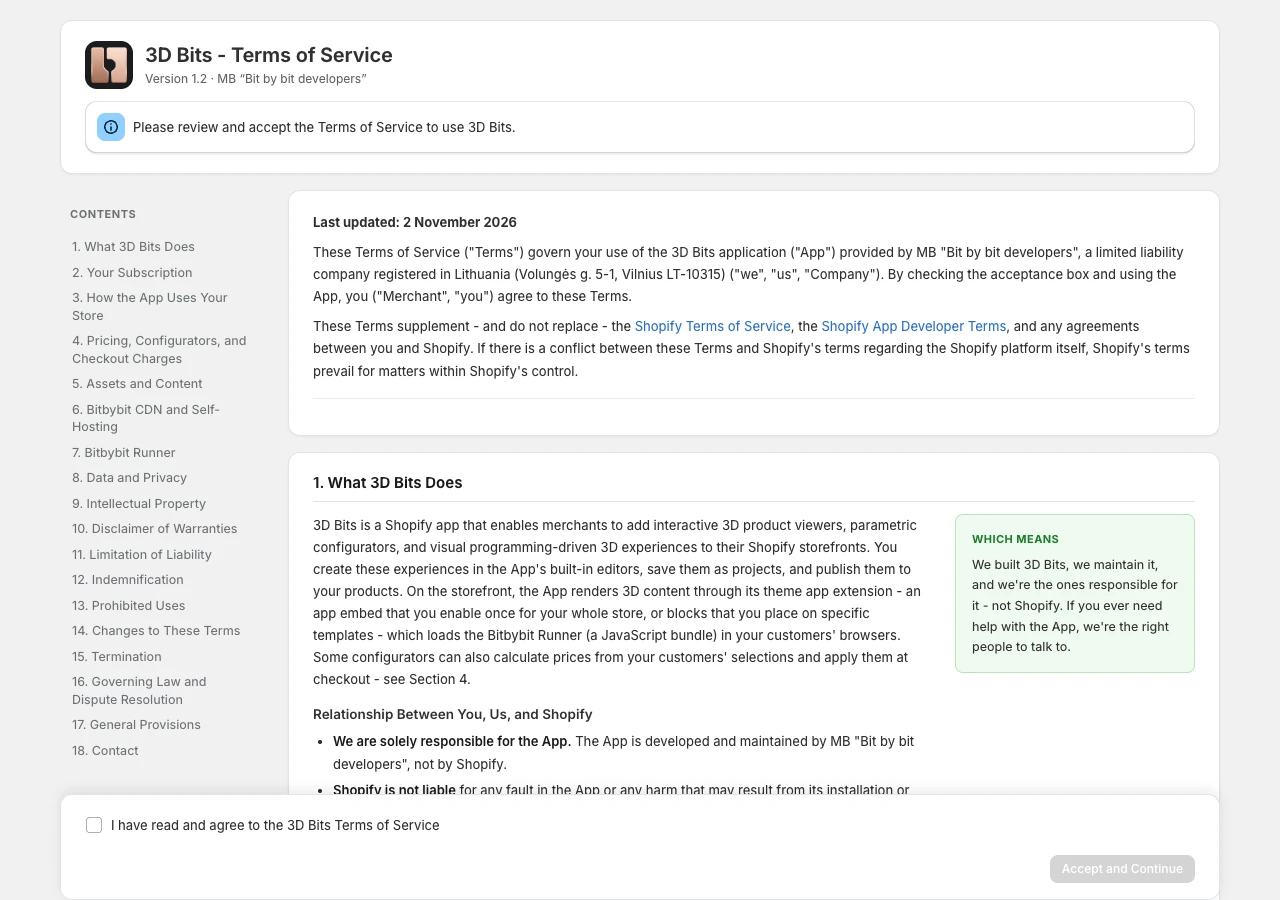
You accept once for the store, not once per person. When the terms change, the same page comes back and lists what is new since the version you accepted, and the button reads Accept Updated Terms. Uninstalling forgets your acceptance, so a reinstall asks again. Your configurators keep running on your storefront while the page waits for an answer.
Warnings on the home page
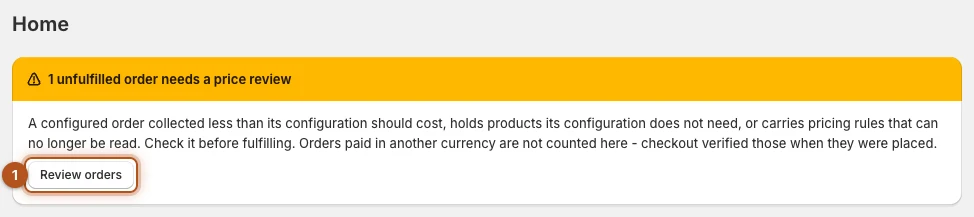
Once a project is published, Home looks at your orders and your linked products as it loads, and warns above everything else when one needs you. Nothing shows when all is well.
| The warning | What to do |
|---|---|
| 1 unfulfilled order needs a price review | Press Review orders 1, which opens Order review on its Needs review filter. Look before you fulfil. Only unfulfilled orders count here, and orders paid in another currency do not. |
| 1 unfulfilled order holds 3D Bits helper products without a configured product | Press Review orders. Helper products bought on their own says what to do with such an order. |
| Checkout cannot verify your configured prices | The banner names the projects. Open the app from your Shopify admin, accept any permission prompt and publish them again. If the banner says the validation was switched off, turn "3D Bits configured price validation" back on under Settings, then Checkout. 3D Bits never does that for you. |
| 1 published configurator links to a product that changed | Press Review configurators and open the project with the Linked product changed badge. Its page says what moved. See What the banners on this page mean. |
| 1 published configurator is selling at a price your catalogue has moved past | Nothing is being mis-collected, but you are selling at the old price until you sync and publish. Press Review configurators. |
| 1 published configurator picks from products whose variants changed | Shoppers can still buy. Refresh the parts in Composer and publish again. |
| Configured orders abroad keep their VAT | Press Open Storefront display, and read what the setting the banner names, Price lines ship as goods, changes before you turn it on - see Orders abroad. |
| Could not check your linked products | Shopify did not answer. Nothing is known to be wrong: reload the page. |
| Only your most recently edited configurators were checked | The store has more published configurators than one check covers. Open a project to check it directly. |
| Not every product your parts pick from was checked | Shopify took too long. Reload in a moment to check the rest. |
Projects and Scripts are different things
This is the one distinction worth getting straight early.
A project is a configurator. It has a scene, an options panel, prices, and links to the products it belongs to. You publish a project, and it appears on those product pages.
A script is a program that produces geometry. It has no options panel and no prices, and you do not publish it to a product. Instead you link it into a project, and the project provides everything around it.
So even a heavily parametric product is a project. The script is one part inside it. A script's page has a CAD kernels card that a project's page does not, and Scripts says which switches decide what shoppers download.
The first three steps
If you are new, the checklist on Home is the shortest route through, and Your First Configurator is the same journey with more explanation.
The checklist stays until you have published and the app embed is on. If your published product shows no 3D, open Storefront and switch the app embed on.
Verified against the product in November 2026