Finding Your Cloud Scripts
How to Locate Your Saved Cloud Scripts
Since your cloud scripts are always part of a project, you'll typically find them by navigating through your projects. This section explains the primary ways to access your scripts.
Method 1: Using the "My Projects" Dashboard
The most straightforward way to find and manage your scripts is through the My Projects dashboard.
- Navigate to the Dashboard: Go to your My Projects page.
- View Projects and Scripts: You'll see a list of all your projects. Each project is presented as an accordion item (an expandable section).
- Expand a Project: Click on a project to expand it. This will reveal a list of all the scripts contained within that specific project.
- Open a Script: Click on any script in the list to open it in its respective editor (Blockly, Rete, or TypeScript).
Here's what the expanded project view with its scripts looks like in the dashboard:
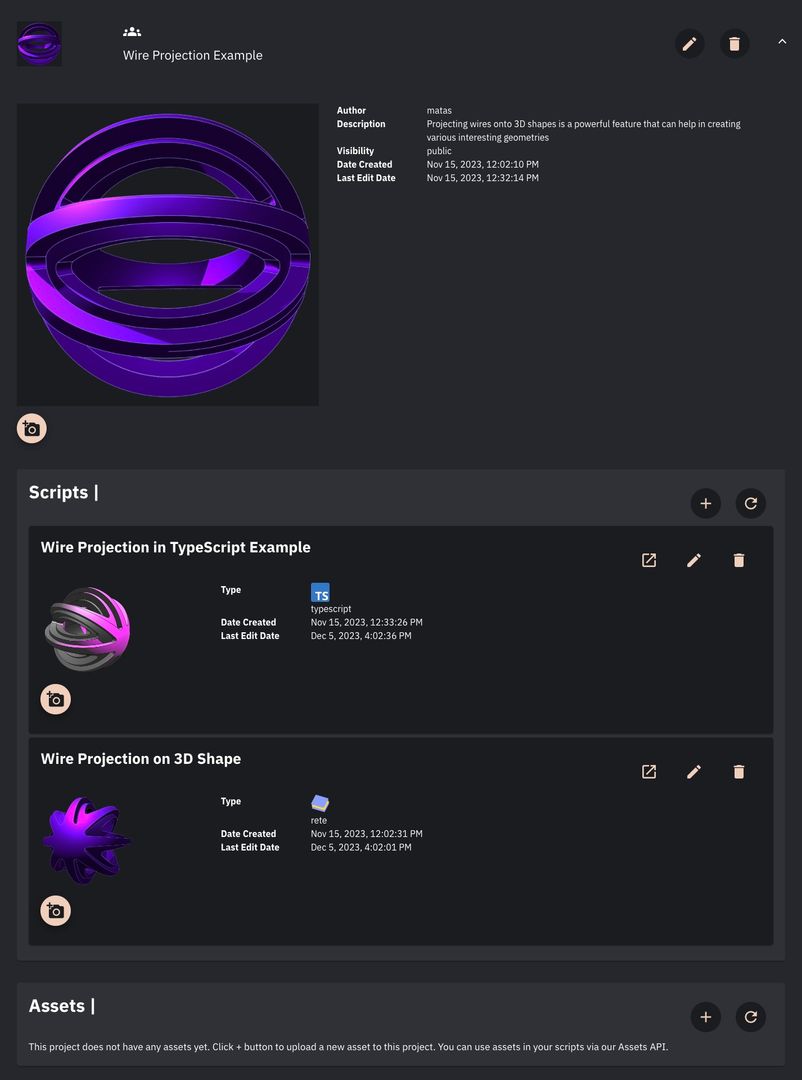 Example of the script overview page in the "My Projects" dashboard
Method 2: Using the In-Editor Project Management Panel
You can also access an overview of all your projects and scripts without leaving your current editor.
-
Open Project Management: While in any editor, click on the button located in the top-left corner. This button usually displays the name of your current script and has a settings icon.
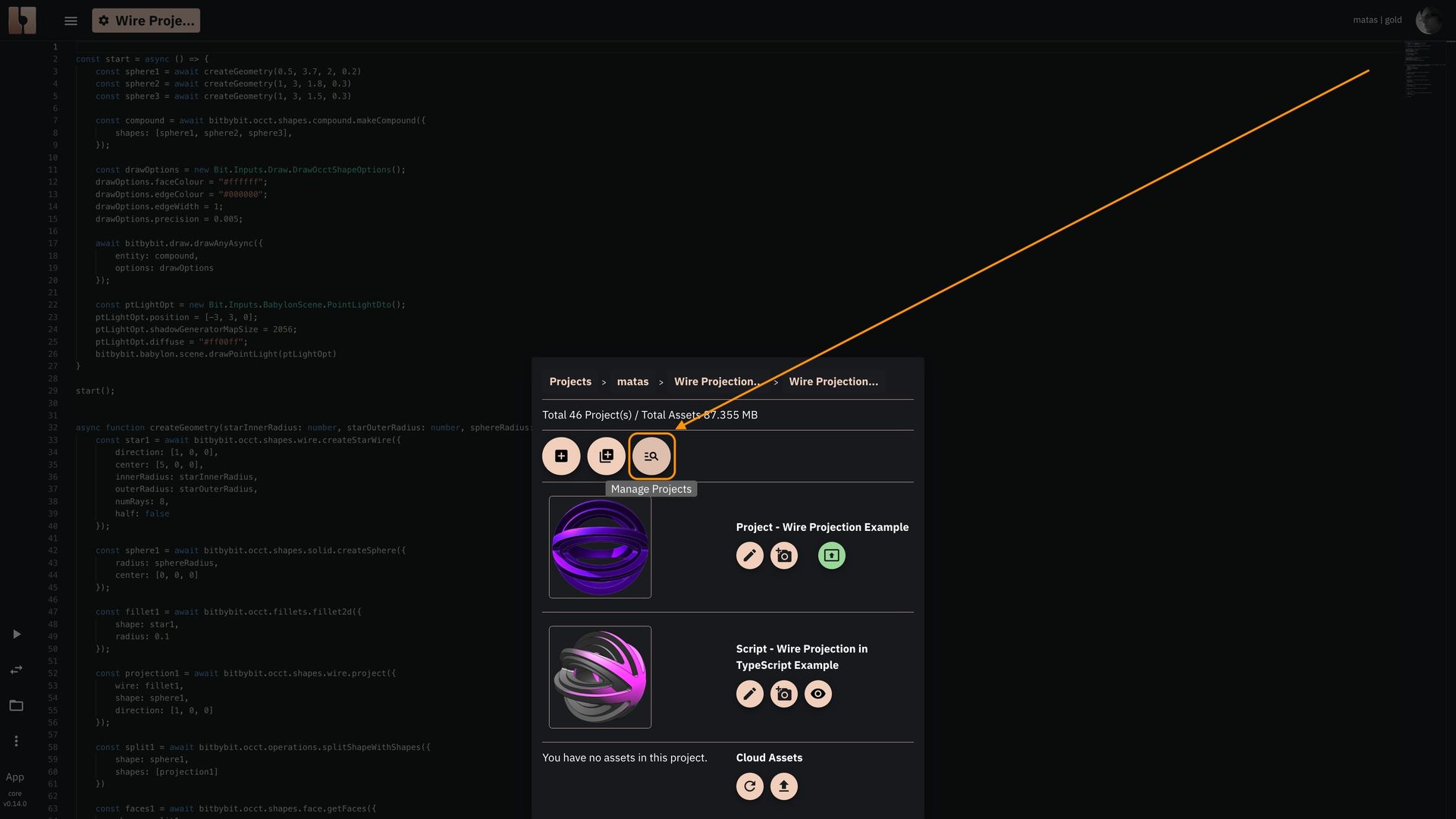 Button to open the project overview and management page in the editor
 -
Navigate Projects and Scripts: This will open a project management panel directly within the editor interface. Here, you can:
- See a list of all your projects.
- Expand projects to view their scripts.
- Switch to a different script or project.
- Perform other management tasks (like creating new scripts or projects).
Here's an example of this in-editor project management dashboard:
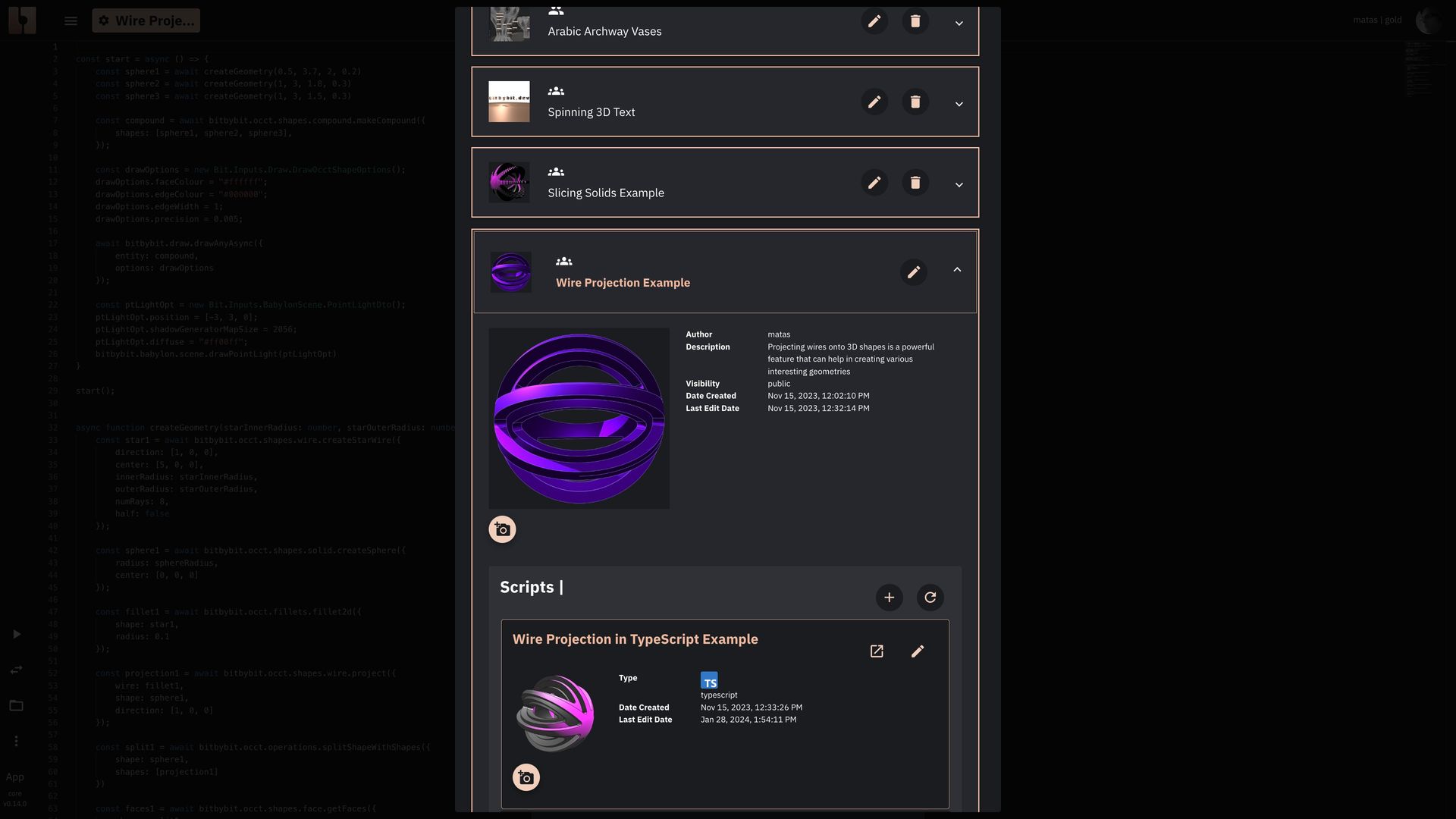 Find all your projects and scripts without leaving the currently active editor
Both methods provide convenient ways to access and manage your cloud scripts. The in-editor panel is great for quick navigation while you're already working, while the "My Projects" dashboard offers a more comprehensive overview.