Running Your Code
When and Why Do You Need to Run Code?
Let's get straight to it: whether you're typing TypeScript in our Monaco editor, or connecting visual blocks in Blockly or Rete, you are programming. Programming means you're creating instructions (code) that a computer needs to execute and interpret.
For your program to work, the code must be correct. If it's not, you'll likely see an error message during execution, or the results might be incorrect or simply not appear at all.
To see the outcome of your programming efforts, you'll need to click the magic "Run" button. This action tells the computer to execute your program.
- For Blockly and TypeScript (Monaco editor): Clicking "Run" is a mandatory step. You must click this button every time you want to see an update or the result of your changes.
- For the Rete editor: Rete behaves a bit differently. It's designed to react to any change you make on the canvas and automatically re-runs the script for you.
- However, the very first time you open a script in Rete, it will not execute automatically. This is a safety measure. Imagine opening a complex script that takes a long time to compute; you wouldn't want to be stuck waiting every time you just wanted to inspect it. Running the script initially should be your choice.
- So, in Rete, you can also click the "Run" button. This click primarily has an effect the first time you load the script. After that initial run, Rete will typically update automatically as you interact with the visual blocks.
Where is the "Run" Button?
The "Run" button is located in the bottom menu of the editor. Depending on your screen size and layout, this menu might appear horizontally at the bottom or vertically on the left side of your screen.
It looks like this:
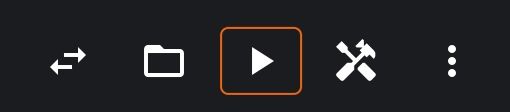 Button To Run The Code
What Happens if My Program Fails to Run?
This depends on a few things:
-
Infinite Loops or Impossible Tasks: Sometimes, your code might ask the computer to do something impossible or get stuck in an infinite loop (yes, even in visual programming!). If this happens, the program may never finish computing.
- Your browser tab might become unresponsive ("hang"), and you may even need to close it.
- Recommendation: Save your work often! If you're a subscribed user on our platform, your work is automatically saved to our database every 15 seconds. If not, manual saves are crucial to avoid losing progress.
-
Errors During Execution: Many times, the program will detect an issue and stop, often displaying an error message.
Check out our section on understanding errors in scripts to learn more about what can go wrong and how to interpret error messages.
How Do I Know if My Code Works Correctly?
Even if your code runs without errors, the result might not be what you expected. This is a common part of programming!
Always verify the output:
- Visual Feedback: The best way is often to draw something on the screen – a 3D object, some text, etc.
- Console Output: You can also print text messages to the developer console to check values or program flow.
If you're using the Monaco (TypeScript), Blockly, or Rete editors and your script is supposed to create 3D objects, you can check the result by clicking the "Swap Canvas" button. This will switch you to the 3D environment where you can see and interact with what your code has produced.
Here's the "Swap Canvas" button:
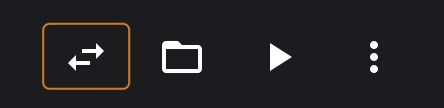 Button to swap the canvas and switch between 3D and coding environments
What Happens if the Script Runs Correctly?
We generally do not display a "success" message if your script executes without explicit errors. It's up to you to inspect the output (visual or console) and confirm that everything looks as intended.
- Loading Spinner: For time-consuming algorithms, you might see a spinner icon replace the "Run" button while the computation is in progress. If the spinner appears, it usually means the computer is still working.
- Patience is Key: Keep in mind that even correct code can take a while to compute, especially for complex programs. Some CAD (Computer-Aided Design) algorithms, in particular, can be computationally intensive.
Happy coding, and don't forget to hit "Run"!