Understanding Scripts in Bitbybit Projects
What is a Script?
In Bitbybit, Projects are containers for your work, and within each project, you have Scripts. When you create a new project, an initial script is automatically created for you.
Scripts are where your actual code or visual programming logic resides. There are three main types of scripts, each corresponding to a specific editor:
- Blockly Scripts: Created and edited using the Blockly visual block-based editor.
- Rete Scripts: Created and edited using the Rete node-based visual programming editor.
- TypeScript Scripts: Created and edited using the Monaco text-based editor for TypeScript code.
The type of script you choose dictates which editor you will use to work on it.
Script Visibility
A script's visibility is directly tied to the visibility of the Project it belongs to.
- If a Project is public, all its Scripts are also public. It's not possible to have private scripts within a publicly accessible project.
- Similarly, if a Project is private, all its Scripts remain private.
While not mandatory, it's highly recommended to provide a representative cover image for each script to visually describe its content.
Here's an example of how scripts might appear within a project's overview:
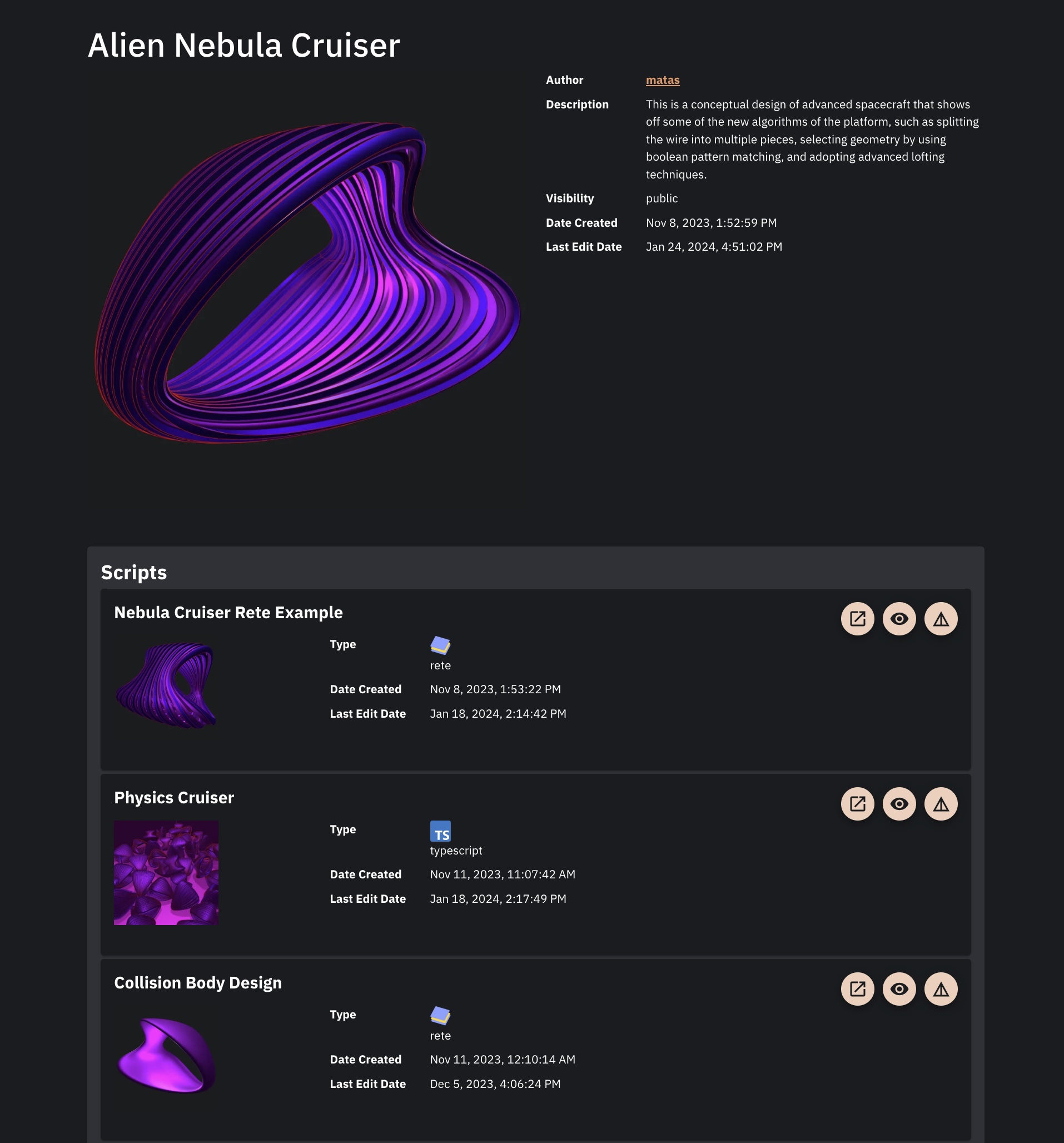 Scripts within a project
What Kinds of Scripts Can a Project Contain?
A single project can contain multiple scripts, and these scripts can be of any of the three types mentioned above (Blockly, Rete, or TypeScript). You can even mix and match script types within the same project to leverage the strengths of each editor for different tasks.
Example Workflow: Combining Scripts
Imagine you want to create a mini-game or simulation:
- Model Creation (Rete): You could create a detailed 3D parametric model for visuals and a separate, simplified collision body for physics calculations, both using the Rete editor.
- Export Assets: Export both of these models as GLTF files (a common 3D file format).
- Import Assets: Import these GLTF files as assets into your Bitbybit project.
- Game Logic (TypeScript): Use a TypeScript script to load these assets and implement the game logic, animation, or simulation.
The project shown in the image above ("Scripts within project") follows a similar workflow. You can explore the embedded script editors below to see how the geometry is produced and how the simulation works:
1. Script for Visible Geometry (Rete Editor): This script creates the detailed visual model.

2. Script for Simplified Collision Body (Rete Editor): This script creates a less detailed model optimized for physics calculations.
3. Script for Animation/Simulation (TypeScript Editor): This script combines the exported assets into an animated simulation.
4. Script for Physics-Based Simulation (TypeScript Editor): This script demonstrates using the assets in a simulation with physics.
Example Code:
const scene = bitbybit.babylon.scene.getScene();

scene.activeCamera.position = new BABYLON.Vector3(-40, 10, -40)

const start = async () => {

    const files = [
        "alien-nebula-cruiser-1.glb",
        "alien-nebula-collision-body-1.glb",
    ]

    const gltfFiles = await Promise.all(files.map(fileName => bitbybit.asset.getFile({ fileName })));
    const meshes = await Promise.all(gltfFiles.map(assetFile => bitbybit.babylon.io.loadAssetIntoScene({ assetFile, hidden: true })));
    const meshSpaceship = meshes[0];
    meshSpaceship.position = new BABYLON.Vector3(0, 50, 0);

    const meshSpadceshipCollisionBody = meshes[1];
    const collisionBody = meshSpadceshipCollisionBody.getChildMeshes().find((m) => m.name.includes("surface")) as BABYLON.Mesh;
    collisionBody.position = new BABYLON.Vector3(0, 50, 0);
    collisionBody.isVisible = false;
    const groundMesh = await createBox();
    const groundCollisionMesh = groundMesh.getChildMeshes().find((m) => m.name.includes("surface")) as BABYLON.Mesh;

    bitbybit.babylon.scene.enablePhysics({ vector: [0, -9.81, 0] });

    const size = 20;
    const step = 20;
    for (let x = -size; x <= size; x += step) {
        for (let y = -size; y < size * 4; y += step) {
            for (let z = -size; z <= size; z += step) {
                const parentMesh = new BABYLON.Mesh(`${x}-${y}-${z}`, scene);
                meshSpaceship.getChildMeshes().forEach((mesh: BABYLON.Mesh) => {
                    if (mesh.name !== "__root__") {
                        const inst = mesh.createInstance(`${x}-${y}-${z}-instance`);
                        inst.parent = parentMesh;
                    }
                });

                parentMesh.position = new BABYLON.Vector3(x, y + (size * 2), z);
                const collisionBodyMesh = collisionBody.clone(`${x}-${y}-${z}-collision`);
                new BABYLON.PhysicsAggregate(parentMesh, BABYLON.PhysicsShapeType.MESH, { mesh: collisionBodyMesh, mass: 3.75, restitution: 0.75 }, scene);
            }
        }
    }

    new BABYLON.PhysicsAggregate(groundMesh, BABYLON.PhysicsShapeType.MESH, { mesh: groundCollisionMesh, mass: 0, restitution: 0.75 }, scene);
    meshSpaceship.getChildMeshes().forEach(m => m.isVisible = false);
    const lightOpt = new Bit.Inputs.BabylonScene.DirectionalLightDto();
    lightOpt.direction = [-100, -500, -100];
    lightOpt.shadowGeneratorMapSize = 2056;
    bitbybit.babylon.scene.drawDirectionalLight(lightOpt)
}

start();

async function createBox() {

    const box = await bitbybit.occt.shapes.solid.createBox({
        width: 100,
        length: 100,
        height: 30,
        center: [0, 13, 0],
    })

    const boxCutout = await bitbybit.occt.shapes.solid.createBox({
        width: 90,
        length: 90,
        height: 30,
        center: [0, 15, 0],
    })

    const diff = await bitbybit.occt.booleans.difference({
        shape: box,
        shapes: [boxCutout],
        keepEdges: false
    })

    const boxDrawOptions = new Bit.Inputs.Draw.DrawOcctShapeOptions();
    boxDrawOptions.precision = 0.1;
    boxDrawOptions.faceColour = "#ff00ff";
    const boxMesh = await bitbybit.draw.drawAnyAsync({
        entity: diff,
        options: boxDrawOptions
    })

    return boxMesh

}
This flexibility allows you to choose the best tool for each part of your overall project, combining visual programming for geometry or flow with text-based coding for complex logic or direct API access.