Creating Scripts in Bitbybit
Why Do We Need Scripts?
Scripts are the fundamental building blocks of your projects in Bitbybit. They contain the actual code (TypeScript) or visual programming logic (Blockly/Rete) that brings your 3D ideas to life. When you create your first project, an initial script is automatically created for you. While you can delete this script, a project without any scripts isn't very useful!
Cloud Scripts vs. Local Scripts: What's the Difference?
It's important to understand the distinction between scripts that are synced with our cloud database and those that are local to your browser session.
-
Local Scripts (Unsaved, For Quick Experiments): If you open one of our editors directly (e.g., via the "Apps" button on our main menu without being logged into a project), you can start creating a script immediately. These scripts are NOT automatically saved or synced with our cloud database.
- Convenience: This allows anyone to test out our editors and free-tier algorithms without needing to sign up or commit. It's great for quick experiments.
- No Cloud Storage: If you close your browser or navigate away, your work in these local scripts might be lost unless you manually save it to a file.
-
Cloud Scripts (Saved, Part of a Project): To save your scripts and organize them into projects, you need to sign up for the Bitbybit platform. Scripts created within a project are automatically saved and synced with our cloud database.
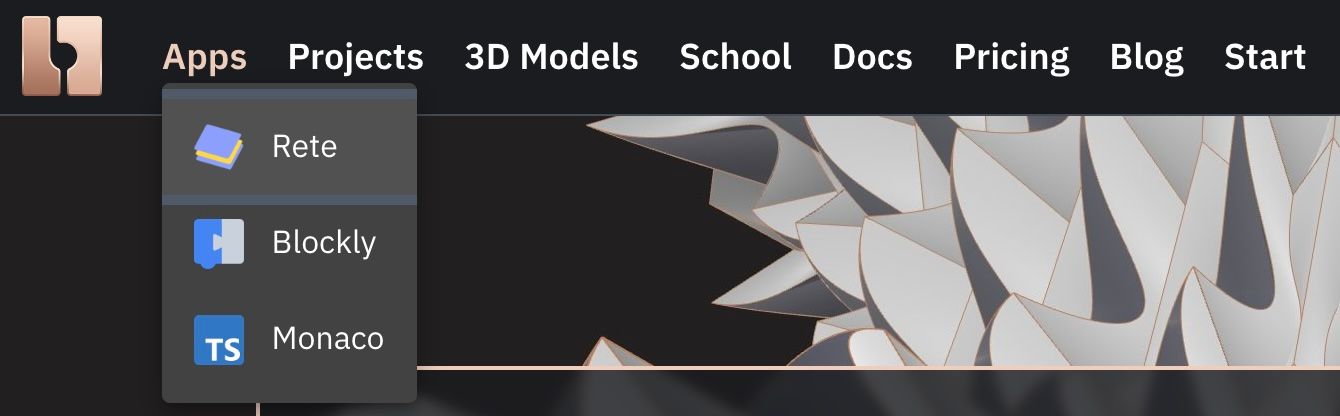 Direct links to editors, usable by both non-signed-up and signed-up users for local script creation.
How to Create a New Local Script (Unsaved)
To quickly experiment without creating a project or saving to the cloud, you can open our editors directly using these links. Notice that these URLs do not contain any project or script IDs:
- Rete Editor:
https://bitbybit.dev/app?editor=rete - Blockly Editor:
https://bitbybit.dev/app?editor=blockly - TypeScript Editor:
https://bitbybit.dev/app?editor=typescript
Important for Local Scripts:
- These are meant for fast experiments that you might not need to save permanently.
- If you do want to save your work from a local script, use the "Export" feature (learn more: Save Script to File).
- Later, you can import the contents of these saved files into your Cloud scripts using the "Import" feature (learn more: Import File to Script).
How to Create a New Cloud Script (Saved within a Project)
To create scripts that are saved and managed within your Bitbybit account, follow these steps:
-
Sign Up/Log In: First, ensure you are signed up and logged into the Bitbybit platform. You can sign up by clicking the "Sign Up" button in the top-right corner of our website. After signing up, you'll typically be guided to create your first project, which will also include your first script.
-
Access Project Management (from an Editor): When you are working within any of our editors (as part of an existing project), you can create additional Cloud scripts. The easiest way is to open the project management panel by clicking the button in the top-left corner of the editor (this button usually shows the current script's name and a settings icon).
 Button to open project management panel
 -
Click "Create Script": In the project management panel that opens, find and click the "Create Script" button. This is usually located near the top of the panel.
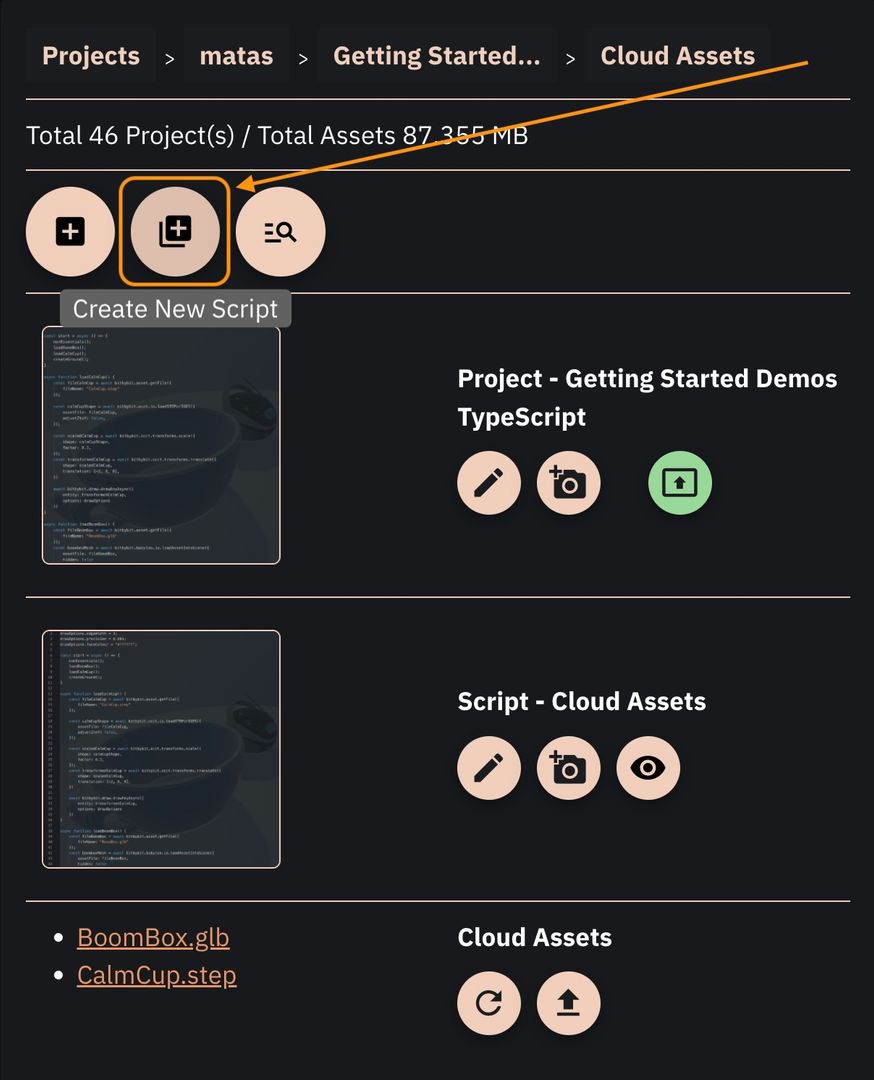 Button to create a new script
 -
Fill in Script Details: A modal (pop-up window) will appear, asking you to:
- Script Title: Give your new script a descriptive name.
- Script Type: Choose the editor type (Blockly, Rete, or TypeScript).
The form will look similar to this:
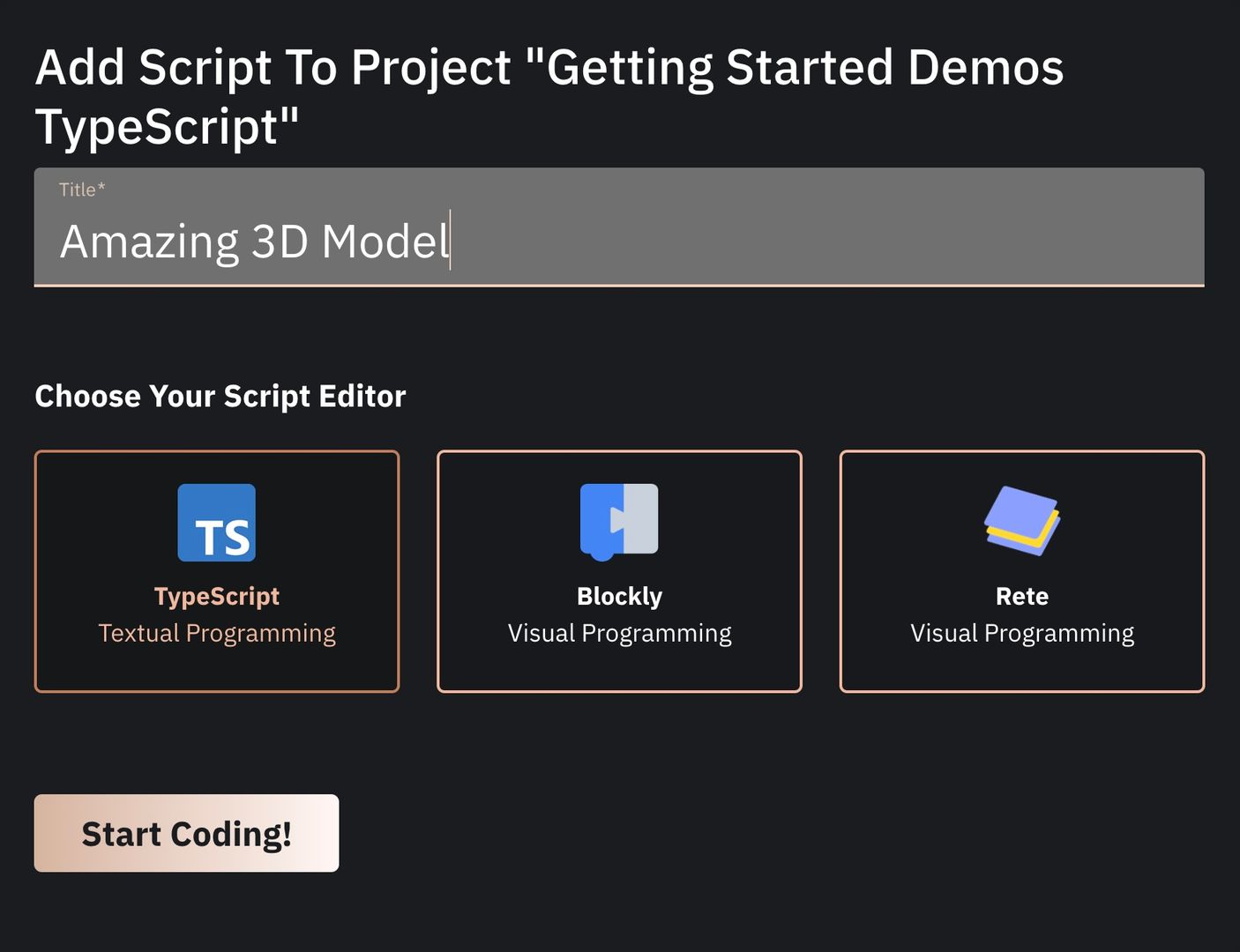 The form that needs to be filled to create a new script
 -
Start Coding! After filling in the form, click the "Start Coding!" button. The appropriate editor will open with some default content for your new script. Feel free to remove this default code and start building your own! This new script is now part of your project and will be saved to the cloud.
Identifying Cloud Scripts by URL
You can often tell if a script is a Cloud script (part of a project) by looking at its URL. Scripts shared from public projects created by our signed-up users will have a URL structure that includes the author's public username, a project ID, and a script ID:
Example URL Structure:
https://bitbybit.dev/app/matas/mlN4ge3rHJbe0R9suBns/CS3ulgvY7eVh2di8FXHK?editor=rete
Breakdown:
https://bitbybit.dev/app/[public-user-name]/[project-id]/[script-id]?editor=[rete|blockly|typescript]
Local script URLs, as shown earlier, are much simpler and lack these identifying IDs.