Saving Your Scripts to a Local File
Why Save a Script to a File?
Exporting your Bitbybit scripts to a local file on your computer can be useful in several scenarios:
- No Account/Offline Work: If you don't have a Bitbybit account or are working on a local, unsaved script, saving to a file is the primary way to preserve your work.
- Sharing Privately: If you want to share your work with someone without making your project public on our platform.
- Version Control/Backups: To save different versions or milestones of your scripts for later use or as personal backups, independent of the cloud auto-save.
All script types on our platform (Blockly, Rete, and TypeScript) can be exported to a file and then later imported back into Bitbybit.
How to Save Your Script to a File
Follow these steps to export your current script:
-
Open the "More Actions" Menu: While in any of our editors, locate the "More Actions" menu button. This button often looks like three dots (
...) or a similar icon indicating additional options. Depending on your screen size and layout, this menu might appear in a vertical or horizontal orientation within the editor's interface. Button To Open More Actions
 -
Click the "Export" Button: Once the "More Actions" menu is open, find and click the "Export" button.
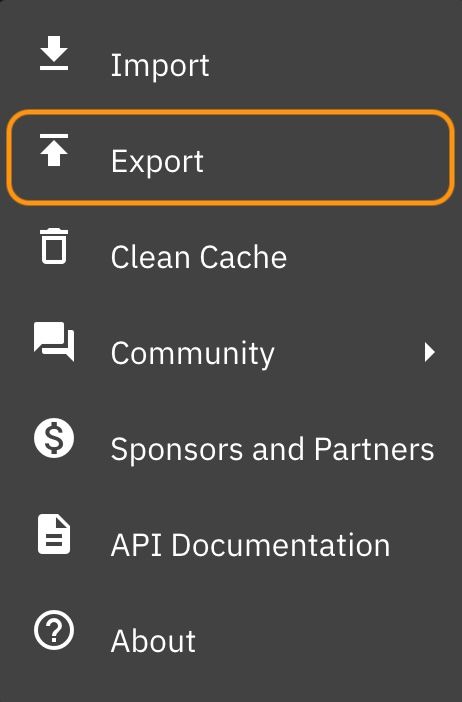 Export button that saves script to a file
This will trigger your browser to download the script as a file.
File Format and Naming:
- All files exported from our platform will have the
.bitbybitextension. - While you can open these
.bitbybitfiles with a text editor to see their contents (they are typically JSON-based), only the Bitbybit platform editors are designed to import and interpret these files correctly. - We also include an indicator in the filename to denote the script type:
- Blockly scripts:
your-script-name-bl.bitbybit - Rete scripts:
your-script-name-rete.bitbybit - TypeScript scripts:
your-script-name-ts.bitbybit
- Blockly scripts:
Now that you know how to save your scripts to a file, you can also learn how to import them back into the Bitbybit platform.