Importing Scripts From a Local File
How Importing Works
You can import scripts that you've previously saved to a .bitbybit file back into the Bitbybit platform.
Important Considerations for Importing:
- Editor Context: You must be in one of our editors (Rete, Blockly, or Monaco for TypeScript) to import a file.
- Matching File Type: The type of file you import must match the editor you are currently using:
- You can only import
-rete.bitbybitfiles into the Rete editor. - You can only import
-bl.bitbybitfiles into the Blockly editor. - You can only import
-ts.bitbybitfiles into the Monaco (TypeScript) editor.
- You can only import
- Mismatched Types: If you attempt to import a file of an incompatible type (e.g., trying to import a Blockly script into the Rete editor), the import will likely fail, and the editor canvas will remain unchanged.
How to Import a Script From a File
Follow these steps to import a .bitbybit file into your current editor:
-
Open the "More Actions" Menu: While in the appropriate editor (Rete, Blockly, or TypeScript), locate the "More Actions" menu button. This button often looks like three dots (
...) or a similar icon indicating additional options. Depending on your screen size and layout, this menu might appear in a vertical or horizontal orientation within the editor's interface. Button To Open More Actions
 -
Click the "Import" Button: Once the "More Actions" menu is open, find and click the "Import" button.
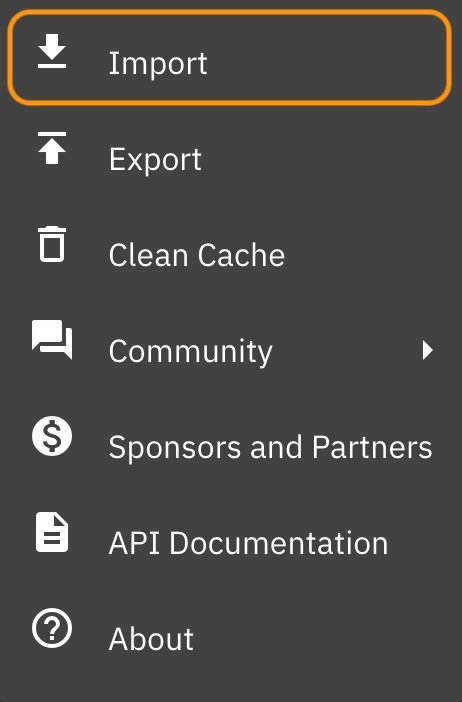 Import button that loads script from a file
 -
Select Your File: Your browser will open a file selection dialog. Navigate to and select the
.bitbybitfile you wish to import. Ensure it's the correct type for your current editor.
After Importing:
- The contents of the imported script will be interpreted and loaded onto your editor canvas (or into the code editor for TypeScript).
- You can then click the "Run" button to execute the imported script and see its output.
This feature allows you to easily resume work on previously saved local scripts or share scripts with others via file transfer.