Understanding and Handling Errors
Why Do Errors Happen?
We're all human, and making mistakes is a natural part of learning and creating – even for professional software developers! Computers, on the other hand, are very precise. They won't overlook mistakes and will usually report them through an error message or by behaving unexpectedly.
In this section, we'll explore how errors are reported in Bitbybit editors and how you can approach fixing them.
How Do I Know an Error Occurred?
Most of the time, errors will be brought to your attention through a modal (a pop-up window). This modal will display a message describing the problem the computer encountered. You'll typically need to close this modal before you can continue working on a fix.
Different editors in Bitbybit handle error reporting in slightly different ways:
- Blockly and Rete Editors: These visual editors often highlight the specific component(s) causing the error, usually by turning them reddish.
- Monaco Editor (TypeScript):
- As you type: The editor provides real-time feedback, underlining potential mistakes in red. You can hover over the underlined code to see the error message.
- When you run code: If an error occurs during execution, you might also see a pop-up modal with error details.
Errors in the Rete Editor
The Rete editor is highly interactive, so you often see errors very quickly. If you change an input on a component and it immediately turns red, you know there's a problem.
Here's an example of an error in the Rete editor:
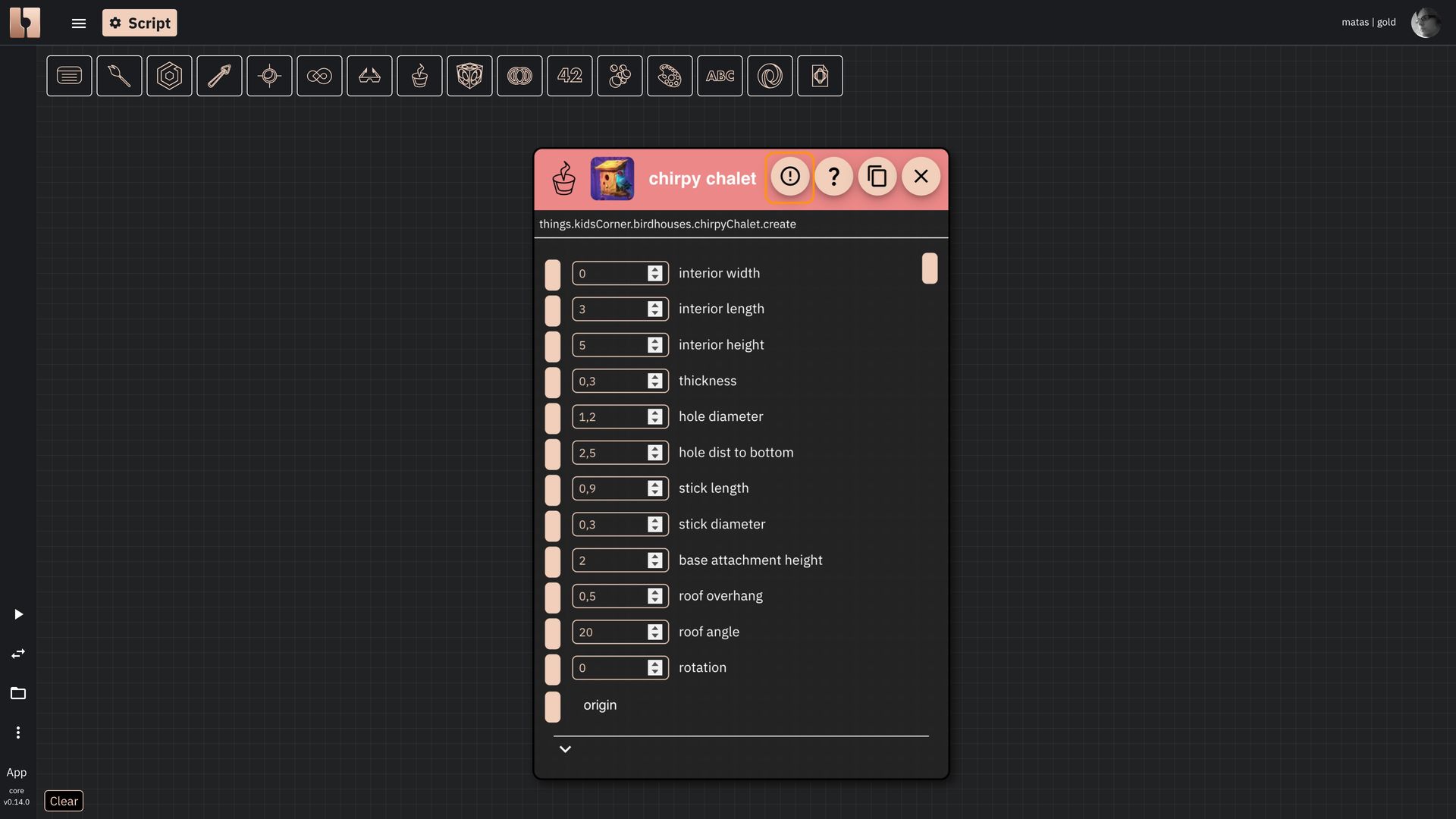 Example of a component with an error in Rete editor
In this specific case, the "chirpy chalet" component has its width set to 0. The underlying algorithm can't compute geometry with a zero width.
To see the detailed error message, click the button marked with an exclamation mark (!) on the component. This will open a modal like the one below:
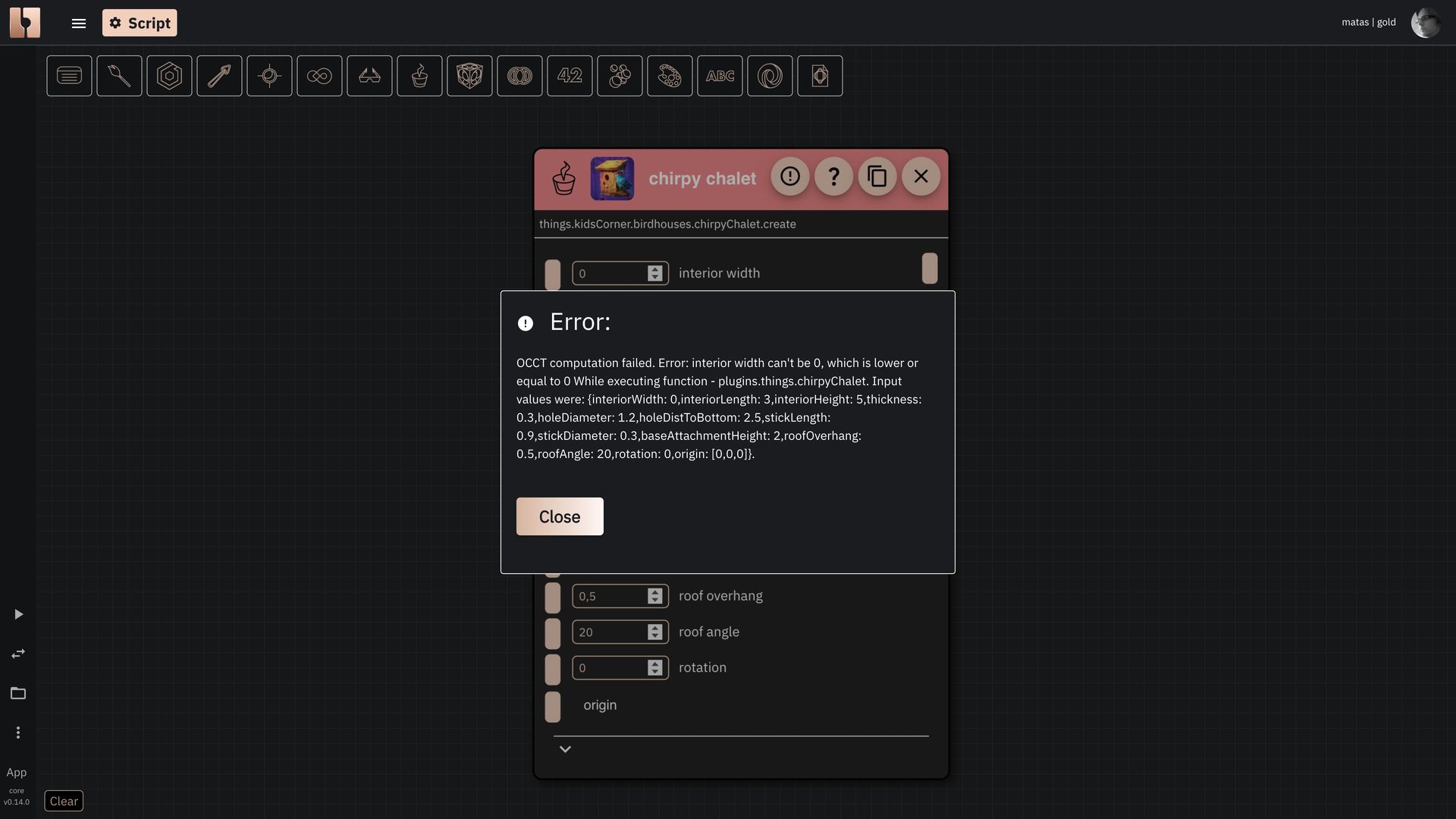 Example of an error modal containing information about the error that happened in Rete editor
This error message clearly states that the interior width cannot be 0. To fix this, you would change the width input on the component to a valid, non-zero value. The Rete component will then re-trigger its execution immediately. If the fix is correct, the component will return to its normal color.
Errors in the Blockly Editor
The Blockly editor also highlights components that cause errors. Here's an example of an error modal you might see in Blockly:
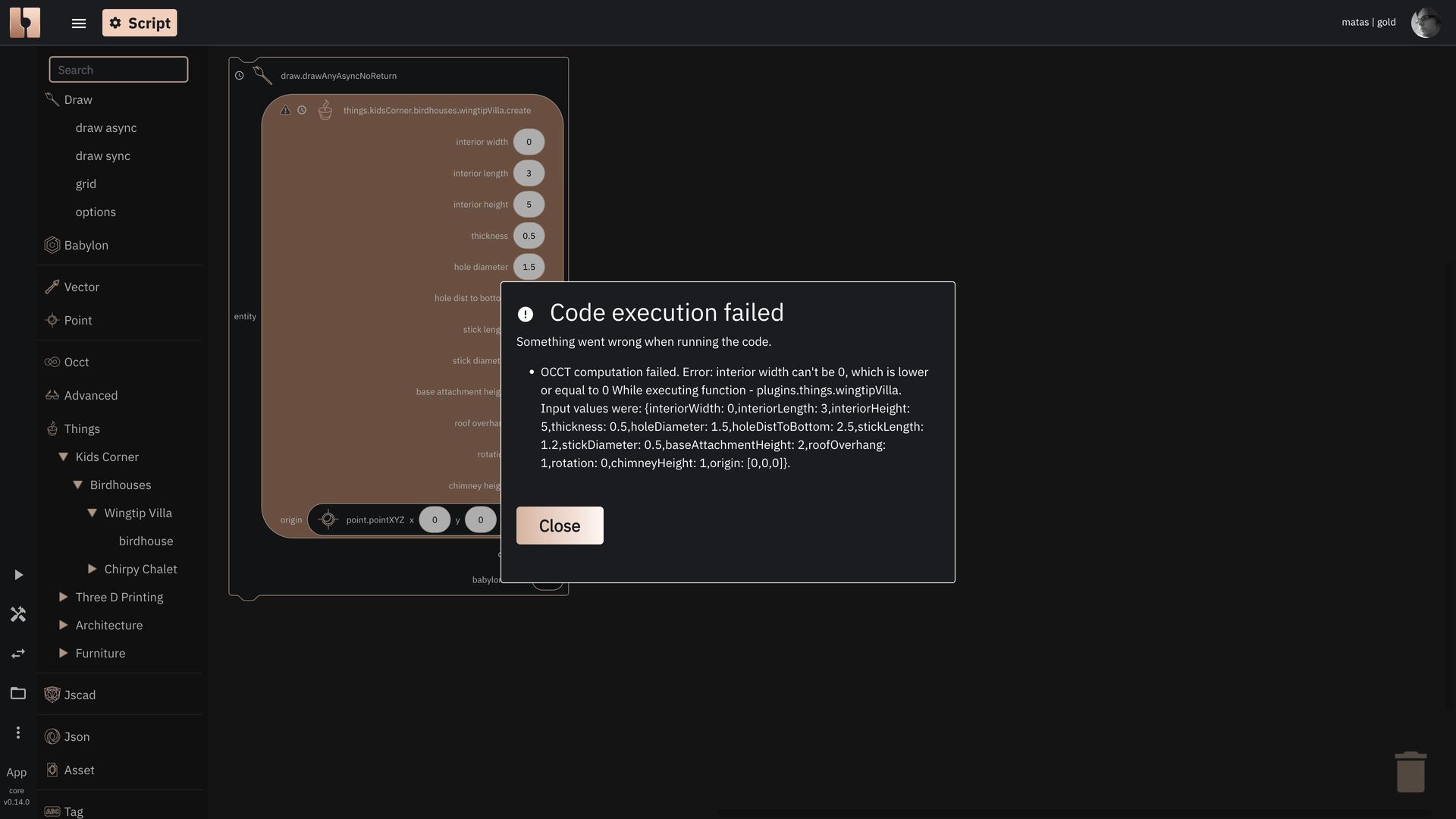 Example of an error modal containing information about the error that happened in Blockly editor
A key difference between Rete and Blockly regarding errors is:
- Rete: Shows errors almost immediately as they happen (after the initial script run).
- Blockly: Shows errors only after you click the "Run" button.
If there are multiple errors in your Blockly script, it will try to collect them and display them in a list. The problematic blocks on the canvas will also turn red and may show specific error messages if you click on the triangle icons with an exclamation mark (!).
Errors in the Monaco Editor (TypeScript)
TypeScript is a powerful programming language that's great for both beginners and professionals. One of its key features is strong typing. This means TypeScript helps prevent many common mistakes before you even run your code, such as:
- Trying to use variables that don't exist.
- Accidentally changing a variable's type (e.g., from text to a number).
- Countless other potential pitfalls.
This real-time error reporting can sometimes feel a bit strict, but it ultimately saves a lot of time and effort by catching bugs early. TypeScript will underline problematic code with a red squiggle. Hover your mouse over the underlined part to see the error message.
Here's what an error might look like in the Monaco editor:
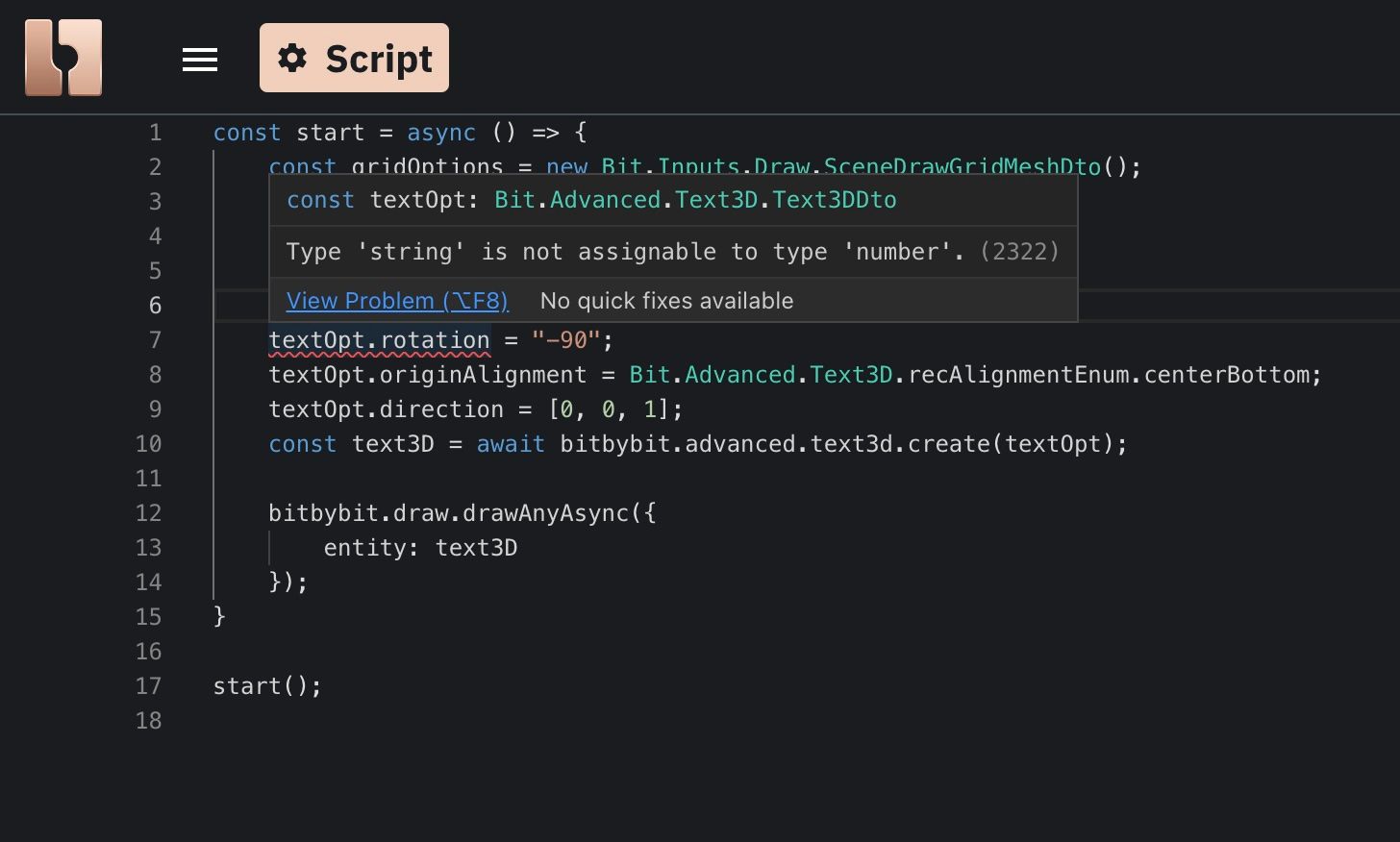 Example of an error in Monaco editor
When All Else Fails: Check the Browser Console
If you suspect an error has occurred but don't see an obvious message in the editor, it's always a good idea to check your web browser's developer console.
- How to open: In most browsers like Chrome, you can press
F12to open the developer tools. - What to look for: The console tab might contain useful error messages or warnings that weren't displayed directly by the Bitbybit editor.
The developer console offers many other powerful tools, like performance profiling, but for now, just knowing it can show hidden error messages is helpful. For more details on using developer tools, refer to the official documentation for your browser (e.g., Chrome DevTools).
Learning to read and understand error messages is a crucial skill in programming. Don't be discouraged by them – they are your guides to making your code work!