Using Script Preview Mode
When is Script Preview Useful?
Script preview links in Bitbybit provide a way for you and others to see your script in action without needing to open the editor interface. When a preview link is accessed, your script's code runs in a full-screen environment.
This is particularly useful for:
- Sharing: Easily share your work with people who may not be familiar with the Bitbybit platform or its editors.
- Embedding: Use preview links to embed your interactive 3D creations into your own websites or portfolios.
- Testing: Quickly test the final user experience of your script before exporting it or sharing it more widely.
Important Considerations for Previews:
- Immediate Execution & Load Times: Preview links run your code immediately upon loading. If your script involves heavy computations that take a long time to complete, the user might see a blank screen or loading state and think something is wrong.
- Recommendation: For complex scripts, consider implementing some form of 3D loading indicator or a 2D GUI element (currently more straightforward for TypeScript users) to inform the user that the script is processing.
- Resource Consumption: Be mindful that some scripts, especially those generating complex 3D scenes, can consume significant memory.
- Mobile Devices: Mobile browsers might struggle or even crash when running very resource-intensive scripts. If you are targeting mobile devices, always test your script on those devices before sharing preview links.
Accessing Preview Links
For the General Public (Viewing Public Projects)
- Browse our Public Projects Gallery.
- Click on a project that interests you. This will take you to the project's details page.
- On the project details page, each script will have a "Preview" button (marked with an eye icon).
- Clicking this button will redirect you to a new URL where the chosen script runs in full-screen mode. The URL in your browser's address bar is the direct preview link for that script.
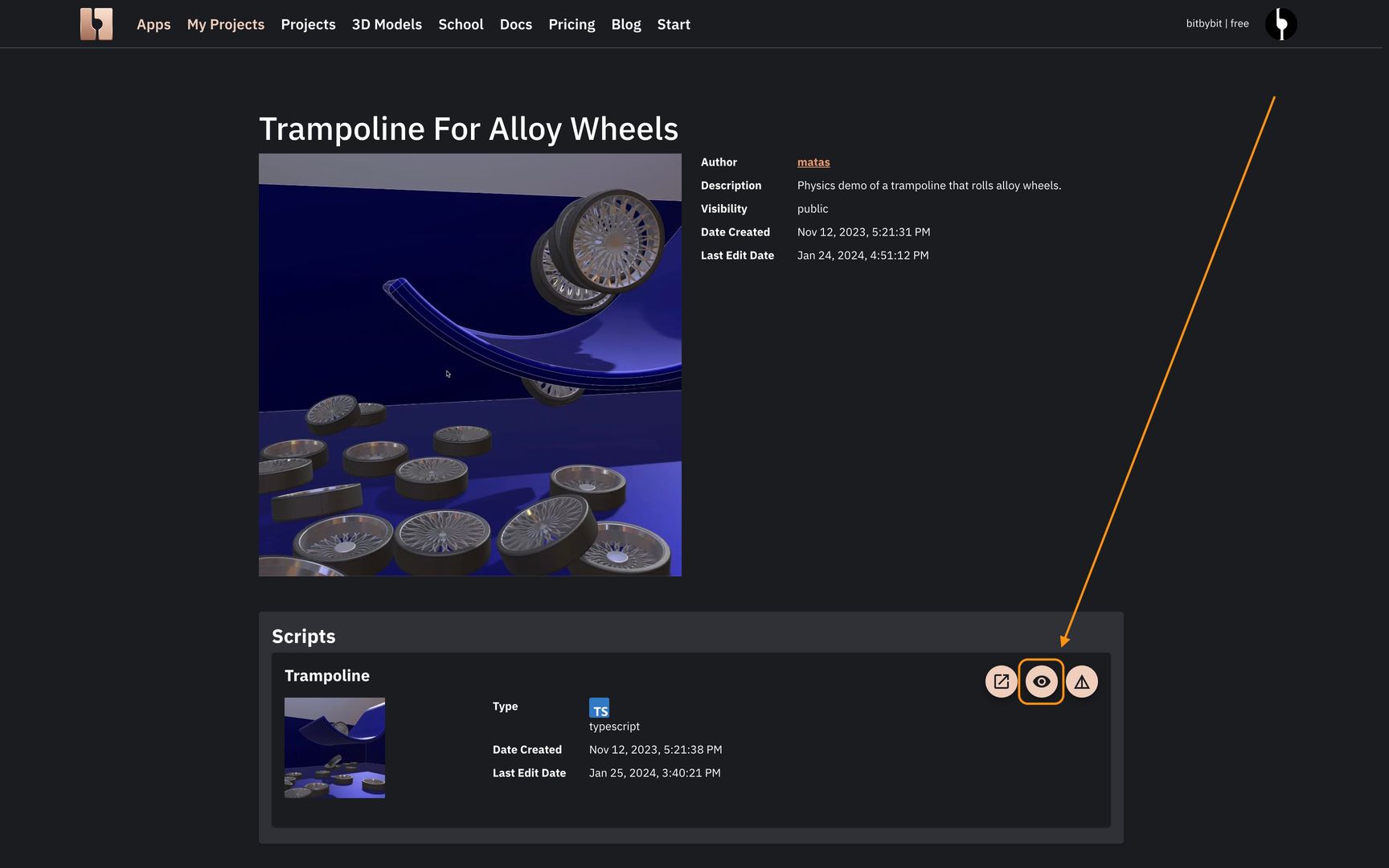 Button to preview a script in a publicly shared project
For Project Authors (Your Own Projects)
There are two main ways to get a preview link for your own scripts:
-
Manually Constructing the URL: Any public project script URL can be converted into a preview link by simply adding
/previewto the end of it.- Example Editor URL:
https://bitbybit.dev/app/matas/5ZiDeL9V4tKAL7WADhXJ/QeNwwFOcSZd8ivftxYFu?editor=rete - Corresponding Preview URL:
https://bitbybit.dev/app/matas/5ZiDeL9V4tKAL7WADhXJ/QeNwwFOcSZd8ivftxYFu/preview
Copy and paste this modified URL into a browser tab to see the script run in full-screen.
- Example Editor URL:
-
Using the "Preview" Button in Project Management:
- While in an editor, open the project management panel (click the top-left button with the script name/settings icon).
- You'll find a "Preview" button (often with an eye icon) for the currently selected script.
- Clicking this button will open a new browser tab with the script running in full-screen preview mode. The URL in this new tab's address bar is your shareable preview link.
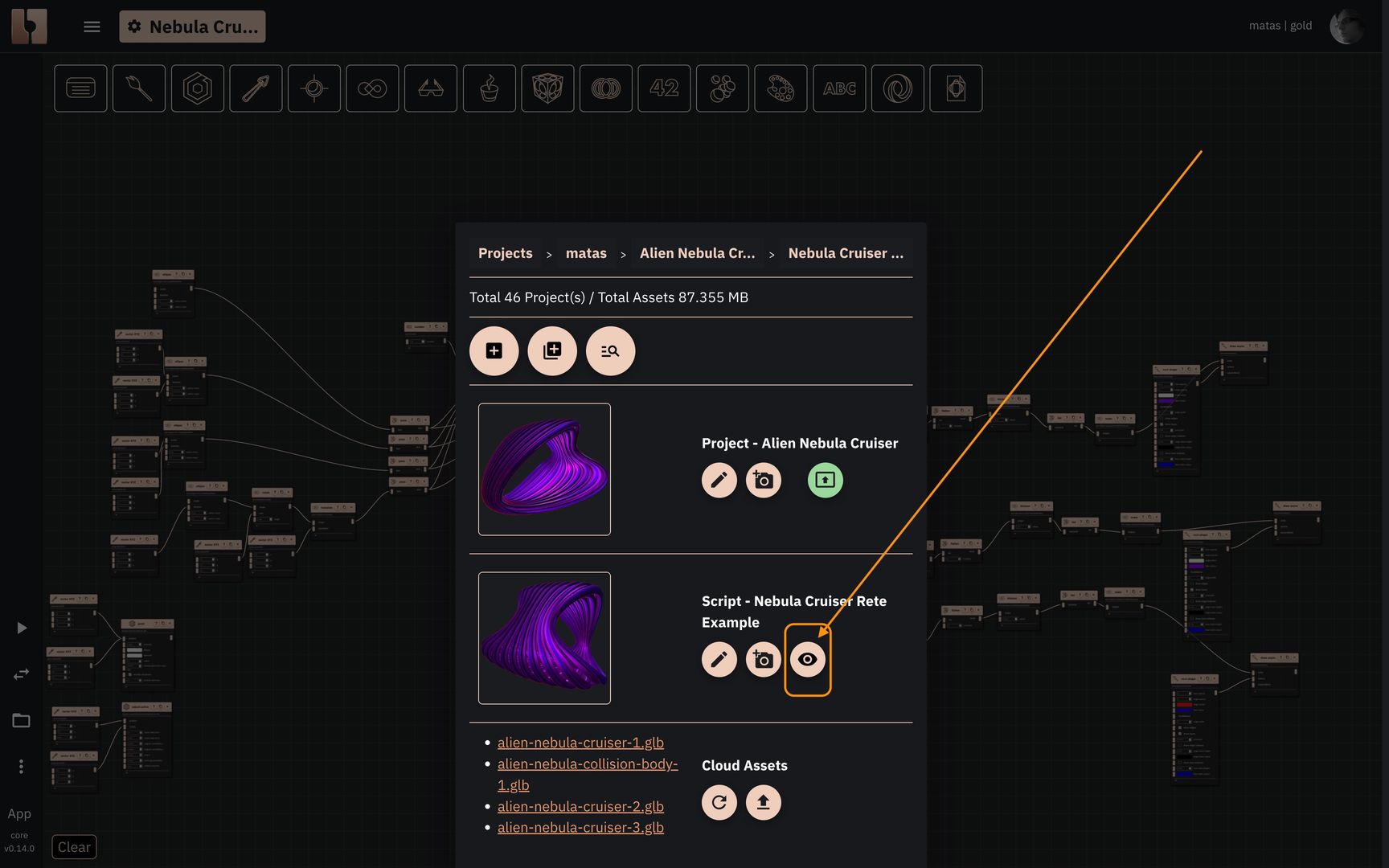 Menu button to open the script in preview modeProject Must Be Published for Sharing
For others to be able to use your preview link, the project containing the script MUST be published (i.e., set to "Public" or a specific "Community" visibility). If the project is private, the preview link will only work for you when you are logged in. Don't forget that publishing a project will share your code to everyone under MIT license.
Editor vs. Preview Mode Demonstration:
The embedded examples below show the difference between viewing a script in the editor and viewing its preview mode:
-
Editor Mode Example (Rete):
-
Preview Mode Example (Rete):

Optimizing Preview Settings with URL Query Parameters
You can optimize the loading and performance of your script previews by using URL query parameters. These parameters allow you to, for example, force a specific rendering engine or disable certain CAD kernels if they aren't needed by your script, potentially saving significant loading time.
Currently Supported Query Parameters:
engine=webgpu- Effect: Forces the 3D experience to attempt rendering using WebGPU.
occt=false- Effect: Disables the initialization of the OCCT CAD kernel and its dependencies. (If this parameter is omitted, OCCT is enabled by default).
jscad=false- Effect: Disables the initialization of the JSCAD CAD kernel and its dependencies. (If omitted, JSCAD is enabled by default).
manifold=false- Effect: Disables the initialization of the Manifold CAD kernel and its dependencies. (If omitted, Manifold is enabled by default).
Example of Using Query Parameters:
Consider the following preview URL:
https://bitbybit.dev/app/bitbybit/fA0SjbTlMGRei2zMuHuG/TKb4KW7HrgdredHhFOF3/preview?occt=false&jscad=false&manifold=false
In this example:
occt=false,jscad=false, andmanifold=falseare used to disable all three listed CAD kernels from initializing.- This is useful if the script (like one using Gaussian Splatting, which might only need BabylonJS and WebGPU) doesn't rely on these specific CAD functionalities, leading to a much faster load time as only the core BabylonJS engine needs to be loaded.
- Note: If a feature like Gaussian Splatting requires WebGPU, ensure your environment supports it, or the
engine=webgpuparameter might be implicitly needed or handled by the platform if WebGPU is the default for that feature.
By selectively enabling or disabling these components, you can tailor the preview experience for optimal performance based on your script's actual dependencies.
It is important to understand that all of these query parameters can also be used inside our Editors - and they will have the same implications. Additionally in the editor you can use this query parameter
lang=fr- Effect: Forces the visual programming editors to use specific language like French, Chinese and others. For complete list of supported languages check this github folder