Where to Start
The first step in preparing 3D assets for your configurator is having 3D models of your products. Before you begin, make sure you understand the security implications and public accessibility of 3D assets by reading Your Assets & Security.
If you arrived here from a size warning in Composer, the numbers you want are on one page: Size and Performance Limits explains which figure is a warning, which one stops a shopper on an iPhone seeing your model, and which one refuses an upload. This page is about how to get a model down to size.
If your brand already designs and manufactures physical goods, there's a good chance you already have detailed, good-looking 3D models on hand. Resellers can often get these from manufacturers - many keep accurate CAD files of their products for engineering or marketing purposes. Not all manufacturers will share them, though, so sometimes you'll need to commission a 3D artist or designer to create them from scratch in professional CAD software.

What Formats Merchants Usually Have
If you do manage to get existing 3D models, they’ll most likely come in formats such as STEP (ISO 10303), IGES, or other proprietary CAD formats. These are common in professional design workflows because they use something called BRep - short for Boundary Representation - to store geometry. Usually people use software packages such as FreeCAD, SolidWorks, Fusion 360, Catia, Rhino, OpenCascade and similar modeling software packages to create these assets.
BRep is very different from polygonal meshes. Instead of a collection of triangles, vertices, and indices, a BRep model is a precise mathematical description: NURBS curves, faces, shells, and solids define the surfaces and edges of the object. This is great for manufacturing and engineering, but to use these models on the web, you’ll need to triangulate them into formats like GLTF, OBJ, FBX, 3MF, or STL.
From BRep to GLTF
Not all CAD or BRep editors can export directly to GLTF. In many cases, you’ll need to first export to an intermediate format such as FBX or STL, bring that into Blender, and then export to GLTF. Another common challenge is that CAD exports often lack proper material and texture data. If that’s the case, you’ll have to apply materials and textures inside Blender, which can be time-consuming but is sometimes unavoidable without some additional 3rd party plugins.
When you do triangulate, you’ll usually be able to choose how dense the mesh will be. This is a crucial decision: fewer triangles mean the GPU can render your model much faster. The goal is to create low-poly models that still look good. Don’t expect a browser to smoothly handle millions of triangles - especially on older devices. Even high-end GPUs will struggle if you push them too far. Designing a configurator is a lot like designing a video game: performance matters just as much as visual quality. We go deeper into this mindset in Configurators Are Games.
Video Tutorial: STEP TO GLTF
Editing Triangulated Models
Once you have a triangulated model, you’ll probably need to make adjustments. We recommend Blender for this. It’s free, open source, and maintained by some of the most experienced 3D professionals in the industry. Of course, it’s not the only option - commercial tools like 3ds Max can also handle triangulated models perfectly well.

Understanding Meshes
In the context of 3D assets, a “mesh” is simply a triangulated section of your model assembly. It’s made up of triangles, each defined by three points in space. You can read more about meshes here, but for now, think of them as the building blocks that make up the visible geometry of your model.
In order to understand how many triangles or polygon faces your model contains, you should enable "Scene Stats" in Blender. Click right mouse button in the bottom right corner of Blender and enable it.
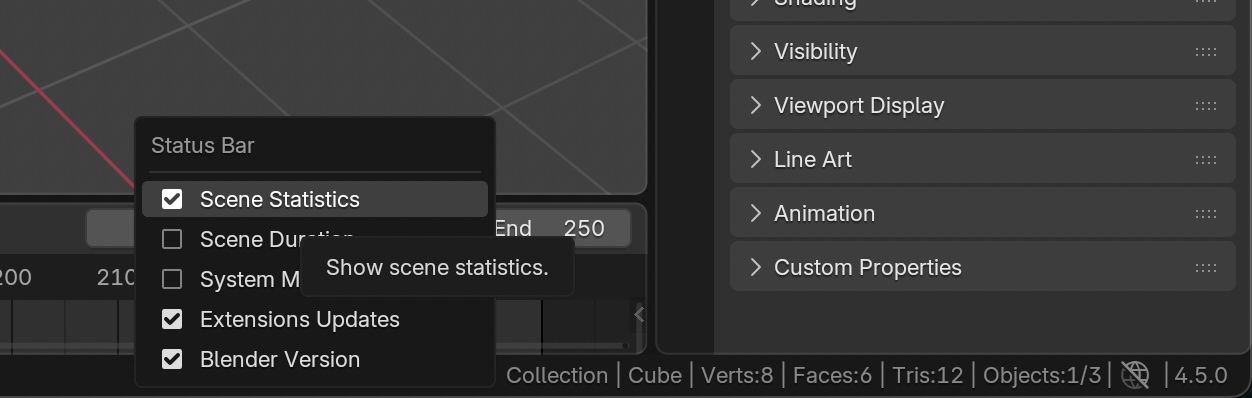 Enable Scene stats to understand how many triangles your 3D assets contain in Blender.
GLTF and Why We Use It
GLTF has become one of the most widely supported formats for delivering 3D assets online. It’s designed to be efficient to load, transmit, and render in real time. You can read more about it on the Khronos website, but the short version is: if you’re delivering interactive 3D experiences on the web, GLTF is the format you want to be working with. Blender supports exporting to GLTF directly, and once you’ve done that, you can upload the file to Shopify’s CDN for use with the 3D Bits app.
Keeping Performance in Mind
One of the biggest performance killers in a 3D scene is having too many separate meshes. Ideally, your mesh count should match the number of materials in your model. There are valid reasons to split meshes - maybe you need to hide or show parts independently while configuring - but in general, the fewer meshes you have, the better.
The reason comes down to something called draw calls. Every mesh in your scene requires a separate draw call to be rendered, and this happens for every frame. If you want a smooth 60 frames per second, you have roughly 16 milliseconds to render each frame. Too many draw calls, and you’ll exceed that budget quickly.
If you’re working in CAD, you can often merge parts by material before exporting. In Blender, you can select multiple meshes and use Object → Join to combine them into a single mesh. The specifics vary from one tool to another, but the principle is always the same: merge what you can.
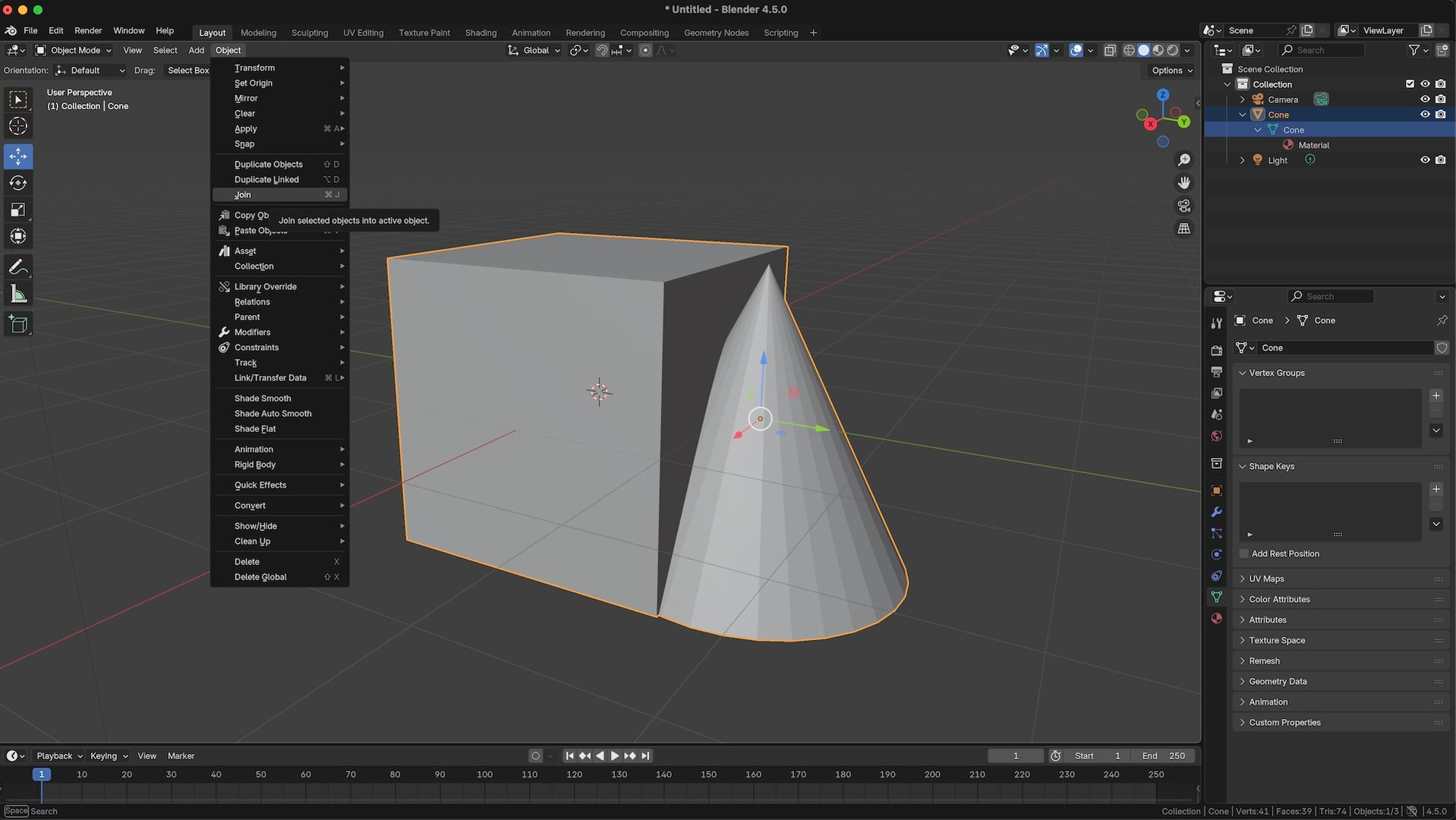 Join separate mesh objects together in Blender.
Textures and Why They Matter
Textures are the 2D images you wrap around your 3D geometry to add surface detail. Just like images on a website, textures should be optimised. Larger textures mean more GPU memory usage and slower rendering.
A good rule of thumb: make your textures as small as possible without losing visible quality. If your model will only ever be seen from a certain distance, you don’t need a 4K texture. In fact, 256×256 or 512×512 is plenty for most surfaces. Only use 4K textures when absolutely necessary.
We also recommend using KTX texture compression inside GLTF files. If you have a repeating surface pattern, like a brick wall, it’s much faster to tile a small texture across the surface than to load a huge image that covers the whole thing in one go.
Compression for Faster Loads
When a shopper visits your store, their browser has to download everything: HTML, CSS, JavaScript, images, videos, and, in our case, 3D models. The bigger your 3D files, the longer they’ll take to load. And if loading takes too long, some visitors won’t stick around.
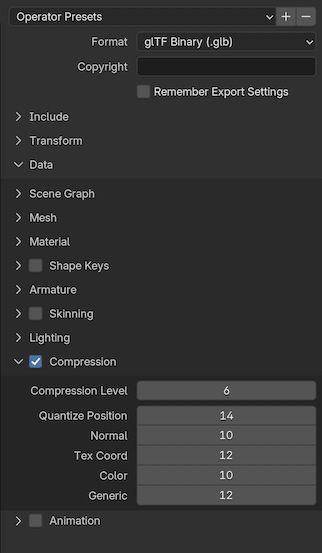
The good news is that GLTF files compress very well. You should always export to GLB - the binary version of GLTF - since it’s much smaller than the text-based version. Blender’s GLTF exporter can apply compression during export.
GLB has a second advantage that only shows up on a phone. The size check 3D Bits runs on iPhone Safari reads the size your server reports for the transfer, and a compressed text .gltf under-reports badly - see Size and Performance Limits. A binary GLB is already close to its real size on the wire, so what the check sees is what the browser gets.
Shopify's glTF Compressor
If you're hosting on Shopify's CDN, we strongly recommend using Shopify's glTF Compressor. This open-source tool was built specifically with Shopify's infrastructure in mind and helps ensure your files will be compatible with their upload process.
Here's the issue: when you upload a GLTF file to Shopify, their system processes it before storing it on the CDN. Some compression algorithms and GLTF standards that work perfectly fine elsewhere can cause Shopify's upload process to fail. Files that can't be processed won't be accepted. In some cases, incompatible files might still work in 3D Bits if you host them elsewhere, but sometimes they'll break in the app as well.
Shopify's compressor is designed to help you answer one critical question: How much can I compress the textures before the model starts looking noticeably bad?
The tool exposes all textures in your GLTF file and lets you adjust:
- Image format (JPEG, PNG, WebP)
- Resolution
- Quality
All changes happen in real time, so you can see the effects immediately. You can quickly compare the original model with the compressed version by holding and releasing the C key on your keyboard. This makes it easy to find the sweet spot between file size and visual quality.
Additionally, the tool offers mesh and animation optimisation options that can be applied on export.
If you're certain your file is valid but Shopify won't accept it during upload, you'll likely need to find your own hosting provider or set up your own CDN. But for most users, sticking with Shopify's compressor will save a lot of headaches.
Alternative: Khronos glTF Compressor
For even more compression options or if you're hosting outside Shopify, try the free Khronos GLTF Compressor and enable Draco compression. 3D Bits can decompress Draco-compressed files without issue. This tool can also compress textures and save them in formats like KTX.
Khronos compressor tool also will show you the split screen view of original vs compressed file with a nice separator line - it makes it super easy to compare before and after quality of the model.
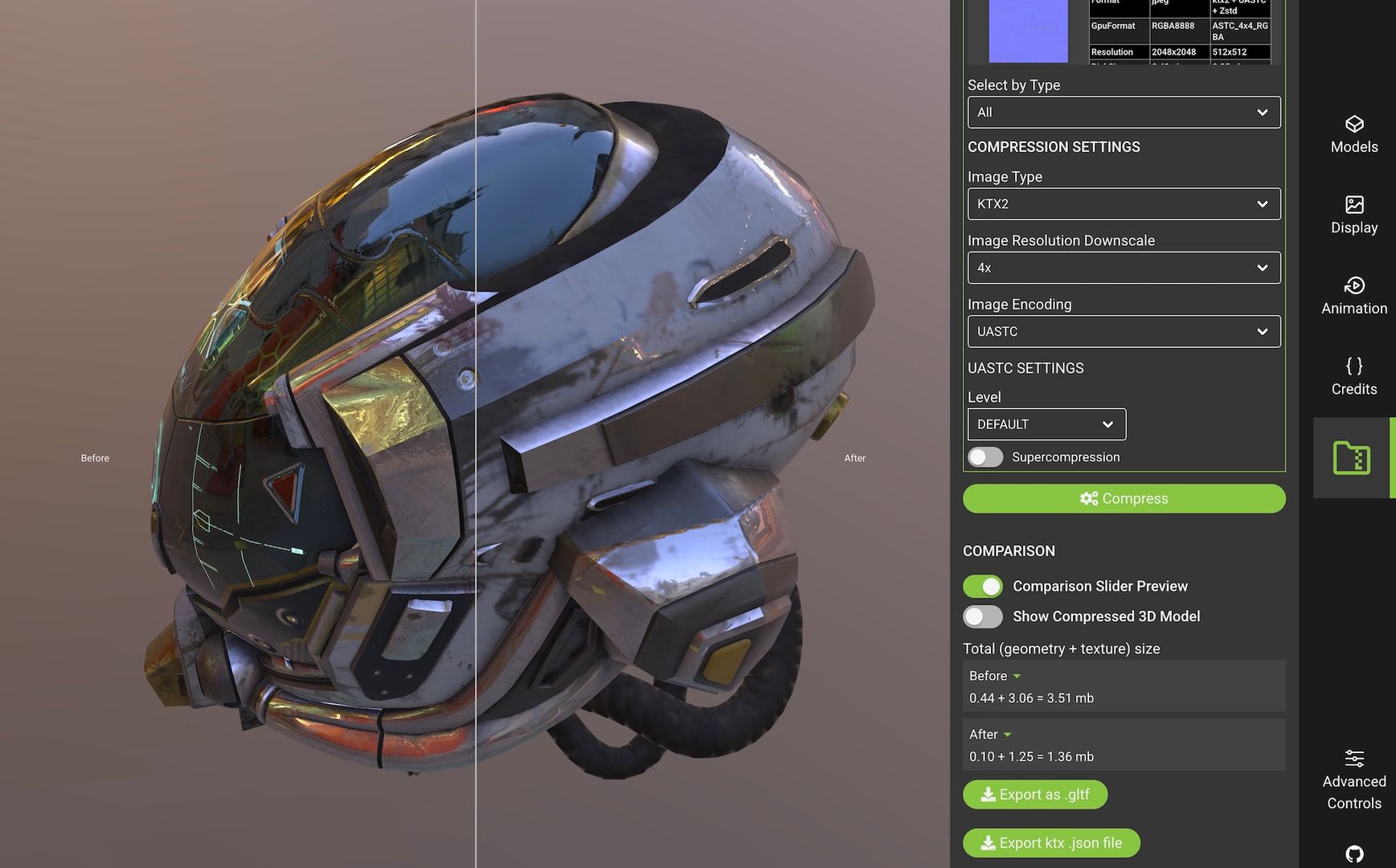 Khronos compressor allows to compare original model with compressed.
Read More About The Compressor
Hosting on Shopify’s CDN
The easiest route is the app's own Assets page. It has an Upload files button and an Import from URL field, it puts the file on your store's CDN, and the file then shows up in every project and configurator you own. You do not have to copy a URL around: every model and image field in Composer carries the same two actions inline, so you can browse your asset library or upload a new file without leaving the model you are editing. Those inline buttons appear when you open Composer from inside the app, which is where your asset library lives.
Content → Files in the Shopify admin is the manual alternative and does exactly the same thing to the file - drag and drop your GLTF or GLB there, then copy its URL and paste it into Composer. Either way you are on Shopify's CDN, which means your file is cached on servers close to your shoppers. If someone in Germany loads your product page, Shopify serves the file from a nearby server, cutting down load times.
Uploads through the app are refused above 100 MB. That is far more than a product page should ever carry - see Size and Performance Limits for the sizes that actually matter to a shopper.
If your model is bigger than what can be uploaded to Shopify, you can split it into multiple files - 3D Bits can load several at once. If you decide to use your own CDN instead, make sure the files are publicly accessible.
Reusing Parts with Instancing
If your model contains repeated components - like bolts, wheels, or identical furniture sets - it’s best to save that component as a separate GLTF file and then load it once in 3D Bits, placing instances wherever needed. Instancing means the GPU loads the geometry only once and reuses it multiple times in the scene, which is far more efficient than loading duplicate meshes.
In Composer you do this by adding several models that point at the same link, then positioning each one. The file downloads once no matter how many entries share it. From the second entry onwards, Composer shows a toggle called Share geometry with identical models (instancing), which is on by default.
The Instancing Trade-Off
Sharing geometry is not free of consequences, and it is worth understanding before you build a configurator around it. Instanced copies reuse the first copy's geometry, materials and skeleton, so they:
- play baked animations together with the original;
- switch material variants together with the original;
- keep only their position, rotation, scaling and visibility independent.
For bolts and wheels that is exactly what you want. It is the wrong behaviour when each copy has to be configured separately - two chairs at the same table that the shopper upholsters in different fabrics, for example. In that case turn the toggle off for that copy. It then becomes a fully independent clone with its own animations and material variants, at the cost of more memory. The file still downloads only once either way. Changing the toggle reloads the scene.
If you author your scene as JSON rather than through the Composer, the field is instanced on the model, and the opt-out is instanced: false.
Testing Before You Go Live
GLTF files need to be valid to be properly loaded into any 3D software, 3D Bits is no exception. That is why you should validate your files for any potential issues. We recommend using Khronos GLTF validator. Just upload your model and it will show if your file contains errors or potential improvements.
3D Bits is built on top of BabylonJS, which comes with a fantastic Sandbox Viewer. Drop your GLTF file in there to preview it before uploading. You’ll spot missing textures, strange triangulation issues, or other export problems immediately. If you see a problem in the Sandbox, you’ll likely see it in 3D Bits as well.
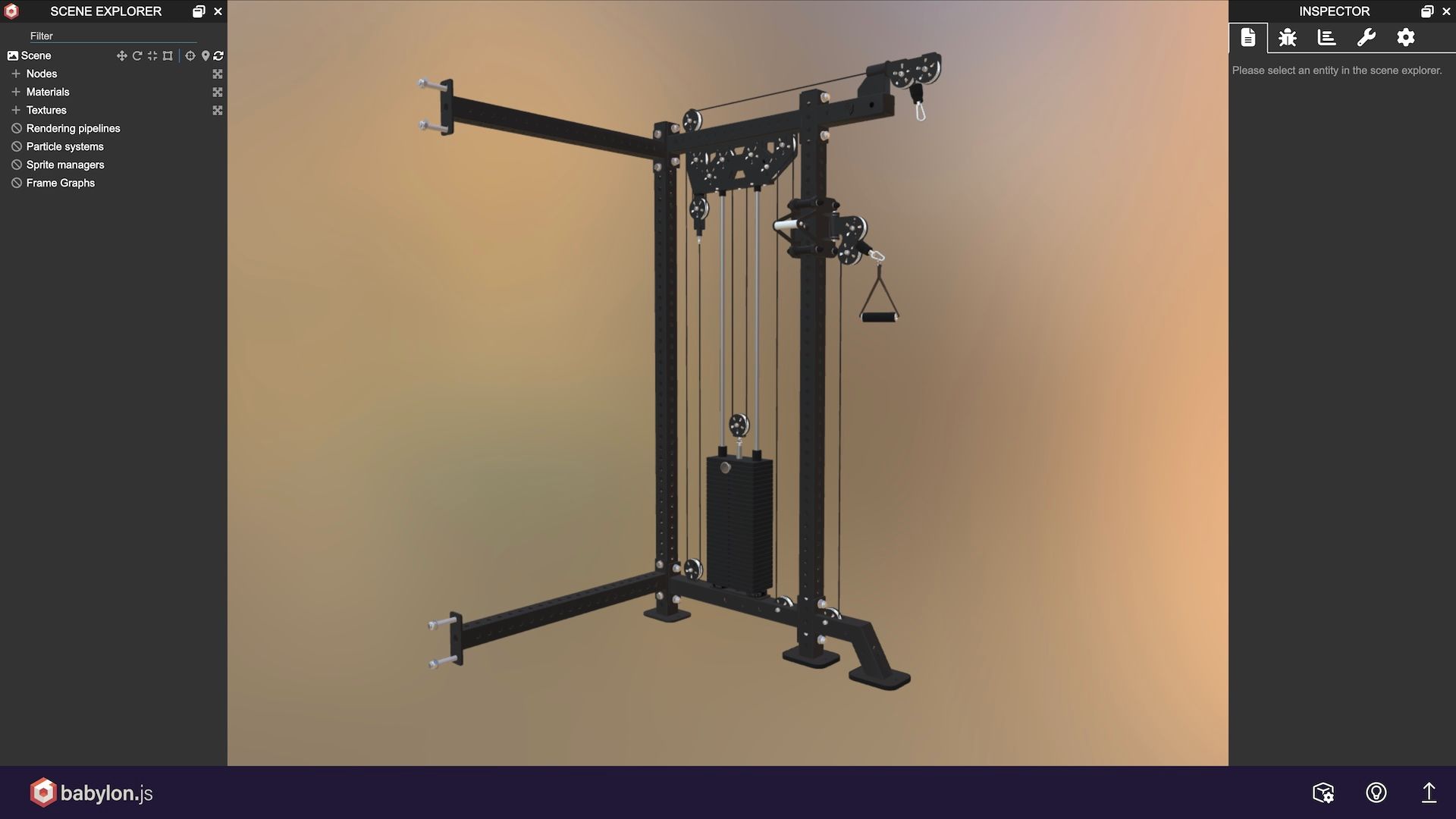 BabylonJS Sandbox can be used to test loading your compressed 3D assets, inspect contents.
While well-prepared 3D GLTF files run fine on most mobile phones, it's important to take precautions. When preparing 3D models and including them in your webshops, make sure you test the page on the most popular mobile devices too. Large asset files combined with high-resolution shadows may crash mobile phone browsers. Safari browsers on iPhone are the most susceptible to crashes when Random Access Memory (RAM) limits are exceeded. Apple has set a low threshold for websites running on iPhone, and whenever that memory limit is hit, the website will experience something called an "unexpected reload". If you're not careful with your assets, skybox textures, or shadow resolutions, you run the risk of experiencing this error. Desktop browsers, iPads, and Android phones will probably not experience these issues, but we advise you to make the experience lightweight for everyone.
The 3D Bits app also takes a precaution of its own, on iPhone Safari specifically. Before a model loads on your storefront its size is checked, and any single model over 30 MB is skipped, with a notice to the shopper, instead of being loaded (this is subject to change in the future). The check applies to each model on its own rather than to the scene total, and everything else in the scene still loads. This safeguard exists because loading extremely large assets on high-traffic pages like homepages without proper testing can crash the browsing experience for iPhone users, potentially affecting sales and shopper experience. On other browsers, on iPads and on Android nothing is blocked on size, so the responsibility for keeping the page fast is yours.
One caveat is worth knowing. On the storefront the check reads the size your server reports for the transfer, which for a text-based .gltf served with compression can be far smaller than the file the browser has to unpack. Such a file passes the check and can still exhaust the phone's memory. Judge by the uncompressed figure Composer shows next to the model, and prefer GLB. The full picture, including Composer's own warning bands, is in Size and Performance Limits.
Wrapping Up
Preparing 3D assets for the web is a balancing act between fidelity, file size, and performance. You might start with a pristine engineering model, but to make it run smoothly in a browser, you’ll need to simplify geometry, optimise textures, merge meshes, and compress files.
This guide has walked through the journey from CAD to GLTF, explained why mesh count and texture size matter, and shown you how to host and test your assets before launch. Every product and every merchant is different, but the principles are the same: keep things light, keep them efficient, and your shoppers will have a faster, smoother, and more engaging 3D experience.