Publishing Your Projects
Why Publish Your Project?
We strongly encourage sharing your projects with the Bitbybit community and beyond! We do it ourselves frequently. Sharing your work allows others to learn from your creations and contributes to a vibrant, collaborative environment.
While publishing is not mandatory, it offers several benefits:
- Learning Resource: Others can learn from your techniques and approaches.
- Showcase Your Skills: Public projects can serve as a portfolio.
- Community Feedback: Get insights and suggestions from other users.
Good to know:
- There's no limit on the number of public cloud projects our signed-up users can create.
- Private projects do have quotas based on your subscription plan. If you reach your private project quota, you won't be able to create new private projects until you free up space or upgrade your plan.
How to Publish Your Project (from the Editor)
When you're working in one of our editors (TypeScript, Blockly, or Rete) and feel that your project, along with all its scripts, is complete and ready to be shared, you can publish it.
Before you publish, consider:
- Adding a compelling cover image for your project and its scripts.
- Ensuring your scripts are functional and provide a good user experience.
Steps to Publish:
-
Open Project Management: While in an editor, click on the button located in the top-left corner. This button usually displays the name of your current script and has a settings icon.
 Button to open project management panel
 -
Find the "Publish Project" Button: In the project management panel that opens, locate and click the "Publish Project" button.
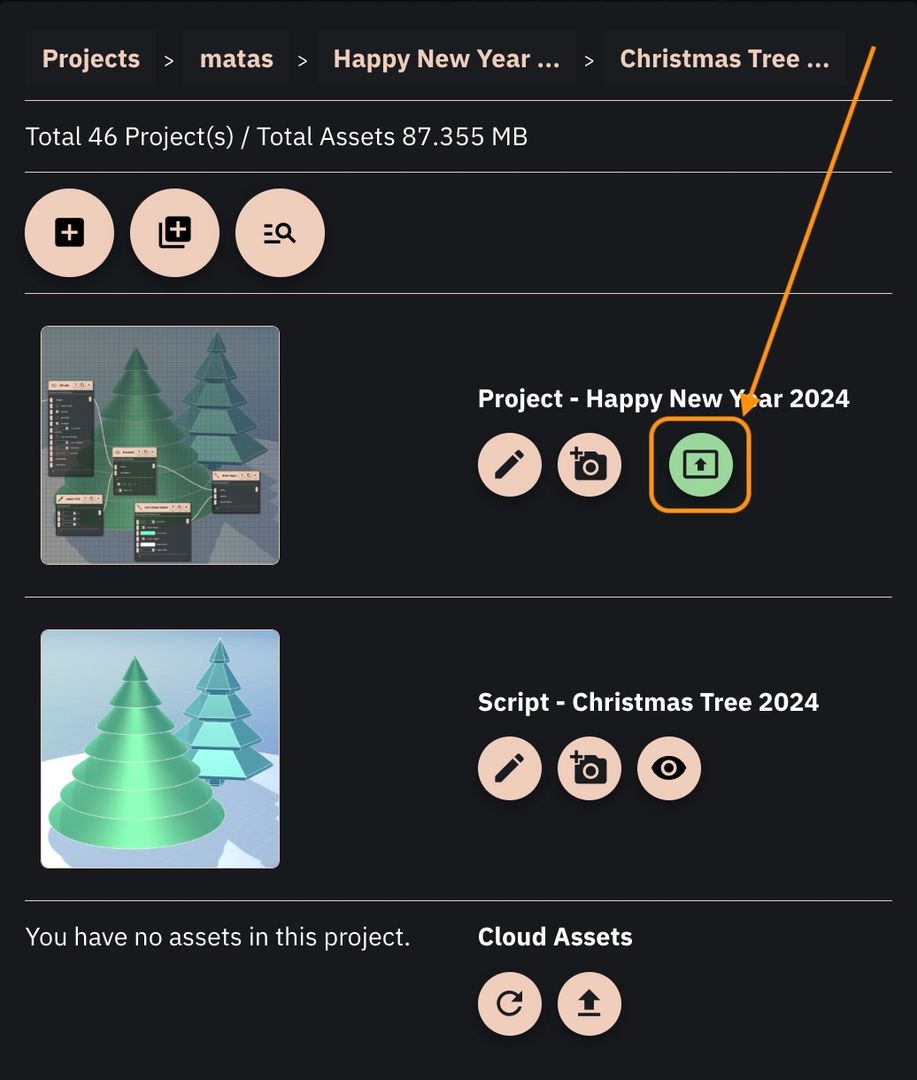 Button to publish your project
 -
Choose Visibility Options & Publish: A "Publish Project" dialog will open. Here, you'll be presented with several Visibility options for your project.
- You can learn more about these options in detail on our Projects Overview page.
The dialog will look something like this:
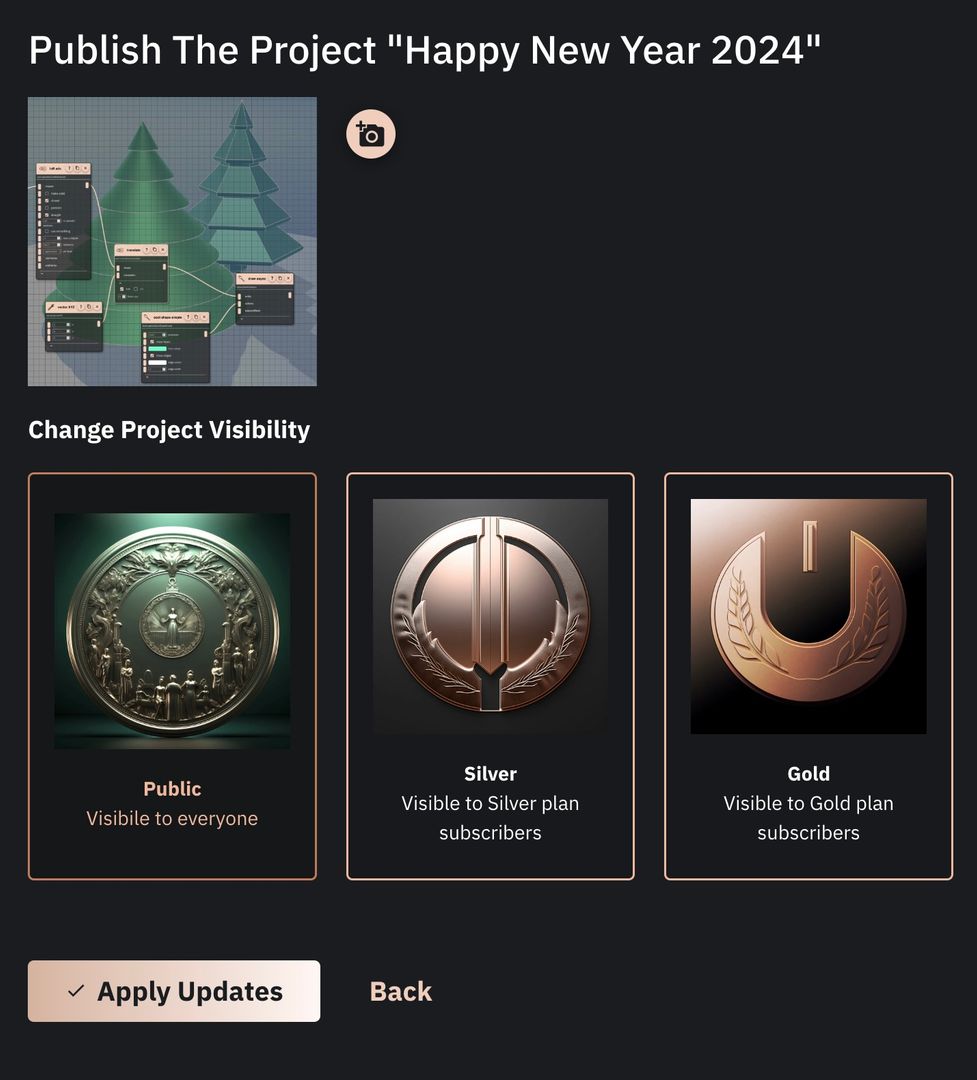 The form to publish your project
Make your desired visibility choice and then click the "Apply Updates" button.
-
Confirmation: After you click "Apply Updates," the modal will close, and your project's visibility settings will be updated.
Your project should now be visible according to the settings you chose! If you made it public, you can navigate to our Public Projects Gallery to see it listed.
Your public projects fall under the MIT license.
This means that when you publish a project as "Public," everyone will be able to view, use, modify, and redistribute your code. Please read more about this in our Terms and Conditions.
If you do not want your code to be openly accessible and reusable under these terms, do not publish your project as "Public." Keep it private or choose a more restrictive community sharing option if appropriate.