Creating a New Project
How to Create a New Project
There are a couple of ways to create a new project in Bitbybit. Both methods follow the same core process but can be initiated from different parts of the platform.
Important Prerequisites:
- You must be signed up and logged into your Bitbybit account.
- You need to have available project quota according to your current subscription plan.
Let's explore the two main methods:
1. Creating a New Project from the "My Projects" Dashboard
After you sign up, you'll typically be prompted to create your first project. If you complete this, you'll be taken directly to the editor for your first script, ready to start coding.
However, you can always access and manage all your projects from the My Projects dashboard. You can also create new projects from here.
Steps:
-
Navigate to your My Projects dashboard.
-
Click the "New Project" button, as shown in the image below:
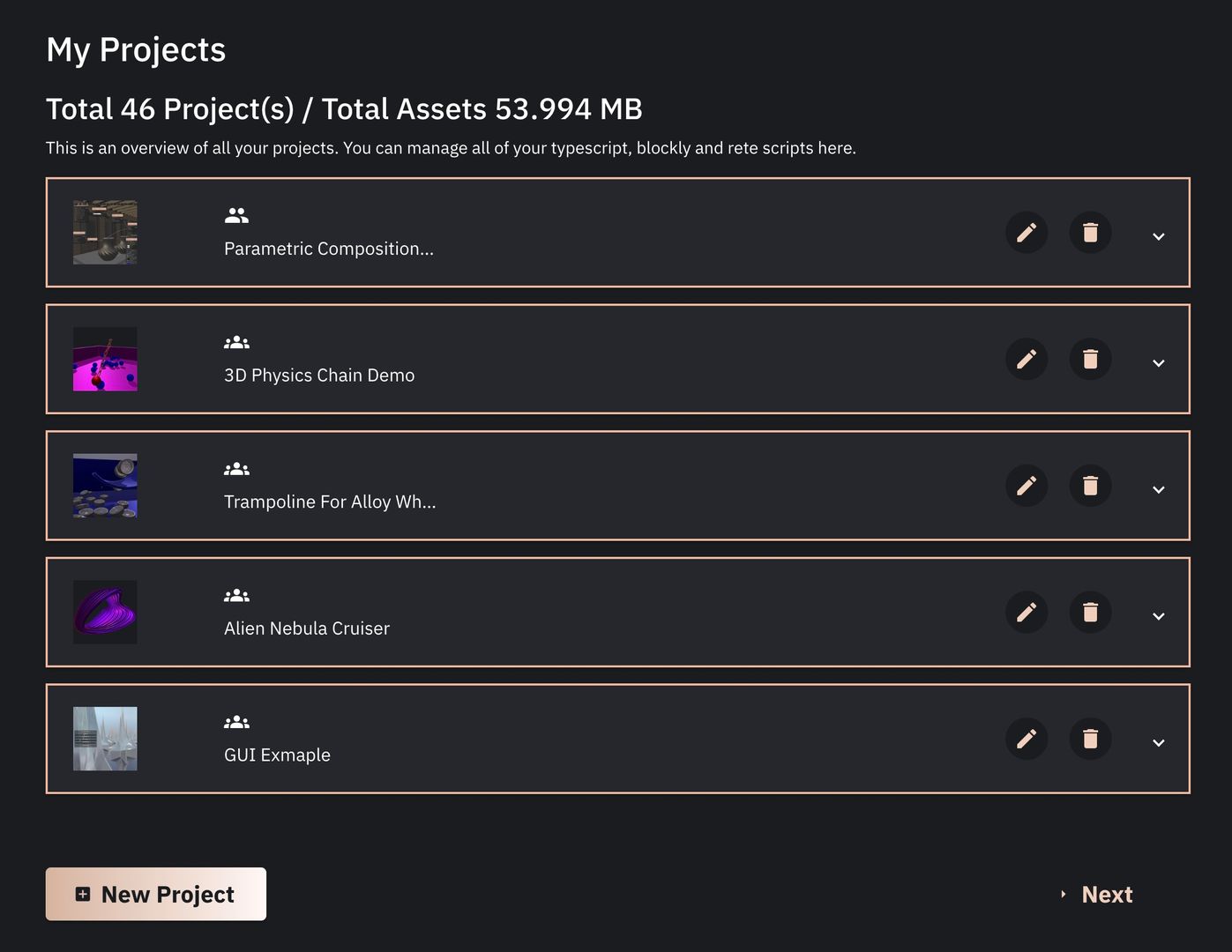 The overview showing all your projects and your used quota
Each project in this overview is displayed as an accordion (an expandable UI element). Expanding a project will show you a list of scripts within that particular project.
-
After clicking "New Project," a form will appear asking for:
- Project Name: A name for your new project.
- Project Description: A brief description of what your project is about.
- First Script Name: The name for the initial script that will be automatically added to this project.
- Script Type: Choose the editor for this first script (Rete, Blockly, or TypeScript).
Here's what the form looks like:
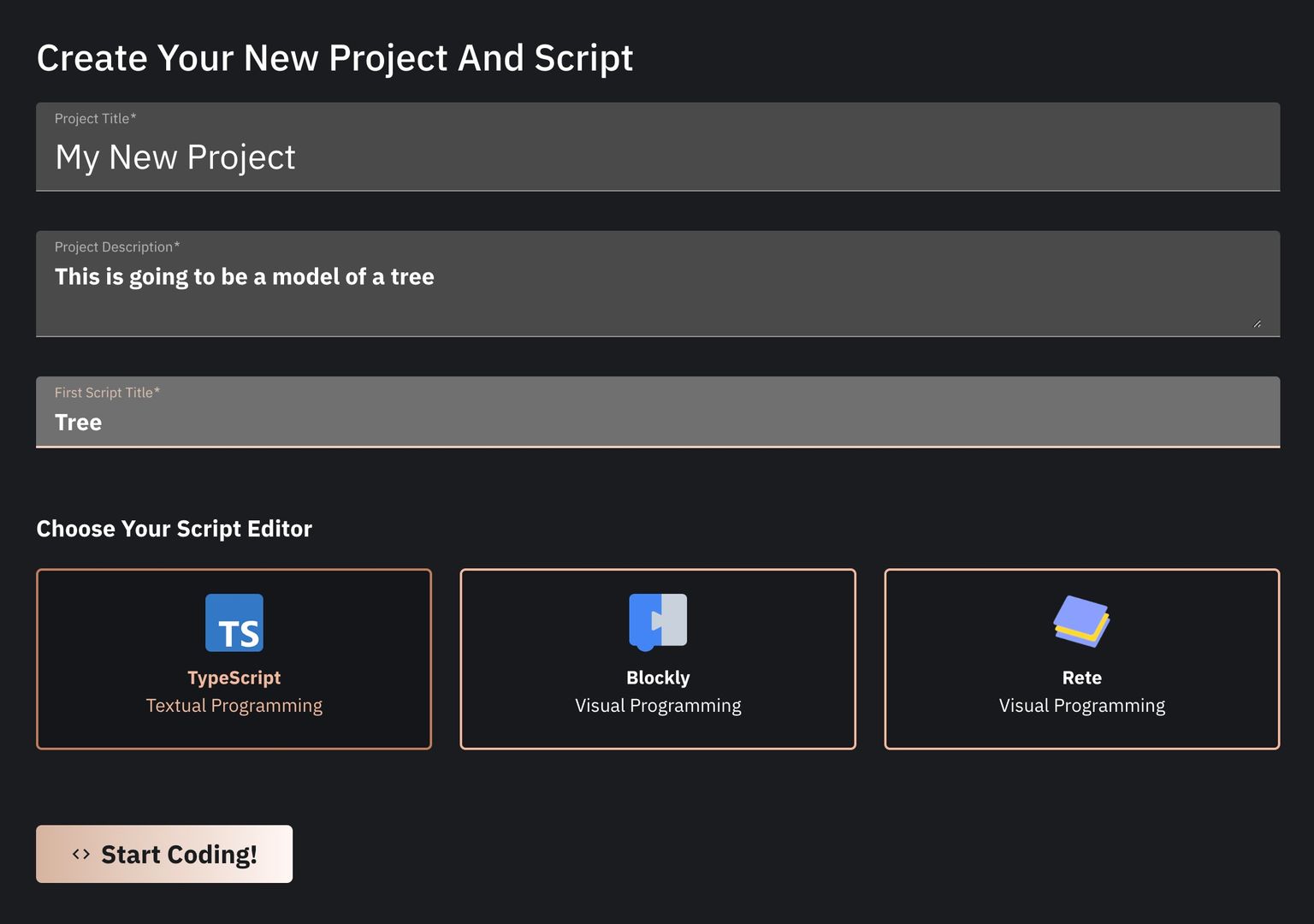 The form for creating a new project
 -
Once you fill in the details, click "Start Coding!". You'll be redirected to the editor corresponding to your chosen Script Type. Each editor type comes with some default "Hello World" style code to get you started, which you can modify or delete as needed.
2. Creating a New Project Directly from the Editor
To make things more convenient, we also allow you to manage projects and scripts directly from within any of the Bitbybit editors.
Steps:
-
While in an editor, click on the button located in the top-left corner. This button usually displays the name of your current script and has a settings icon.
 Button that will open project management environment in the editor
 -
Clicking this button will open the project management panel:
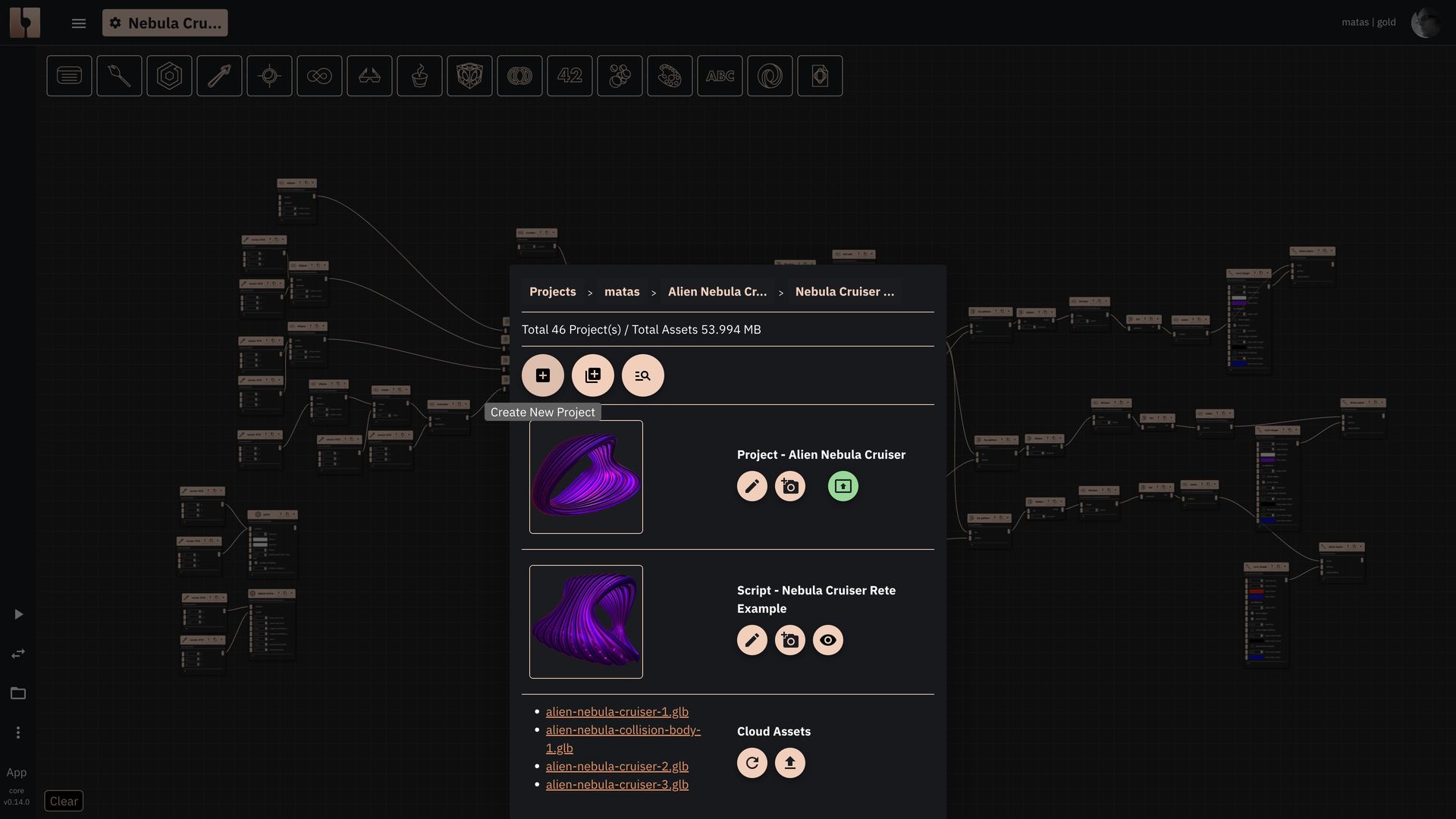 Opened project management environment in the editor
This panel shows your currently open project and script. From here, you can create a new project or add a new script to the existing project.
-
To create a new project, click the
+(plus) button next to "Projects." A modal with the new project form will appear: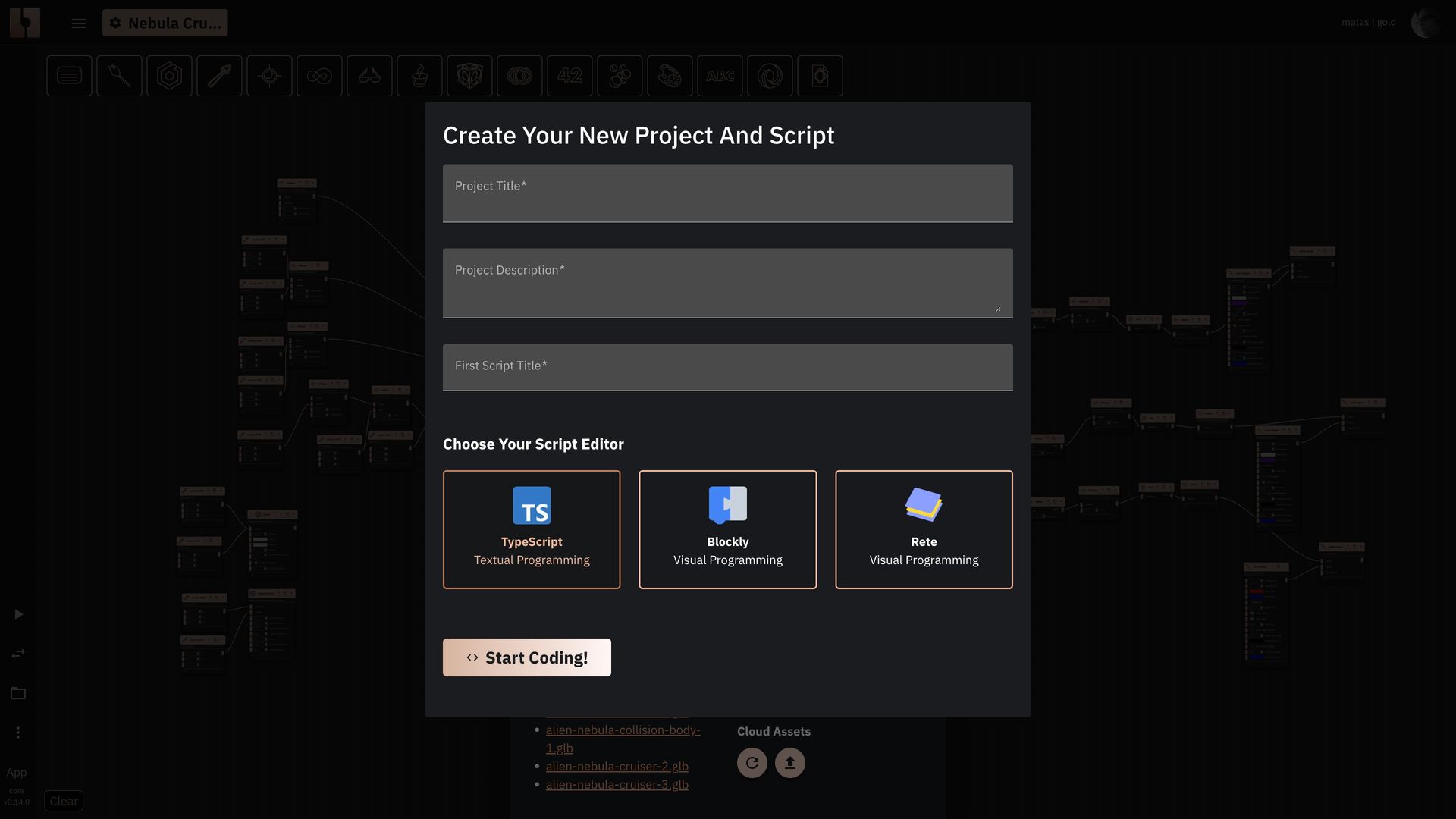 New project form inside the editor
As you can see, this is the exact same form you encountered when creating a project from the dashboard. Creating projects directly from the editor is often more convenient and might become your preferred method.
-
After filling in the project details and clicking "Start Coding!", the appropriate editor will open with the default script for your newly created project.
No matter which method you use to create your projects, they will always be accessible and listed on your My Projects dashboard.