Using Cover Images for Your Projects and Scripts
Why Are Cover Images Important?
We believe a good cover image is crucial for making your project stand out. It's often the first thing people see when they browse the Public Projects Gallery.
- First Impressions: A compelling image can attract users to click on your project.
- Project Details Page: When someone clicks on your project in the gallery, they are taken to its details page, where a larger version of the cover image is displayed alongside a list of its scripts.
- Script Images: While not mandatory, providing representative images for individual scripts within your project is also highly recommended. If you don't provide one, we'll use a default placeholder image, which isn't as engaging as a custom image.
Benefits for SEO and Social Sharing
- Search Engine Optimization (SEO): Search engines will index your public projects and scripts. A cover image will often be used as the thumbnail in search results, making your project more visually appealing.
- Social Media Previews: When you share your project on social media platforms, the cover image will be used to generate a preview, giving people a clear idea of what your project is about.
How to Add Cover Images for a Project and its Scripts
You'll typically want to take a screenshot of your project in action to use as a cover image.
Taking a Screenshot:
- Mac: Press
Command + Shift + 4, then select the area you want to capture. - Windows: Use the "Snipping Tool" (search for it in the Start menu) or press the "Print Screen" (PrtScn) key (this might copy the whole screen to your clipboard, and you'd then paste it into an image editor like Paint).
Once you have your screenshot, save it as an image file (e.g., .png or .jpg) on your computer.
Uploading the Image in Bitbybit:
-
Open Project Management: If you are in one of our editors (TypeScript, Blockly, or Rete), click on the button located in the top-left corner. This button usually displays the name of your current script and has a settings icon.
 Button to open project management panel
 -
Locate Upload Buttons: Once the project management panel opens, you'll see placeholders for project and script photos. Next to these, you'll find "Upload Image" buttons, each with a camera icon.
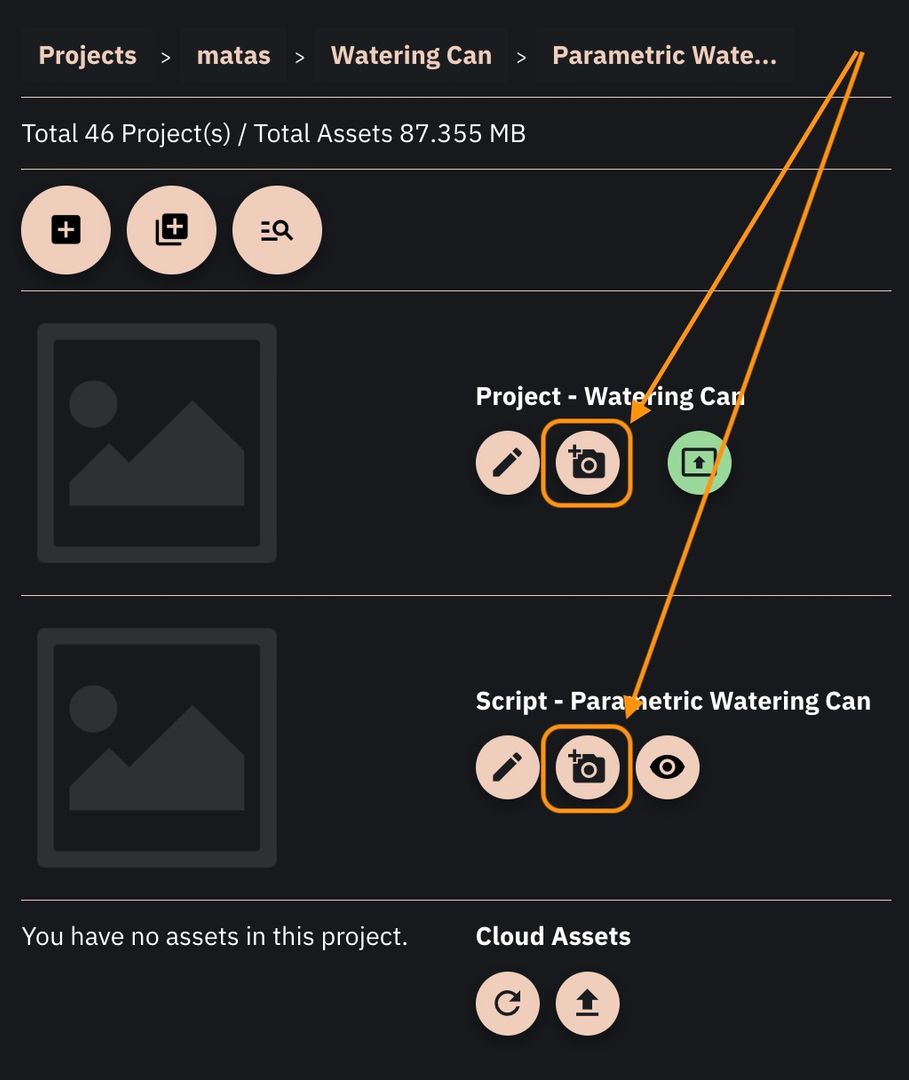 The buttons to upload the cover photo for the project and current script
 -
Select, Crop, and Upload:
- Click the appropriate "Upload Image" button (either for the project or for the specific script).
- You'll be prompted to select an image file from your computer.
- You will then be given an option to crop the image to fit the required aspect ratio.
- Confirm the upload.
We will automatically resize the uploaded image to fit our platform's display requirements. With a good cover image, your project will look amazing in our gallery and when shared!