Uploading Local Assets to Browser Storage
Introduction
This section explains how to upload local assets to your web browser's storage. This makes them available for use in your Bitbybit scripts without needing to use cloud storage or have a Bitbybit account (for this specific feature).
For this exercise, please download the following sample asset file:
- BoomBox.glb (Click to download)
We will use this BoomBox.glb file to walk through the local asset upload process.
How to Upload a Local Asset
The process for uploading local assets is consistent across all Bitbybit editors (TypeScript, Blockly, and Rete).
-
Find the "Manage Local Assets" Button: In any editor, look for a button that typically resembles a folder icon. This button is used to manage your local assets.
 Button To Manage Local Assets
(Note: On larger screens, this button might be part of a vertical panel, but the folder icon should remain consistent.)
Button To Manage Local Assets
(Note: On larger screens, this button might be part of a vertical panel, but the folder icon should remain consistent.) -
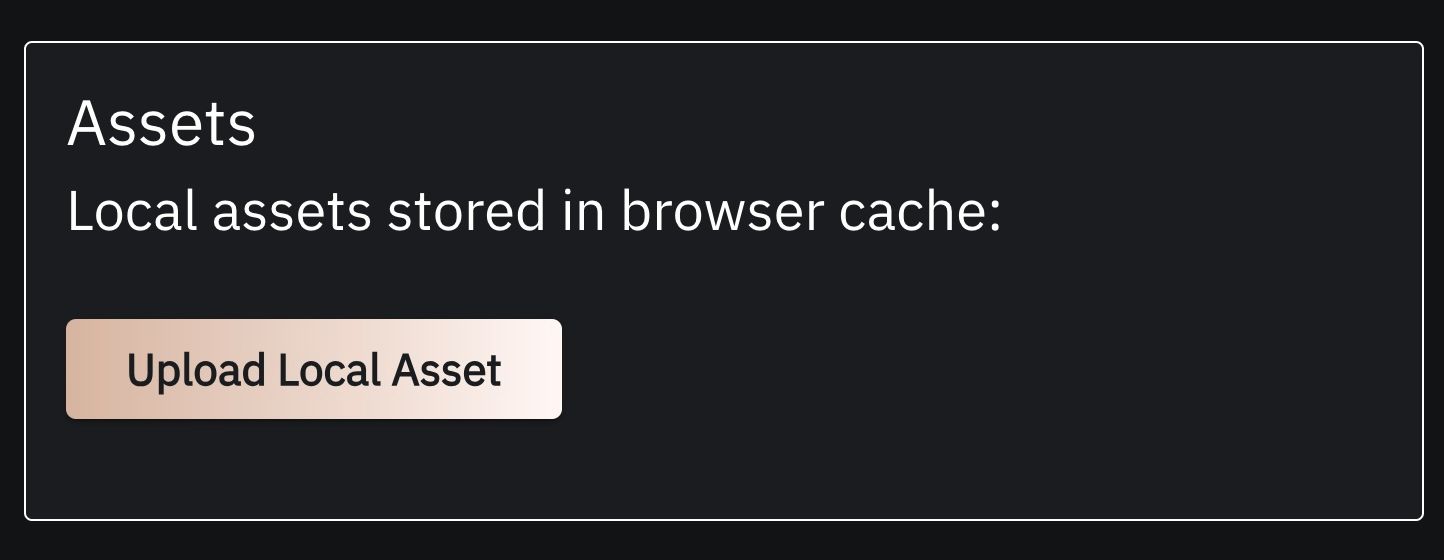
Open the Local Asset Manager Dialog: Clicking the "Manage Local Assets" button will open a dialog window. This dialog allows you to upload new local assets and view existing ones.
-
Prepare to Upload: Within this dialog, you'll find an area to initiate a new asset upload. You'll typically need to:
- Enter Asset Name: Type a name for your asset. For this example, type "BoomBox" into the name input field.
- Choose File(s): Click the "Choose files" (or similar) button. This will open your computer's file navigator.
 Form For Local Asset
 -
Select the File: In the file navigator, navigate to your "Downloads" folder (or wherever you saved
BoomBox.glb) and select theBoomBox.glbfile. -
Confirm and Upload:
- After selecting the file, its name (
BoomBox.glb) should appear in the dialog, indicating it's ready for upload. - Click the "Upload" button.
- After selecting the file, its name (
-
View Uploaded Asset: The file will be uploaded to your browser's local storage. You will then be returned to the list of all your local assets within the dialog. You should now see "BoomBox" (or
BoomBox.glb) listed. This local asset manager also allows you to:- Delete existing local assets.
- Upload more assets if needed.
- Potentially download previously uploaded local assets from your browser back to your computer's file system.
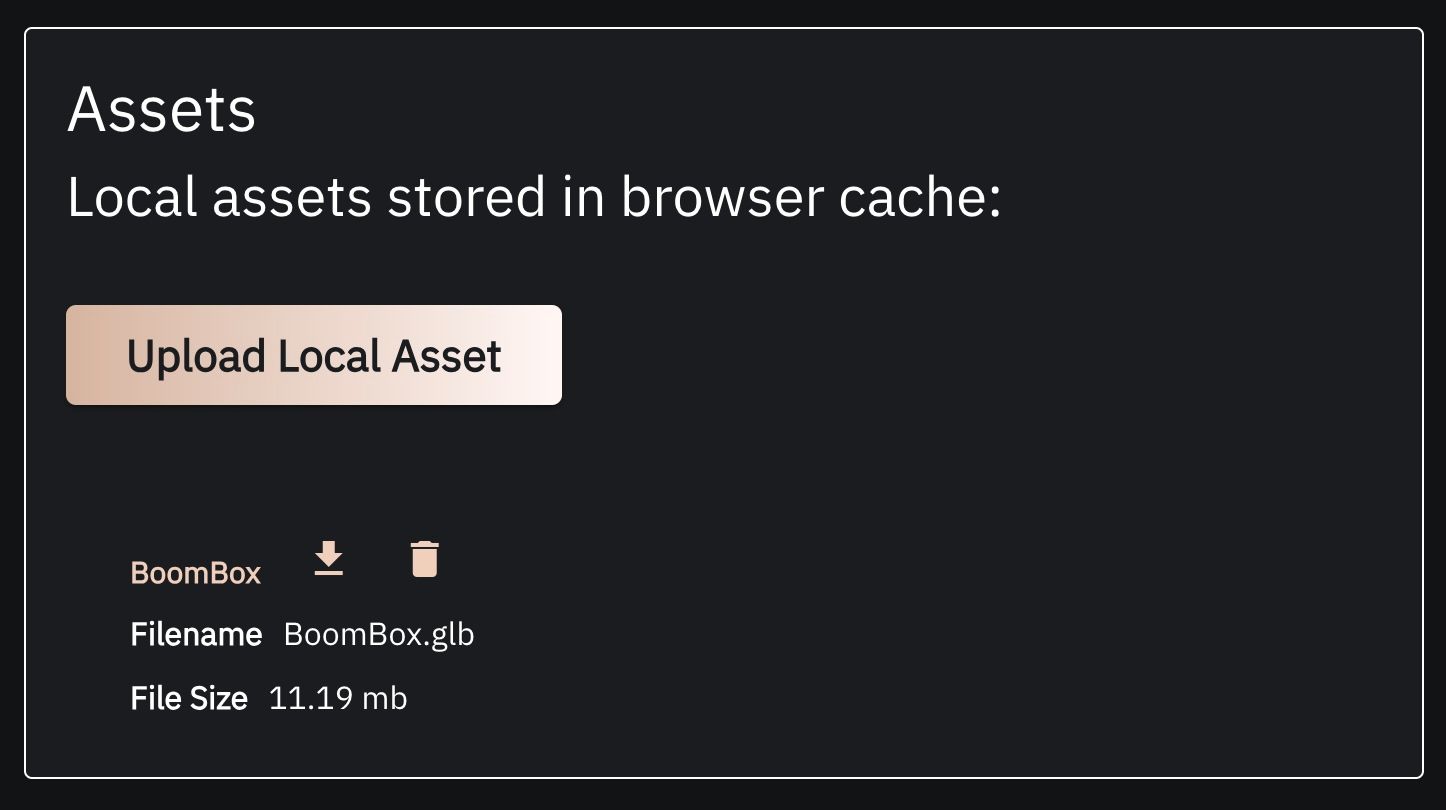 Local Asset Manager With Uploaded BoomBox Asset
 -
Close the Dialog: If you see the "BoomBox" asset listed, you have successfully uploaded it. You can now close the local asset manager dialog by clicking anywhere on the semi-transparent background area outside the dialog.
Your BoomBox.glb file is now stored locally in your browser and ready to be used in your Bitbybit scripts! While this asset isn't yet visible in your 3D environment, from this point on, you can access it programmatically within your scripts.
Proceed to the other sections of this guide to see how this locally uploaded file can be used in our various editors.