Importing Local glTF Files (.glb, .gltf)
 glTF logo
Introduction to glTF
The glTF™ (GL Transmission Format) is an open standard file format designed for the efficient transmission and loading of 3D scenes and models by applications. It's excellent for creating rich, animated, and textured 3D assets.
Let's see how we can import this file type into Bitbybit using a local asset (stored in your browser).
Sample File for this Tutorial:
First, please download the BoomBox.glb file, which we'll use as our local asset example:
- BoomBox.glb (Click to download)
If you have your own .glb or .gltf file, you can use that as well.
1. Uploading the Asset to Local Storage
Before you can use the BoomBox.glb (or your own glTF file) in the editors, you need to upload it to your browser's local storage using Bitbybit's local asset manager.
- Please follow the steps outlined in our Uploading Local Assets guide.
- When prompted for an asset name during the upload, use "BoomBox" (or a name of your choice if using your own file, but remember it for later steps).
Once the asset is uploaded, you can proceed to use it in any of the editors.
2. Using the Local glTF Asset in the Rete Editor
You can open a fresh Rete editor session here: https://bitbybit.dev/app?editor=rete, or use the embedded Rete editor example below.
Steps:
-
Set Coordinate System (Important for glTF): glTF files typically use a right-handed coordinate system. To ensure correct orientation in Bitbybit (which often defaults to a left-handed system for BabylonJS), we need to prepare our scene. Add the following component:
- Category Path:
Babylon->Scene->System->Hand Right
- Category Path:
-
Get Local File: Next, we'll retrieve the
BoomBox.glbfile from your browser's local storage. This component fetches the file data but doesn't interpret or draw it yet.- Category Path:
Asset->Get->Local File - In the "File Name" input of this "Local File" component, type "BoomBox" (or the name you used when uploading).
- Category Path:
-
Load Asset into Scene: Now, we tell BabylonJS to load and display this asset in the 3D scene.
- Category Path:
Babylon->IO->Load->Asset
- Category Path:
-
Connect Components:
- Connect the output of the "Local File" component to the input socket named "Asset File" on the "Load Asset" component.
Your Rete graph should now look similar to the setup in the embedded editor below. If you've followed the steps correctly, running the script (or letting Rete auto-update) should display the BoomBox model.
Rete Editor Example:


{
  "id": "rete-v2-json",
  "nodes": {
    "6b8d5b8f4c808251": {
      "id": "6b8d5b8f4c808251",
      "name": "bitbybit.asset.getLocalFile",
      "customName": "get local file",
      "async": true,
      "drawable": false,
      "data": {
        "genericNodeData": {
          "hide": false,
          "oneOnOne": false,
          "flatten": 0,
          "forceExecution": false
        },
        "fileName": "BoomBox"
      },
      "inputs": {},
      "position": [
        -901.8085899041871,
        836.9265526963399
      ]
    },
    "96f2ebe7498de2ab": {
      "id": "96f2ebe7498de2ab",
      "name": "bitbybit.babylon.io.loadAssetIntoScene",
      "customName": "load asset into scene",
      "async": true,
      "drawable": false,
      "data": {
        "genericNodeData": {
          "hide": false,
          "oneOnOne": false,
          "flatten": 0,
          "forceExecution": false
        },
        "hidden": false
      },
      "inputs": {
        "assetFile": {
          "connections": [
            {
              "node": "6b8d5b8f4c808251",
              "output": "result",
              "data": {}
            }
          ]
        }
      },
      "position": [
        -533.5438842773438,
        986.0906219482422
      ]
    },
    "e1315a12cd2ba5ef": {
      "id": "e1315a12cd2ba5ef",
      "name": "bitbybit.babylon.scene.useRightHandedSystem",
      "customName": "use right handed system",
      "async": false,
      "drawable": false,
      "data": {
        "genericNodeData": {
          "hide": false,
          "oneOnOne": false,
          "flatten": 0,
          "forceExecution": false
        },
        "use": true
      },
      "inputs": {},
      "position": [
        -863.990966796875,
        530.2658843994141
      ]
    }
  }
}
Expected Result (Rete):
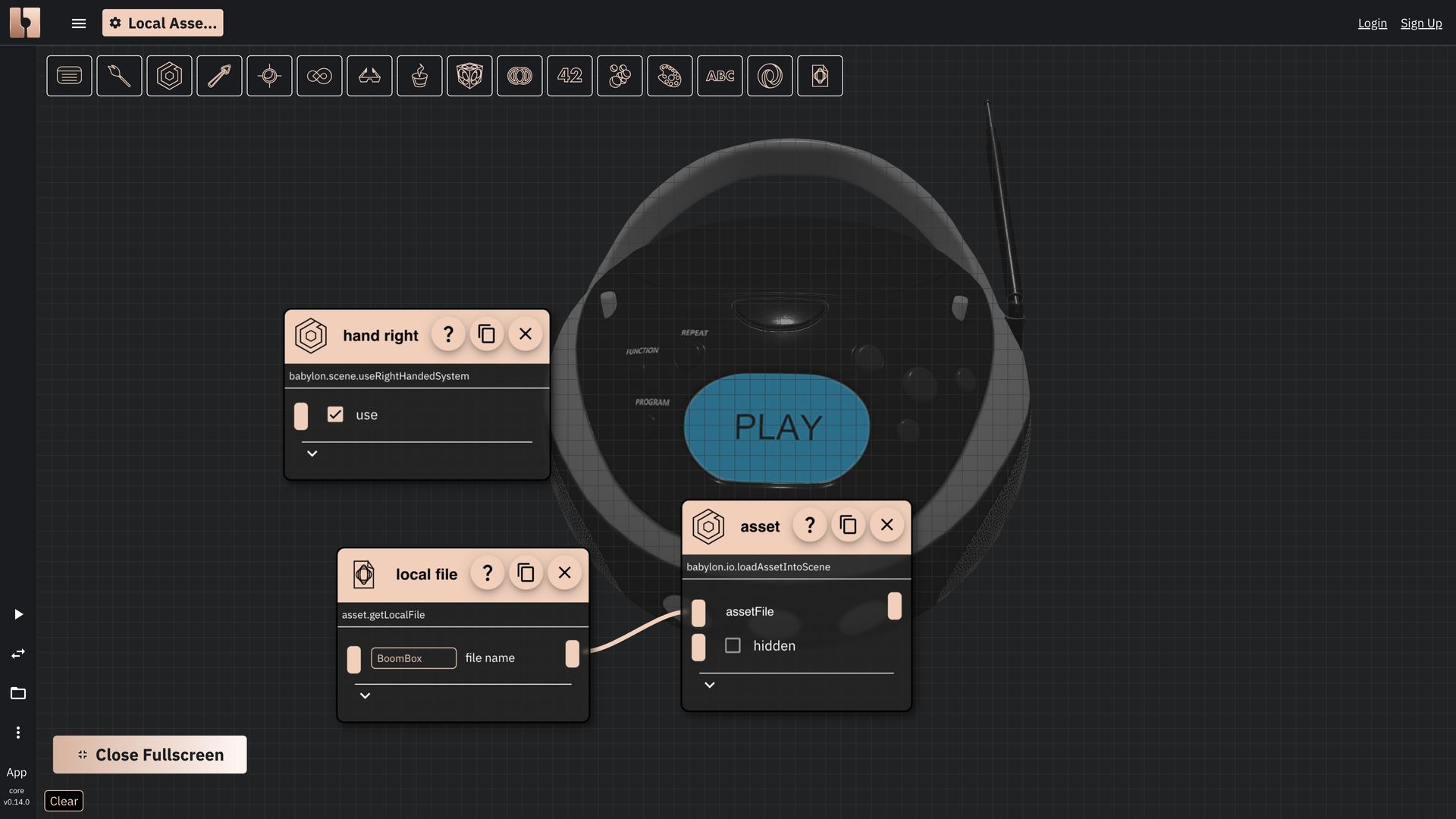 The result of imported local asset in Rete editor
3. Using the Local glTF Asset in the Blockly Editor
If you've already uploaded the BoomBox.glb file to your browser's local storage (Step 1), it's available across all editors and projects within that browser. You don't need to re-upload it.
You can open a fresh Blockly editor session here: https://bitbybit.dev/app?editor=blockly, or use the embedded Blockly editor example below.
Steps:
-
Set Coordinate System: Similar to Rete, prepare the scene for a right-handed coordinate system. Add the following block:
- Category Path:
Babylon->Scene->System->Use Right Handed System
- Category Path:
-
Get Local File: Retrieve the asset from local storage. Add this block:
- Category Path:
Asset->Get->Get Local File - In the "File Name" input field of this block, type "BoomBox".
- Category Path:
-
Load Asset into Scene: Load and display the asset. Add this block:
- Category Path:
Babylon->IO->Load->Load Asset Into Scene (No Return)(Note: This version of the load block is often used when you don't need a direct programmatic reference to the loaded meshes immediately returned by the block itself.)
- Category Path:
-
Connect Blocks:
- Connect the
Load Asset Into Scene (No Return)block below theUse Right Handed Systemblock (they should snap together). - Drag the
Get Local Fileblock and connect it to the "Asset File" input slot on theLoad Asset Into Scene (No Return)block.
- Connect the
After assembling the blocks, click "Run". You should see the BoomBox model.
Blockly Editor Example:

<xml xmlns="https://developers.google.com/blockly/xml"><block type="bitbybit.babylon.scene.useRightHandedSystem" id="z5;?s*L9ZJL)L@YPmas;" x="11" y="-183"><value name="Use"><block type="logic_boolean" id="0BcPWV4@B@u7Ro|}#%7F"><field name="BOOL">TRUE</field></block></value><next><block type="bitbybit.babylon.io.loadAssetIntoSceneNoReturn" id="=E:*+4sBl0p*7_(P)vK!"><value name="AssetFile"><block type="bitbybit.asset.getLocalFile" id="{G,qOH}i|~tdX[;4~QVc"><value name="FileName"><block type="text" id="Otbk?6q-wetIRj+=-kf!"><field name="TEXT">BoomBox</field></block></value></block></value><value name="Hidden"><block type="logic_boolean" id="Or;B1qQvM|L!E`;Rrfz;"><field name="BOOL">FALSE</field></block></value></block></next></block></xml>
Expected Result (Blockly):
 The result of imported local asset in Blockly editor
4. Using the Local glTF Asset in the TypeScript Editor
You can open a fresh TypeScript editor session here: https://bitbybit.dev/app?editor=typescript, or use the embedded TypeScript editor example below.
The TypeScript approach involves a few key steps within an async function:
- Set the scene to use a right-handed coordinate system.
- Get the local file asset.
- Load the asset into the BabylonJS scene.
Here's the example code, which should be fairly self-explanatory for those familiar with TypeScript and async/await patterns:
TypeScript Editor Example:

const start = async () => {
    bitbybit.babylon.scene.useRightHandedSystem({
        use: true,
    });
    const file = await bitbybit.asset.getLocalFile({
        fileName: "BoomBox"
    }) as File;
    await bitbybit.babylon.io.loadAssetIntoScene({
        assetFile: file,
        hidden: false
    });
}

start();
Expected Result (TypeScript):
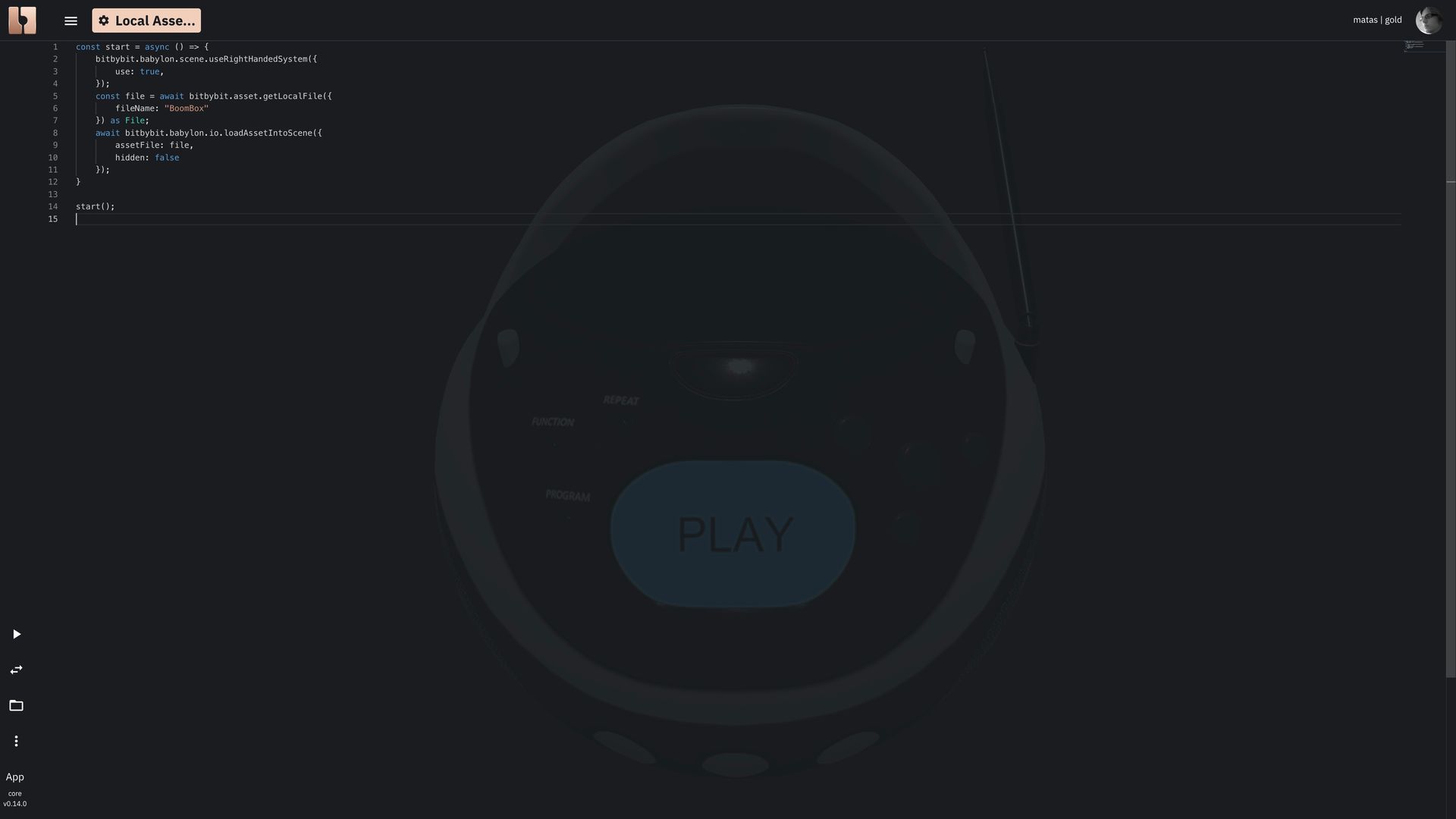 The result of imported local asset in TypeScript editor
These examples demonstrate how to use a locally uploaded glTF asset, which can contain complex geometry, materials, and textures, across our different editor environments.
A Note on Coordinate Systems: If you prefer to work with a left-handed coordinate system (BabylonJS's default) when using glTF files, you might need to:
- Mirror your models in your 3D modeling software (like Blender) before exporting them.
- Or, use transformation components/code within Bitbybit to mirror the imported models after loading.
Setting the scene to
useRightHandedSystem = trueis generally the most straightforward approach for glTF.