Importing Local STEP Files (.step, .stp)
Introduction to STEP
STEP (Standard for the Exchange of Product model data - ISO 10303-21) files are a widely used neutral file format in CAD (Computer-Aided Design) applications. These files can accurately represent complex 3D geometries and assemblies. Many popular CAD applications, including Autodesk Fusion 360, Dassault Systèmes SolidWorks, McNeel RhinoCeros, and IMSI TurboCAD, can read and write STEP files.
Thanks to our integration with the OpenCascade Technology (OCCT) kernel, Bitbybit can also interpret and manipulate STEP files. The process of importing these files is similar to what we saw with the glTF format, but it requires specific OCCT components to parse the CAD data before it can be drawn as BabylonJS Meshes.
Sample File for this Tutorial: As with the previous glTF tutorial, please download the provided STEP file:
- KukaRobot.stp (Click to download)
1. Uploading the Asset to Local Storage
Before you can use the KukaRobot.stp (or your own STEP file) in the editors, you need to upload it to your browser's local storage using Bitbybit's local asset manager.
- Please follow the steps outlined in our Uploading Local Assets guide.
- This time, make sure you use the
KukaRobot.stpfile. When prompted for an asset name during the upload, use "KukaRobot". This is the name we'll use to access the asset in the editors.
Once the asset is uploaded, you can proceed to use it.
2. Using the Local STEP Asset in the Rete Editor
You can open a fresh Rete editor session here: https://bitbybit.dev/app?editor=rete, or use the embedded Rete editor example below.
Steps:
-
Get Local File: Retrieve the
KukaRobot.stpfile from your browser's local storage.- Category Path:
asset->get->get local file - In the "file name" input of this "get local file" component, type "KukaRobot".
- Category Path:
-
Load STEP/IGES File (using OCCT): STEP files require parsing by the OCCT kernel. This component takes the file data and converts it into an OCCT shape representation.
- Category Path:
occt->io->io->load step or iges - Connect the output of the "get local file" component to the input socket named "asset file" on the "load step or iges" component.
- Category Path:
-
Draw the OCCT Shape: The "load step or iges" component produces an abstract OCCT shape. This is different from glTF, which BabylonJS can often load into a mesh more directly. We need an additional step to convert this OCCT shape into a visible BabylonJS mesh.
- Category Path:
draw->draw async->draw any async - Connect the "shape" output of the "load step or iges" component to the "entity" input socket of the "draw any async" component.
- Category Path:
That's it! Your Rete graph should be set up. It might take a moment for the Kuka Robot model to appear on the screen after running the script. STEP files are often compact for representing geometry, but it takes computational effort for the OCCT kernel to process them and generate the display meshes.
Rete Editor Example:


{
  "id": "rete-v2-json",
  "nodes": {
    "af75107737332820": {
      "id": "af75107737332820",
      "name": "bitbybit.asset.getLocalFile",
      "customName": "get local file",
      "async": true,
      "drawable": false,
      "data": {
        "genericNodeData": {
          "hide": false,
          "oneOnOne": false,
          "flatten": 0,
          "forceExecution": false
        },
        "fileName": "KukaRobot"
      },
      "inputs": {},
      "position": [
        -851.762416808484,
        795.5289883047432
      ]
    },
    "3ae04a8dc65b72ae": {
      "id": "3ae04a8dc65b72ae",
      "name": "bitbybit.occt.io.loadSTEPorIGES",
      "customName": "load step or iges",
      "async": true,
      "drawable": false,
      "data": {
        "genericNodeData": {
          "hide": false,
          "oneOnOne": false,
          "flatten": 0,
          "forceExecution": false
        },
        "adjustZtoY": true
      },
      "inputs": {
        "assetFile": {
          "connections": [
            {
              "node": "af75107737332820",
              "output": "result",
              "data": {}
            }
          ]
        }
      },
      "position": [
        -422.5552634881715,
        801.9222378164619
      ]
    },
    "67bdf006b5351d79": {
      "id": "67bdf006b5351d79",
      "name": "bitbybit.draw.drawAnyAsync",
      "customName": "draw any async",
      "async": true,
      "drawable": true,
      "data": {
        "genericNodeData": {
          "hide": false,
          "oneOnOne": false,
          "flatten": 0,
          "forceExecution": false
        }
      },
      "inputs": {
        "entity": {
          "connections": [
            {
              "node": "3ae04a8dc65b72ae",
              "output": "result",
              "data": {}
            }
          ]
        }
      },
      "position": [
        -24.360805480358977,
        820.6722378164619
      ]
    }
  }
}
Expected Result (Rete):
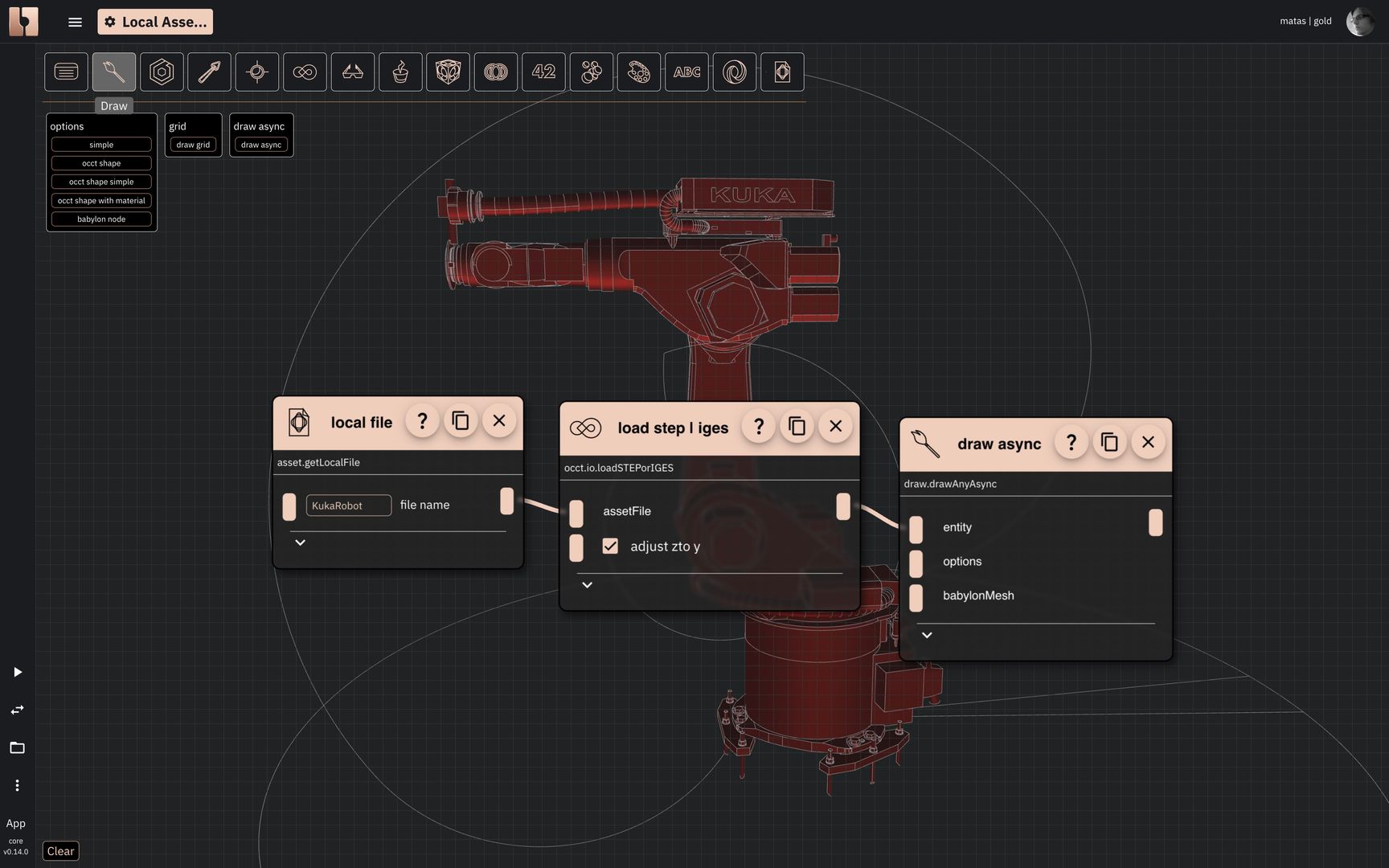 The result of imported local asset in Rete editor
3. Using the Local STEP Asset in the Blockly Editor
If you've already uploaded the KukaRobot.stp file to your browser's local storage (Step 1), it's available across all editors and projects within that browser.
You can open a fresh Blockly editor session here: https://bitbybit.dev/app?editor=blockly, or use the embedded Blockly editor example below.
Steps:
-
Get Local File: Retrieve the asset from local storage. Add this block:
- Category Path:
asset->get->get local file - In the "file name" input field of this block, type "KukaRobot".
- Category Path:
-
Load STEP/IGES File (using OCCT): Use the OCCT kernel algorithm to parse the STEP file into an actual shape. Add this block:
- Category Path:
occt->io->io->load step or iges - Place the
Get Local Fileblock into the "asset file" input slot of theload step or igesblock.
- Category Path:
-
Draw the OCCT Shape: The
load step or igesblock will output an OCCT shape. We need to draw this shape to make it visible. Add this block:- Category Path:
draw->draw any->draw any async no return - Connect the
load step or igesblock (which now contains theget local fileblock) to the "entity" input slot of thedraw any async no returnblock. - Ensure the
draw any async no returnblock is connected in sequence (e.g., below an initialstartblock if you're using one, or it can be the top block if no other setup is needed).
- Category Path:
After assembling the blocks, click "Run".
Blockly Editor Example:

<xml xmlns="https://developers.google.com/blockly/xml"><block type="bitbybit.draw.drawAnyAsyncNoReturn" id="koZlTGQ3?S4-H{M(DyWV" x="-391" y="-1213"><value name="Entity"><block type="bitbybit.occt.io.loadSTEPorIGES" id=";(/nc[$tH2rT)}-8wWS;"><value name="AssetFile"><block type="bitbybit.asset.getLocalFile" id="j,*.UKnGTfHEmlI{jC]g"><value name="FileName"><block type="text" id="#}0Q_Rl?30_h3w}J3CGM"><field name="TEXT">KukaRobot</field></block></value></block></value><value name="AdjustZtoY"><block type="logic_boolean" id="rL^0pucdlW4$^q-z*LPg"><field name="BOOL">TRUE</field></block></value></block></value></block></xml>
Expected Result (Blockly):
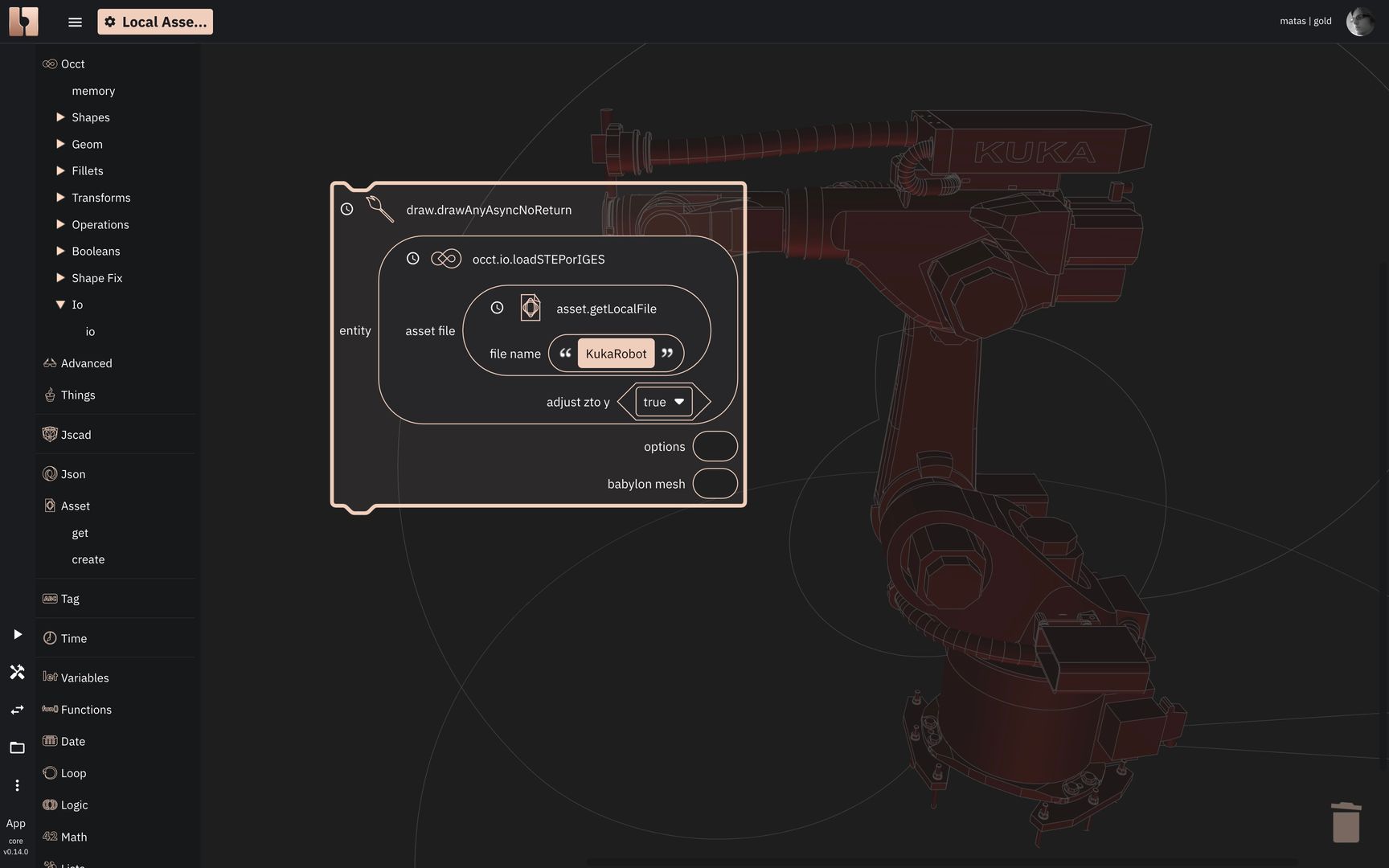 The result of imported local asset in Blockly editor
4. Using the Local STEP Asset in the TypeScript Editor
You can open a fresh TypeScript editor session here: https://bitbybit.dev/app?editor=typescript, or use the embedded TypeScript editor example below.
The process involves:
- Creating an
async startfunction. - Loading the local file.
- Parsing the file contents as a STEP file using an OCCT helper function.
- Drawing the resulting OCCT shape.
Here's an example of how to do that:
TypeScript Editor Example:

const start = async () => {

    const file = await bitbybit.asset.getLocalFile({
        fileName: "KukaRobot"
    }) as File;

    const shape = await bitbybit.occt.io.loadSTEPorIGES({
        assetFile: file,
        adjustZtoY: true,
    });

    bitbybit.draw.drawAnyAsync({
        entity: shape
    })
}

start();
Expected Result (TypeScript):
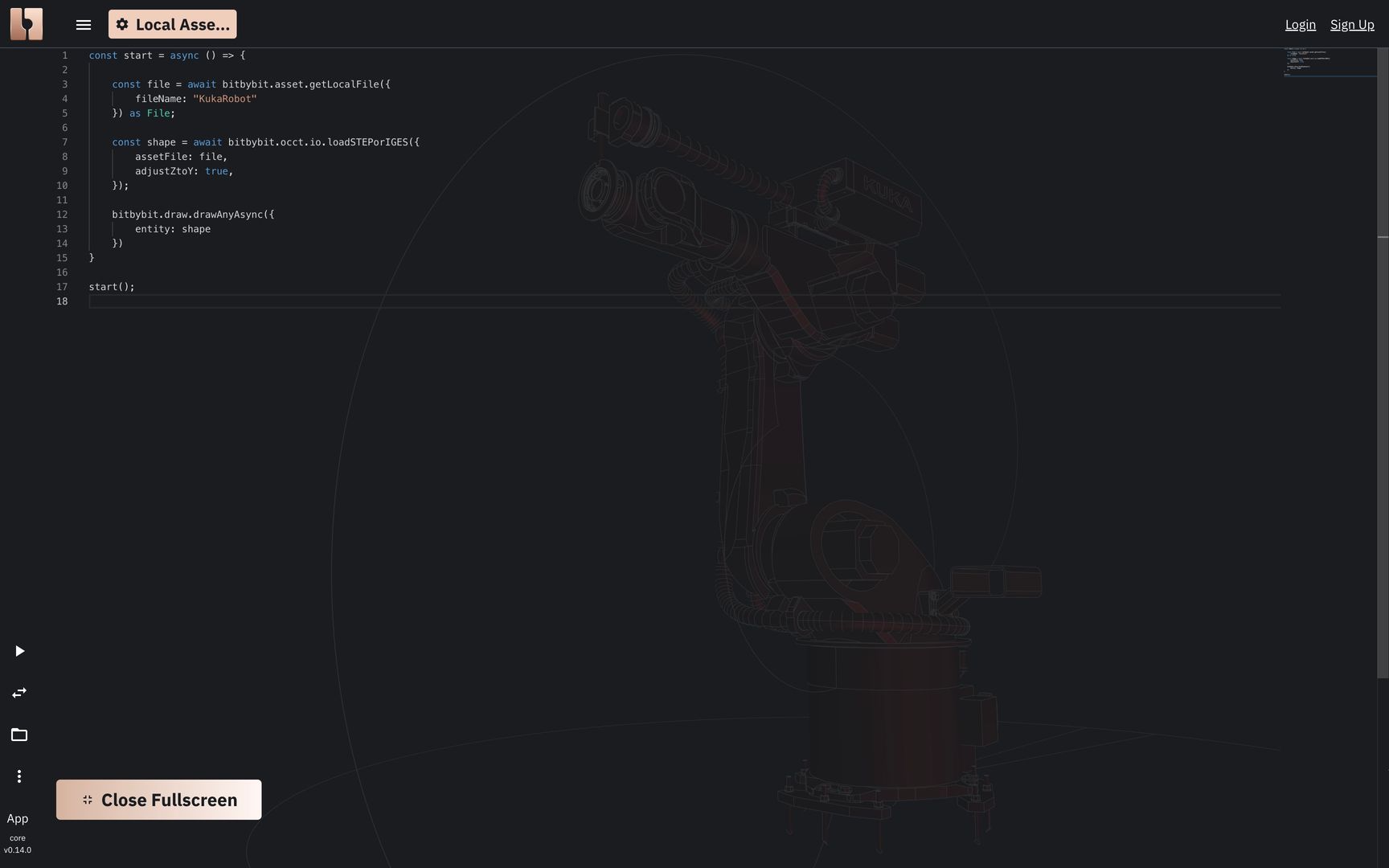 The result of imported local asset in TypeScript editor
Congratulations! You've successfully loaded and displayed a STEP file using a local asset in Bitbybit. Note that a similar strategy should generally work for IGES (.igs) files as well, using the same OCCT loading components/functions.