Uploading Cloud Assets to Your Projects
Introduction
In this tutorial, we'll explain how to upload two cloud assets to your Bitbybit project, making them available for use in any of the scripts within that project.
For this exercise, feel free to download these sample asset files:
- BoomBox.glb (Click to download)
- CalmCup.step (Click to download)
We'll use these two different asset types (a .glb glTF file and a .step CAD file) to illustrate the process and highlight that various formats can be managed as cloud assets.
Before We Start: Project Setup
You'll first need to either:
- Create a new project, or
- Use an existing project.
If you're unsure how to create a project, please refer to our Create a New Project tutorial. The type of script you choose initially (Blockly, Rete, or TypeScript) doesn't matter for the asset uploading process, as cloud assets are linked to the project itself. We'll provide examples later on how to use these uploaded assets in different script types.
How to Upload a Cloud Asset
Cloud assets are directly associated with your projects. Think of them as integral parts of a specific project. Therefore, the upload process happens through the project management panel.
You can access the project management panel in two main ways:
- While working in one of the editors.
- By navigating to the My Projects dashboard.
Let's focus on uploading via the editor:
Uploading via the Editor
-
Open Project Management: If you've just created a new project and its first script, you'll be in an active editor session. To open the project management panel, click the button in the top-left corner of the editor. This button usually displays the name of your current script and has a settings icon.
 Button to open project management panel
(Note: The word "Script" in the image is a placeholder; it will show your actual script's name.)
Button to open project management panel
(Note: The word "Script" in the image is a placeholder; it will show your actual script's name.) -
Initiate Asset Upload: After clicking the button mentioned above, the project management panel will open. Look for an "Upload Asset" button, often located towards the bottom right of this panel, and click it.
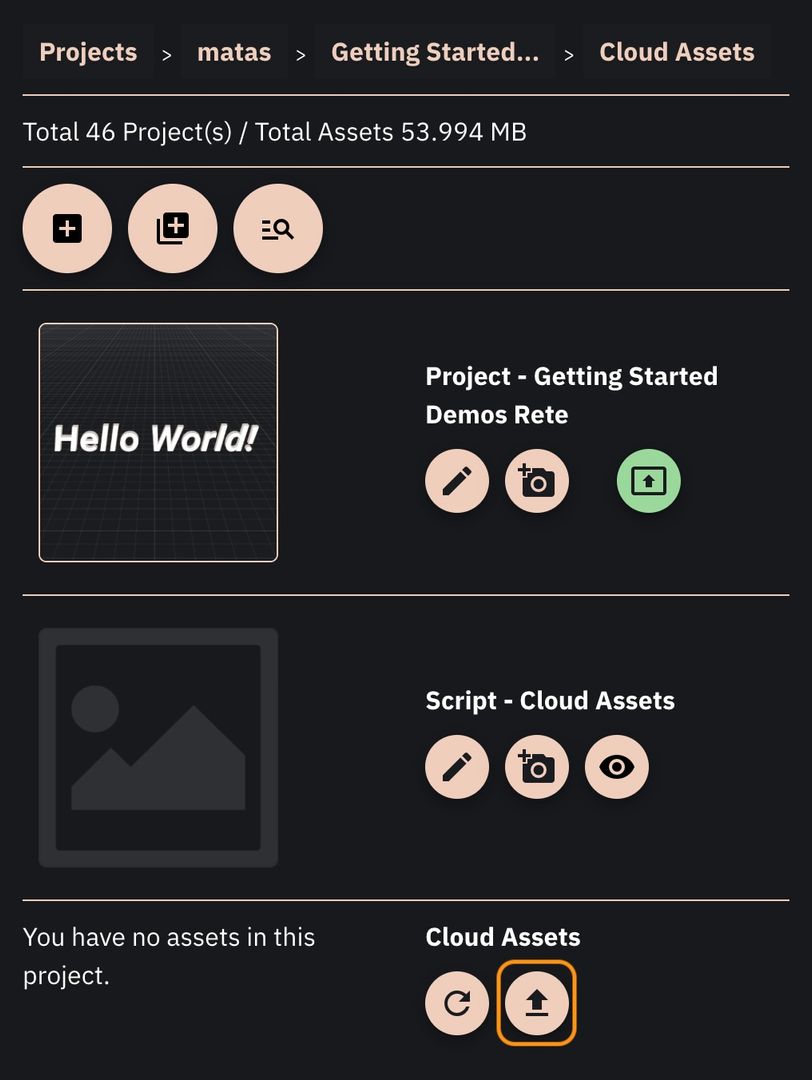 Button to initiate the upload of a cloud asset
 -
Fill the Upload Form: You'll be presented with a form where you need to:
- Asset Title: Enter a descriptive title for your asset.
- Choose File: Select the asset file from your computer.
Naming ConventionWe advise using a user-friendly name for the Asset Title. However, when you later use this asset in your scripts, you will typically refer to its original file name (e.g.,
BoomBox.glb,CalmCup.step), not the title you set here. Keep this in mind for consistency.For our examples:
- Set the title for
BoomBox.glbto "BoomBox". - Set the title for
CalmCup.stepto "CalmCup".
The form for the
BoomBox.glbasset should look something like this: Filled asset upload form
 -
Upload the Asset: Click the "Upload" button. The asset will begin uploading to your project's cloud storage.
- The form will close, and after a short processing time, you should see the asset appear in the list of your project's assets within the management panel.
- Processing Time & Quotas: It might take a moment for the asset to appear. Our backend needs to process the file and verify that your account's storage quota allows for the upload. In the rare case that you've exceeded your quota (you typically shouldn't see the upload button if your quota is full), the uploaded file might be deleted, and the asset won't appear.
-
Repeat for Other Assets: Follow the same steps (3 and 4) to upload the
CalmCup.stepfile.
After successfully uploading both files, your project's asset list in the management panel should look similar to this:
 Uploaded assets appear in the list
Your cloud assets are now ready to be used by any of the scripts within this specific project! In the following sections, we'll show you how to import and utilize these assets in your Rete, Blockly, and TypeScript scripts.