Configurator Pricing for Shopify
Your shopper picks the 20 m boat, the Sport helm and the Midnight hull, and ticks Tender and a beach club. The 3D model updates as they go. Configurator pricing means the price updates too, and that checkout charges the configured product the total they were shown. With Product lines charging that holds in every market too, because Shopify prices each line of the configuration for the shopper's currency and country; with the other charging methods there are markets where the two differ. Other currencies explains both.
You author it once in Composer. There is no code, and no third-party pricing app required. Price it builds this boat's price from nothing.
Configurator pricing is built into 3D Bits, so most stores need nothing else. It is also fully compatible with how you price today: keep Shopify variants for what you already sell, keep a product-options app if it does something you need, and switch configurator pricing off for those products. Both approaches are supported, and you can mix them across your catalogue.
A worked example
Here is the catamaran from the tutorial, with the amounts its merchant set:
| What the merchant set up | Amount (store currency) |
|---|---|
| Base price, which buys the 15 m boat | 1490000 |
| Length: 20 m (15 m adds nothing) | + 3450000 |
| Helm: Sport (Classic adds nothing) | + 28000 |
| Collection: Midnight (Regatta adds nothing) | + 65000 |
| On deck: Tender, linked to the merchant's own product Tender, 4 m, at its price in Shopify | + 24000 |
| On deck: Starboard beach club, linked to their Beach club loungers, at their price in Shopify | + 4800 |
A shopper who picks all of those sees 5061800, and Shopify charges 5061800 for the boat at checkout, with shipping, and tax where your prices do not include it, on top as usual.
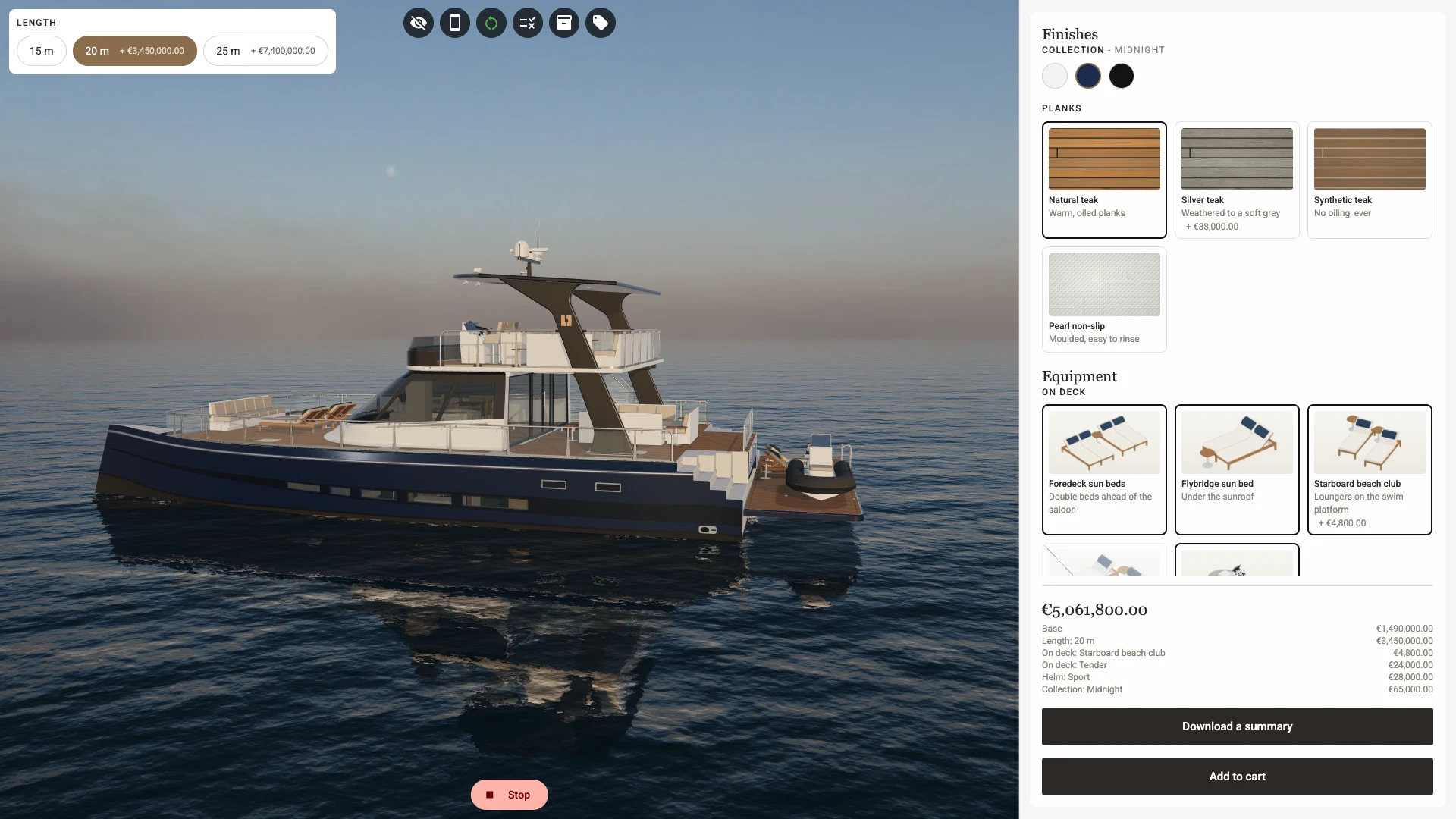
If they go back to 15 m, the model changes, Tender leaves the panel and takes its 24000 with it, the total drops to 1587800, and checkout follows.
What you can price
- A base price - where every configuration starts.
- An amount per option - 28000 for the Sport helm, 65000 for the Midnight hull. Works with dropdowns, radio buttons, checkboxes and switches.
- How many of an option - let the shopper choose a number of one option with a
+/-stepper, such as how many Beach club loungers. Its amount then becomes a price per unit. - Your own products, linked to an option - point an option at real products in your catalogue and it is charged at their price, and they appear on the order so your team knows to pick them. One option can carry up to ten of them, each with its own quantity. Pro plan.
- Formulas - an expression over a slider or number field, like
width * 2.5orround(area * 45). This is what makes continuous choices (size, length, area) priceable. - Parts - the things the configured product is made of. A part can be a real product you charge for and ship, one of your variants picked by the shopper's choices, or simply a line on the works order. Pro plan.
- A set multiplier - nominate a number field, a slider, or a dropdown or radio whose values are all numbers under Quantity control (optional) to multiply the whole configured price, which is how you price by area or by running metre. It multiplies the price, not every item on the order: parts that are products ship that many sets, rounded to a whole number and at least one, while products linked to options ship their own units. This is not the purchase quantity.
- A purchase quantity - a Quantity element you place in the panel, for a shopper buying several of the configuration they just built.
You can also have the configurator grey out choices it cannot currently sell, by checking the real products behind them when the page loads. See Linked products.
What the shopper sees
The Price element updates live as they change options, and Show price breakdown itemises it: base, each chosen option, each formula, each part, so nothing about the total is a mystery. You can also show a Parts list of what the configuration is made of.
At checkout the configured product normally appears as a single line at the price they were shown (Charging methods covers the exception). Their choices travel with the order, so your team can see exactly what to make.
What stays with Shopify
Configurator pricing decides what the product costs. Everything around that stays where it already is:
- Taxes - Shopify. One thing to know: in a market that includes tax based on the shopper's country, only Product lines charging follows the price Shopify gives each country - see Other currencies. A reduced or zero rate set up as a tax override may not reach 3D Bits' own lines, which Shopify taxes at your store's default rate - see What does 3D Bits not do?
- Shipping rates - Shopify. With Product lines and Bundled parts, 3D Bits' own lines - option charges, the configured price and an uploaded file - are set up as items that need no shipping, so a shipping rate worked out from the order's price may leave their amounts out. Place a test order against your shipping rates, a free-shipping threshold included, before you sell. Price lines ship as goods, under Orders abroad on the Storefront display page of the app, makes them shipped items that weigh nothing
- Discounts - Shopify. Discount codes and automatic discounts never make checkout refuse a configured product. A configured item's price can sit on several lines of the order, so a discount limited to particular products or collections may not reach all of it: test such a discount with an order before you rely on it (see Going live). The Price element can show the shopper the discounts Shopify gives their configuration before they add it - see Layout
- Payment, fraud analysis and refunds - Shopify. With Product lines and Bundled parts, a configured item's price is spread over several lines of the order - the products it is made of and 3D Bits' own lines - and refunding one line returns only that line's amount. To refund or return a configured item in full, include every line of it, and try it on a test order before you need it
- Your existing variants for anything you do not configure - Shopify
- 3D Bits never processes payments and never holds money
Where to go next
- Set up your first price - turn it on and price one option, start to finish.
- Choose a charging method - how a configured price becomes a real Shopify charge, and why Product lines suits almost every configurator.
- Link your own products - charge through products you already sell.
- Products you already sell - a configurator built on the variants your store already has, at Shopify's own prices.
- Helper products - the hidden products 3D Bits creates, and the rules for living with them.
- Test your prices first - see your numbers on a real product page before anything is created.
- Sell in other currencies and countries - what a configured product costs in each of your markets, and why.
- Go live - what to test, and how to review configured orders.
Verified against the product in November 2026