Installing 3D Bits App
Install 3D Bits from its page in the Shopify App Store. Shopify takes you through a few approvals, and then you are in the app.
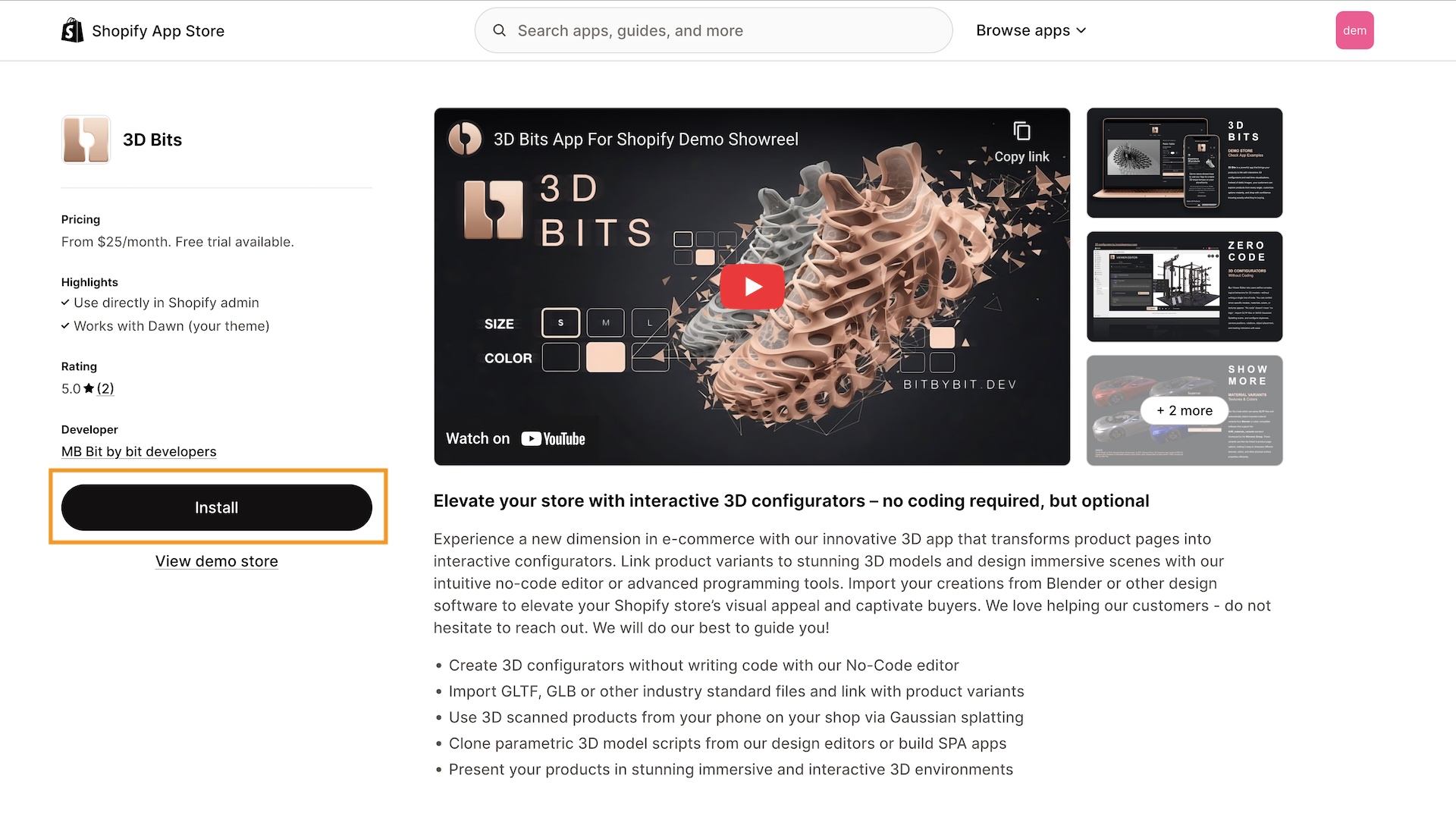
Installation Steps
1. Approve Permissions
After you press install, Shopify asks you to approve what the app may do in your store.
2. Select a Subscription Plan
Next, choose one of the three plans on Shopify's plan page: Base, Standard or Pro. Note that prices are subject to change. Subscription Plans says what each one includes.
3. Approve Subscription Charge
After selecting your plan, you approve the subscription charge in Shopify.
4. Installation Complete
Shopify brings you back to the app. The first time, the app asks you to accept its Terms of Service: tick I have read and agree to the 3D Bits Terms of Service and press Accept and Continue. Until you have, the app stays on this page.
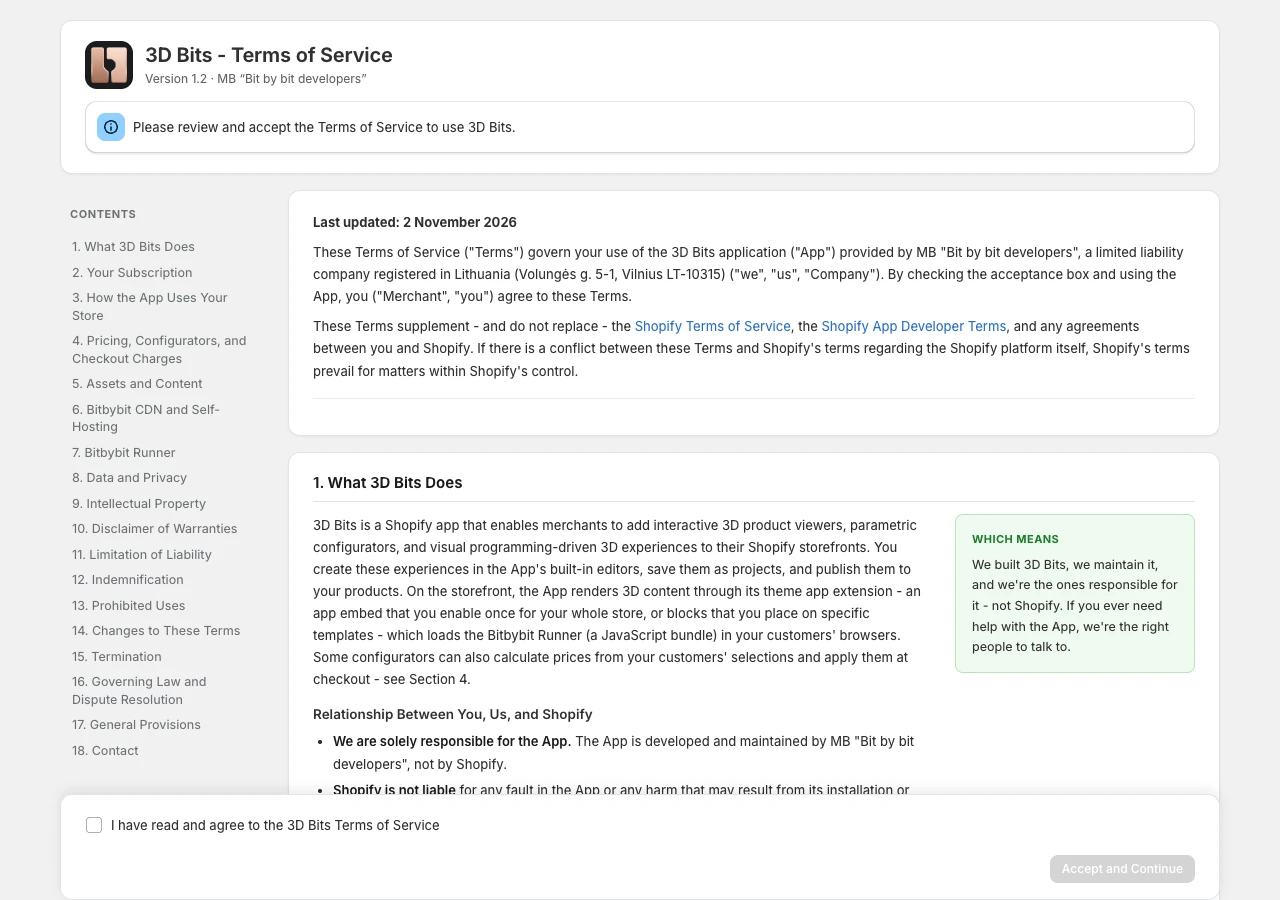
Then you are on the app's home page.
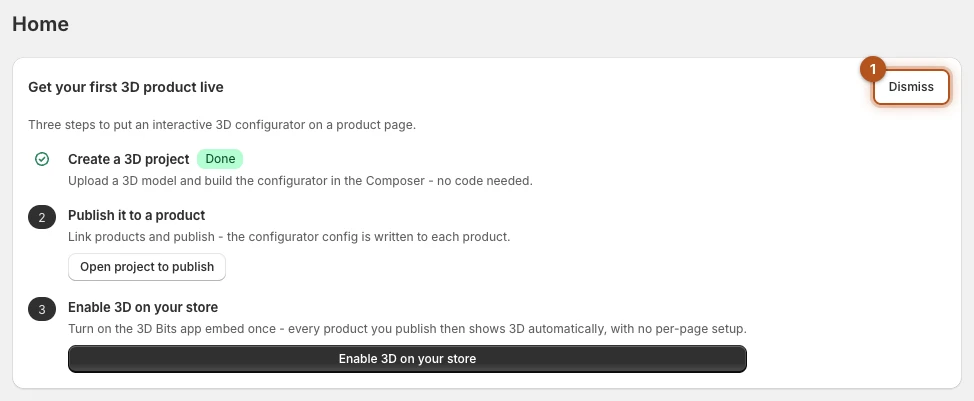
What comes next
The app's home page shows a short checklist of the three things that get your first product live: create a project, publish it to a product, and switch 3D on for your store. Dismiss 1 puts it away in this browser, and it leaves by itself once a project is published and 3D is switched on for your store.
Your First Configurator walks through all of it in detail.
Verified against the product in November 2026