Model Size and Performance Limits
Several numbers get quoted around file size in 3D Bits, and they do different things. Two of them only put a warning in front of you, one stops a shopper seeing your model, and one refuses an upload. It is worth knowing which is which before you decide a model is "too big".
The three limits at a glance
| Limit | Where it applies | What actually happens |
|---|---|---|
| 20 MB per model | Composer, Models section | A warning icon (a triangle) next to the model. Nothing is stopped - you can save and publish. |
| 40 MB per model, and 40 MB across all your models | Composer, Models section | An error icon (a circle with an exclamation mark), and a notice under the model list for the scene total. Still nothing is stopped. |
| 30 MB per model | Your live storefront, iPhone Safari only | The model is not loaded at all and the shopper is shown a notice. Everything else in the scene still loads. |
| 100 MB per file | Uploading into the app | The upload is refused before it starts. |
Only the last two stop anything. The 20 MB and 40 MB figures are advice.
A 35 MB model is perfectly publishable, loads on every desktop browser, on Android and on an iPad, and is blocked only for a shopper on an iPhone using Safari. That is the whole difference between the warning bands and the block.
What Composer warns you about
Composer measures each model when you add it or change its link, and shows the result next to the model in the Models section: a size chip 1, and a warning icon once the file crosses a band.
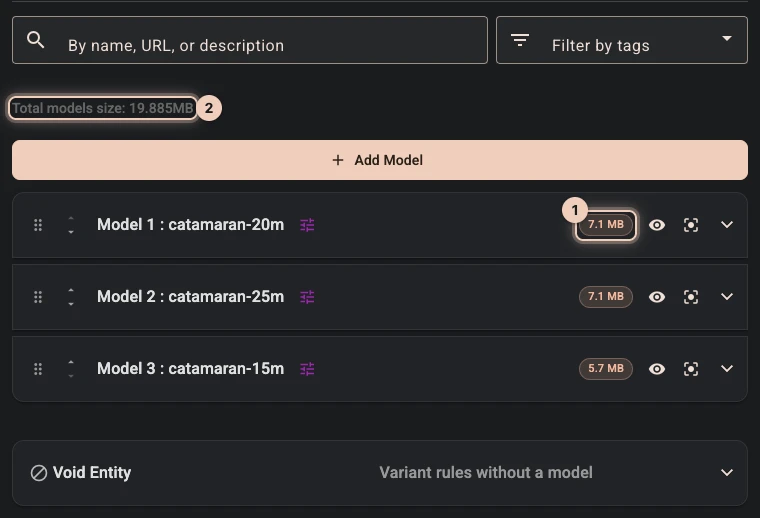
The catamaran tutorial's three boats come to 5.7, 7.1 and 7.1 MB, 19.9 MB together 2, with no warning anywhere. The 20 m boat fits nearly 1.4 million triangles and 63 textures into its 7.1 MB, which is what Draco compression and WebP textures buy you in download size. How the Designer kept the triangle count down is on our blog.
- From 20 MB - "Moderate file size (...): May be slow on certain devices".
- From 40 MB - "Large file (...): May cause performance issues or fail to load on lower-end devices".
Above the list, Composer also shows Total models size. Once that total goes past 40 MB it adds a notice: "Large total size may cause slower loading or performance issues on lower-end devices & networks." The total counts each distinct file once, so two models pointing at the same link are counted once, not twice. It counts every model in the project, whenever it loads, so in a scene that loads models when they are shown it is more than any one shopper downloads.
None of this blocks a save or a publish, and neither do the loading settings below. It is there so you find out in the Composer rather than from a shopper.
The figure Composer shows is the real one
Composer reads the file itself when it needs to, so the size it reports is the file's real size, not the smaller figure a compressing server sends over the network. It is still not the memory the model takes once loaded. Textures are unpacked to full size on the graphics card and Draco geometry is decompressed, so a 7 MB GLB with many textures can need well over 100 MB: the 20 m boat's textures alone come to about 175 MB. The number and resolution of your textures decide memory far more than the file size does.
If your host serves the file compressed, Composer shows a small information icon beside the size, explaining the difference between the file and its download, along the lines of "Actual file size: 34.2 MB. Downloads as 9.1 MB - the server serves it BR-compressed over the network, so it transfers faster than its real size."
That distinction matters more than it looks. See the iPhone Safari block below.
If your host refuses Composer's size request - some hosts answer the HEAD request Composer sends with an error - Composer shows a warning icon whose tooltip carries the host's answer, such as HTTP 405, or the browser's own error. That is about your host's reply to that one request, and the model can still load. If the model does not load either, the host is refusing the browser altogether, usually because it sends no CORS headers, and the model will not load on your storefront.
A host that answers but sends no size is a different case, and it usually resolves itself: Composer downloads the file and measures it, so you still get a real figure. Your live storefront never does that second read - it goes on the reported size alone.
The iPhone Safari block
This one is a real block, and it is the only size rule that runs on your live storefront.
Apple gives web pages on iPhone a low memory ceiling. When a page goes past it, Safari reloads itself - the "unexpected reload" a shopper experiences as the page throwing them out. Loading a very heavy 3D model is one of the reliable ways to hit that ceiling, so 3D Bits refuses to try.
What it does. Before each model loads, the app asks the host how big the file is, whether the model loads at start or later, when a choice first shows it. Any single model over 30 MB is skipped, and the shopper gets a notice titled Models Not Loaded listing the file names and sizes, explaining that they "were not loaded to prevent Safari browser crashes due to memory limitations on mobile iOS devices".
Who it applies to. iPhone and Safari. A shopper on Chrome, Firefox or Edge on an iPhone is not affected, and neither is anyone on an iPad, an Android phone or a desktop. This is subject to change.
How it counts. Per model, never per scene. Four 20 MB models all load; one 31 MB model does not. 3D Bits counts a megabyte as 1,048,576 bytes, as Composer's size chip does, so the line sits at 31,457,280 bytes - a file macOS Finder shows as 31.5 MB. Everything else in the scene - your other models, the option panel, the pricing - still loads and still works. Only the oversized model is missing from the view.
On the storefront the check reads the size your server reports for the transfer, not the uncompressed size. A text-based .gltf is very compressible, so a host that gzips it can report well under 30 MB for a file that is far larger once the browser unpacks it - it passes the check and can still exhaust the phone's memory.
Judge by the real file size Composer shows you, not by the download size, and remember that even that is not the memory the model takes once its textures are unpacked. Exporting GLB rather than GLTF removes most of the gap between download size and file size, because a binary GLB is already close to its real size on the wire.
Equally, if your host reports no size at all, nothing is blocked. Passing the check is not a certificate that the model is safe on a phone.
The safest habit is the dull one: put your real store page on a real iPhone and look at it.
The upload limit
The app's Assets page has an Upload files button, and every model and image field in Composer carries the same upload action inline when you open Composer from inside the app. Both go to the same place - your store's CDN - and both refuse anything over 100 MB before the upload begins. In Composer the refusal reads "File is too large - the maximum is 100 MB."
That cap is a hard stop on the upload, not a recommendation. A file anywhere near it has no business on a product page. Treat the Composer warning bands above as the number you actually design to.
Hosting the file somewhere else does not change anything a shopper experiences: the 30 MB storefront block reads the size from whatever host you point at, wherever that is.
What to aim for
There is no single right number, as a 20 m catamaran is not a ring, but as a working target:
- Keep each model comfortably under 20 MB, so no warning appears at all.
- Keep what a shopper loads at once under 40 MB. If every model loads at start, that is the scene total; if models load when they are shown, it is what one configuration shows together.
- Never plan for a single model above 30 MB unless you are content for it to be invisible to iPhone Safari shoppers.
- Test the finished product page on a real iPhone before you consider it live.
If a model will not come down to size, the tools are all in Preparing GLTF Assets: reduce the triangle count when you triangulate, shrink and compress your textures, merge meshes that share a material, export GLB rather than GLTF, and consider Draco compression.
Splitting one heavy model into several smaller files is a partial answer only. 3D Bits happily loads several files at once, and the 30 MB rule is measured per file, so splitting does get each piece past the check - but the phone still has to hold every piece that is shown at the same time. Split for convenience and for the upload limit, not as a way around the block.
A configurator with many alternatives - five hulls, a dozen wheel designs - does not have to hold them all. Set Load models to When shown in the Scene section, and each model downloads the first time a choice shows it - see Loading models when they are shown. Give the large ones a Free memory setting, When hidden or When over the memory budget, and the phone lets go of the ones the shopper has moved past - see When to load. What a phone has to hold is then what is on screen, not everything the project contains. The Memory budget counts the memory a loaded model takes, textures included, not its file size, so it measures what actually fills a phone.
Two things stay the same. Each file is still checked against the 30 MB iPhone Safari block when it loads, so loading a model later does not take it past the block. And a scene with a script switched on loads every model at start and keeps them all, whatever these settings say.
Where to go next
- Preparing GLTF Assets - how to get a model down to size in the first place.
- Configurators Are Games - why performance is a design constraint, not an afterthought.
- Your Assets & Security - what else is public once you publish.
- Adding Models - adding and replacing models in Composer.
Verified against the product in November 2026