The "BITBYBIT PREVIEW" Block for Shopify
The BITBYBIT PREVIEW block embeds a public Bitbybit script on a page of your store, in an iframe. Use it to show a finished piece: an interactive demo, a 3D scene, a product presented on its own terms.
It is not a configurator. The embedded script runs by itself and cannot see the page around it, so it does not respond to product variants or to anything else a shopper picks in your form, and it cannot reach the cart. Whatever the shopper can do happens inside the script. To make a product respond to choices, build it in Composer instead.
Live Example:
You can see the block in action on our Demo Store Product Page (password: 3d-bits-demo). This product embeds a script from this public Bitbybit project.
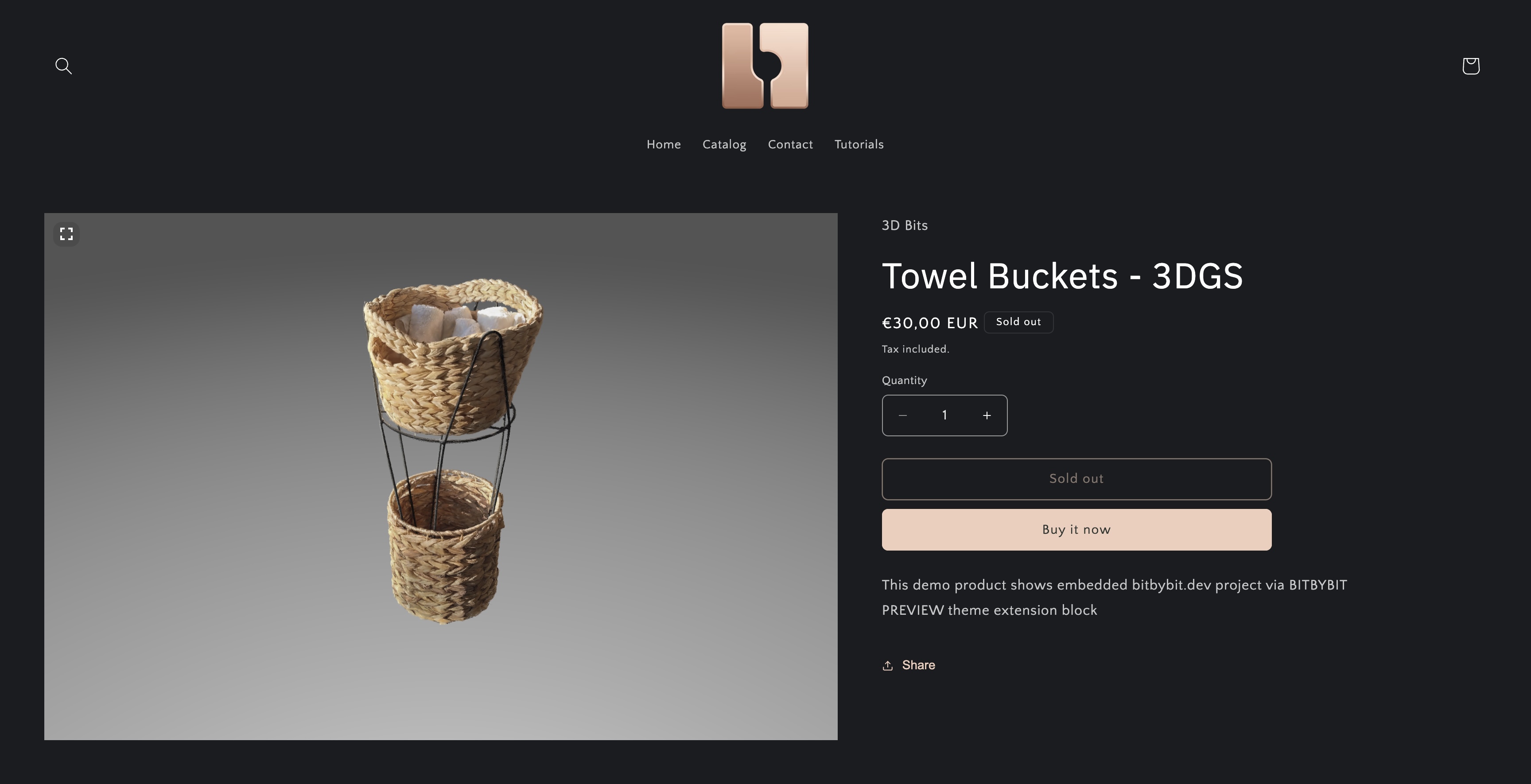 Demo store product that uses an embed of a Bitbybit public script.
Set It Up
The work is preparing your script on Bitbybit and then giving the block its preview URL.
1. Prepare Your Script on Bitbybit
Create a project with at least one script on the Bitbybit platform (sign up if you need to). When the script is finished, publish the project with "Public" visibility, which makes the script reachable through a shareable URL. Embed a script from your own account: whoever owns a public project can change or remove what the frame shows on your product page. Bitbybit Projects Overview covers managing and publishing projects.
2. Get the Script's Preview URL
You need the script's "preview" URL, which runs it full-screen with no editor. Follow Obtaining Script Preview Links.
3. Add the Block
- In your Shopify theme editor, create or edit a product template and add the BITBYBIT PREVIEW block from the "3D Bits" app.
- Paste the preview URL into Model Preview URL. A URL typed there shows on every product using the template.
- To show a different project per product, link Model Preview URL to the product metafield 3D Bits Model Url instead, then paste each product's preview URL into that metafield on the product. Metafields explains how the app provides it, and the other 3D Bits metafields play no part here.
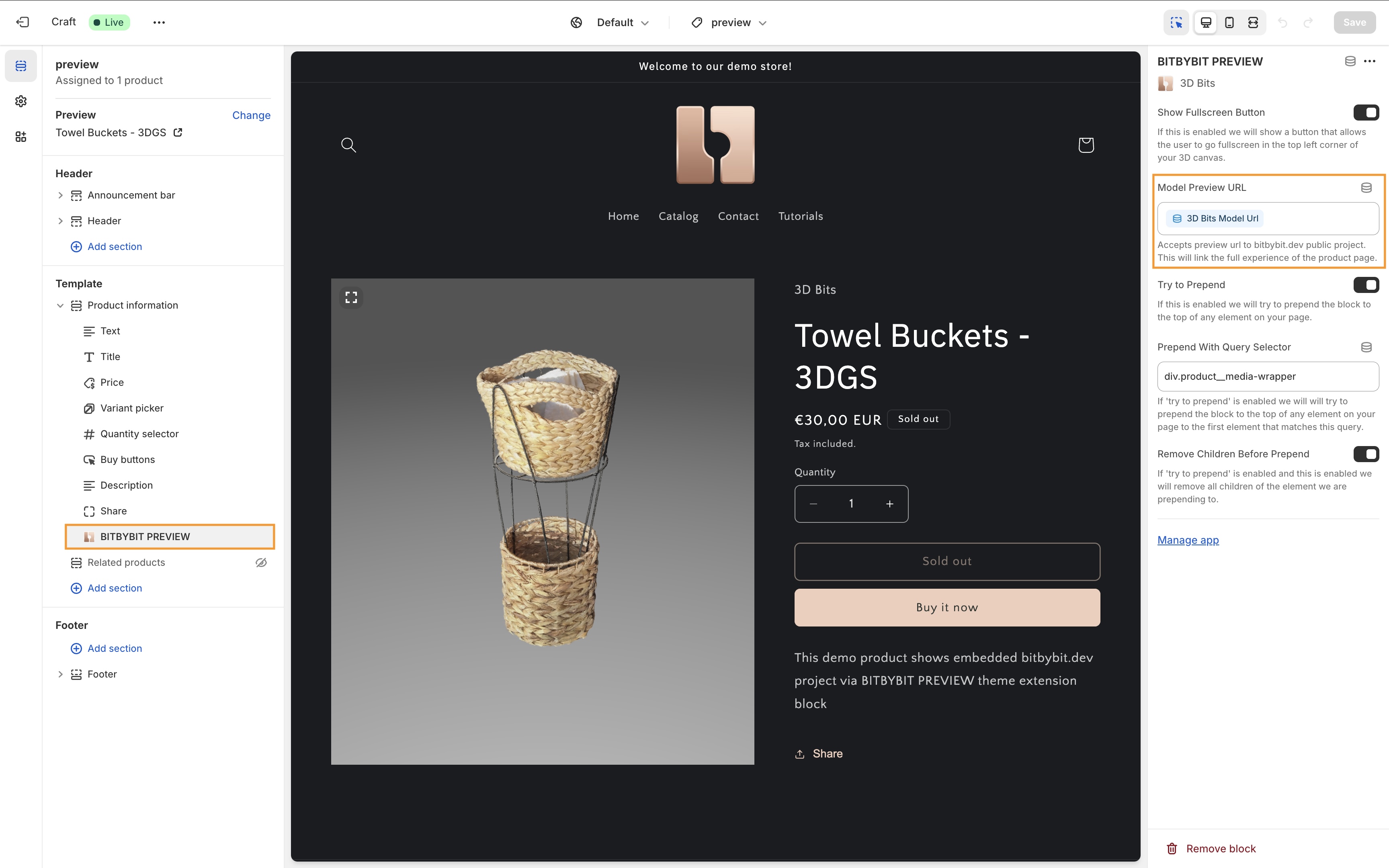 The block's settings with the URL linked to the metafield.
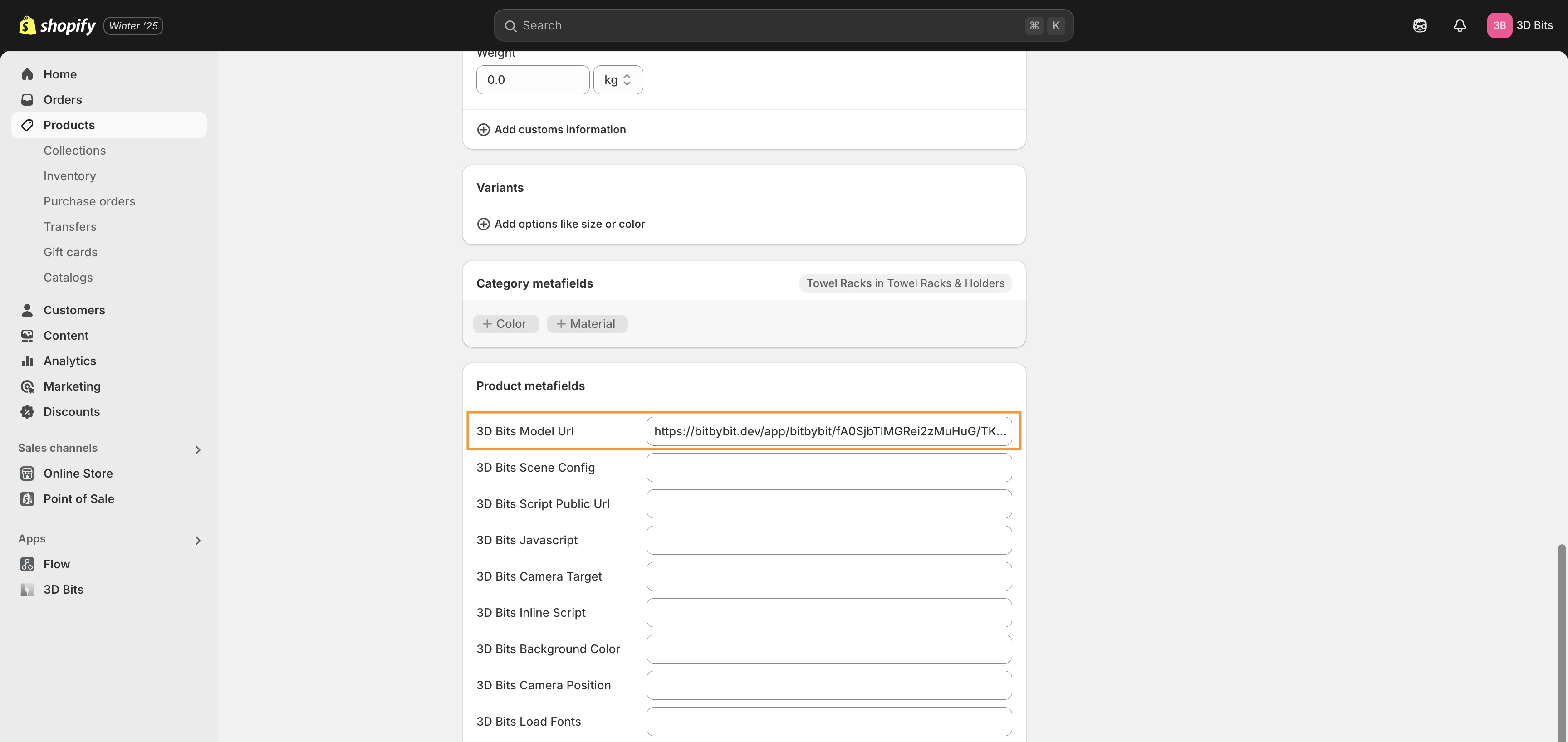 The preview URL in the metafield on the product.
The block's five settings are described in Block Settings.
Video Tutorial
This overview of the app and its blocks, including PREVIEW, was published in July 2024, so its screens are older than the steps above:
Verified against the product in November 2026