The "BITBYBIT PREVIEW" Block for Shopify
The BITBYBIT PREVIEW is a theme app extension block provided by our "3D Bits" Shopify app. It offers a straightforward way to embed publicly available Bitbybit project scripts directly into your Shopify product pages. This allows you to showcase rich, unique, and interactive 3D product experiences.
Key Characteristics:
- Embeds Public Scripts: This block is designed specifically for embedding scripts from Bitbybit projects that have been published with "Public" visibility.
- No Variant Configuration: Unlike the BITBYBIT RUNNER block, experiences embedded with the PREVIEW block generally cannot be directly configured by Shopify product variants in the same dynamic way. The interaction is primarily with the pre-defined logic within the embedded Bitbybit script itself.
- Showcasing Experiences: Ideal for presenting completed interactive demos, artistic 3D scenes, complex visualizations, or non-configurable product showcases.
Live Example:
You can see an example of the BITBYBIT PREVIEW block in action on our Demo Store Product Page (password: 3d-bits-demo). This product directly embeds a script from this public Bitbybit project.
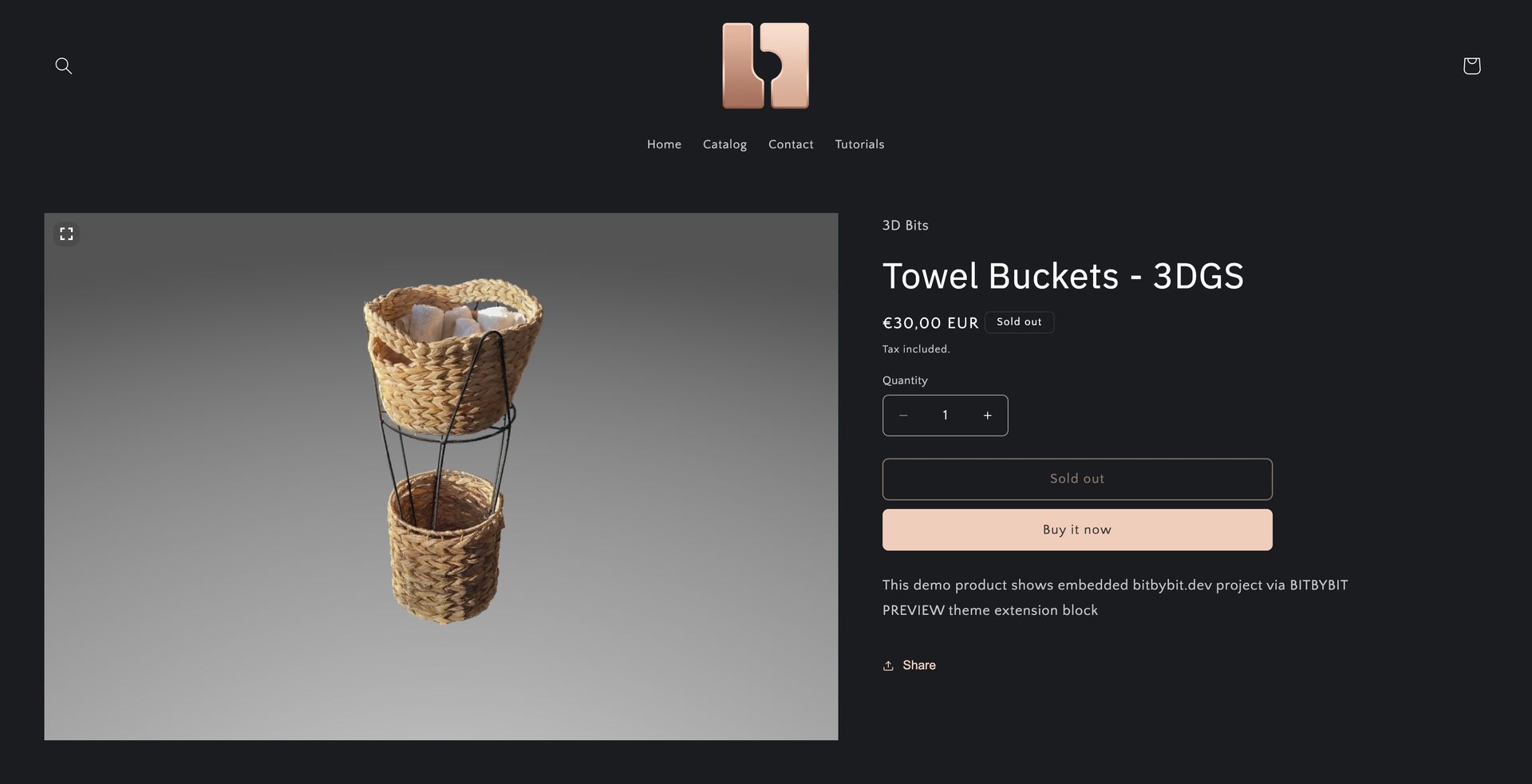 Demo store product that uses an embed of a Bitbybit public script.
How Does the BITBYBIT PREVIEW Block Work?
The process involves preparing your script on Bitbybit and then linking its preview URL within your Shopify product settings.
1. Prepare Your Script on Bitbybit
- Create/Select a Project & Script: You'll need to have a project with at least one script created on the Bitbybit platform. (Ensure you are signed up.)
- Publish as Public: Once your script is complete, the project containing it must be published and set to "Public" visibility. This makes the script accessible via a shareable URL.
- Learn more about managing projects and publishing: Bitbybit Projects Overview.
2. Get the Script's Preview URL
You need the specific "preview" URL for your Bitbybit script. This URL runs the script in a full-screen, editor-less mode.
- How to get the Preview URL: Please follow our guide on Obtaining Script Preview Links.
3. Configure in Shopify ("3D Bits" App)
Assuming you have already installed the "3D Bits" app in your Shopify store:
-
Product Template & Metafield Linking:
- You'll typically create or edit a product template in your Shopify theme customizer.
- Add the BITBYBIT PREVIEW block from the "3D Bits" app to this template.
- In the block's settings, you need to dynamically link the "Model Preview URL" setting of the block to the product metafield named "3D Bits Model Url". This metafield is provided by our app.
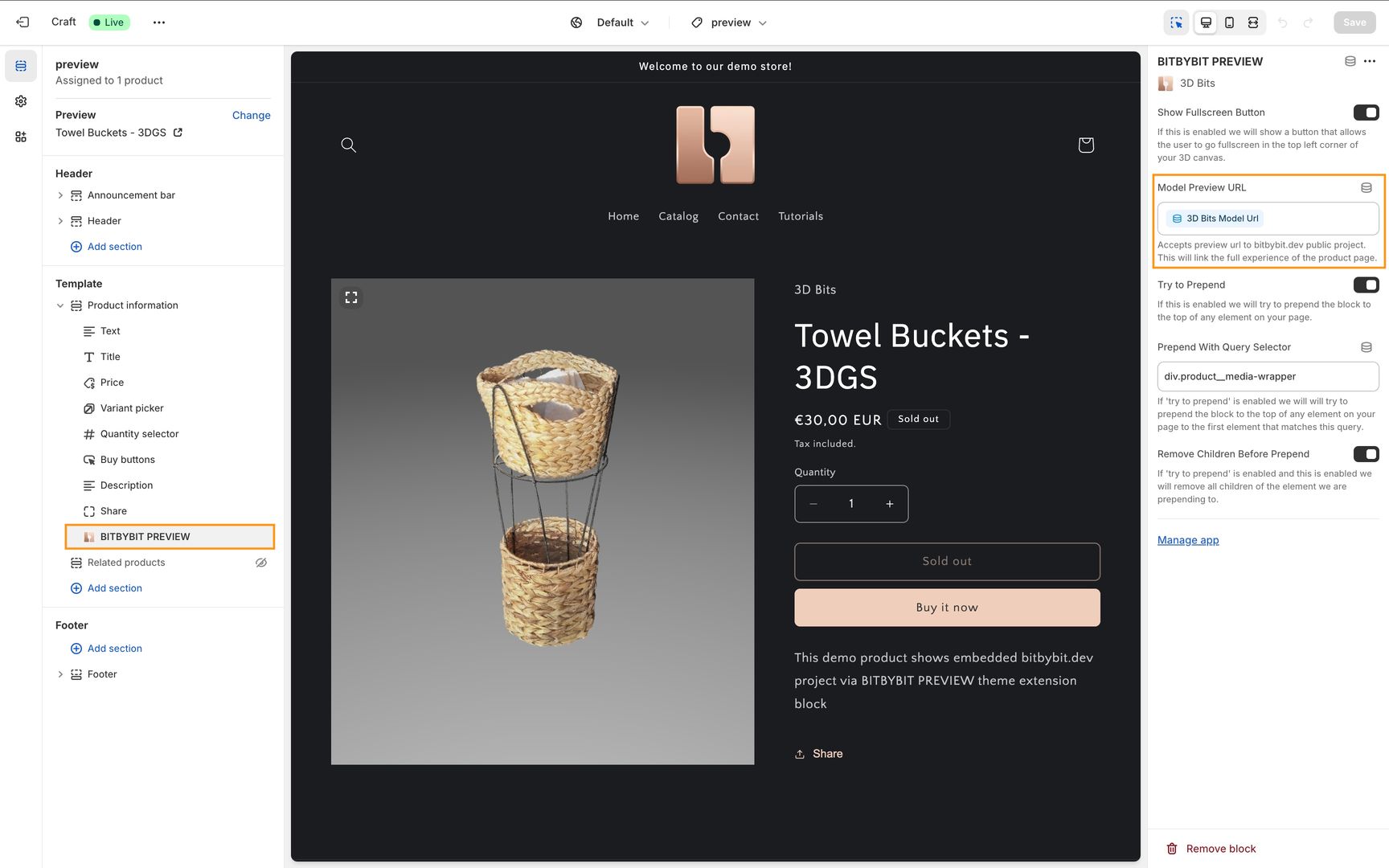 After you configure the PREVIEW block, its settings should look similar to this.
 -
Enter the Preview URL in Product Metafields:
- Navigate to the specific product in your Shopify admin where you want to display the 3D experience.
- Find the "Metafields" section for that product.
- Locate the "3D Bits Model Url" metafield.
- Copy the preview URL you obtained from Bitbybit and paste it into this metafield.
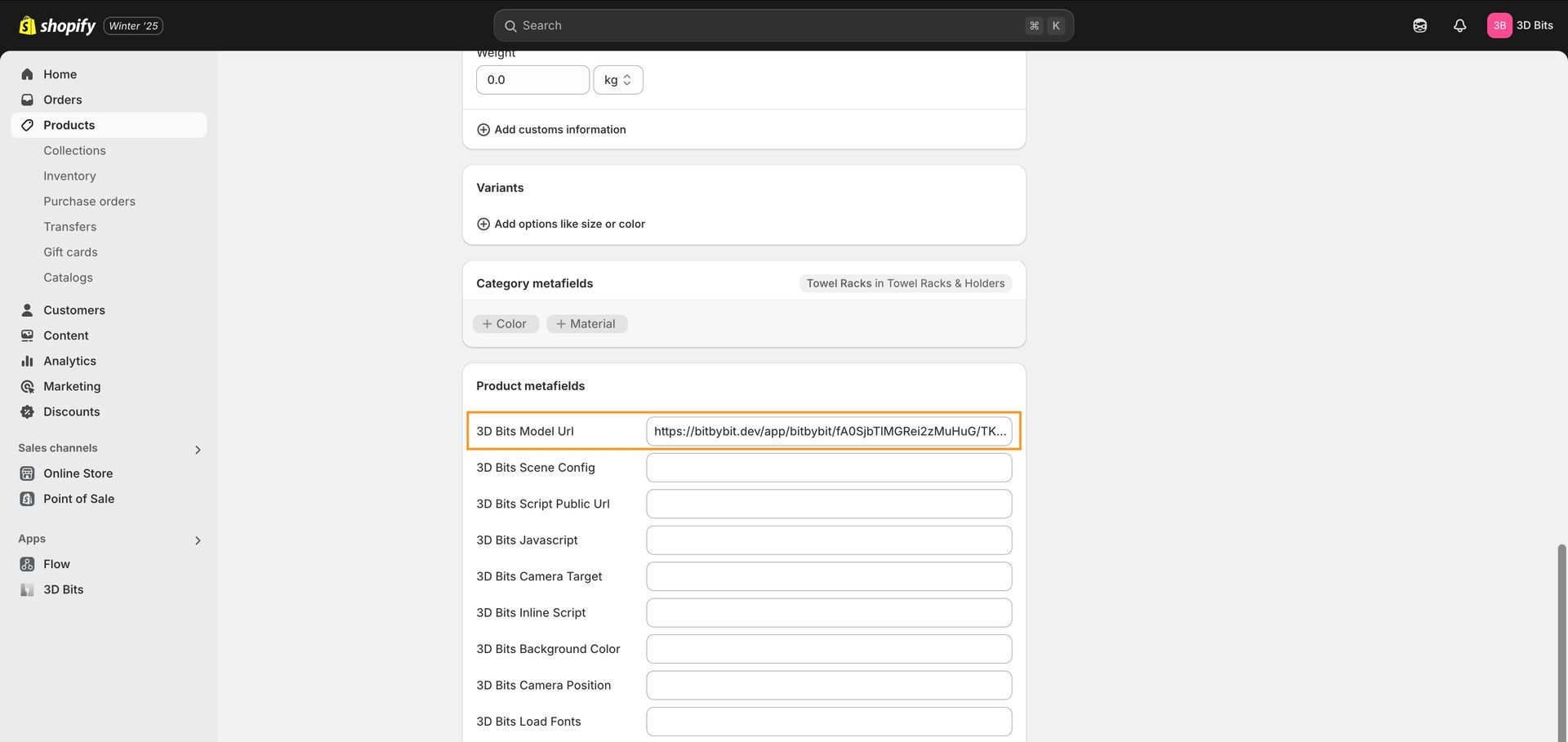 Use the "3D Bits Model Url" metafield to enter the preview URL from Bitbybit.
The other metafields provided by the "3D Bits" app (like those for GLB files or script content) are generally not relevant for the BITBYBIT PREVIEW block, so you can ignore them when using this specific block.
Video Tutorial
For a step-by-step visual guide on setting up the "3D Bits" app and its blocks, including the PREVIEW block, be sure to check out this video tutorial:
By following these steps, you can effectively use the BITBYBIT PREVIEW block to enrich your Shopify product pages with engaging, interactive 3D content hosted on Bitbybit.