The "BITBYBIT VIEWER" Block for Shopify (No-Code)
The BITBYBIT VIEWER is a theme app extension block provided by 3D Bits app for Shopify. It offers the simplest way to create 3D model configurators from static assets on your product pages without needing to interact with the Bitbybit coding editors.
You can upload your 3D models to the Shopify CDN or any other publicly accessible cloud storage, and then use the URL of the file to display it directly on your product page using this block. For more advanced scenarios, the VIEWER block also allows you to load and configure multiple 3D models at once using a special JSON configuration, which can be easily created with our new Viewer Editor tool. These files can be linked to product options, such as size or color. You can also parse files such as GLTF to use material variants or assign variants to individual transform nodes & meshes.
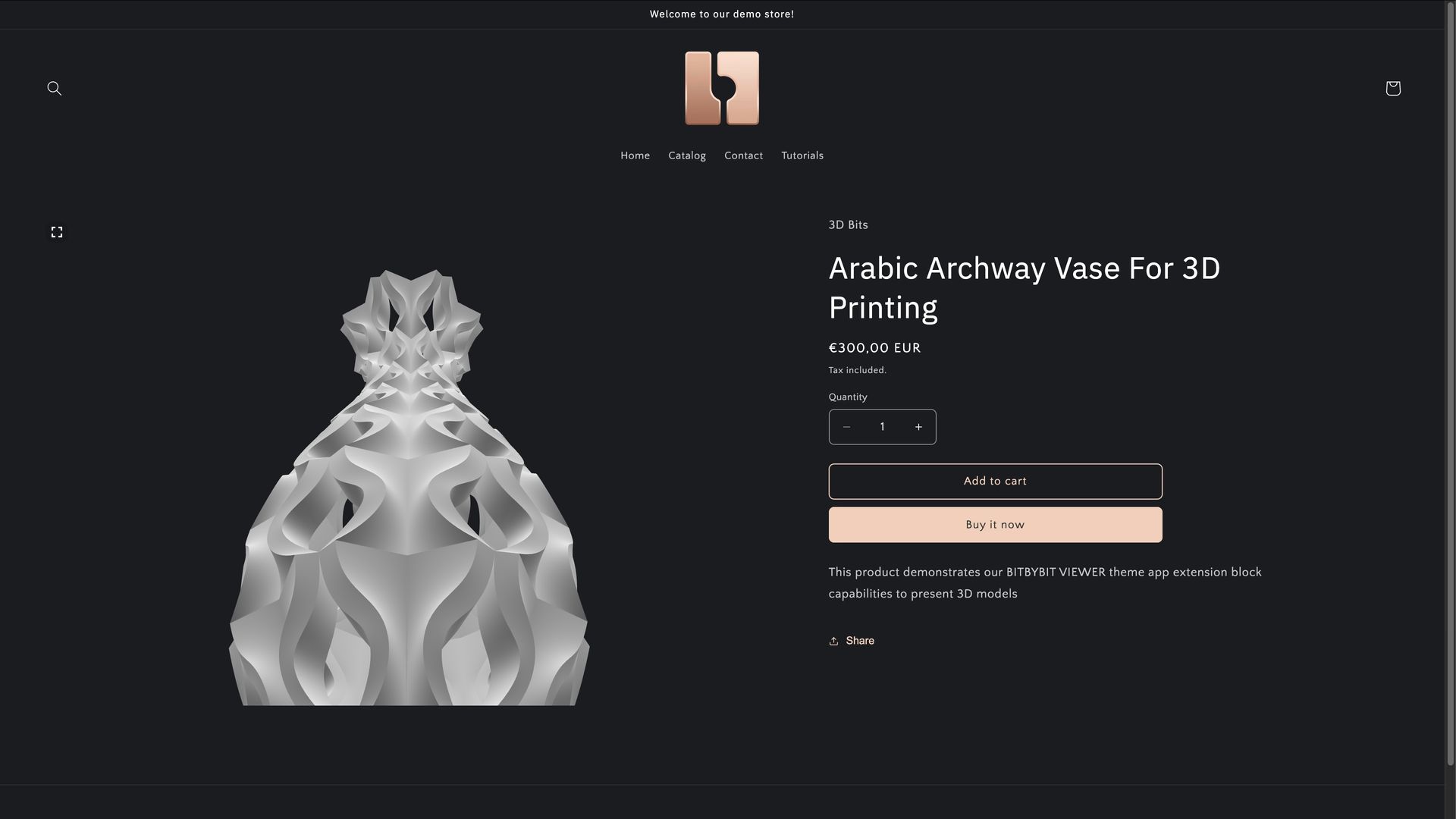 Demo store product that uses the BITBYBIT VIEWER block.
Examples
Here are a few examples from our demo store that utilize the BITBYBIT VIEWER block:
- Viewer with Model URL only (Arabic Archway Vase)
- Configurable 3D Chair Product (using Scene Config JSON for variants)
- Viewer with Scene Config JSON (Serenity Swirl Vases)
Supported 3D Model Formats
Currently, the BITBYBIT VIEWER block supports the following 3D model formats:
gltf, glb, splat, ply, obj, stl
How Does It Work? (Basic Setup - Single Model)
-
Upload Your 3D Model:
- Upload your 3D model file (e.g., a
.glbor.gltffile) to the Shopify CDN (under "Content" > "Files" in your Shopify admin) or any other publicly accessible cloud storage service (like AWS S3, Google Cloud Storage, etc.). - Obtain the direct public URL to this file.
- Upload your 3D model file (e.g., a
-
Configure in Shopify ("3D Bits" App): Assuming you have already installed the "3D Bits" app in your Shopify store:
-
Product Template & Metafield Linking:
- Create or edit a product template in your Shopify theme customizer.
- Add the BITBYBIT VIEWER block from the "3D Bits" app to this template.
- In the block's settings, dynamically link the "Model URL" setting of the block to the product metafield named "3D Bits Model Url". This metafield is provided by our app.
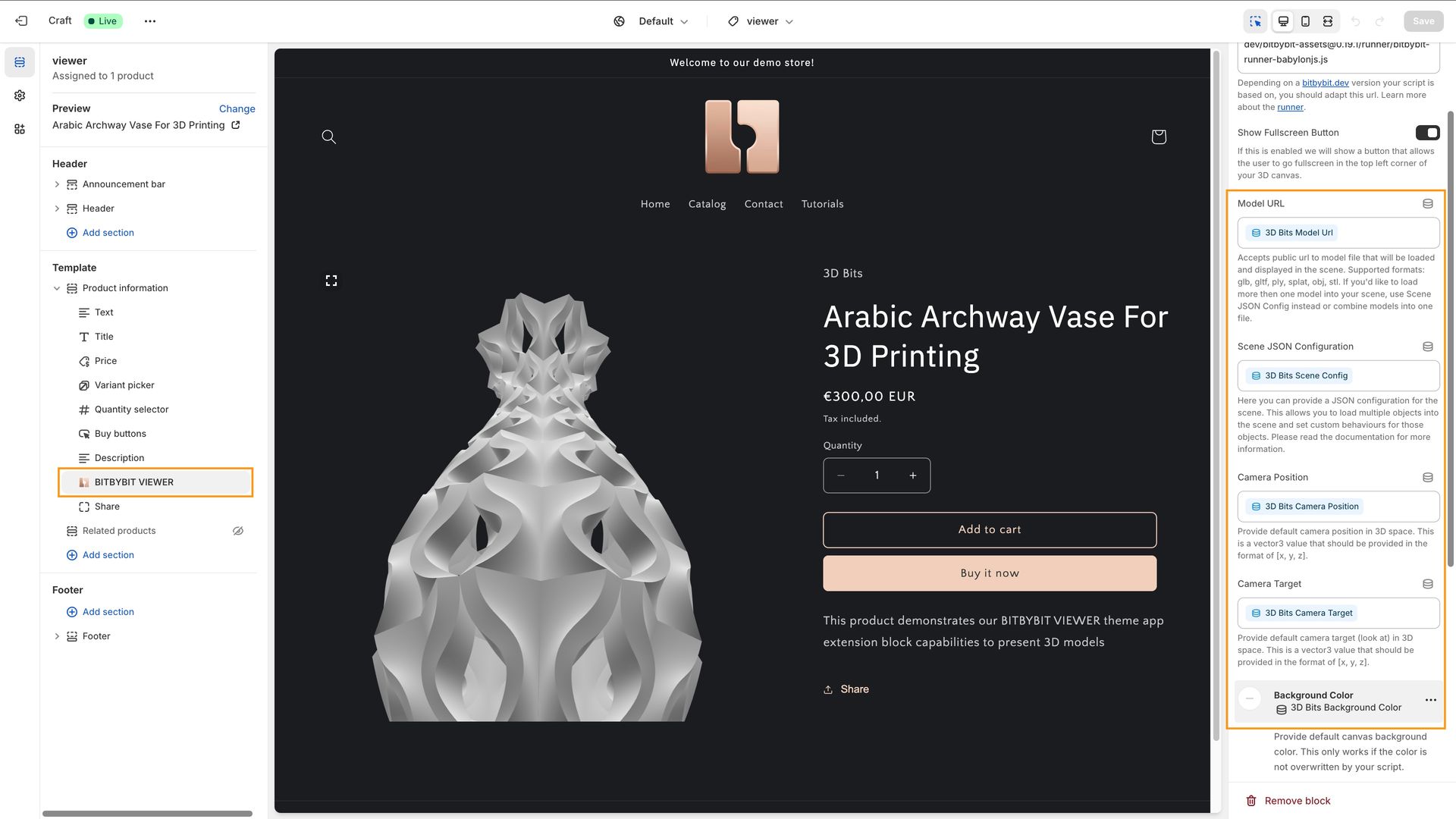 BITBYBIT VIEWER block after dynamically linking settings to metafields.
 -
Enter the Model URL in Product Metafields:
- Navigate to the specific product in your Shopify admin where you want to display the 3D model.
- Find the "Metafields" section for that product.
- Locate the "3D Bits Model Url" metafield.
- Paste the public URL of your 3D model file into this metafield.
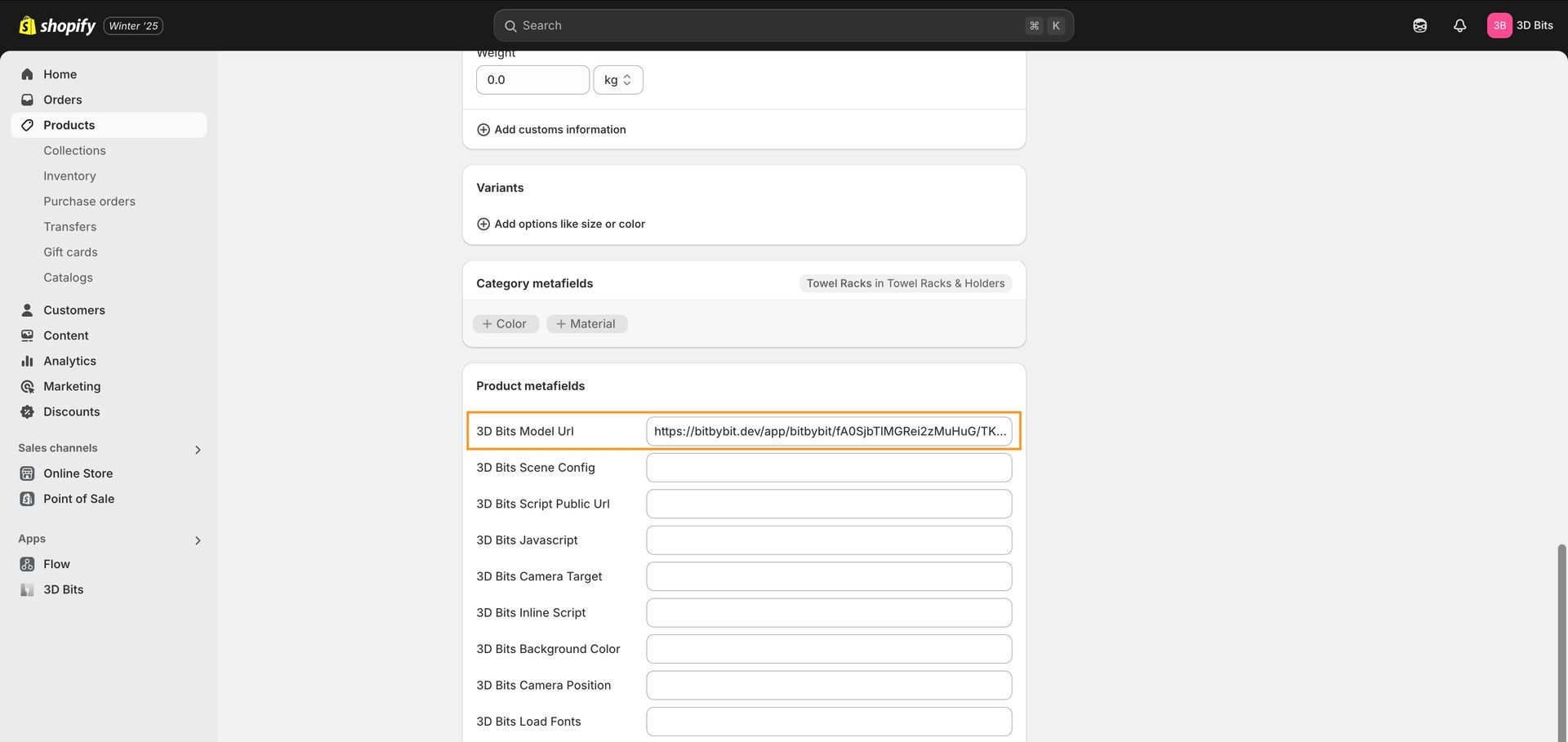 Paste your file URL into this metafield.
After completing these steps and previewing your product page, you should see the 3D model displayed.
-
Building More Complex 3D Experiences with Viewer Editor
Sometimes, simply loading a single 3D model isn't enough. You might want to:
- Customize camera settings (initial position, target, field of view).
- Set up specific lighting (types, intensity, color, position).
- Enable a skybox for realistic environment reflections.
- Load multiple 3D models into the same scene.
- Make different 3D models or their properties react to changing Shopify product variants (e.g., show a red chair model when the "Red" variant is selected, and a blue one for "Blue").
- Define points of interest
This is where the Scene Config JSON functionality comes in. We have recently released a new Viewer Editor tool within the "3D Bits" app that allows you to create this JSON configuration through a simple, visual user interface. With this editor, you can load multiple 3D models, adjust camera settings, enable skyboxes, configure lighting, add shadows, and more, all without writing code.
In-Depth Tutorial: Viewer Editor & Chair Configurator We highly recommend watching this tutorial where Matas explains how to use the Viewer Editor and set up an interactive 3D chair configurator using Scene Config JSON:
The Viewer Editor Interface: Here's a glimpse of how the Viewer Editor looks within the "3D Bits" app environment:
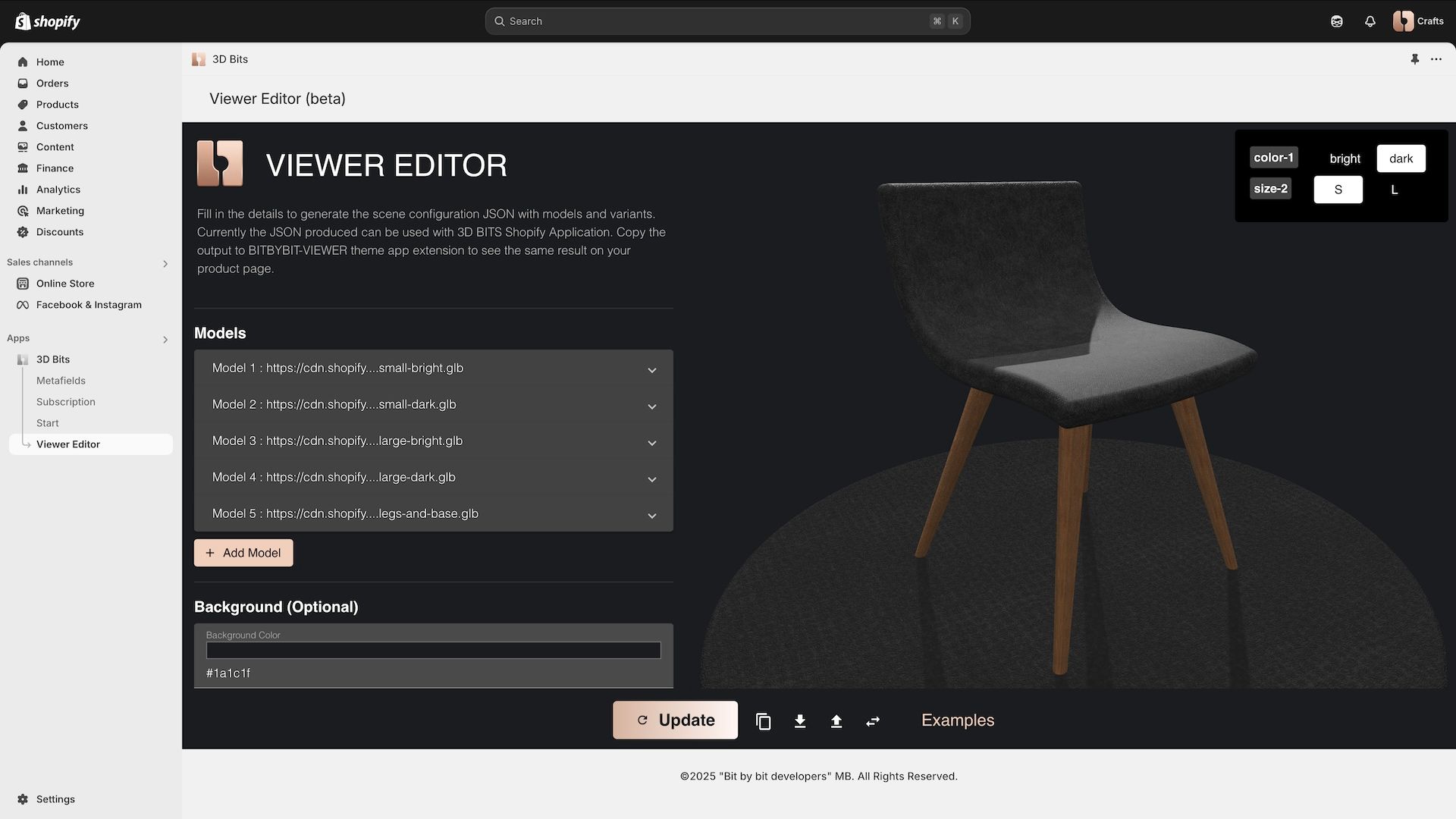 Viewer editor that helps create 3D scene configurations.
Using the Scene Config JSON:
-
Use the Viewer Editor tool to create your desired scene configuration.
-
The editor will generate a JSON output.
-
Copy this entire JSON string.
-
In your Shopify product admin, paste this JSON configuration into the product metafield named "3D Bits Scene Config".
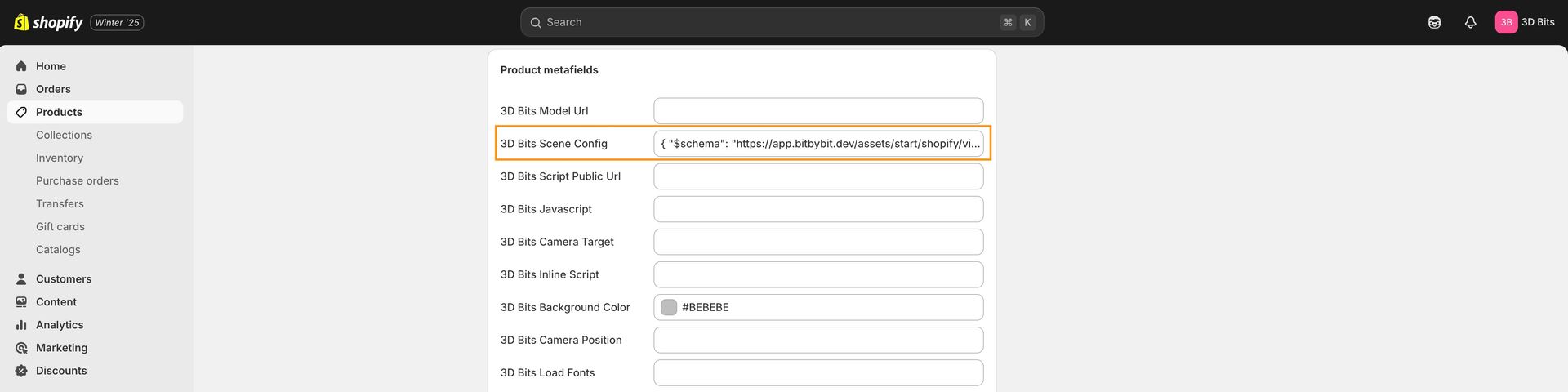 Paste your Scene Configuration JSON into this metafield.
If you've configured the BITBYBIT VIEWER block in your product template to dynamically link its "Scene Config JSON" setting to this metafield, the viewer will use your JSON to render the complex scene.
Example Output with Scene Config JSON:
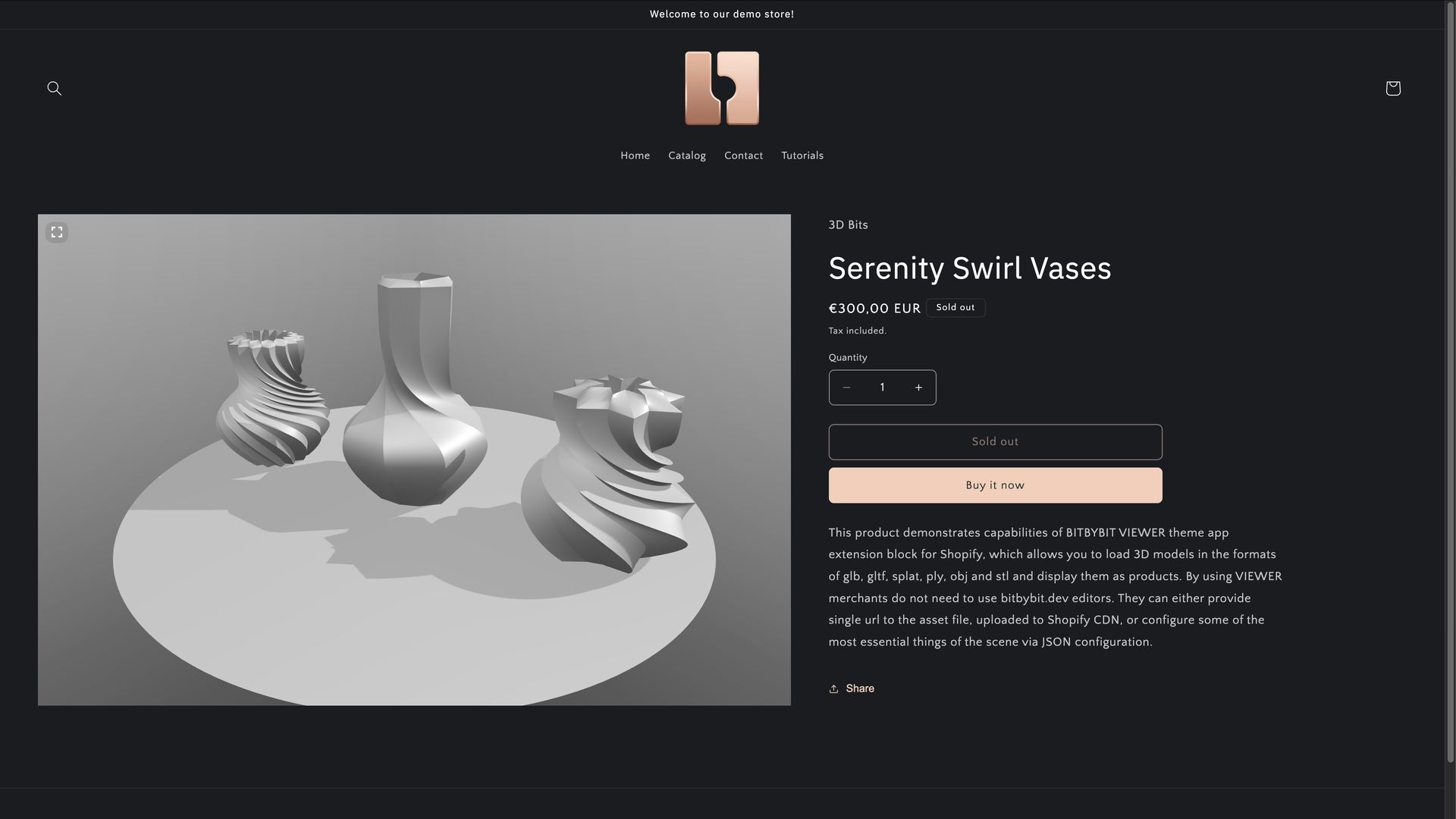 Demo store product that uses the BITBYBIT VIEWER block and Scene Configuration metafield.
What if JSON is too large for the metafield?
Save your JSON configurator as a file, upload it to Shopify CDN as a file. Copy URL and paste it into the metafield, this will inform 3D Bits app to load the contents of the file.
Editing the Scene Config JSON
While our Viewer Editor is the recommended way to create and manage the Scene Config JSON, you can also edit the JSON directly using any text editor. For a better editing experience with features like syntax highlighting and autocompletion (intellisense), we provide a JSON schema.
- JSON Schema: You can find the schema [here](https://app-store.bitbybit.dev/files/ecommerce/viewer-editor/viewer-scene-schema-v1.1.0.json). (Note: This schema link points to version
<Version />. The schema may be updated in the future, so ensure you refer to the latest version compatible with your "3D Bits" app version.) Many modern code editors (like VS Code) can use this schema to provide validation and autocompletion as you edit the JSON.
Video Tutorial: BITBYBIT VIEWER Block Setup
For a comprehensive step-by-step guide on setting up and using the BITBYBIT VIEWER block, please watch this tutorial:
The BITBYBIT VIEWER block, especially when combined with the Scene Config JSON generated by our Viewer Editor, provides a powerful yet accessible no-code solution for creating sophisticated 3D product presentations on your Shopify store.