Adding Models to Your Scene
Models are the foundation of your 3D configurator. This guide covers everything you need to know about adding 3D assets to the Viewer Editor.
Quick Start
To add a model:
- Click the + Add Model button in the toolbar
- Enter your model's public URL
- Give it a name (e.g., "Chair Frame")
- Click Update
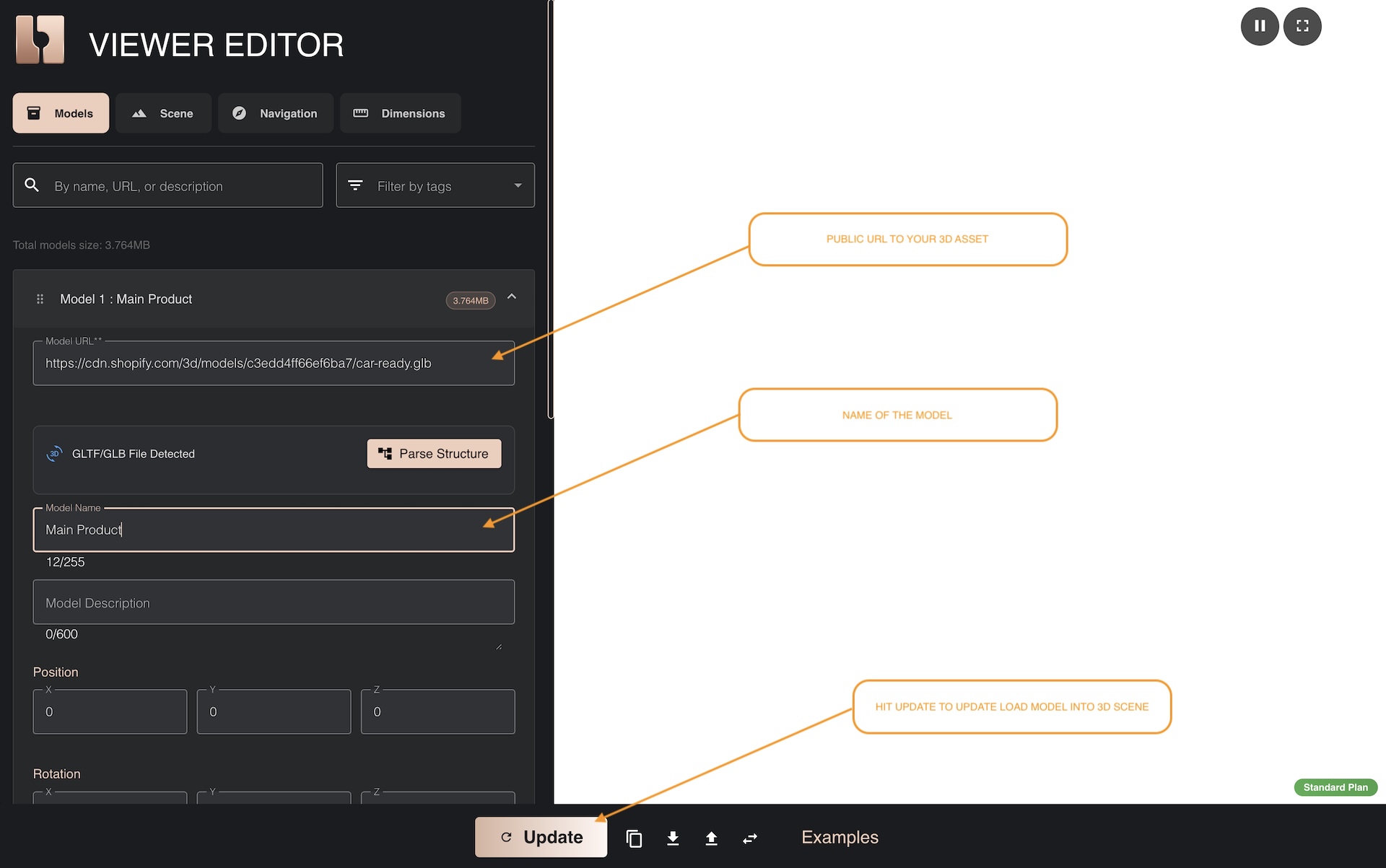
The model will load in the viewport. Depending on file size and your connection, this may take a few seconds.
Model URL Requirements
Your 3D model must be hosted on a publicly accessible URL with these requirements:
URL Format
- ✅ Must use HTTPS (secure connection)
- ✅ Must be publicly accessible (no authentication required)
- ✅ Must point directly to the model file
- ❌ Cannot be HTTP (insecure)
- ❌ Cannot require login or API keys
Example Valid URLs
https://cdn.shopify.com/s/files/1/0123/4567/files/chair.glb
https://your-cdn.com/models/product.glb
https://storage.googleapis.com/bucket/model.glb
Testing Your URL
Before adding to the editor, test your URL:
- Open it in a web browser
- The file should download automatically
- If you see an error, the URL isn't accessible
3D assets used in web configurators must be publicly accessible, just like product images on your website. Before uploading any 3D models, it's essential to understand the security implications and what this means for your intellectual property.
Hosting Your Models
You need to host your 3D files somewhere accessible. Here are common options:
Shopify CDN (Recommended for Shopify Users)
Advantages:
- Built into Shopify
- Fast global delivery
- No extra cost
- Easy management
Steps:
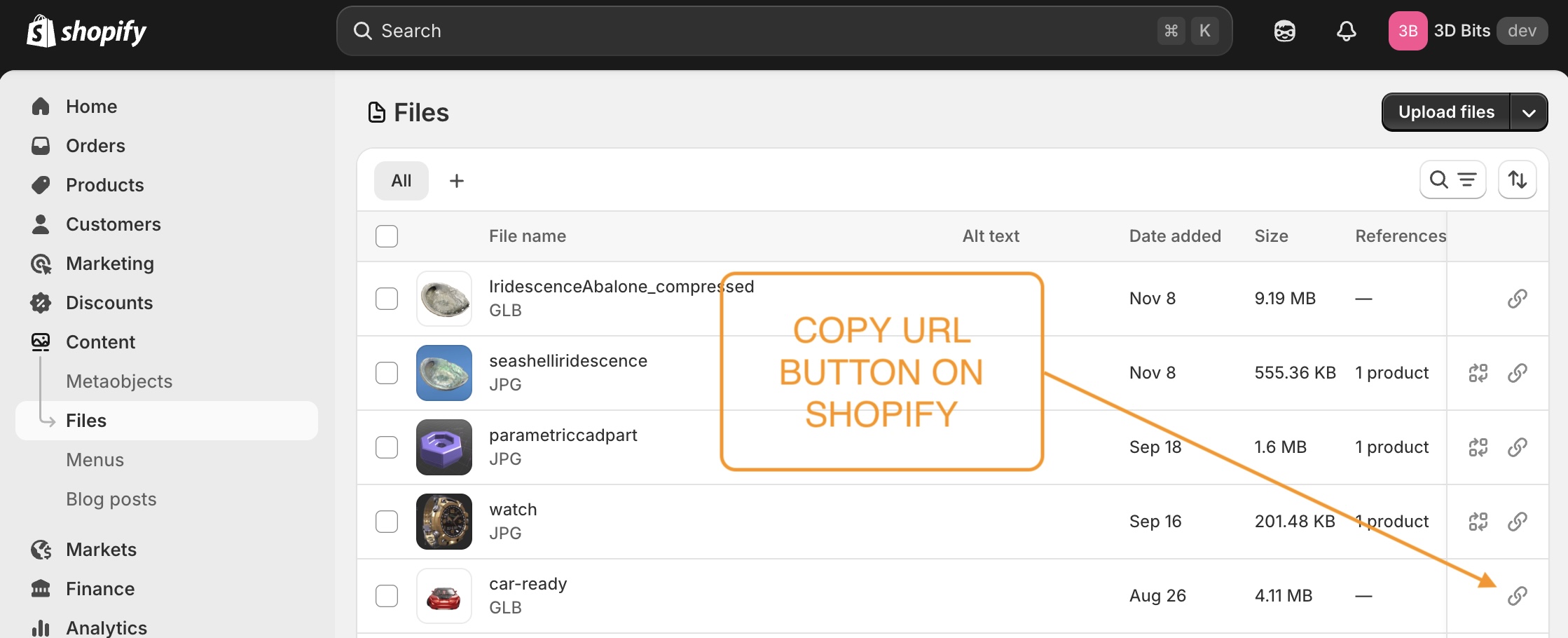
- In Shopify admin, go to Content → Files
- Click Upload files
- Select your GLB/GLTF file
- After upload, hover on the uploaded 3D model item in the list to see copy URL button on the right side
- Paste the URL to Viewer Editor and see it in Viewer Editor
Files uploaded to Shopify's CDN are publicly accessible by anyone who has the URL. This is necessary for web browsers to load your 3D models, but it also means you should only upload models that are safe to be public. Never upload production CAD files with sensitive engineering data.
Third-Party CDN Services
Popular Options:
- AWS S3 - Highly scalable, pay-per-use
- Google Cloud Storage - Good global coverage
- Cloudflare R2 - No egress fees
- DigitalOcean Spaces - Simple and affordable
Requirements:
- Set CORS headers to allow browser access
- Make bucket/container public or use signed URLs
- Use a CDN distribution for better performance
Your Own Server
You can host on your own web server, but ensure:
- HTTPS is configured
- CORS headers are set correctly
- Bandwidth can handle traffic
- Server has good uptime
Hosting 3D models on your own server can result in significantly slower loading times compared to CDN solutions like Shopify CDN. Here's why:
Geographic Distance:
- Your server may be in one location (e.g., Europe)
- Customers worldwide experience delays based on physical distance
- A customer in Australia may wait 2-5 seconds longer than one near your server
No Global Caching:
- CDNs store copies of your files in data centers worldwide (100+ locations)
- Your server serves from a single location
- Each request travels the full distance to your server
Limited Infrastructure:
- CDNs handle millions of requests simultaneously
- Typical web servers have limited concurrent connections
- Peak traffic can overwhelm your server, causing timeouts
Real-World Impact:
- Shopify CDN: 0.5-2 seconds typical load time globally
- Self-hosted server: 2-10+ seconds depending on customer location
- Result: Higher bounce rates, lower conversions, poor user experience
Recommendation: Use Shopify CDN (free with your store) or a dedicated CDN service (AWS CloudFront, Cloudflare, etc.) for production stores.
Required CORS Headers:
Access-Control-Allow-Origin: *
Access-Control-Allow-Methods: GET
Supported File Formats
The Viewer Editor supports multiple 3D file formats:
GLB (Recommended) ⭐
Best For: Production use, eCommerce products
Advantages:
- Single file (geometry, textures, materials all included)
- Smallest file size
- Fastest loading
- Industry standard for web 3D
- Supports PBR materials
- Supports material variants
File Extension: .glb
Typical Size: 1-20 MB for product models
GLTF
File Extension: .gltf with separate .bin and texture files are not supported and can't be loaded via Viewer Editor. .gltf that contains all textures in one file is supported.
For production, always use GLB. Convert GLTF to GLB using tools like Blender or Read our Guide to preparing GLTF files.
Other Supported Formats
| Format | Extension | Best Use Case | Notes |
|---|---|---|---|
| SPLAT | .splat | Gaussian splatting, photorealistic captures | Well supported, use compressed files |
| OBJ | .obj | Legacy models | We advise against using this file type |
| STL | .stl | CAD models | No color or materials, pure mesh, we advise agains using this file type |
3DGS is well supported and particularly valuable for stores with fast-changing merchandise that's difficult or time-consuming to model traditionally:
Ideal Use Cases:
- Handmade items - Unique sculptures, pottery, artisan crafts
- Floristic compositions - Fresh flower arrangements, bouquets, wreaths
- Natural products - Stones, crystals, driftwood, organic shapes
- Food products - Cakes, pastries, decorated desserts
- Vintage/antique items - One-of-a-kind pieces with complex details
- Custom artwork - Paintings with texture, mixed media art
Advantages:
- Capture real products with a smartphone camera (60+ photos from all angles)
- Process quickly with tools like Scaniverse, Luma AI or Polycam
- Photorealistic quality captures real textures and lighting
- No 3D modeling skills required
- Update product catalog rapidly
Limitations:
- No variant support (each variation needs separate capture)
- Usually larger file sizes than optimized GLB models
- Hard to modify materials or colors after capture
- Limited to what was photographed
When to Use GLB Instead: Products with predictable variants (colors, materials, sizes) benefit from traditional modeling with material variants.
Non-GLTF formats (except SPLAT for specific use cases) don't support material variants, node visibility control, or advanced features. Use GLB when possible for configurable products.
Model File Size Guidelines
For optimal performance:
| Model Complexity | Recommended Size | Maximum Size |
|---|---|---|
| Simple products | < 2 MB | 5 MB |
| Detailed products | 2-10 MB | 20 MB |
| Complex scenes | 10-30 MB | 50 MB |
Optimization Tips:
- Compress textures (use JPEG for non-transparent, WebP for transparent)
- Reduce polygon count without losing detail
- Use Draco compression for GLB files
- Remove hidden geometry
- Share materials where possible
Read our Guide to preparing GLTF files
While well-prepared 3D GLTF files run fine on most mobile phones, it's important to take precautions. When preparing 3D models and including them in your webshops, make sure you test the page on the most popular mobile devices too. Large asset files combined with high-resolution shadows may crash mobile phone browsers. Safari browsers on iPhone are the most susceptible to crashes when Random Access Memory (RAM) limits are exceeded. Apple has set a low threshold for websites running on iPhone, and whenever that memory limit is hit, the website will experience something called an "unexpected reload". If you're not careful with your assets, skybox textures, or shadow resolutions, you run the risk of experiencing this error. Desktop browsers, iPads, and Android phones will probably not experience these issues, but we advise you to make the experience lightweight for everyone.
If you're using BITBYBIT VIEWER with Viewer Editor, the 3D Bits app on Shopify also takes precautions on iOS Safari browsers. Whenever we detect that your models exceed a 70 MB limit, we stop the scene from rendering and provide an explanation of why this happens (this is subject to change in the future). This safeguard exists because loading extremely large assets (100+ MB) on high-traffic pages like homepages without proper testing can crash the browsing experience for iPhone users, potentially affecting sales and customer experience. To prevent such scenarios, we've implemented automatic size checks that disable rendering of oversized assets in iPhone Safari browsers until they're properly optimized.
Adding Multiple Models
You can add as many models as needed:
- Click + Add Model for each model
- Each appears in the Models List (left panel)
- Models are rendered in the order they appear
- Drag to reorder if needed
Use Cases for Multiple Models:
- Different product components (frame + cushion)
- Variant-specific parts (small, medium, large sizes)
- Accessories that appear conditionally
- Background/environment elements
- The need to combine GLB and 3DGS splat files in one environment
For products with multiple material/color options, use a single GLB file with KHR_materials_variants instead of loading separate models for each variant:
Why Single Model is Better:
- Textures load once - Shared textures (like base geometry) are downloaded only one time
- Faster performance - Less memory usage, quicker variant switching
- Smaller total size - No duplicate geometry or texture data
- Smoother experience - Instant material switching vs loading new models
Example: A chair available in 5 fabrics:
- ❌ Inefficient: 5 separate GLB files (each ~5MB) = 25MB total download
- ✅ Efficient: 1 GLB with 5 material variants (~6MB total) = Only shared textures stored once
How to Set Up:
- Use Blender's KHR_materials_variants addon to configure material variants
- Export single GLB file with all material options
- Load once in Viewer Editor
- Configure variant matching to switch between materials
When to Use Multiple Models:
- Completely different geometries (not just material changes)
- Different product accessories or add-ons
- Combining GLB with SPLAT files
- Size variants that change shape significantly
Model Naming Best Practices
Give your models clear, descriptive names:
Good Names:
- ✅ "Chair Frame"
- ✅ "Cushion Red"
- ✅ "Table Top Oak"
- ✅ "Leg Assembly"
Poor Names:
- ❌ "Model 1"
- ❌ "Untitled"
- ❌ "glb_export_final_v2"
- ❌ "temp"
Why It Matters:
- Easier variant matching configuration
- Better organization with many models
- Clearer for team collaboration
- Simpler debugging
Handling Load Errors
If your model fails to load:
Error: "Failed to fetch"
Cause: URL not accessible
Fix:
- Verify the URL in a browser
- Check HTTPS is used
- Ensure no authentication required
Error: "Invalid format"
Cause: Unsupported or corrupted file
Fix:
- Verify file extension
- Re-export from 3D software
- Check file isn't corrupted
Error: "File too large"
Cause: File exceeds size limit
Fix:
- Compress textures
- Reduce polygon count
- Use Draco compression
- Split into multiple models
Model loads but looks wrong
Possible Issues:
- Missing textures
- Far from origin - make sure that your model is positioned on x 0, y 0 and z 0 in Blender or other modeling tools.
- Incorrect materials (verify PBR settings)
- Wrong scale (adjust in Model Properties or in original modeling software)
- Incorrect orientation (rotate in properties)
Loading Time Factors:
- File size (larger = slower)
- Internet speed
- CDN performance
- Browser performance
Initial Transform Settings
In the Add Model dialog, you can optionally set:
Position - [x, y, z] coordinates
- Default:
[0, 0, 0] - Example:
[5, 0, -2]moves model 5 units right, 2 units back
Rotation - Euler angles in degrees [x, y, z]
- Default:
[0, 0, 0] - Example:
[0, 45, 0]rotates 45° around Y axis
Scaling - Scale factors for each axis
- Default:
[1, 1, 1] - Example:
[0.5, 0.5, 0.5]makes model half size - Example:
[-0.5, 0.5, 0.5]makes model half size and flips it on X axis
You can leave these at defaults and adjust them in Model Properties after loading.
Next Steps
After adding models:
- Model Properties - Configure position, rotation, scaling.