The "Draw" Category: Making Geometry Visible

How Drawing Works in Bitbybit
We've previously discussed the concept of drawing (or rendering) and how to frame your thinking about it in this introductory section on drawing. While those examples often focused on the Blockly editor, this section will explain how drawing is handled more generally across all our editors and provide further examples.
Drawing Makes Things Appear on the Screen
Without the "Draw" operations, the results of your geometric calculations and model creation would remain abstract and invisible. Seeing your creations helps you understand the consequences of your programming actions and allows you to visually verify your designs.
Computers, and specifically their GPUs (Graphical Processing Units), are highly optimized for drawing triangulated mesh objects. In Bitbybit, we utilize the powerful BabylonJS game engine for all on-screen rendering. BabylonJS acts as an intermediary, communicating with your computer's GPU through web graphics APIs like WebGL or WebGPU. As a web-based game engine, BabylonJS is optimized for browsers, is open-source, and benefits from a large and active developer community.
Key Points about Drawing in Bitbybit:
- Everything is 3D: While you can create 2D geometry and orient your camera to give a 2D appearance, all objects fundamentally exist in 3D space.
- "Draw" Category is Common: All our main editors (TypeScript, Blockly, Rete) feature a
drawcategory. drawAnyAsync- The Core Component/Function: The most crucial component within this category is often nameddrawAnyAsync(or a similar variant depending on the editor). This versatile function/component is responsible for taking various abstract mathematical or geometric definitions (e.g., an OCCT shape, a list of points, a curve definition) and transforming them into BabylonJS meshes. These meshes are then rendered into your 3D scene and displayed on your 2D monitor.
Drawing in the Rete Editor
The Rete editor has a unique characteristic among our editors regarding drawing:
-
Immediate Drawing (Often by Default): When you add a new component that produces a drawable output (like an OCCT shape), Rete often attempts to immediately draw the result on the screen.
-
Hiding Default Drawn Geometry: You can control this default drawing behavior. For drawable components, access their "generic options" (usually by clicking a small arrow button on the component) and check the "Hide" checkbox.
How to Hide Default Drawing in Rete:
-
Click the arrow button on a component to open its generic options:
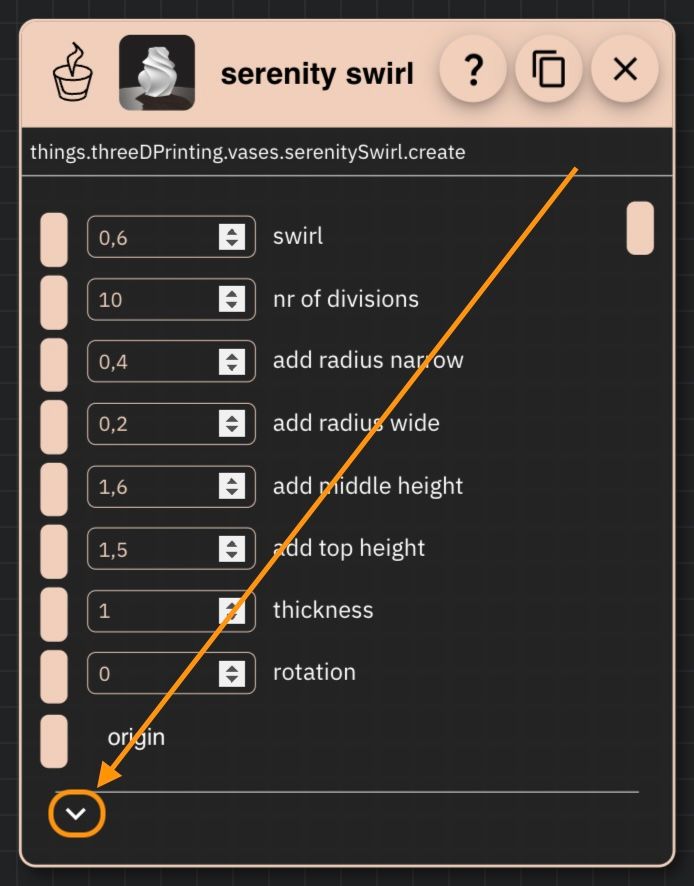 Open generic component options
 -
Enable the "Hide" checkbox:
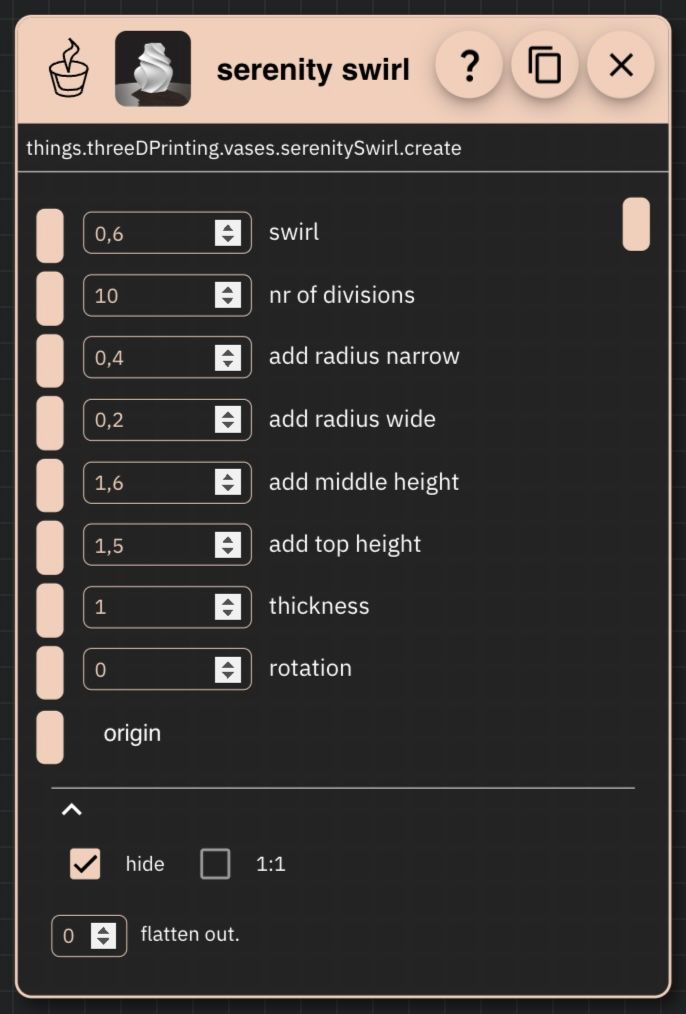 Enable Hide Checkbox
-
-
Not All Components are Drawable: This "Hide" option is only available for components that inherently produce a drawable output. For example, a component that simply creates a boolean value (true/false) won't have anything to draw directly and thus won't have a "Hide" option in its generic menu. (You could, of course, use that boolean value to control other drawable components or create 3D text from it.)
Performance Consideration for Rete: While seeing immediate results is helpful during development, the process of drawing takes time and consumes computing resources. If every drawable step in a complex Rete script is rendered, it can slow down the editor's responsiveness.
- Recommendation: It's advisable to let intermediate steps draw while you are actively coding and debugging a particular part of your script. However, once you are satisfied with a segment, consider using the "Hide" checkbox for those intermediate drawable components. You should, of course, ensure the final result of your script is drawn, as that's usually the primary goal.
Drawing Defaults and Customization in Rete (and other editors)
When a component in Rete (or a function/block in other editors) draws an object by default, it uses predefined drawing options.
- OCCT Default Example: OCCT shapes might default to red faces, or a white vase model might render with visible edges.
- Customizing Appearance: While these defaults are useful for quick visualization, you'll often want to customize the appearance (e.g., draw a face with a different color, render a vase without edges). This is where the
drawAnyAsynccomponent (or its equivalents) becomes essential. It allows you to pass specific drawing options (like color, material, edge visibility, etc.) to control how the final BabylonJS mesh is rendered.
In the other editors (Blockly and TypeScript), drawing is typically more explicit. You will almost always use a "Draw" block or function call (like drawAnyAsync) and will have the opportunity to provide these drawing options directly as part of that operation.
Understanding how to use the "Draw" category and its associated options is fundamental to creating visually appealing and informative 3D experiences in Bitbybit.