STEP Assembly Support: Load, Parse, and Export Professional CAD Files

If you've ever tried to load, edit or create a complex STEP assembly in a web browser, you know how tricky it can be. STEP is the standard format engineers use to share CAD models, but browsers don't understand it natively. You usually need desktop software or a server to convert it.
With Bitbybit v1.0.0, that changes. You can now load STEP assemblies directly in the browser, explore their structure, extract individual parts, and export to web-friendly formats. Everything runs locally using Bitbybit OCCT WebAssembly.
What Can You Do?
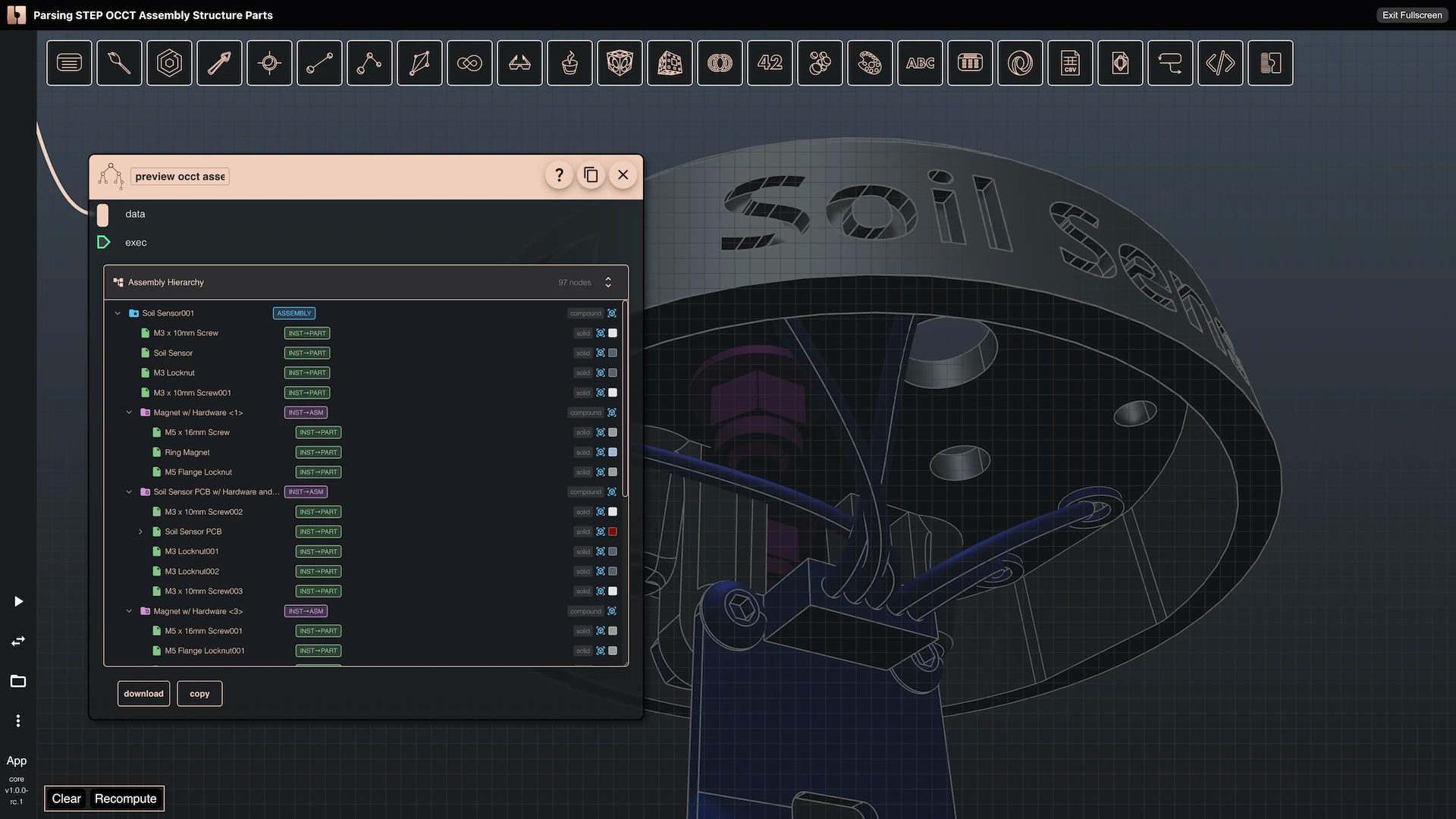
You can load a STEP file and see its full assembly tree, just like you would in FreeCAD or SolidWorks. Each part has a label (something like 0:1:1:3) that you can use to extract that specific piece.
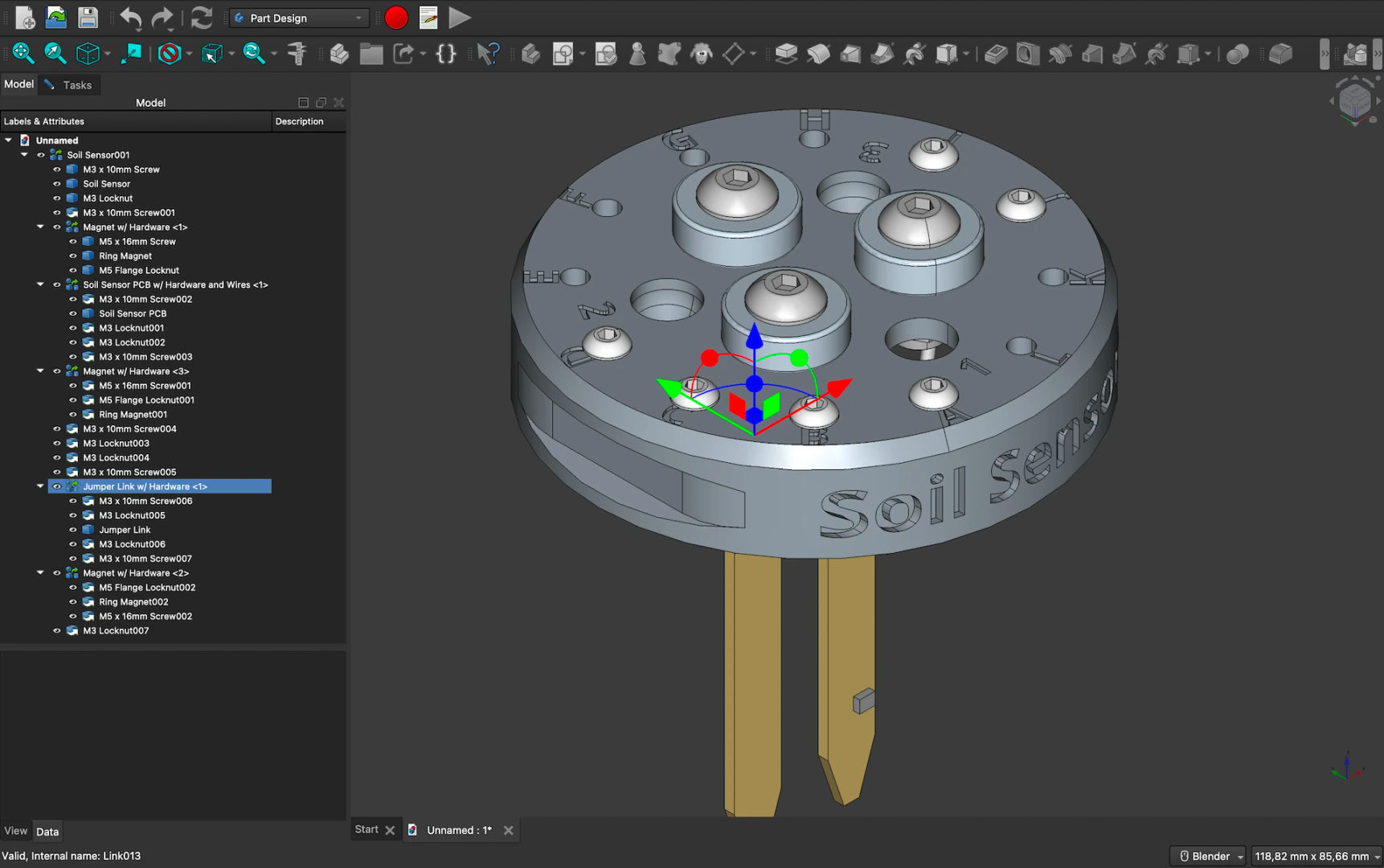
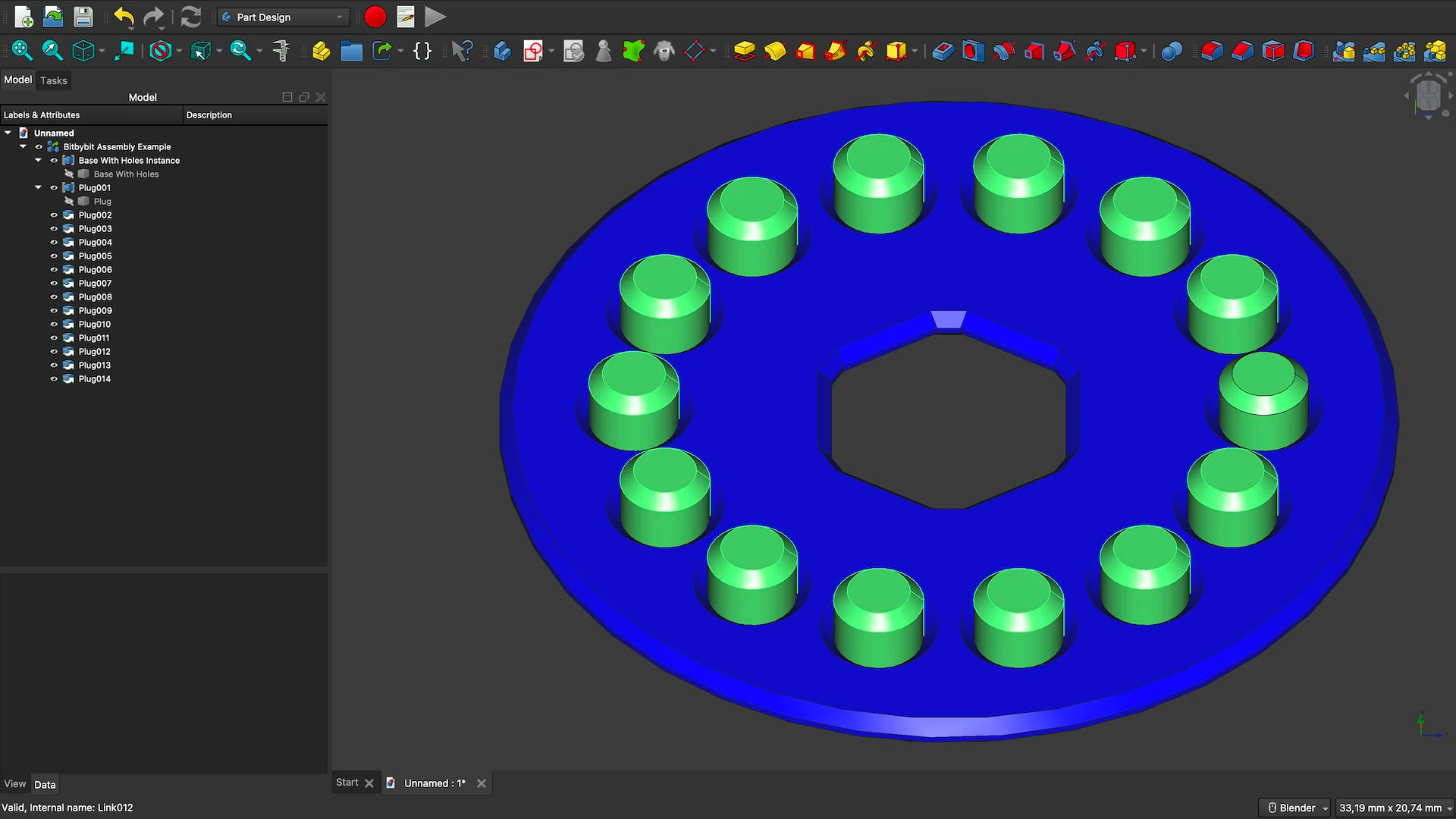
Colors are parsed too. Regular STEP exports lose color data, but we use OCCT's XCAF format to embed colors into the assembly structure. This also works if users export a colored model from Bitbybit and open it in FreeCAD or other CAD software.
You can also convert assemblies to GLTF/GLB format for use in games, web viewers, or AR applications. And since everything happens in your browser, your files never leave your computer.
Parametric Scripts to STEP Assemblies
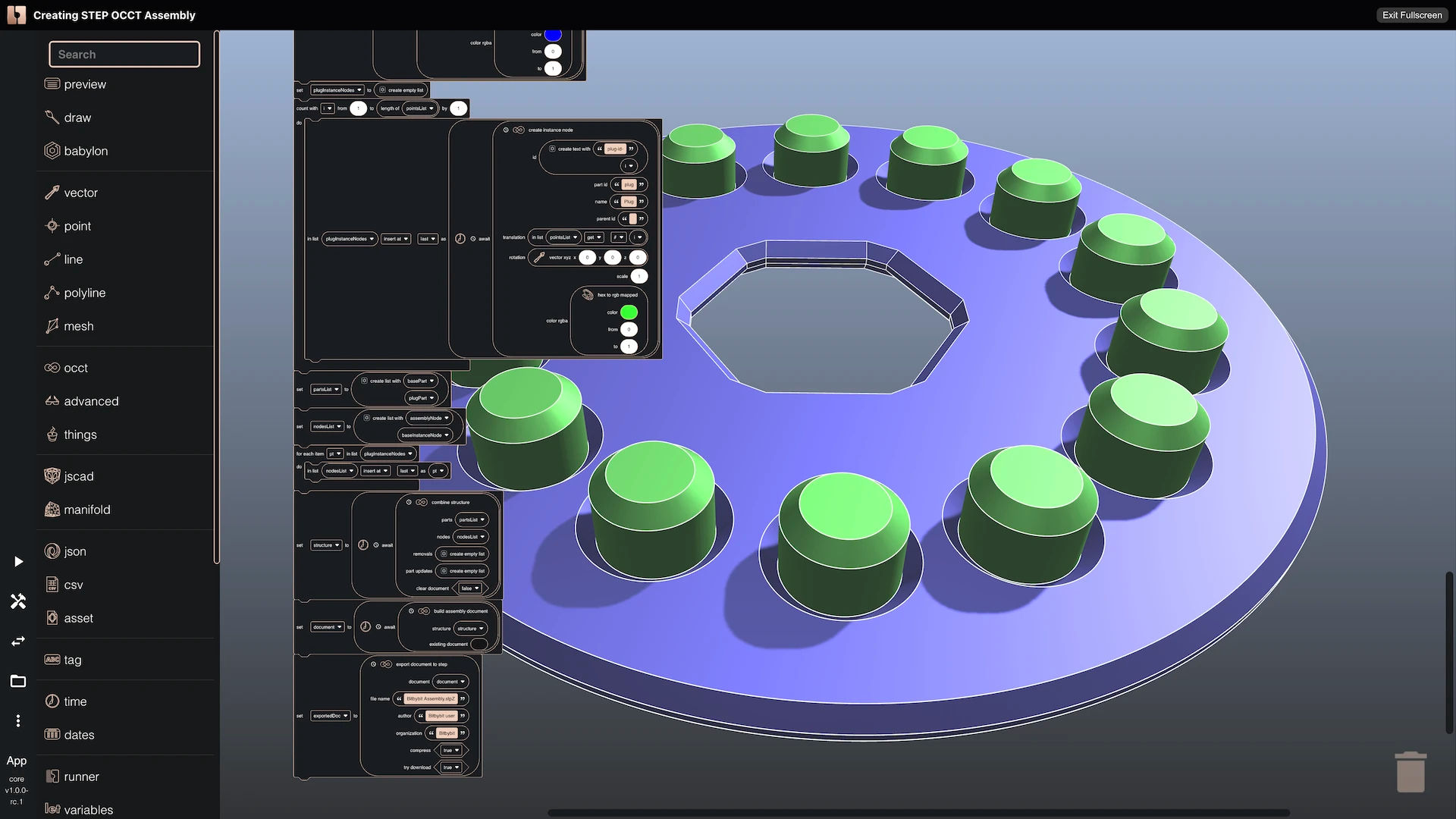
This is where the workflow really shines. You can build parametric geometry in Bitbybit - using visual programming or TypeScript - and export it directly to STEP format with colors preserved. Change a parameter, re-run the script, and download a new STEP file ready for manufacturing or further CAD work.
Imagine a product configurator where customers adjust dimensions, then download a professional CAD file they can send to a machine shop. Or a design tool that generates custom brackets based on user inputs. The geometry is created algorithmically, but the output is the same format that engineers use in SolidWorks or Fusion 360.
Furthermore - part instances and colors are supported, so users of third party CAD applications will be able to load these optimized assets in efficient manner.
Why Does This Matter?
Real products aren't single shapes. A bicycle has wheels, a frame, handlebars. An electronic device has a case, buttons, internal components. Engineers design each part separately, then assemble them digitally.
STEP files preserve this structure. When you load one, you get the full hierarchy of parts and sub-assemblies, along with names, colors, and positions. This is useful for building product configurators, design review tools, or documentation systems where you need to work with individual components.
The API
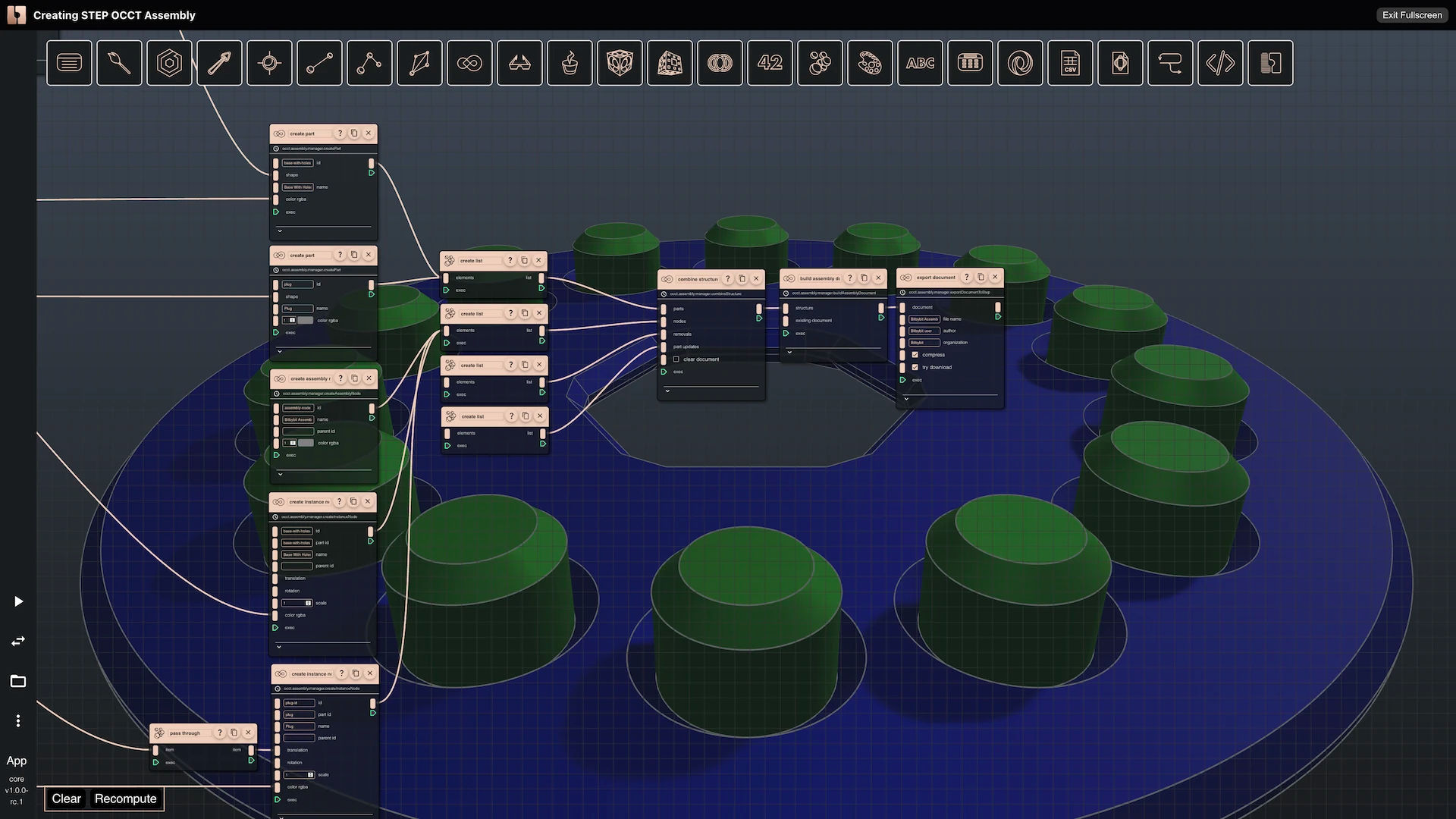
There are two groups of methods. The Manager methods let you build and export assemblies: createPart, createAssemblyNode, createInstanceNode, combineStructure, buildAssemblyDocument, exportDocumentToStep, and exportDocumentToGltf.
The Query methods let you inspect existing documents: getDocumentParts, getAssemblyHierarchy, getShapeFromLabel, getLabelColor, getLabelTransform, and getLabelInfo.
Visual Programming
If you use Rete or Blockly, we've added components for all of this. The hierarchy preview is especially handy - it shows the assembly tree and lets you click on any item to see its label, which you can then use to extract that part.
Your Files Stay Private
Everything runs in your browser. OCCT is compiled to WebAssembly, so parsing and exporting happens locally. Your files are never uploaded anywhere. This matters if you're working with proprietary designs.
Large assemblies need memory. The standard build supports up to 2GB. For complex models, use the 64-bit version (up to 16GB).
Tutorials
We have step-by-step tutorials to get you started:
- Introduction to Assemblies - the basics
- Convert STEP to GLTF - for web viewing
- Parse Assembly Structure - explore parts
- Build and Export Assemblies - create from scratch
- Export Shapes with Color - preserve colors
Each one has examples in Rete, Blockly, and TypeScript.
Example: Load and Display a STEP Assembly
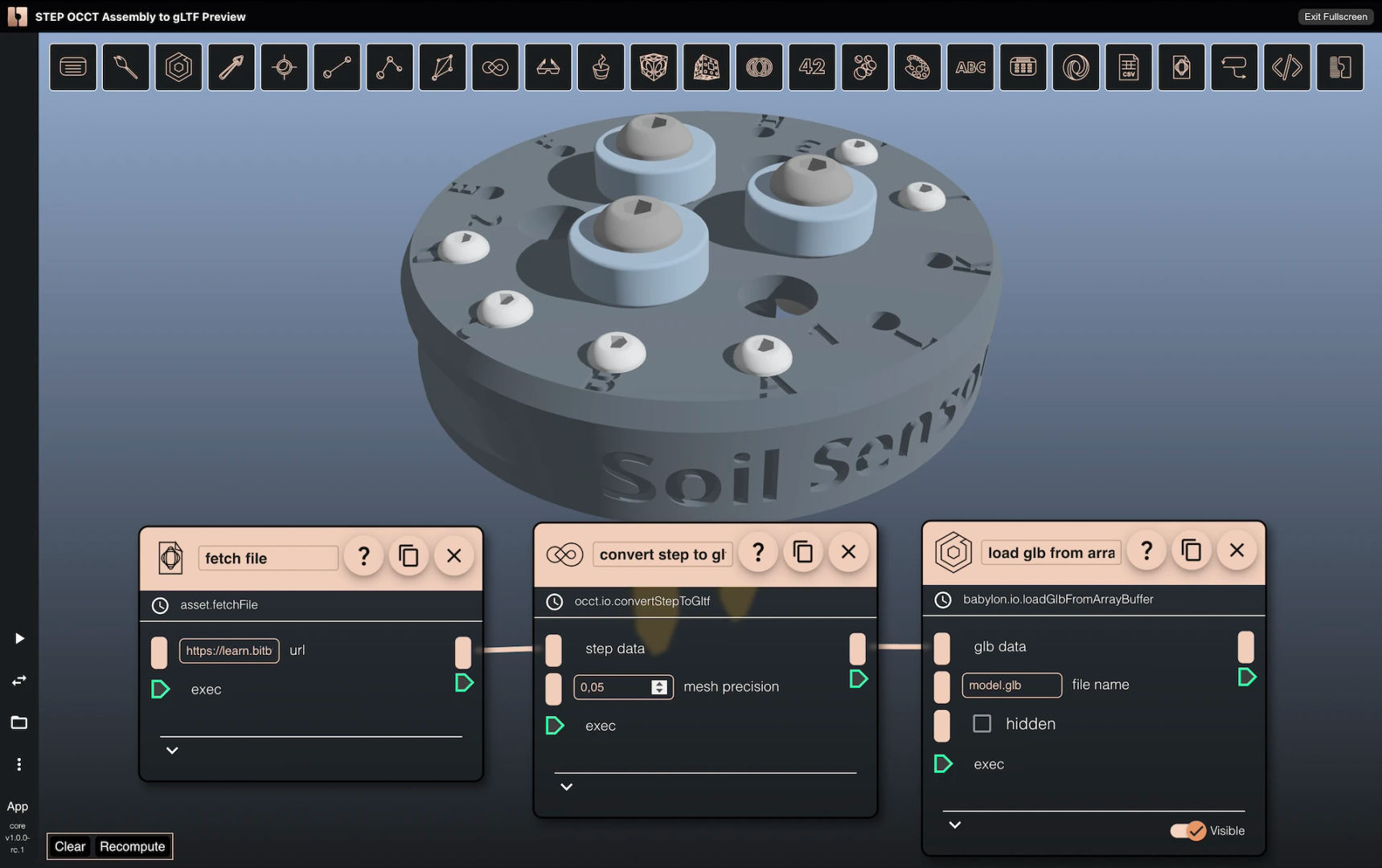
Here's the simplest workflow - load a STEP file and display it in the browser:
// Fetch the STEP file
const stepData = await bitbybit.asset.fetchFile({
    url: "https://learn.bitbybit.dev/files/3d/Soil-Sensor.stpZ"
});

// Convert to GLTF for display
const glbData = await bitbybit.occt.io.convertStepToGltf({
    stepData,
    meshPrecision: 0.05
});

// Load into the 3D scene
await bitbybit.babylon.io.loadGlbFromArrayBuffer({
    glbData,
    fileName: "model.glb"
});
That's it - three function calls to go from a STEP file to 3D model in the browser.
What's Next?
This is a release candidate. We're still adding features and improving coordinate system handling for different CAD conventions. If you find issues or have ideas, let us know on Discord.
Credits
The soil sensor model in our tutorials comes from FarmBot, an open-source CNC farming robot. Their CAD files are public domain.
Ready to try it? Head to the assembly tutorials and load your first STEP file.